Viewing the Collection Status
You can view Last Discovery and Last Metrics Collection details from the page that lists configured integration instances. Detailed metric collection status is provided when you drill into the configuration. This is particularlly useful when metric collection is spread out over longer poll intervals, as it indicates how long collection is taking, as well has how much of it is complete. You can also view current and previous metric collection status from the Configuration tab for the integration. By viewing collection status you can determine how long it is until the end of a collection cycle, if you need to modify the polling interval, etc.
About This Task
The Previous Collection Status field shows the time it took to do the previous collection. Current Collection Status shows the time it took to do the most recent collection. If collection is currently running, the Current Collection Status field shows the completion % and the elapsed time. These fields have a '-' (dash) in them if collection hasn't been done.
Steps
Navigate to Settings > Integrations > PowerMax Integration.
A list of configured PowerMax Integration instances, both subscribed and unsubscribed, displays.
You can view the date and time of the Last Discovery and Last Metrics Collection in this list. The date and time are based on the timezone set for the current user.
Click the name of the integration for which you want to view collection status.
The Configuration page displays details for the selected integration instance, including the Previous Collection Status and Current Collection Status fields.
The Unisphere Version field displays the version of Unisphere that IO is connecting to, if the version information is accessible.
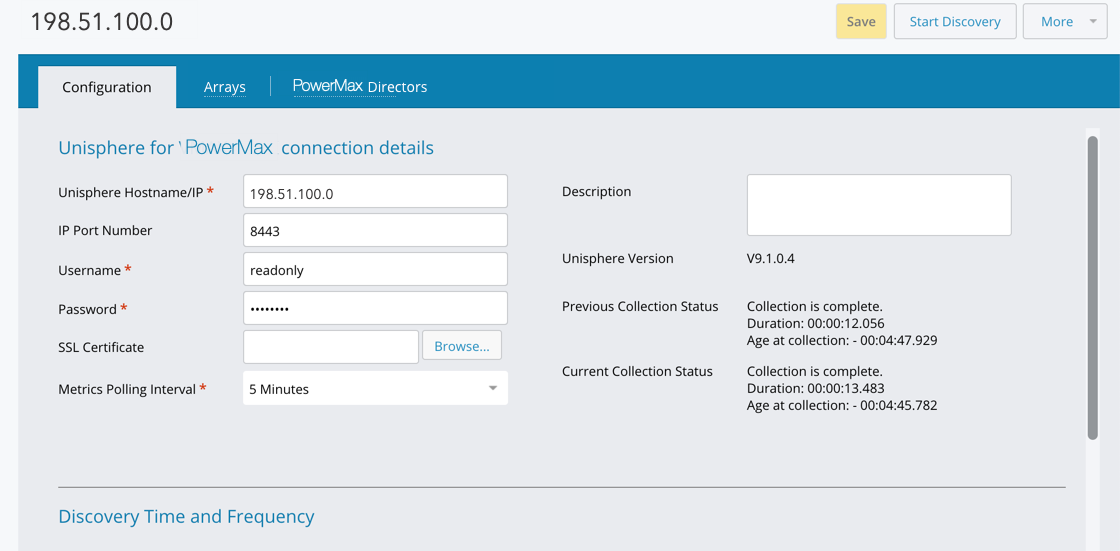
To refresh the counters, exit the page and then return to it.
Collection Configuration
The Collection Configuration page allows you to control discovery and metric collection for individual PowerMax entity types.
Accessing Collection Configuration
Navigate to Settings>Integrations >Dell EMC PowerMax (VMAX).
Select an existing integration and click Edit Integration.
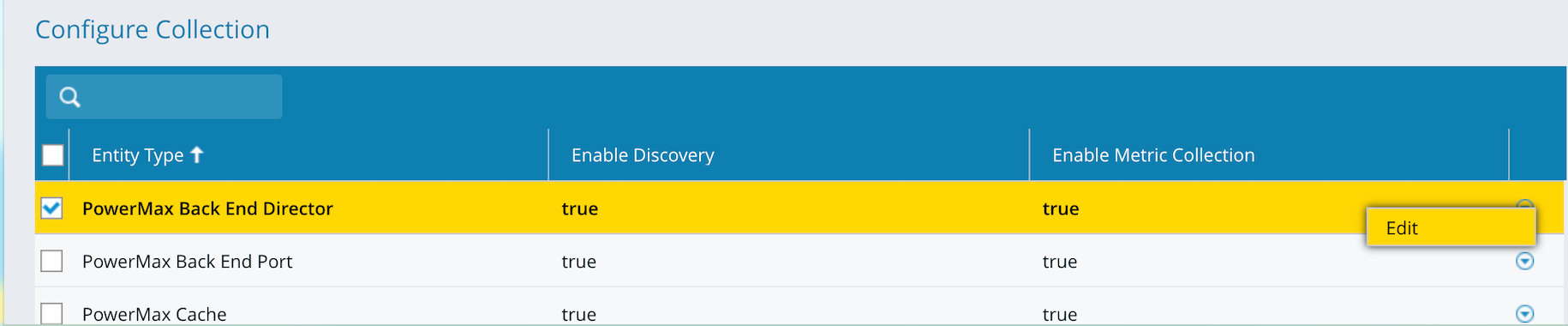
Open the Collection Configuration tab.
Configure Collection Settings
The Configure Collection table lists all supported PowerMax entity types.
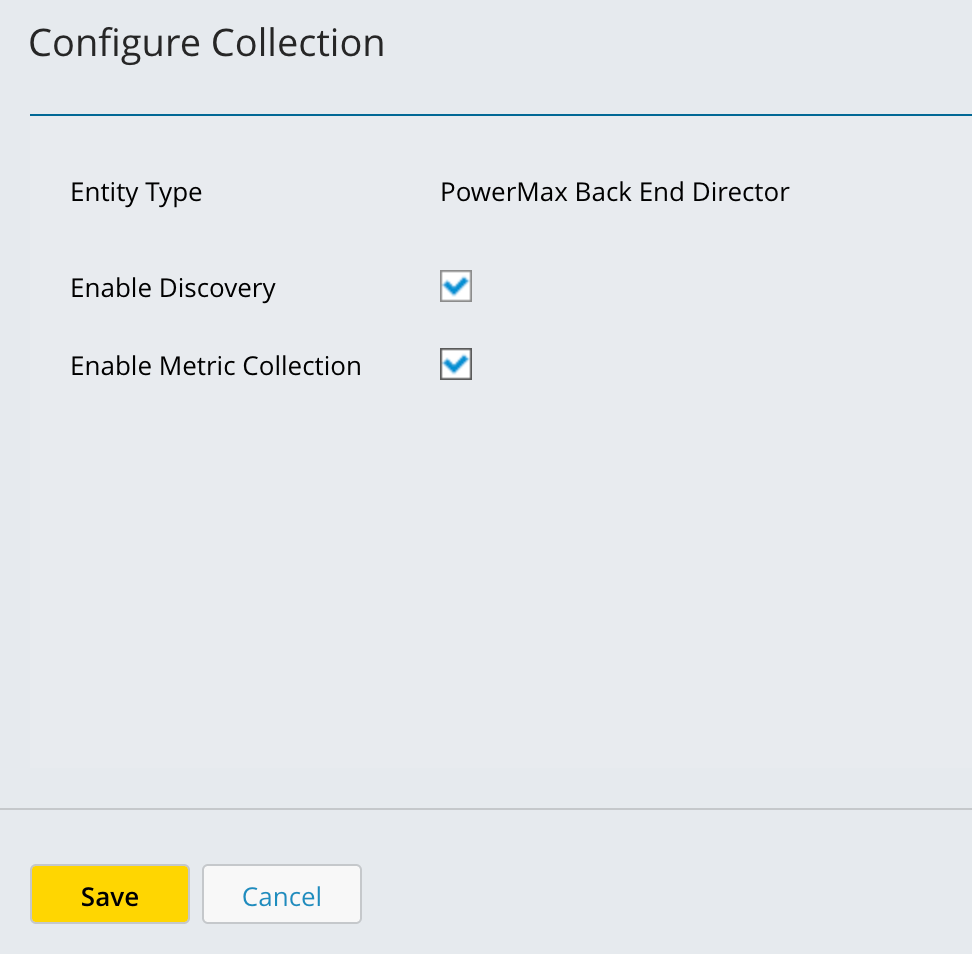
For each entity type, you can independently configure:
Enable Discovery : Controls whether Virtana discovers and maintains inventory for the selected entity type.
Enable Metric Collection: Controls whether performance and capacity metrics are collected for the entity type.
Click Save to apply changes.
Check for New Configuration Settings : If the table is empty or you recently upgraded the integration version:
Click Check for new Configuration settings.
Newly supported entity types and settings will be populated automatically.
Note
This step is required after upgrading the PowerMax integration to ensure all supported entities are visible.