Executing different actions
From the alert detail page in Global View, you can run an action against an alert without leaving the page. An action is a task that an action provider performs on your behalf. Running an action from the alert detail page lets you notify a team, raise a ticket, or remediate the underlying problem while you're still looking at the evidence.
Three types of action providers can appear on an alert, and each one works a little differently. actions send notifications, actions create incidents and events in an IT service management instance, and actions run automation in StackStorm.
Open the Execute Action dialog
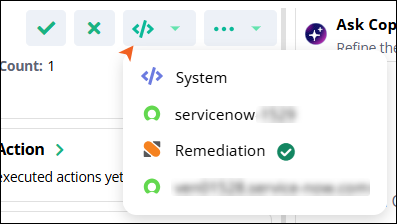
The icon on the alert detail page toolbar opens the Execute Action dialog, which lists every action you can run against the current alert. The icon appears as an angle-bracket symbol between the alert status buttons and the more options () menu.
To open the dialog, follow these steps:
On the Alerts page, click the alert you want to act on.
The alert detail page opens on the Overview tab.
In the toolbar at the top right of the page, click the icon to open the dialog on the default provider.
Confirm that the alert named after For alert: at the top of the dialog is the alert you want to act on.
Action providers available from an alert
An action provider is the system that runs an action. The providers listed on the alert detail page are the ones configured for your organization, so the list you see can differ from the examples in this topic. Each ServiceNow instance appears as its own provider, named for the instance, so you can have more than one ServiceNow entry in the list.
The following table describes the three provider types and points to the procedure for each one.
Provider type | Description |
|---|---|
Built-in notification actions that Virtana Platform supplies. No integration setup is required. | |
IT service management actions that run against one ServiceNow instance. | |
Automation actions that run in StackStorm. Each action belongs to a StackStorm pack, such as |
Note
The action names in this table are examples from a sample environment. The actions available to you depend on which integrations your administrator configured and, for StackStorm, which packs are installed.
Find an action in the Execute Action dialog
The Execute Action dialog is the same for every provider. It lists the available actions in a table, names the alert you are acting on, and gives you two ways to narrow the list: a search box and a provider filter. The counter next to the search box shows how many actions match the current filter.
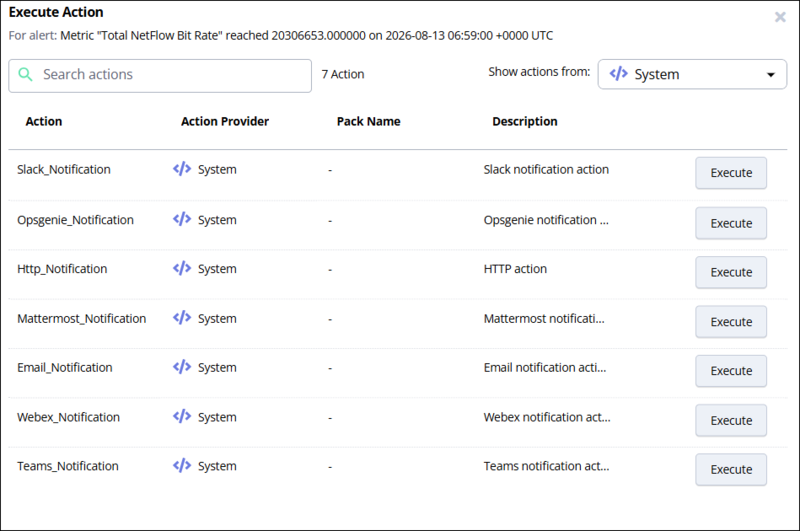 |
The following table describes the controls and columns in the Execute Action dialog.
Controls and column name | Description |
|---|---|
For alert | Names the alert that the action applies to. Every action you run from this dialog is scoped to that alert. |
Search actions | Filters the table as you type. Search matches the action name. |
Show actions from | Filters the table to a single action provider. Selecting a different provider replaces the list and updates the action counter. |
Action | The name of the action, as defined by the provider, for example, |
Action Provider | The provider that runs the action. The icon matches the provider type shown in the provider list. |
Pack Name | For remediation actions, the StackStorm pack that contains the action, for example, |
Description | A short summary of what the action does. Long descriptions are truncated in the table and shown in full on the execution form. |
Opens the execution form for that action, where you set the parameters and run it. |
Set the execution parameters
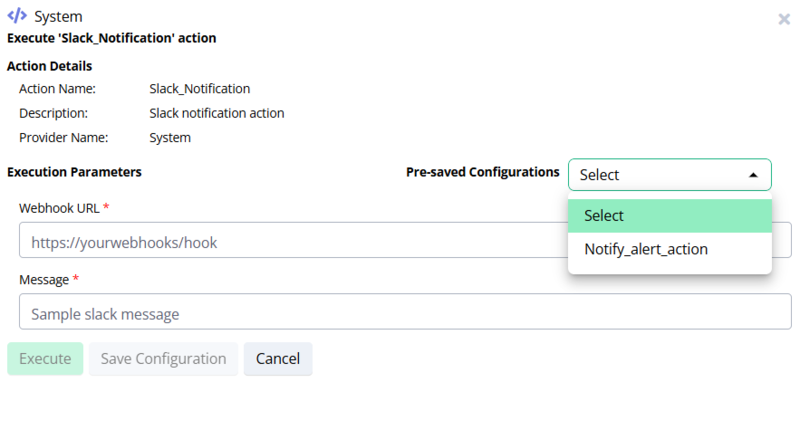
The execution form collects the values that the action needs in order to run. The form opens after you click for an action in the Execute Action dialog, and it's divided into two parts: Action Details, which is read-only, and Execution Parameters, which you fill in.
The Action Details section confirms what you're about to run. It shows the Action Name, the full Description, and the Provider Name.
The Execution Parameters section holds one field per parameter. A red asterisk marks a required parameter. stays unavailable until every required parameter has a value, so the button turning green is your signal that the form is complete.
 |
To complete the form, follow these steps:
Check the Action Details section to confirm the action name and provider.
Enter a value for each parameter marked with a red asterisk.
Click .
Note
Parameter names, field order, and which parameters are required are defined by the action itself, not by Global View. Two actions from the same provider can present completely different forms.
Add optional ServiceNow fields
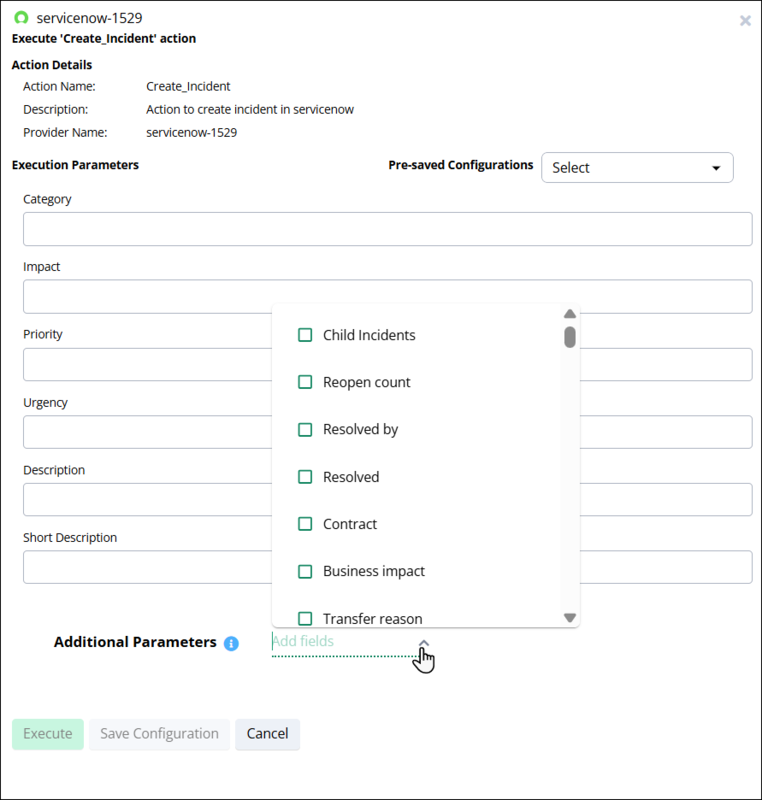
The execution form for a ServiceNow action maps to the fields of the ServiceNow record it creates. For Create_Incident, the form covers Category, Impact, Priority, Urgency, Description, and Short description. The read-only Action Details section above the parameters confirms the Action Name, Description, and Provider Name, which is where you verify the instance.
ServiceNow actions expose more fields than the execution form shows by default. The Additional Parameters section at the bottom of the form lets you add those fields to the form and set them for this run. Additional Parameters appears only for actions that support it, such as the ServiceNow Create_Incident action.
 |
To add optional fields, follow these steps:
Open the execution form for the ServiceNow action.
Check Provider Name in the Action Details section to confirm you are writing to the intended ServiceNow instance.
Enter the ServiceNow classification values, for example,
1for Urgency, Impact, and Priority, andinquiryfor Category. Use the values your ServiceNow administrator defines for these fields.Next to Additional Parameters, click .
Select the checkbox for each field you want to add, for example, Business impact, Child Incidents, or Contract. Scroll the list to see all available fields.
Click outside the list to close it. The selected fields appear on the form.
Enter a value for each field you added.
Click .
Note
The fields in the list come from the connected ServiceNow instance, so the list reflects that instance's incident table, including any custom fields.
Execute an action and view the result
Clicking on the execution form sends the action to the provider and closes the form. Global View records the run against the alert, so you can confirm from the alert detail page that the action ran and see what it returned.
The Executed Action card on the Overview tab of the alert detail page lists the actions run against that alert. When no action has run yet, the card reports that there are no executed actions. Click the arrow on the Executed Action card heading to open the full list of runs with their details.
To run an action and check the result, follow these steps:
On the execution form, click .
The form closes, and the action is sent to the provider.
On the alert detail page, open the Overview tab.
Click the arrow next to Executed Action to open the list of runs for this alert.
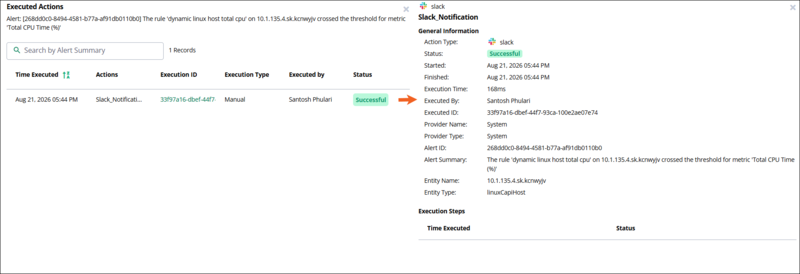
Review the status of the run.
If the action failed, correct the parameter values and run it again.
To cancel without running the action, click on the execution form. Global View discards the values you entered and doesn't contact the provider.