Users Management Tab
In Virtana Platform, the Users Management tab is accessed from the Settings in the title bar.
You must have administrator privileges to access any of the functionality under Settings.
From this tab, you can do the following:
View a list of existing users.
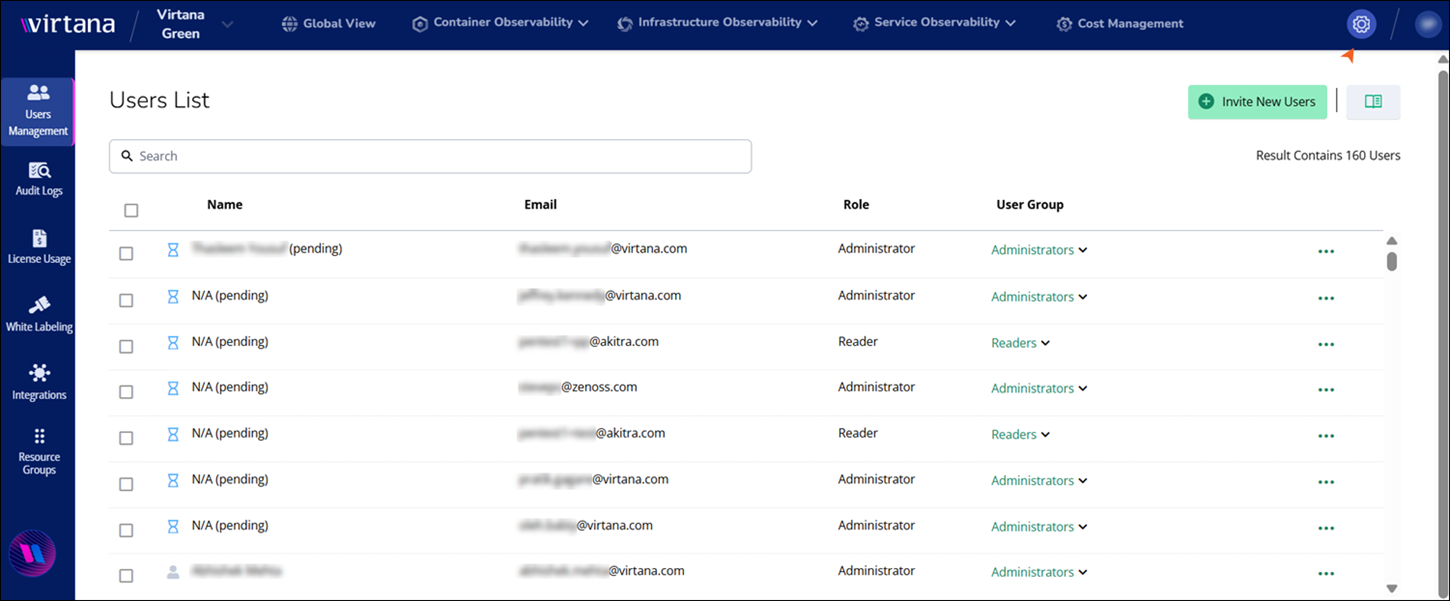
You can view the following information for each user:
Column name
Description
Name
The user’s display name. For pending invitations, the name appears as N/A (pending) until the user completes registration.
Email
The email address used for the invitation or registered account.
Role
The user’s assigned platform role, such as Administrator or Reader.
User Group
The user group that controls access and permissions, such as Administrators, Readers, MSP Administrators, or custom groups. For more information, see User Roles in Virtana Platform.
More actions (
 )
)A menu that lets you resend the invitation or delete the user account.
Invite new users.
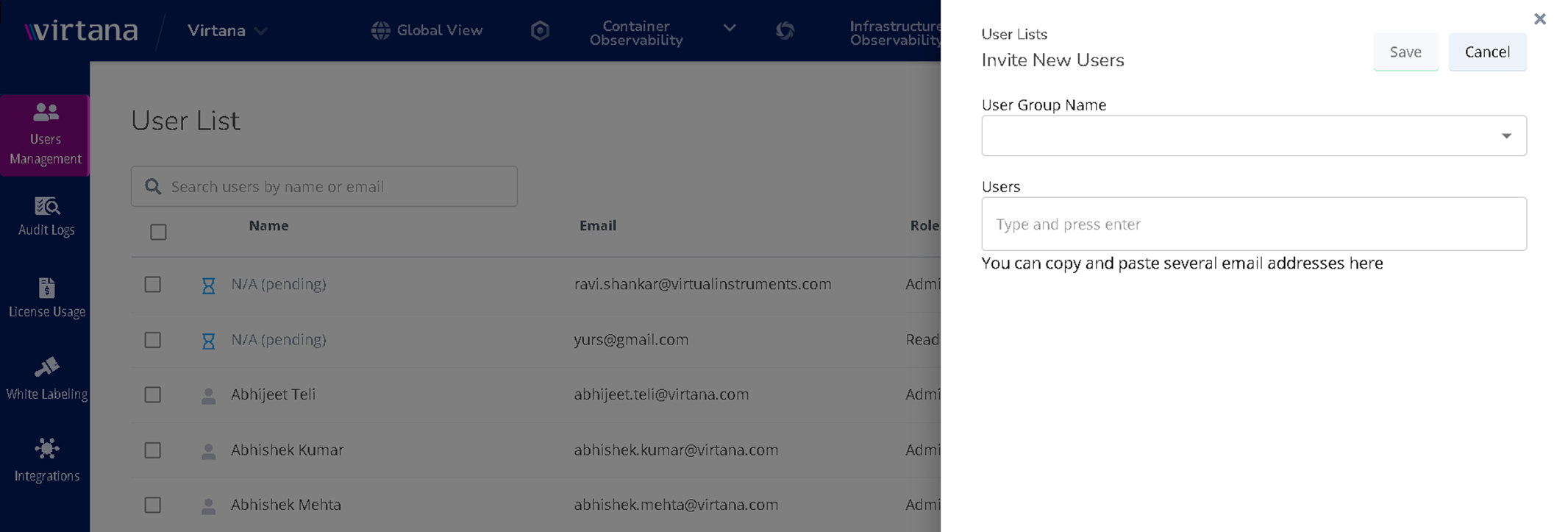
Click Invite New Users, select a User Group Name, enter one or more email addresses, and click Save.
In the Users List page, click Invite New Users.
The Invite New Users window opens.
Select the user group name to assign to the new users, such as Administrators, Readers, MSP Administrators, or custom groups.
Enter the email address of the new user in the Users field.
Note
To enter multiple users email IDs, press Enter after each email address.
Click Save to send invitations, or cancel to close the window without saving.
For more information, see Inviting Users to an Organization.
You can resend an invitation or remove users from an organization.
Click
and select Resend Invitation for a pending user, or select Remove User to delete the user account from the organization.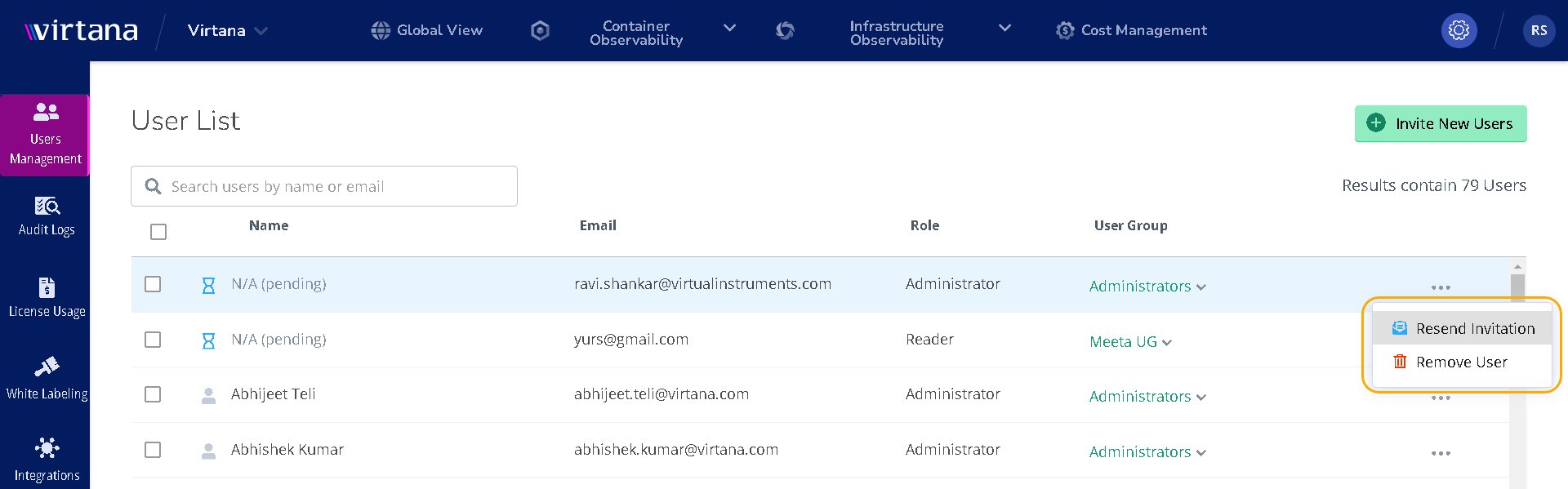
Change the existing User Group.
Click the User Group for the user account that you want to change and select the relevant user group.
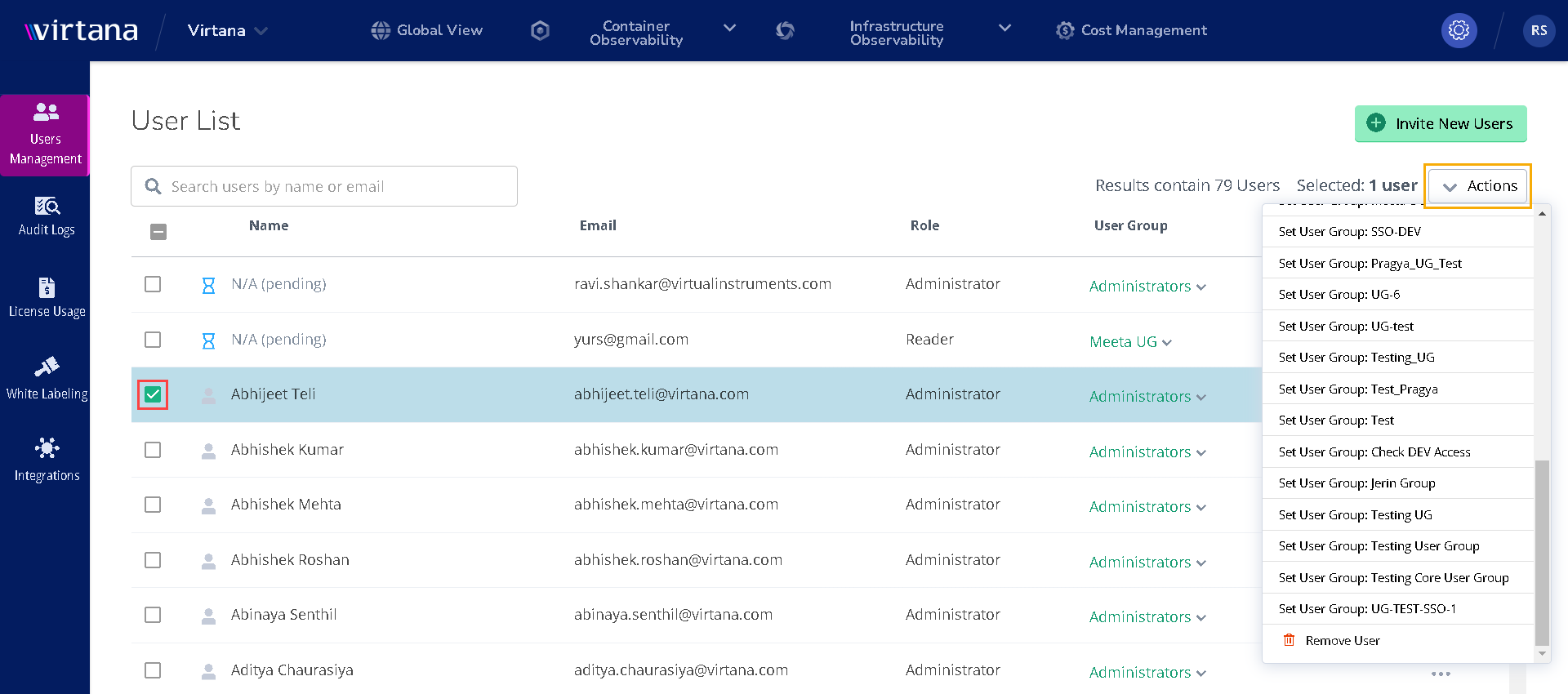
Multiple user accounts editing.
Select the checkboxes for the user accounts you want to modify, click the Actions menu that displays, and select an action.