Capacity Forecast
Capacity Forecast reviews historical usage data to predict short and long-term usage trends. Use Capacity Forecast to identify resource strain before it leads to performance and availability issues, and to plan for the growth required to support critical business applications.
Running Capacity Forecast
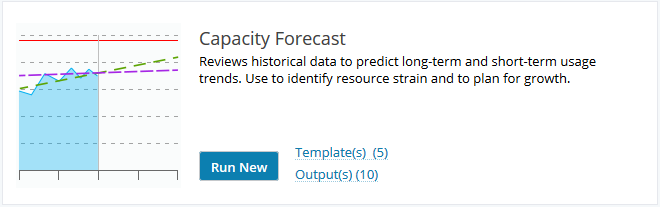
Start by running a new Capacity Forecast from the Analytics home page.
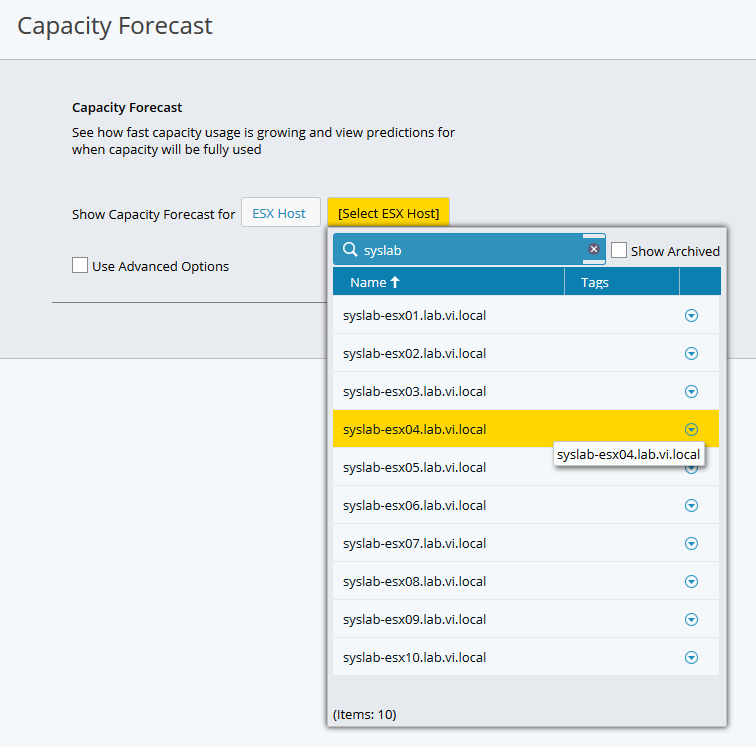
Select an entity type to analyze from among Compute, Network, and Storage entities.
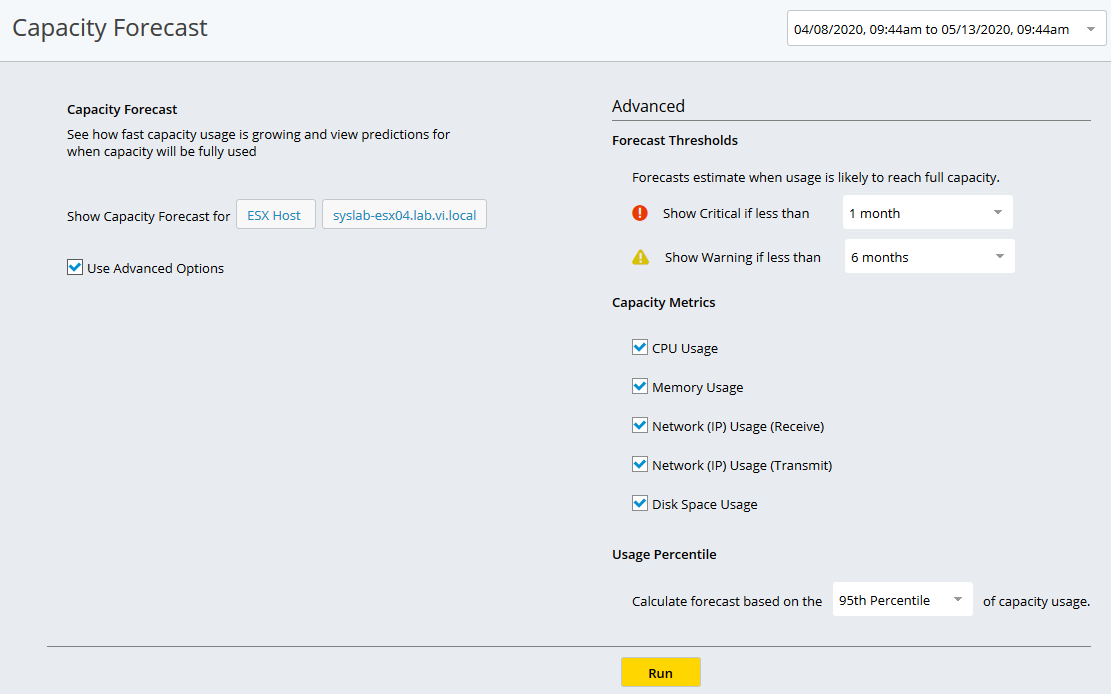
Check the box to use advanced options. You can adjust the forecast thresholds, select the metrics you wish to analyze, and change the percentile value to base the forecast on.
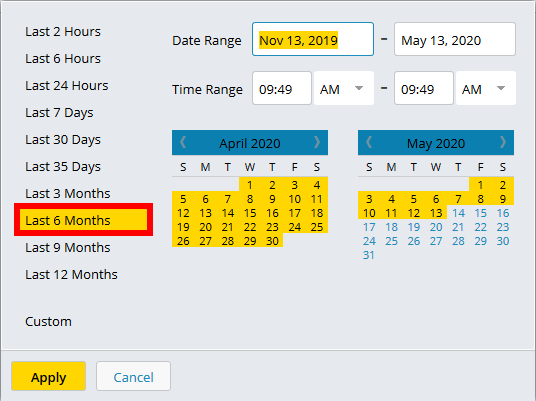
Run Capacity Forecast for a minimum of 6 months. Using a longer date range is recommended. You can run the analytic in the background and review its output later the Outputs page.
Understanding Capacity Forecast Results
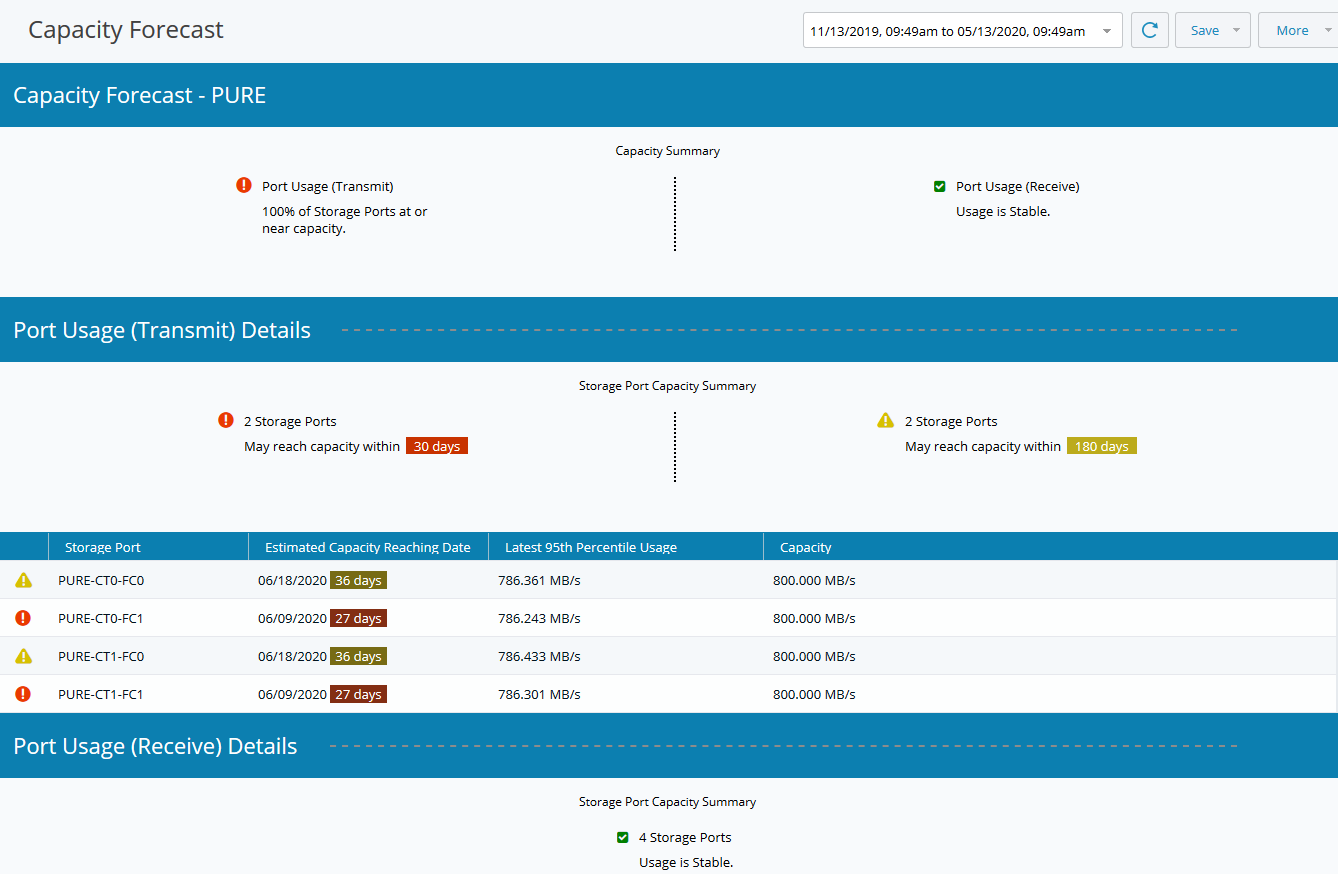
The results are displayed in panes below the settings pane. The topmost panel shows a summary of the results, letting you quickly pinpoint where there may be an issue.
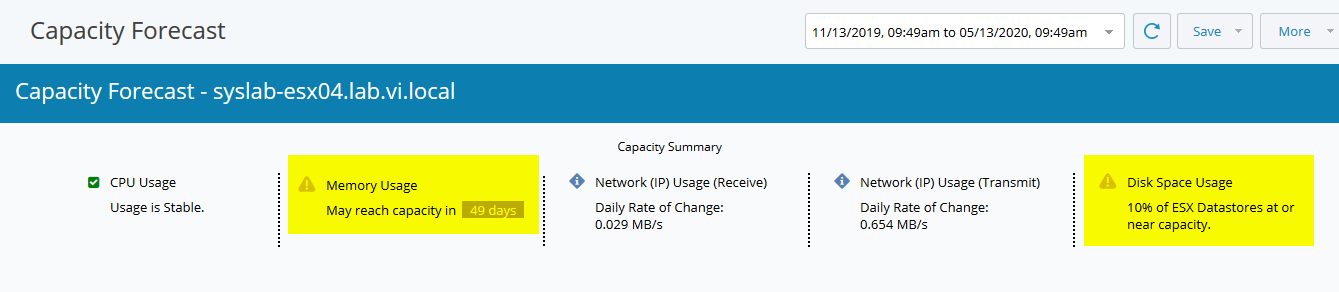
The summary pane shows potential issues with disk space usage on this host. The details are shown below on the Disk Space Usage Details pane. 5 datastores may reach the limit of their usage within 180 days.
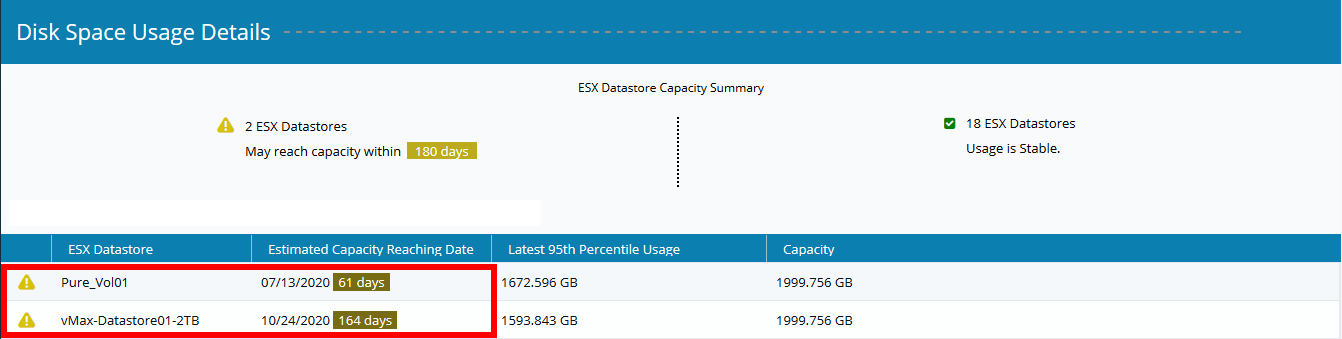
The data shown will vary based on the entity type analyzed. Shown above is the data analyzed for a storage array.