Add a stale data trigger
The following steps guide you through adding details for the stale data trigger, specifying trigger criteria, and setting a time duration. The trigger is sent when one unique event or metric is met in the criteria.
Note
You must be assigned the Manager role to create a trigger.
Open the ADMIN > Actions page, and then click the TRIGGERS tab.
In the upper-right corner, click ADD TRIGGER.

The ADD TRIGGER dialog box opens.
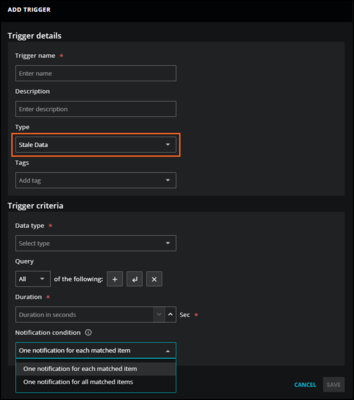
In the Trigger details section, enter the following information:
Field
Description
Trigger name
A unique, short identifier for the trigger (required). The name can't be changed after you click SAVE.
Description
(Optional) Enter text to describe the trigger.
Type
In the dropdown list, select Stale Data. The dialog box displays additional criteria fields.
Tags
(Optional) Add one or more terms to associate with the trigger.
In the Trigger criteria section, create a query to identify specific stale data. Enter the following information:
Field
Description
Data type
Enter the type of data to include in the query. You can select Event or Metric. This is a required field.
If you select Metric, you must enter the name of the metric. Click in the Metric name field and enter the first few letters of a metric name. Virtana Service Observability displays a list of names to choose from. For assistance finding a metric name, go to ADMIN > Dictionary, then select the METRICS tab.
If you select Event, you must enter a query in the Query field.
Query
Create a query to identify one or more entities that collect the metric. For more information, see Trigger queries and Metric trigger fields.
Duration
Enter the length of time in seconds for meeting the conditions of the trigger. For example, to set a duration of one hour, enter
3600. This is a required field.Notification condition
Choose how many notifications you want to receive when the conditions for a trigger are met because data has become stale. This is useful when you have many entities that frequently send metrics like
CPU-Utilization. If your trigger matches only the metric name and Virtana stops receiving the metric from multiple entities, you can choose to receive a single notification for all impacted entities or a separate notification for each entity.Options include:
One notification for each matched item.
One notification for all matched items.
For more information, see Trigger queries and Event trigger fields.
Note
As a best practice, use
Entity: Production State equal to Productionas a trigger criteria. This criteria can prevent matches that are “false positives” against non-production entities.For example, include this criteria to avoid matching against devices that might be in Maintenance. To match on additional production states, consider using the
greater thanorgreater than or equal tooperators.Click SAVE.