Deploy a role to trust child accounts
You can link multiple child accounts in bulk to the root account in the Virtana platform.
Prerequisites
You have deployed the CloudFormation template to the root account.
You have downloaded the CloudFormation template for linking child accounts.
You have permissions to deploy CloudFormation stacks in the target AWS accounts.
Note
To enable the root account of your organization to trust child accounts, Virtana recommends using StackSets.
Note
Verify that the CloudFormation template file is accurate and accessible before you upload it.
Upload the CloudFormation template to the AWS CloudFormation console.
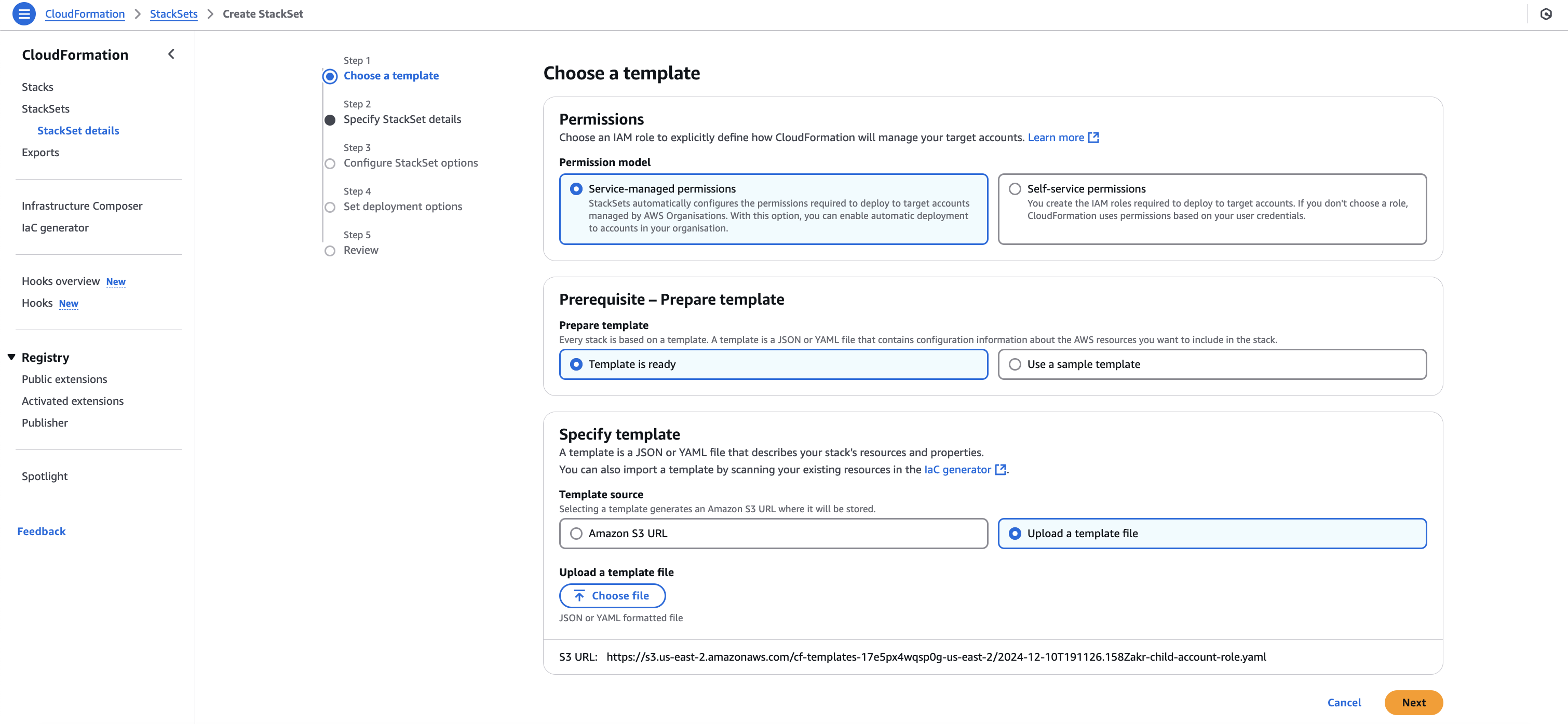
Click Next.
Configure the following required parameters.
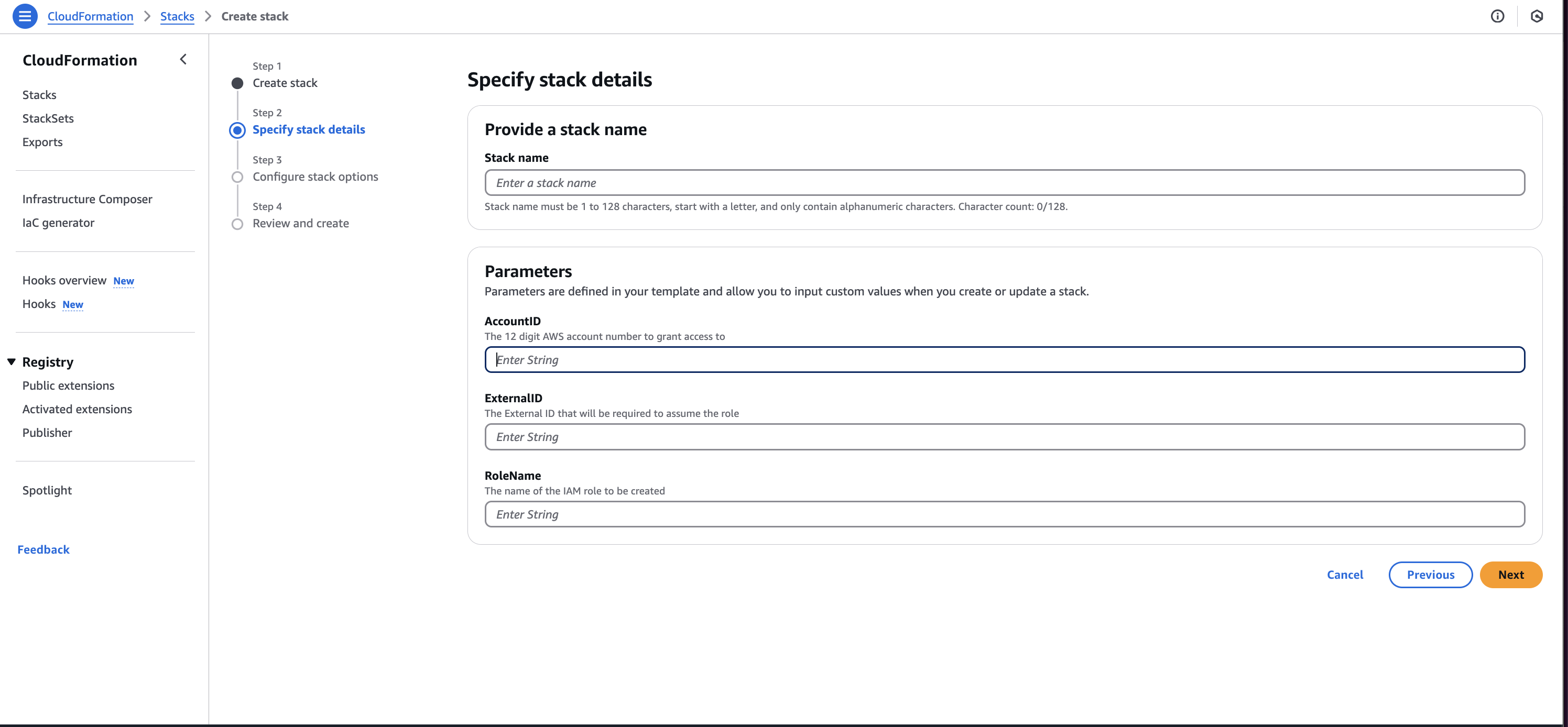
Account ID: Enter the AWS account ID of the Virtana account that you intend to trust. Verify that the account ID is correct to avoid configuration issues.
External ID: Enter the customer organization ID. This parameter adds an additional layer of security by ensuring that requests are authenticated and originate only from your organization.
Role Name: Enter the same role name that you configured when running the CloudFormation template on the root account. A default role name is provided, but you can customize it if needed. The role name must be identical across the root account and the roles created via the StackSet for linked accounts. A mismatch can cause deployment failure.
Click Next.
Choose the settings that meet your organizational requirements.
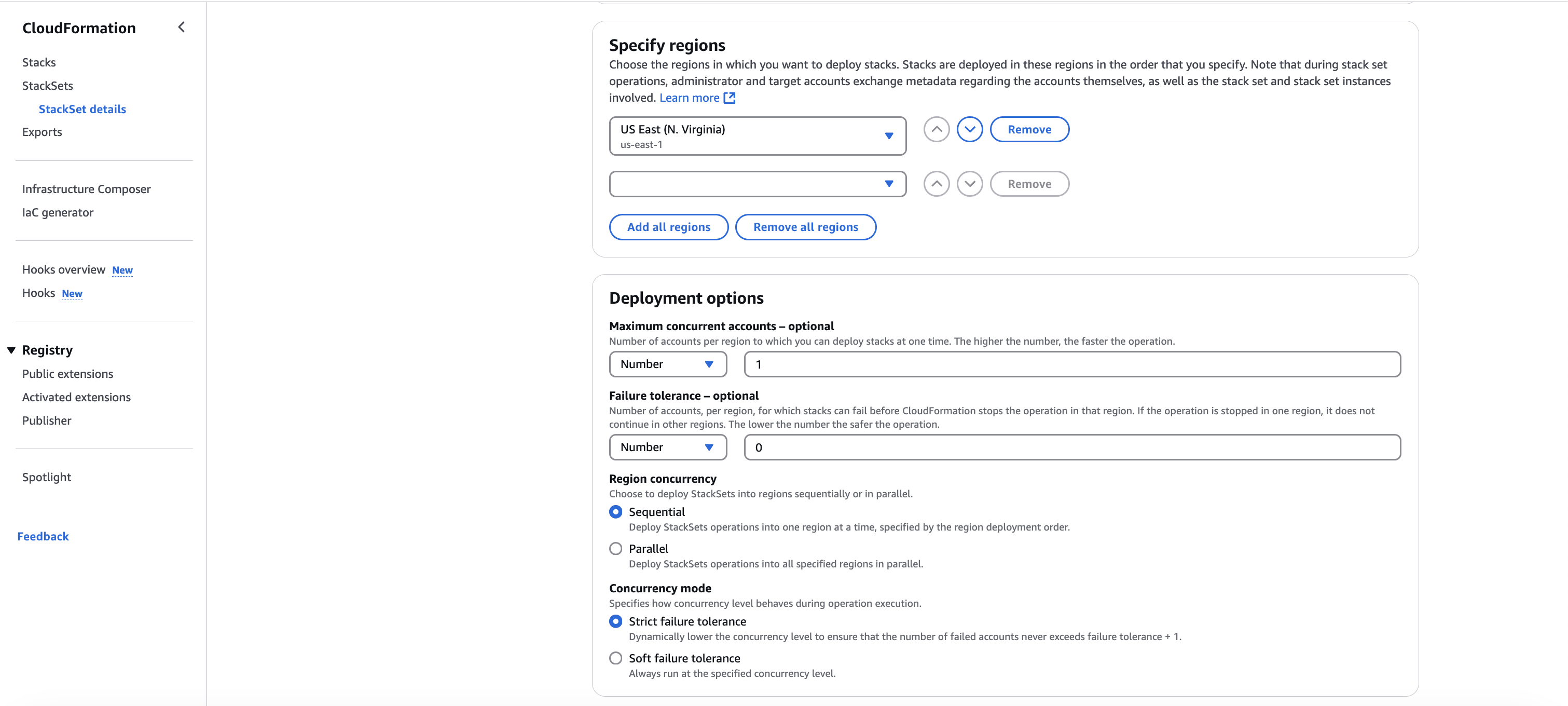
Click Next.
After the CloudFormation stack deployment finishes, verify that the roles have been created in the child accounts.
Note
You can verify the trust relationship from Virtana. For more information, see Adding Linked Accounts in Bulk. To stop monitoring a child account, you must manually remove the assigned role from that account.