Add policies by type
Each policy type has its own set of criteria. Select the policy type that you want to add. These tasks assume that you have opened the ADD POLICY dialog box.
You can manage anomaly detection with anomaly policies. When creating the policy, you can add or subtract metrics from the list of metrics for which the anomaly detection service trains models. For more information about anomaly detection and policies, see Anomaly detection service.
This task assumes that you have opened the ADD POLICY dialog box in the Policies tab in ADMIN > Policy.
If you haven't already done so, set the Enabled option to activate the policy or deactivate it, and enter a name for your policy. Policy names can't be changed after the ADD POLICY dialog box is saved.
After you select the anomaly type, the dialog box updates to ADD AN ANOMALY POLICY.
Enter the remaining information in the General info tab.
Click Main details and enter the metric information for your policy.
Click SAVE.
You can identify entity types with entity policies. Provide a tag for instances of an entity type, or standardize metadata from different sources so that, for example, all Kubernetes clusters have the same tags and can be easily found.
This task assumes that you have opened the ADD POLICY dialog box in the Policies tab in ADMIN > Policy.
If you haven't already done so, set the Enabled option to activate the policy or deactivate it, and enter a name for your policy. Policy names can't be changed after the ADD POLICY dialog box is saved.
After you select the entity type, the dialog box updates to ADD AN ENTITY POLICY.
Enter the remaining information in the General info tab.
Click Entity schema and enter the attributes, tags, and entity expression information for your policy.
Click SAVE.
You can create a policy that includes both entity policies and other entity set policies.
This task assumes that you have opened the ADD POLICY dialog box in the Policies tab in ADMIN > Policy.
If you haven't already done so, set the Enabled option to activate the policy or deactivate it, and enter a name for your policy. Policy names can't be changed after the ADD POLICY dialog box is saved.
After you select the entity set type, the dialog box updates to ADD AN ENTITY SET POLICY.
Enter the remaining information in the General info tab.
Click Main details and add the entity policies and entity set policies that you want included in your policy.
Click SAVE.
You can transform incoming data with ingest policies. Separate metadata from data in incoming metric data streams to create distinct entities and metrics without writing customized ETL scripts.
You can add metadata to event data streams to categorize events or facilitate action service processing with an ingest policy.
This task assumes that you have opened the ADD POLICY dialog box in the Policies tab in ADMIN > Policy.
If you haven't already done so, set the Enabled option to activate the policy or deactivate it, and enter a name for your policy. Policy names can't be changed after the ADD POLICY dialog box is saved.
After you select the ingest type, the dialog box updates to ADD AN INGEST POLICY.
Enter the remaining information in the General info tab.
Under POLICY DETAILS, click Main details and enter the requested information for your policy.
Under POLICY DETAILS, click Field transform and add the needed operations for your transform.
Under ADVANCED, click Name transform and enter the source key and default value for your transform.
Under ADVANCED, click Data processor and enter the processor functions for your transform.
Under ADVANCED, click Code and enter any customized code for your policy. Use the Code Editor to enter the required JavaScript.
(Optional) If you need help entering your JavaScript code, click Suggest (lightbulb icon) to open the code assistant.
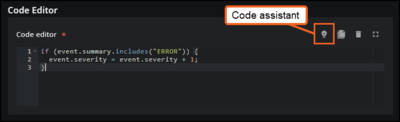
In the Prompt section, enter text in English that describes what you want to do, for example:
Increment the event's severity if its summary includes "ERROR"
Click SUBMIT to view the resulting JavaScript.
Note
This assistant is designed to provide a starting place for your code. You might need to make adjustments to the initial prompt or the resulting code for it to work as expected.
Under TEST, click Test policy and specify the input and output data to test your policy.
Click SAVE.
A derived data policy creates new metrics by calculating them from data that Virtana Service Observability already collects. You write an expression that combines existing metrics and numeric entity attributes, and the policy evaluates that expression on a schedule. Each result is stored as a new datapoint on the entity.
Use a derived data policy when a measurement that you need isn't collected directly. For example:
Ratios: Divide the amount of memory in use by the total amount of memory to produce a utilization percentage.
Totals: Add two related counters together to produce a single combined count.
Three settings define a derived data policy:
Cycle time: How often the policy recalculates its datapoints, in milliseconds. For example, a cycle time of 60000 recalculates the datapoints once every 60 seconds.
Datapoint: One named calculation in the policy. Each datapoint has a name and a Common Expression Language (CEL) expression. The values that the policy computes for that name become a new metric on each entity in scope. A single policy can define more than one datapoint.
Entity scope: The criteria that identify the entities that the policy applies to. The policy calculates its datapoints separately for each entity in scope.
Note
Your account must be assigned the Manager role to create and manage policies.
This task assumes that you have opened the ADD POLICY dialog box in the POLICIES tab in ADMIN > Policy.
Add the policy
To create a derived data policy, complete the following steps in the ADD POLICY dialog box:
If you haven't already done so, set the Enabled option to activate the policy or deactivate it, and enter a name for your policy. Policy names can't be changed after the ADD POLICY dialog box is saved.
In the Type field, select Derived Data. The dialog box updates to ADD DERIVED DATA POLICY.
Enter the remaining information in the General info tab, and then click Main details.
In the Cycle time (ms) field, enter how often you want the policy to recalculate its datapoints, in milliseconds.
Under Entity scope, define the criteria that identify the entities that the policy applies to.
In the Datapoint name field, enter a name for the metric that the calculation produces.
In the Source code (CEL expression) field, enter the calculation that produces the datapoint. For the reference forms that an expression can use, see Datapoint expression syntax.
Optional: To add another calculation to the same policy, click ADD DATAPOINT, and then enter a name and an expression for the new datapoint.
Click SAVE.
Datapoint expression syntax
Datapoint expressions use Common Expression Language (CEL). An expression can reference any metric that belongs to an entity in scope, and any numeric attribute of that entity or of its parent entity.
The following table lists the reference forms that a datapoint expression can use.
Reference form | Example | Refers to |
|---|---|---|
|
| A metric that belongs to an entity in scope. |
|
| A metric that belongs to an entity in scope, when the metric name contains a period. |
|
| A numeric attribute of the entity that the datapoint is calculated for. |
|
| A numeric attribute of the entity that the datapoint is calculated for, when the attribute name contains a period. |
|
| A numeric attribute of the parent of the entity that the datapoint is calculated for. |
Note
In CEL, a period is the accessor operator. Reference any metric or attribute whose name contains a period with the bracket syntax, ["name"], instead of the period syntax.
Example expressions
The following expressions show two common types of calculation:
metric.mem_usage / metric.mem_total: Calculates the ratio of memory in use to total memory for an entity.metric["ping.http.down_subpages_count"] + metric["ping.http.up_subpages_count"]: Calculates the total number of subpages that an HTTP ping check monitors.