Managing User Groups
User groups are sets of users who share a common role and permissions in Virtana Platform. You must have administrator privileges to access the User Groups option under Settings. They simplify administration by letting you assign roles and data access to a group instead of managing each user individually.
In Virtana Platform, you can access the User Groups option from the Users Management tab in the Settings on the title bar.
From this tab, you can do the following:
View a list of existing user groups
The User Groups page displays a searchable list of all groups in the organization.
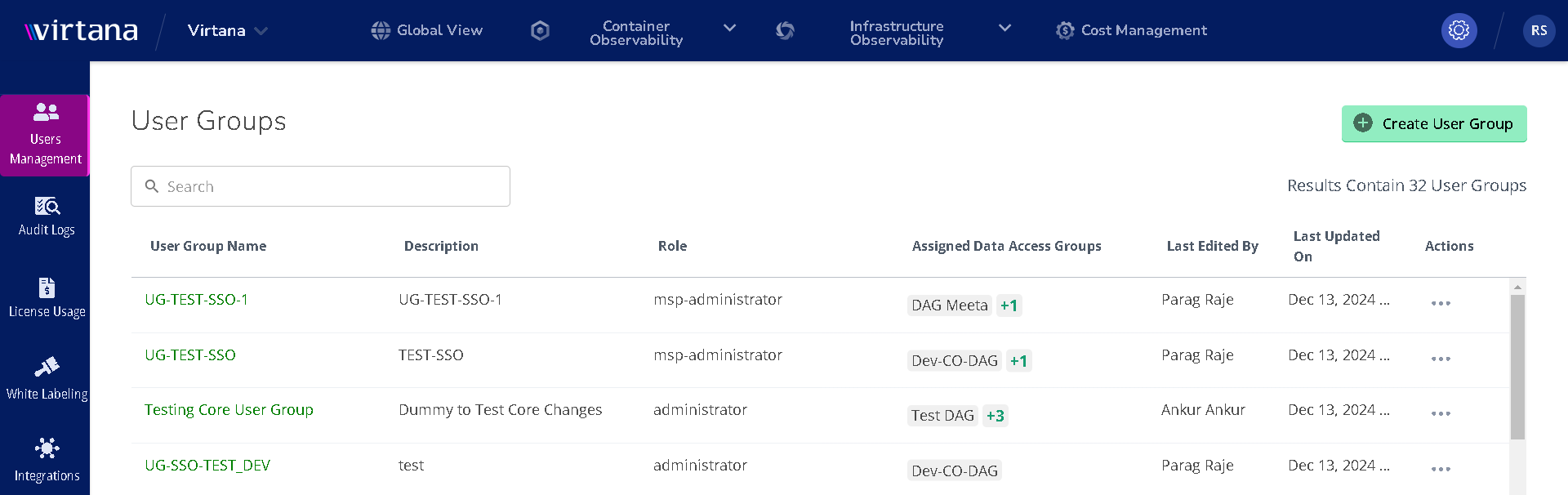
The table includes:
Column name | Description |
|---|---|
Name | User group name. System‑defined groups are marked with a System label. |
Description | Brief description of the group’s purpose. |
Role | The role assigned to members of this group includes Administrator, MSP Administrator, Reader, and Data Ingester. For more information, see User Roles in Virtana Platform. |
Assigned Data Access Groups | One or more data access groups that control which resources members of this user group can see. For more information, see Data Access Groups. |
Last Updated By | The user who most recently modified the group. |
Last Updated On | The date and time when the group was last updated. You can sort on this column. |
Actions | A menu that lets you edit or delete the custom user group. |
Create new User Groups
Perform the following steps to create the new user group:
On the User Groups page, click Create User Group.
The Create User Group window opens.
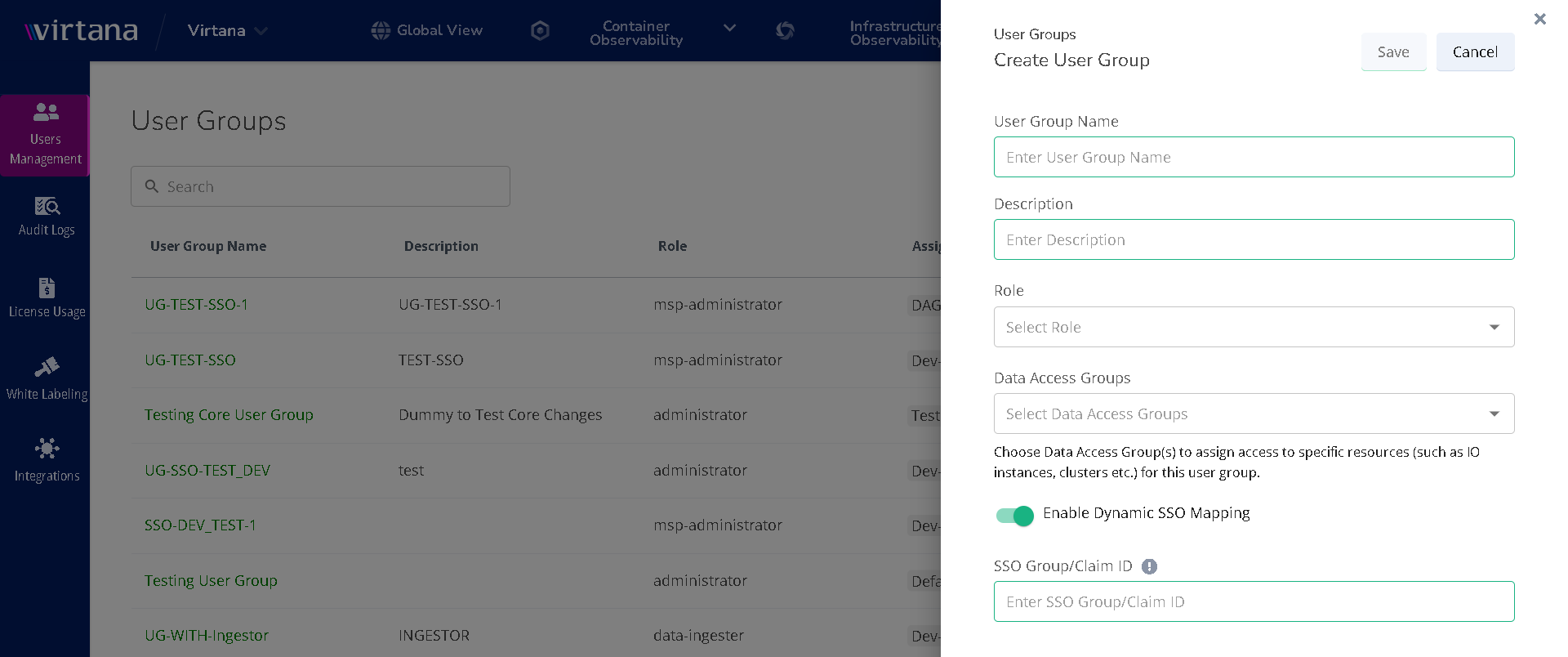
In the Create User Group window, enter the following:
Field name
Description
User Group Name
A unique name for the group.
Description
A short description to identify the group’s usage.
Role
Select the role to apply to all users in this group.
Data Access Groups
Select one or more data access groups. These define the resources, such as Infrastructure Observability appliances or Container Observability clusters, that users in this group can access.
Turn on the toggle to Enable Dynamic SSO Mapping to configure SSO‑based mapping for this user group, so that identity provider membership directly controls Virtana roles and data access.
Click Save to create the group, or Cancel to discard your changes.
Edit/delete a user group
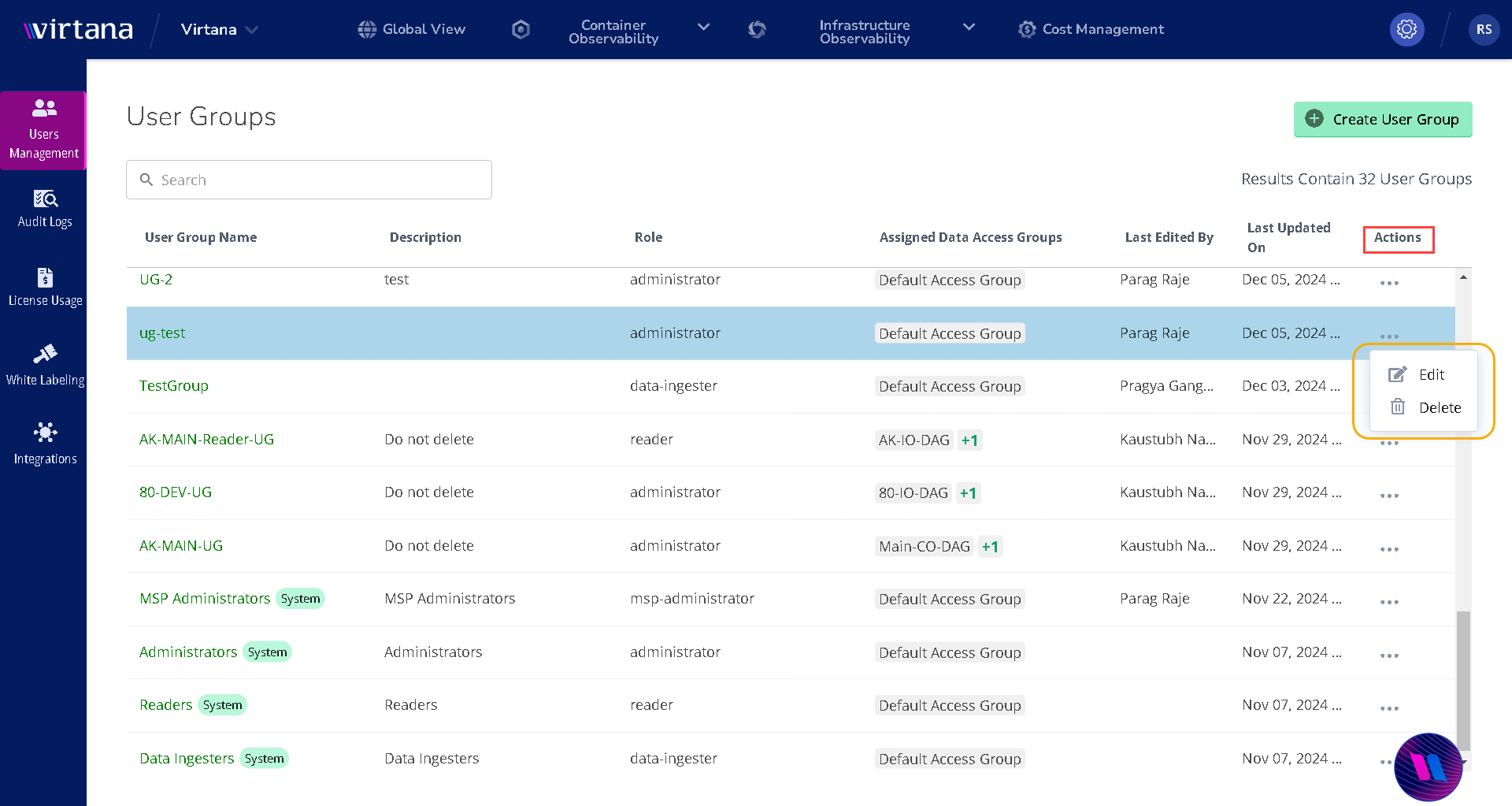
To edit/delete a user group, click the Actions menu for the group and select edit/delete. You can change the description, role, data access groups, and SSO mapping settings if you are editing the group.
Note
You can delete most user groups, except for the following default system groups that come with the application out of the box:
MSP Administrators
Administrators
Readers
Data Ingesters