Using Data Access Groups
Data Access Groups (DAGs) are used to restrict user access to specific subsets of data within the Virtana platform. They ensure that users can only view and interact with data relevant to their permissions, upholding security and confidentiality.
You must have administrator privileges to access the Data Access Groups. In Virtana Platform, you can access the Data Access Groups menu from the Users Management tab in the Settings on the title bar.
From this tab, you can do the following:
View a list of existing data access groups
The Data Access Groups page displays a searchable list of all groups in the organization
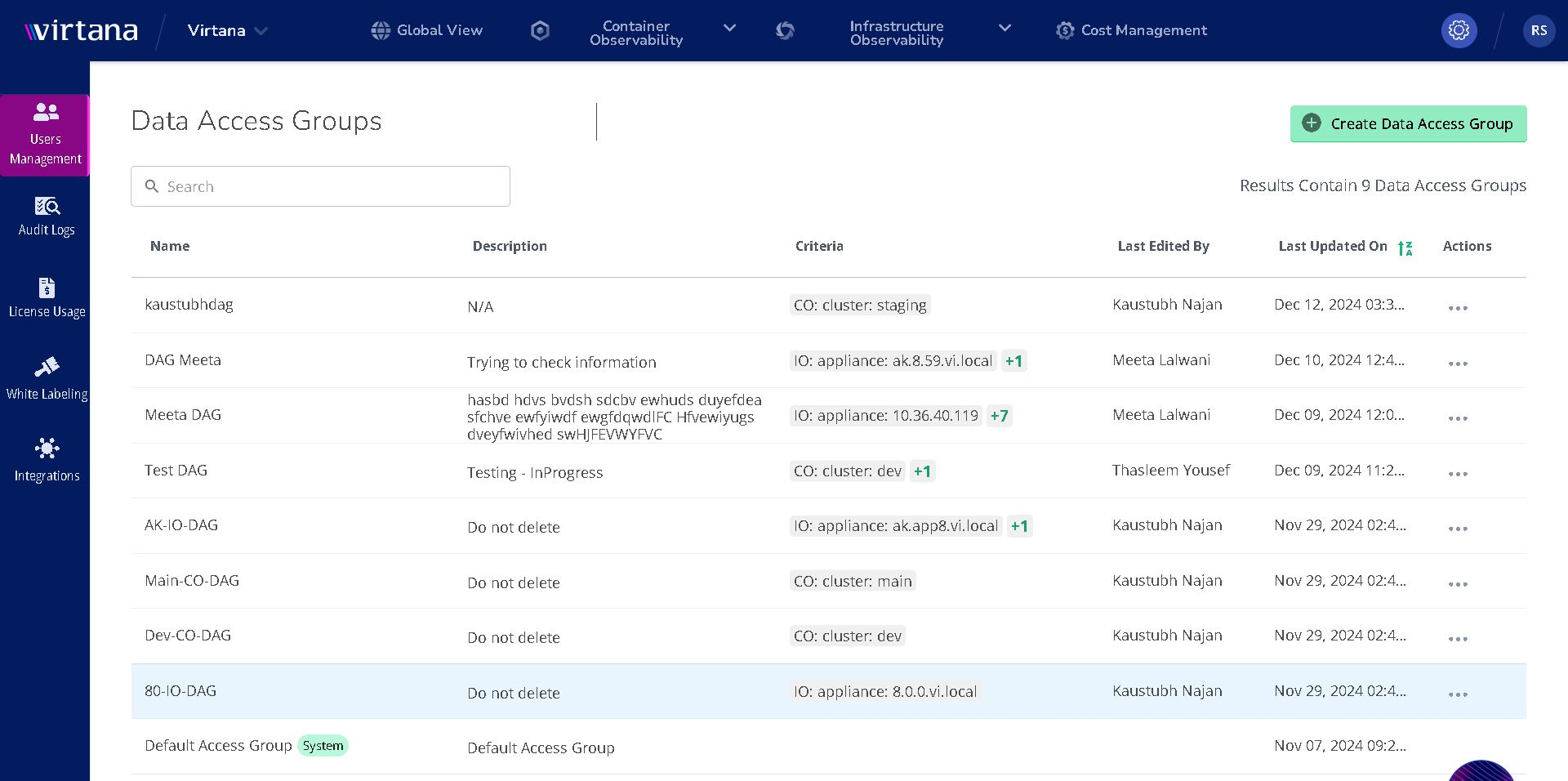
The table includes:
Column name | Description |
|---|---|
Name | The name of the data access group. |
Description | User-readable group’s purpose or who it is intended for. |
Criteria | The resource criteria define the data of which CO cluster or the IO appliance this group can access. |
Last Updated By | The user who last modified the group. |
Last Updated On | The date and time when the group was last modified. |
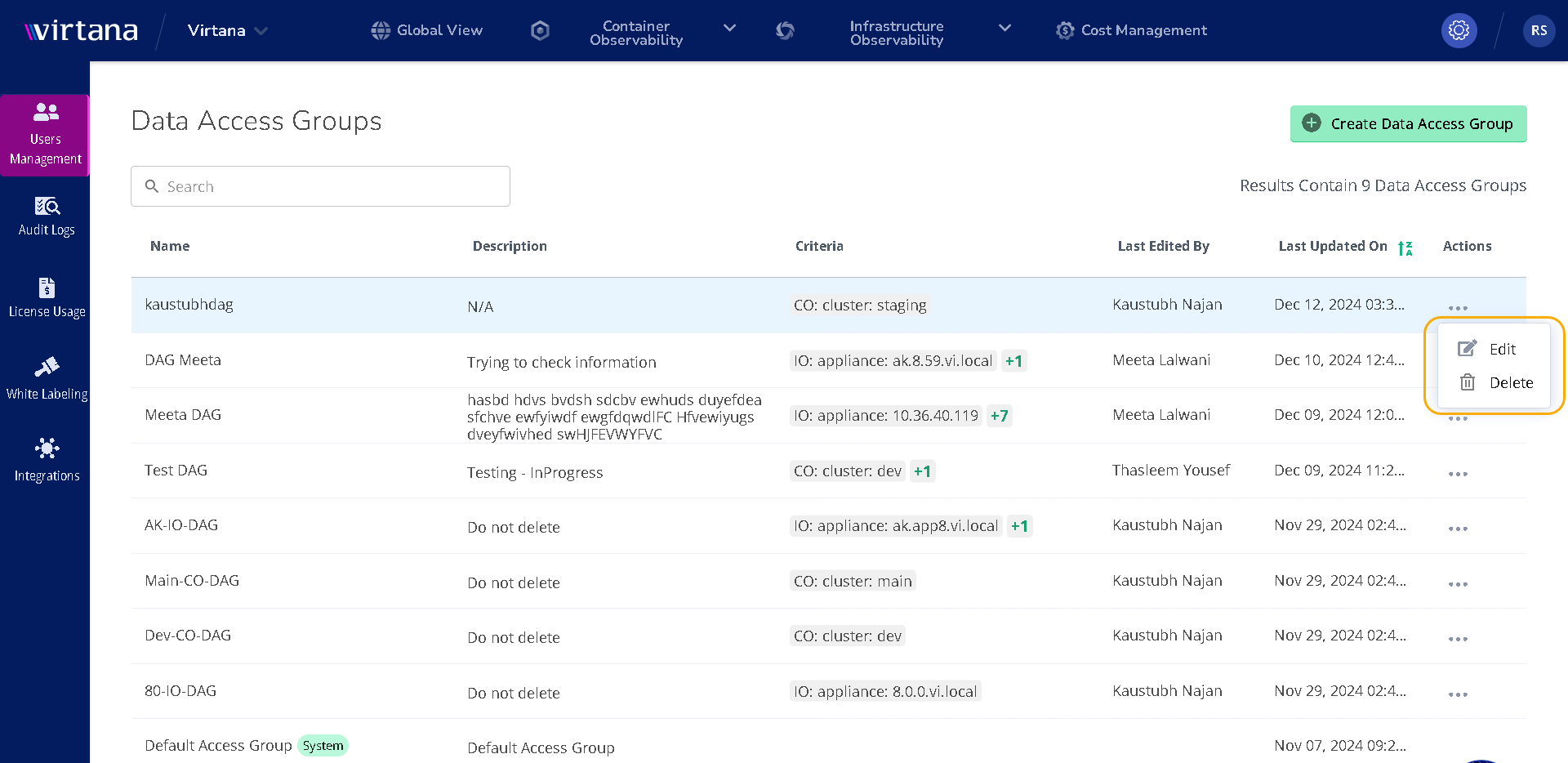
Actions | A menu that lets you edit or delete the group. |
Creating a Data Access Group
Perform the following steps to create the new data access group:
On the Data Access Groups page, click Create Data Access Group.
The Create Data Access Group window opens.
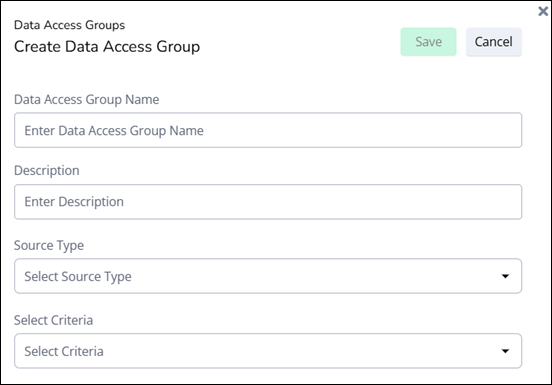
Enter a Name and an optional Description for the group.
Choose the source type and criteria that define the scope of data this group can access.
You can create the data access group by choosing IO appliances or CO clusters as criteria. For CO, you can select specific clusters, and for IO, you can select one or more appliances.
To save the group, click Save.
Edit/delete a data access group
To edit/delete an existing group, click the Actions menu for that row and select edit/delete. You can change the description and adjust the criteria if you are editing the group.