ServiceNow integration
The ServiceNow integration on the Virtana Platform serves as an Action Integration for Alert Orchestration and Notification Management. It specifically enables users to automate incident creation, manage alerts in ServiceNow, enable bidirectional sync, and support change management workflows.
Add new integration
You can add the ServiceNow integration in the Virtana Platform once all required prerequisites on the ServiceNow side are in place. This includes having access to a ServiceNow instance running version Xanadu or later with a valid instance URL, a ServiceNow user account with a username and password, and OAuth credentials (Client ID and Client Secret) created in the ServiceNow Application Registry specifically for the Virtana Platform. Ensuring these prerequisites are met enables Virtana Platform to authenticate and communicate with ServiceNow securely. See Create a User - ServiceNow for detailed information.
Perform the following steps:
Log in to the Virtana Platform and click Settings (
 ).
).In the Settings page, navigate to Integration > Action Integration.
In the top right corner of the Action Integration page, click Add New.
The Add Integration window opens.
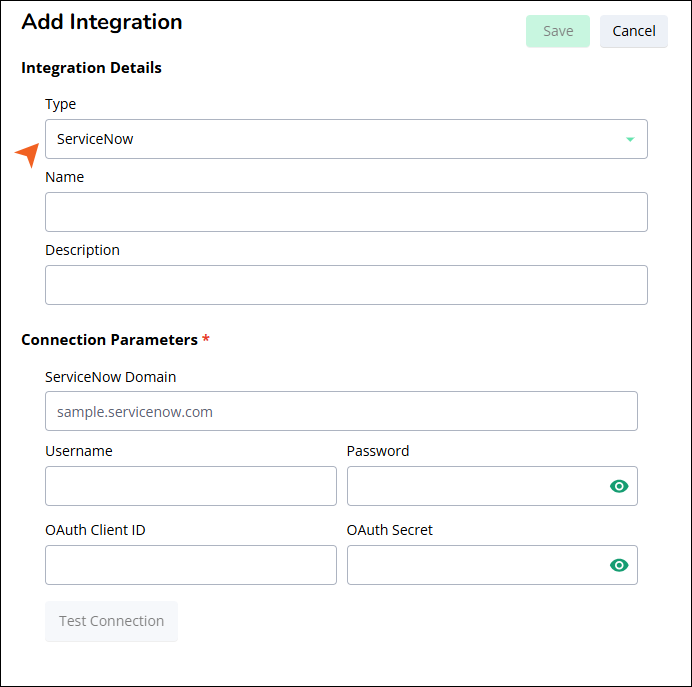
Under the Integration Details section, select the type as ServiceNow and enter the readable name and a brief description of the integration.
Under the Connection Parameters, provide the connection credentials required to authenticate with your ServiceNow instance.
The following table describes each field:
Table 158.Fields
Description
ServiceNow Domain
The full URL of your ServiceNow instance, for example,
https://yourinstance.service-now.com.Username
Username of the ServiceNow account used for the integration.
The account must have the admin or oauth_admin roles assigned.
Password
Password for the ServiceNow account.
OAuth Client ID
The OAuth Client ID generated in ServiceNow for API access.
OAuth Secret
The OAuth Secret associated with the OAuth Client ID.
Click Test Connection to verify that Virtana Platform can successfully authenticate with your ServiceNow instance.
Once the connection test succeeds, click Save to complete the integration setup.
Your ServiceNow integration is now set up.
ServiceNow user role requirements
The ServiceNow account whose credentials you provide in the Username and Password fields must have the following roles assigned. Without these roles, the integration will fail to authenticate or operate correctly.
Role | Purpose |
|---|---|
admin | Grants full administrative access to ServiceNow. Required for the integration to create and manage incidents and alerts. |
oauth_admin | Grants permission to manage OAuth application registries. Required for authenticating API calls from Virtana Platform. |
To assign these roles in ServiceNow, log in with an admin account, navigate to the user record for the integration account, and assign both the admin and oauth_admin roles. These are built-in (canned) roles available in standard ServiceNow instances.
For details on managing user roles in ServiceNow, refer to the ServiceNow user administration documentation.
Update existing integration
You need to update the ServiceNow integration whenever key details change. This includes updates to login or OAuth credentials, a change in the ServiceNow instance URL, or adjustments to incident and alert settings to match internal workflows. The integration should also be updated if the integration name or description needs clarification, or when ServiceNow is upgraded to a newer version, as updates may affect how the systems communicate.
Perform the following steps:
Log in to the Virtana Platform and click Settings (
).In the Settings page, navigate to Integration > Action Integration.
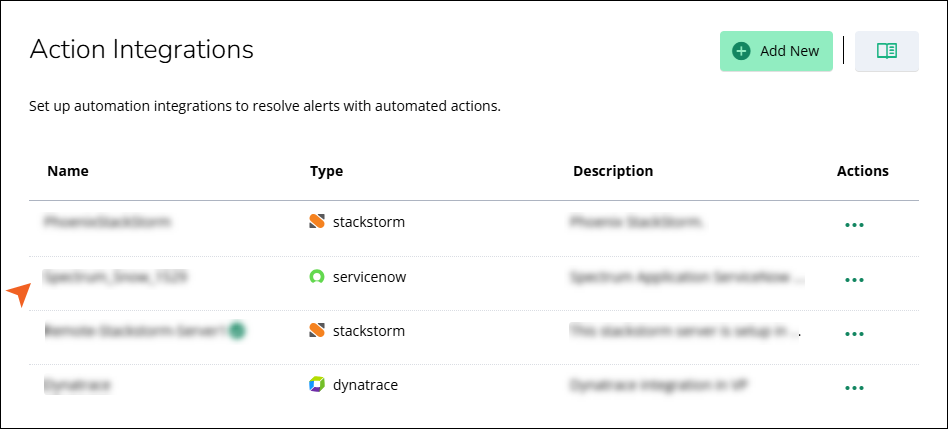
In the Action Integration page, select the existing ServiceNow integration.
The Update Integration window opens.
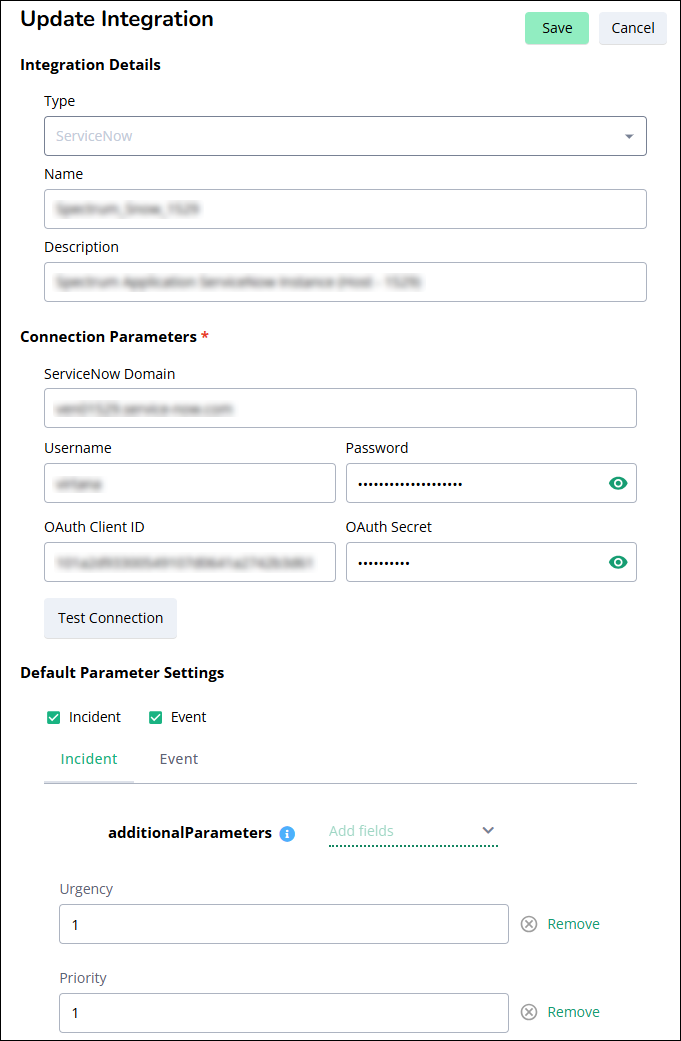
Edit and update the required field under the integration details and connection parameter sections.
You can check steps 4 and 5 of the Add new integration topic.
Click Test Connection to verify that Virtana Platform can successfully authenticate with your ServiceNow instance.
Configure the Default Parameter Settings after successfully updating the ServiceNow integration.
Once the Default Parameter Settings have been successfully updated, click Save to complete the integration setup.
Your ServiceNow integration is now updated.
Default Parameter Settings
Additional parameters play a crucial role in capturing and conveying essential details that help in the effective resolution of issues. These parameters allow you to customize and enrich the information associated with incidents and alerts, ensuring that all relevant data is recorded and accessible.
Incident Parameters: When creating incidents, parameters help provide more detailed information about the issue, enhancing clarity and prioritization. Fields like impact, urgency, state, and category offer valuable context, enabling teams to respond more efficiently. These fields ensure that incidents are addressed with the appropriate level of attention and resources.
Virtana has identified key parameters required to create incidents in ServiceNow. You can add additional parameters from the Additional Parameters dropdown or remove any unnecessary ones as needed.
Event Parameters: Select this checkbox to enable the creation of events (alerts) in ServiceNow when alerts are triggered in the Virtana Platform. When enabled, the Event tab becomes available under Default Parameter Settings, allowing you to configure alert-specific parameters such as Category, Impact, Urgency, notes, and detailed descriptions. These parameters ensure that alerts pushed to ServiceNow are accurately categorized and prioritized, enabling teams to quickly assess the situation and take appropriate action.
You can add more parameters from the Additional Parameters dropdown or remove unnecessary ones as needed.