Viewing Your Configured Alarms
Alarm Rule List
The Alarm Rule List provides a central view of all configured alarm rules in your environment.
You can view your configured alarm rules by selecting Rules from the top of any Alarms page.
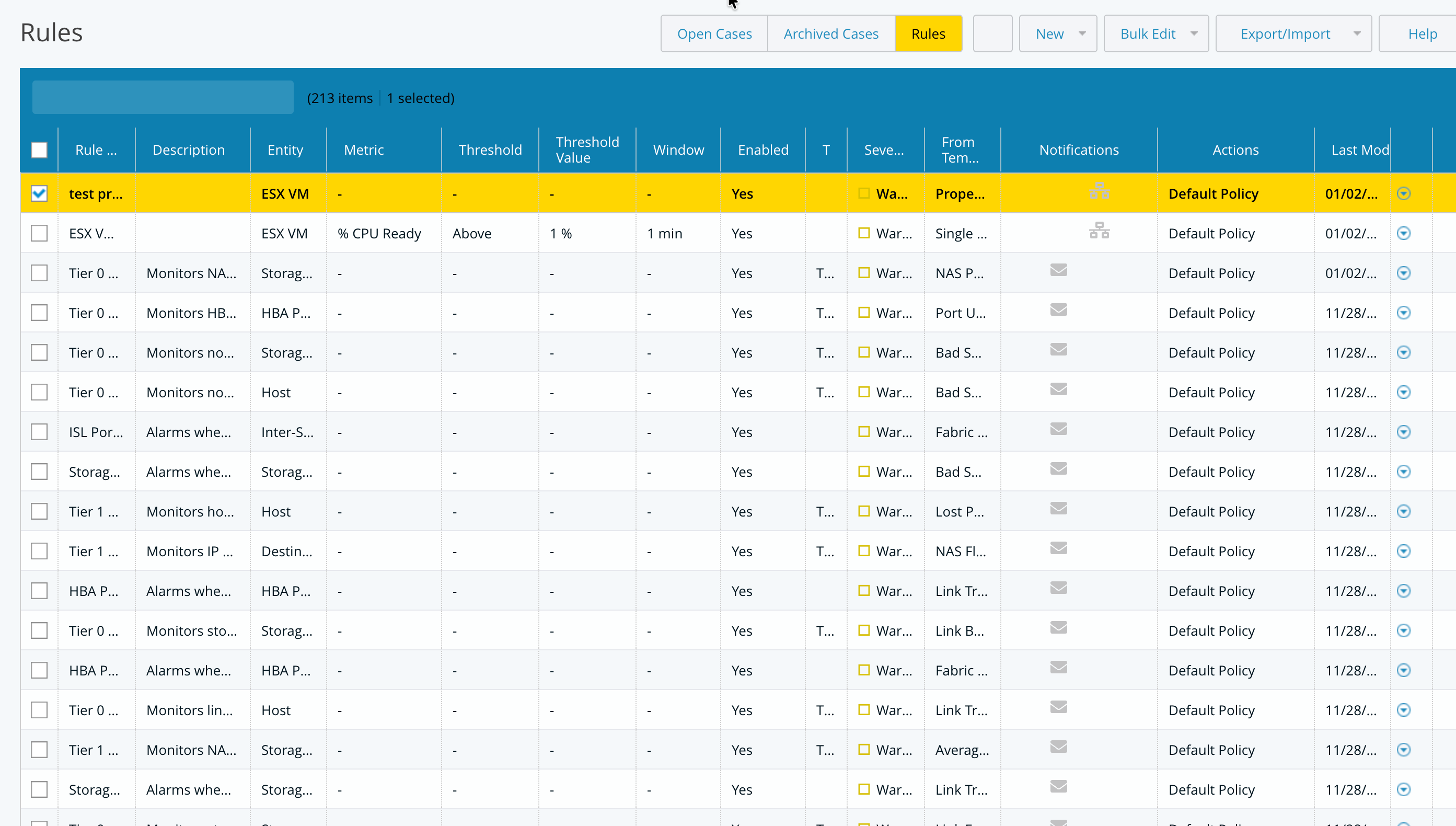
Column Descriptions
Rule Name: Displays the name of the alarm rule. This helps you quickly identify the purpose of the rule.
Description: Provides a brief explanation of what the alarm rule monitors and when it is triggered.
Entity: Indicates the type of entity the alarm applies to, such as hosts, VMs, applications, or storage systems
Metric: Shows the metric being monitored by the alarm rule (for example, CPU utilization, memory usage, or response time).
Threshold: Specifies the condition used to evaluate the metric (such as greater than, less than, or equal to).
Threshold Value: Displays the value that the metric must cross to trigger the alarm.
Window: Defines the evaluation time window during which the threshold condition must be met before the alarm is triggered.
Enabled: Indicates whether the alarm rule is currently active. Disabled rules do not generate alarms or cases.
Tier: Shows the tier or category associated with the alarm rule, helping group related alarms logically.
Severity: Indicates the severity level of the alarm (for example, Critical, Major, or Warning), which helps prioritize response.
From Template: Identifies whether the alarm rule was created from a predefined template.
Notifications: Displays the notification settings configured for the alarm rule, such as email or webhook alerts.
Actions: Provides available actions for the rule, such as edit, enable/disable, clone, or delete.
Last Modified: Shows the date and time when the alarm rule was last updated.
To view details, drill down on a row to view the configured alarm.
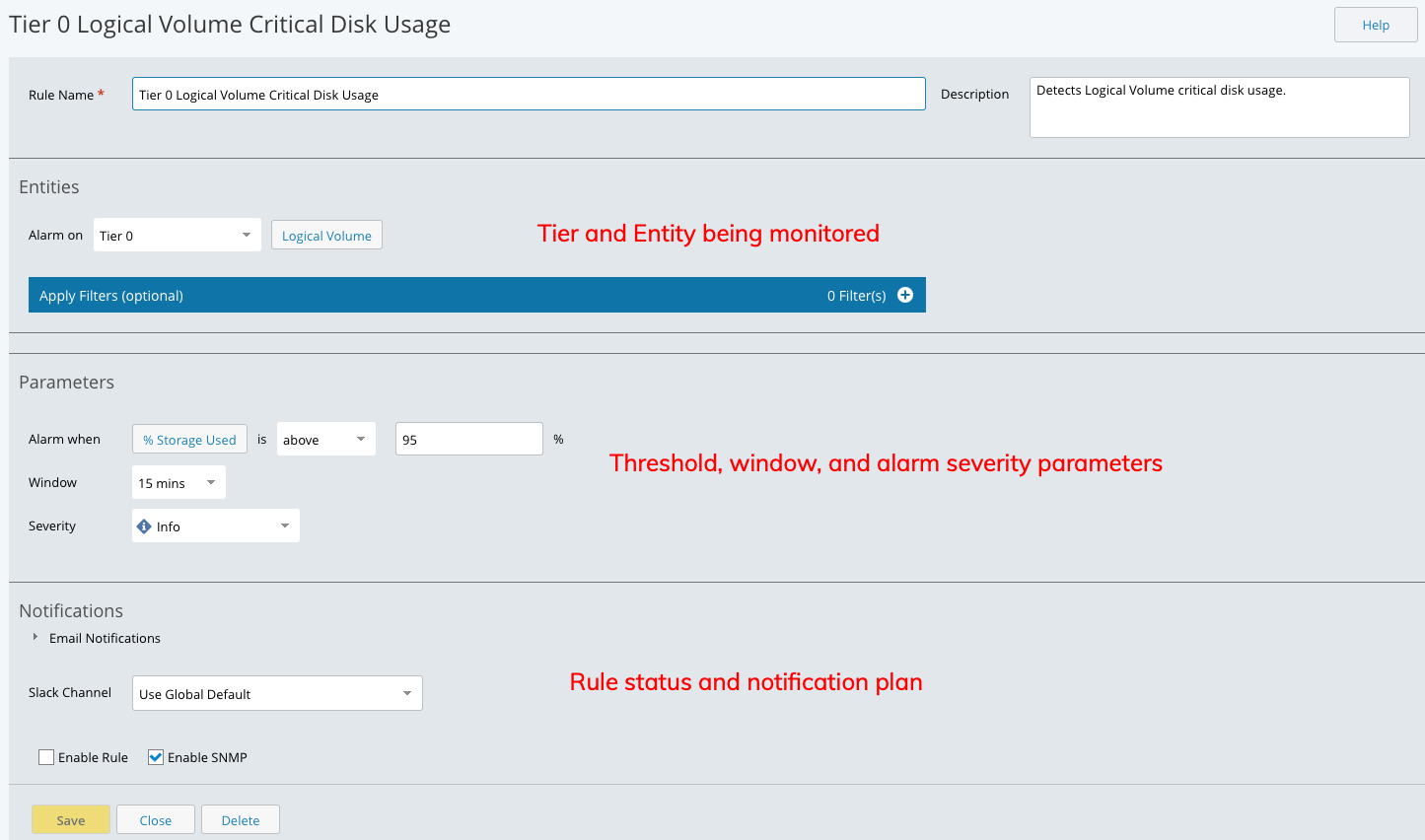
The configured rule page shows you the tier and entity being monitored for an alarm situation, the threshold, duration and severity of the alarm, and the status (enabled/not enabled) and the notification plan set up for the alarm.
Copy Rule
The Copy Rule feature in Virtana Rules interface allows users to duplicate an existing rule for quick customization without altering the original. You can copy a rule to create a quick customization.
Navigate to Alarm>Rules.
Select any rule/rules and click Copy Rule, to create an editable duplicate.
See Advanced, for to create or edit rules.
Bulk Edit
The Bulk Edit feature lets you update multiple alarm rules at the same time. Instead of editing rules one by one, you can select several rules and apply common changes in a single action.
Bulk Edit is available on the Alarms > Rules page.
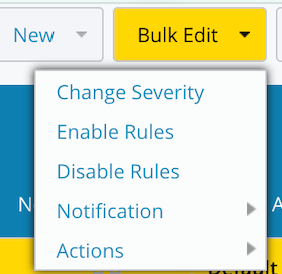
Follow the steps to Bulk Edit rules
Go to Alarms > Rules.
Select one or more rules using the checkboxes.
Click Bulk Edit.
Choose the action you want to perform. The selected changes are applied to all chosen rules.
Bulk Edit Options
Change Severity : Use this option to align alert priority across multiple rules.
Enable Rules: Turns on all selected alarm rules.
Disable Rules: Turns off all selected alarm rules.
Notification Options: Use Notification options to manage alert delivery settings for multiple rules.
Table 217. Notification OptionsOption
Description
Add Email Recipients
Adds one or more email addresses to all selected rules.
Remove Specific Email Recipients
Removes selected email addresses from all chosen rules.
Remove All Email Recipients
Removes all configured email notifications from the selected rules.
Enable SNMP
Enables SNMP notifications for all selected rules.
Disable SNMP
Disables SNMP notifications for all selected rules.
Actions: Use Actions to manage third-party notification integrations.
Add: Adds an action such as Slack, Microsoft Teams, or Webex to all selected rules
Remove Specific: Removes selected actions from the chosen rules.
Remove All: Removes all configured actions from the selected rules.
Import and Export Rules
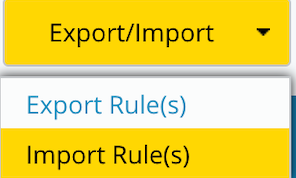
The Export/Import option allows you to back up rules or move them between environments.
Export Rules
By default, the Export Rules button is disabled.
To enable it, you must select at least one rule from the Rules list.
After selecting the required rule(s), click Export/Import > Export Rule(s).
The system downloads the selected rules as a Rules.zip file.
Import Rules
Use Export/Import > Import Rule(s) to upload a previously exported Rules.zip file.
Imported rules are added to the Rules list and can be reviewed, edited, or enabled as needed.
Note
No filters are exported.