Creating a policy with Copilot in Alert Intelligence
Virtana's Copilot provides a natural language interface in the Generate Policy With Copilot window, so that you can draft custom alert policies quickly. However, you can review, edit, and enhance the policy before saving it for your environment.
Open the Generate Policy with Copilot window
Perform these steps:
Go to the Global View in the Virtana Platform.
Select the Governance, then click Alert Intelligence.
Click New Custom Policy.
The Generate Policy With Copilot window opens.
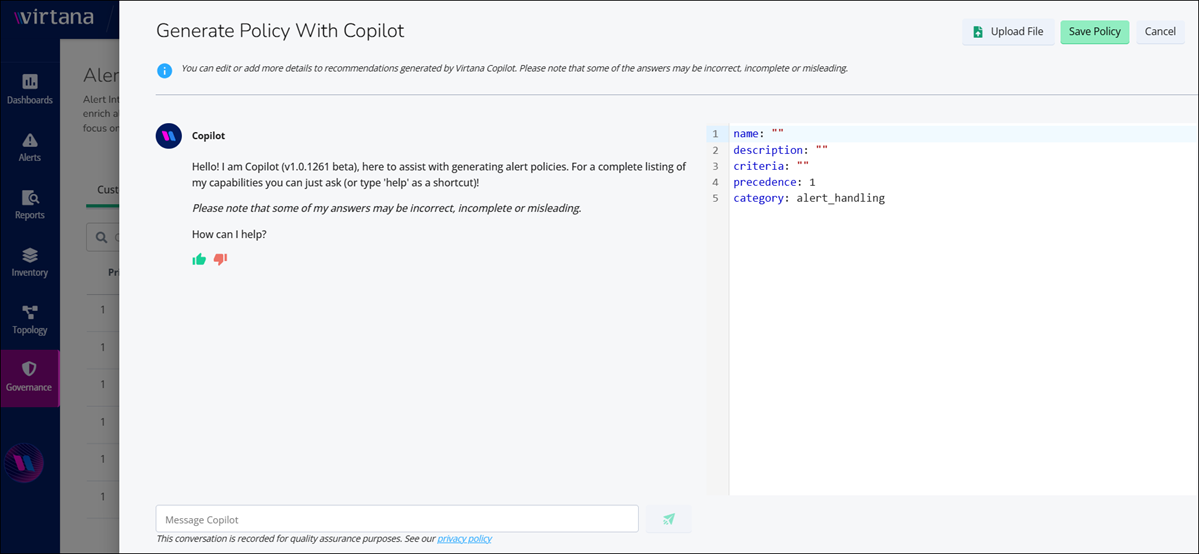
Tour of the Generate Policy with Copilot window
The window features the Copilot conversational assistant and the policy editor side by side. As you can enter your policy requests in Copilot, you can review and edit the resulting alert policy in YAML format.
Copilot Assistant
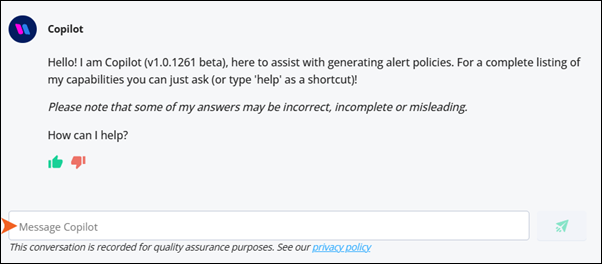
Use Copilot as a tool to assist you in creating alert policies.
You can generate these policies by providing natural language descriptions or questions. To see a list of Copilot's features, type 'help' at any time.
The tool allows you to customize your text using the following features:
Features | Description |
|---|---|
Natural Language Input | You can describe your policy requirements in plain English, and Copilot generates the corresponding policy logic. |
Edit Existing Policies | Load and modify existing policies using natural language or manual edits, or ask Copilot questions about your changes. |
Help and Guidance | Enter 'help' in the chat box to access usage tips, sample statements, and guidance. |
Action Summaries | Copilot summarizes changes after each update for transparency. |
Stop Function | Enter Stop in the chat box to interrupt Copilot’s processing and revert to the previous state if needed. |
Feedback | Use the thumbs up/down icon to provide feedback and improve Copilot’s accuracy. |
Here are a few sample prompts:
Deduplicate open alerts from external sources that share the same entity name and entity type.
Suppress all informational severity alerts coming from external event providers.
Correlate container alerts with their parent deployment alerts in the same namespace.
Enrich all open alerts from OpsCruise with priority set to high when severity is critical.
Policy Editor
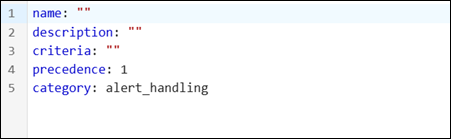
This section displays the YAML structure where the generated alert policy appears. You can manually edit the policy fields, including:
Field | Description |
|---|---|
Name | Enter a unique and descriptive name that reflects the purpose of the policy. |
Description | Provide a detailed explanation of what the policy aims to achieve and its significance. |
Criteria | Define the triggering conditions under which the policy will be applied, typically filtering alerts based on their status. |
Precedence | Set a value indicating the priority of the policy, with lower numbers representing higher priority. |
Category | Classify the policy under the correct category, which in this case will be set to "alert_handling". |
Actions
Use Actions to manage your policy files. Actions for creating and editing your policies are available in the top-right corner of the window.
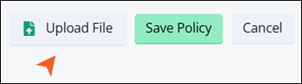
Action | Description |
|---|---|
Upload File | Import policy files for reuse, backup, or sharing in |
Save Policy | Save the current policy you’ve written or modified. |
Cancel | Exit the policy creation screen without saving changes. |
Create a policy using Copilot
To create a policy using the provided Copilot, perform the following steps:
Click New Custom Policy to open the Copilot interface.
Enter a natural language prompt describing what you want the policy to do, for example, suppress alerts from server group X during maintenance windows.
Copilot generates the policy.
Alternately, you can click Upload File to import an existing policy in
.yamlformat.Review the output, make manual edits if needed, or ask follow-up questions to the Copilot.
(Optional) If you need to interrupt Copilot’s processing, enter 'Stop' to cancel and revert.
Click Save Policy to save the policy.
You can view the policy on the Alert Intelligence page. Check and enable the policy using the toggle button under the status column to activate the policy.
Edit a policy using Copilot
To edit a policy using the provided Copilot, perform the following steps:
In the Alert Intelligence page, click the existing policy name.
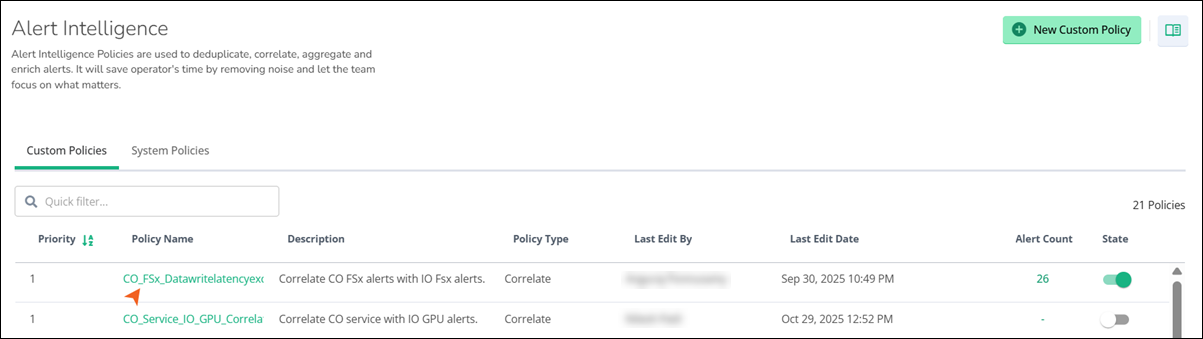
The Alert Policy window opens.
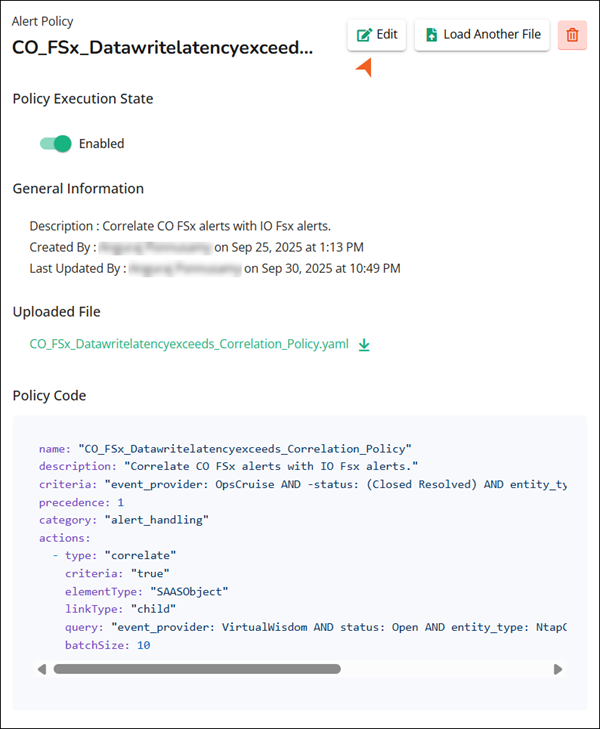
You can view the general information about the policy and the policy code.
Use the toggle button to enable the policy execution state.
Click Edit to edit the existing policy.
The Update Policy window opens.
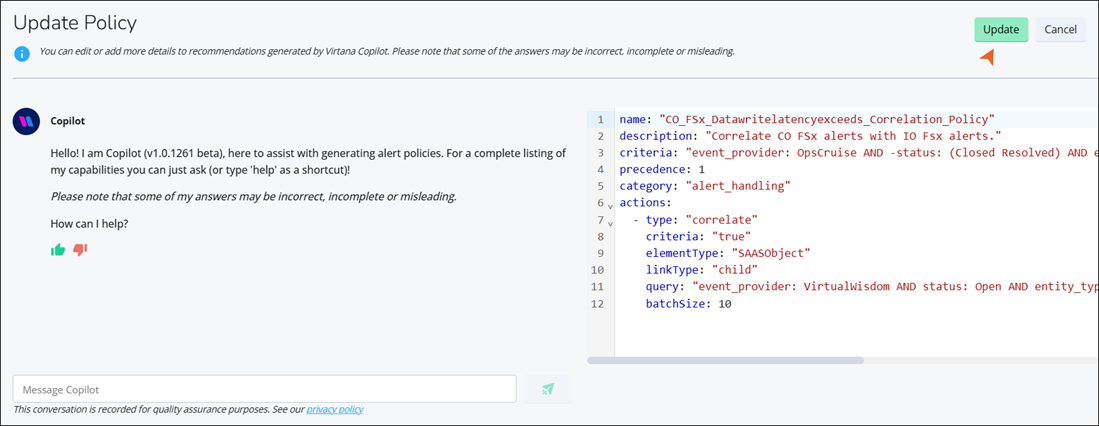
Review the policy, make manual edits if needed, or ask follow-up questions to the Copilot.
(Optional) If you need to interrupt Copilot’s processing, enter 'Stop' to cancel and revert.
Click Update to save the updated policy.
You can view the policy on the Alert Intelligence page. Check and enable the policy using the toggle button under the status column to activate the policy.
Caution
While Copilot provides a starting point for creating policies, some of Copilot's answers may be incorrect, incomplete, or misleading for your organization. Be sure to validate the resulting policy in the provided editor.
Testing the generated policies
You can safely test your alert intelligence policies before saving them using the built-in sandbox feature. This lets you preview your policy's behavior on real or synthetic alerts without impacting production alerts or triggering real actions. It provides a controlled environment to verify that your policies behave exactly as intended.
Perform the following steps:
Create a new policy or edit an existing one in the policy editor.
When Copilot opens, it will ask you if you want to validate your policy before saving.

Click the green Test this policy on existing alerts button to validate your policy against open alerts in your environment.
This lets you validate your policy against real, open alerts in your environment.
To test your policy against the alert, you can upload an alert JSON file from a local folder or select an alert from the alert list.
After selecting or uploading an alert, click the Test button.
The sandbox will evaluate your policy against the chosen alert and show you the Policy execution summary.
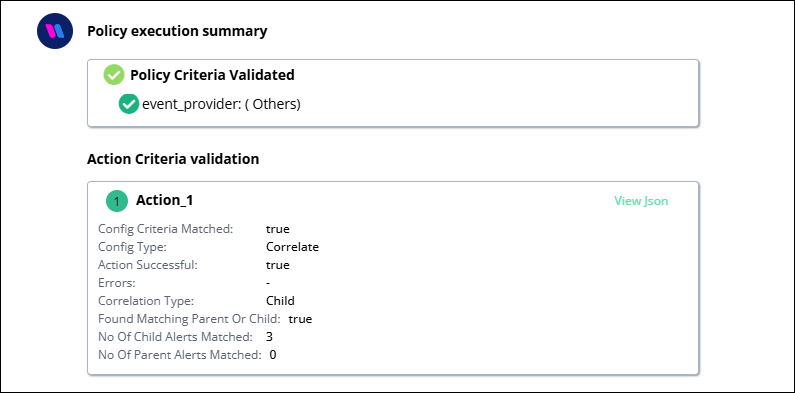
Review the policy execution summary and adjust your policy in the editor until the test results show the behavior you want.
Once verified, click Save Policy.