Managing your profile and user settings
From My Profile, you can access Manage User Settings. Here, you can view your login email address and set your login defaults. The login defaults include the organization to initially access when you log in and the page in the Virtana Platform to initially display. To reset the user password, see the Log in with credentials.
If you have access to more than one organization, you can still move between them after you log in. You can also move between all pages you have access to in the Virtana Platform after the selected default page displays.
Tip
If you log in using single sign-on (SSO), you cannot change your password from this page. SSO passwords must be changed through your SSO provider (example: Okta).
On the title bar, click the user account icon.
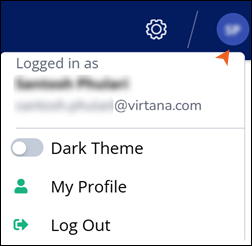
(Optional) To view the Virtana Platform on a black background, enable Dark Theme.
To set the login defaults, click My Profile.
The Manage User Settings window opens.
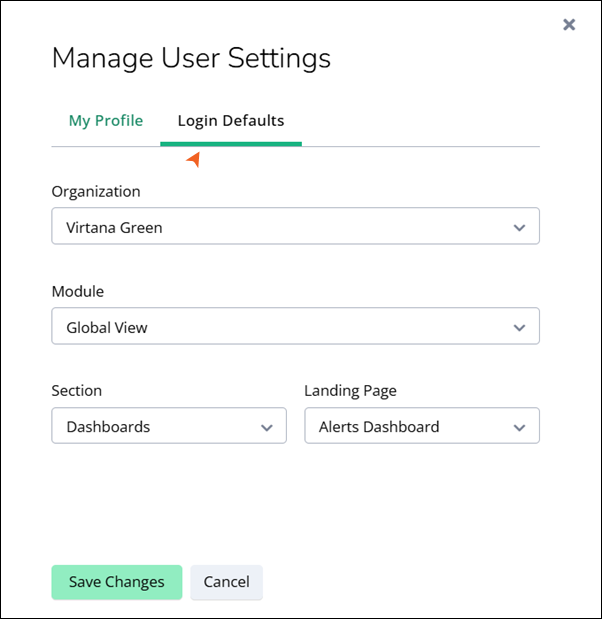
The Manage User Settings window has two tabs:
My Profile
Displays the user's name and email address. No actions can be performed from this tab.
Login Defaults
If you are a member of more than one organization, you can select the organization that is displayed by default when you log in. You can also select the Virtana Platform module within that organization to serve as your landing page at login.
Click Save Changes to save the selected preferences.
Log out and log back in to the Virtana Platform to view the changes.