Advanced
The Advanced alarm rule template provides monitoring capabilities by allowing you to create complex alarm conditions using multiple variables, related entities, and custom expressions.
Configuration
Advanced Rules allow you to define complex alarm logic by combining multiple metrics, properties, related entities, and thresholds using AND/OR conditions. This enables precise monitoring and reduces false positives.
Define Basic Rule Details

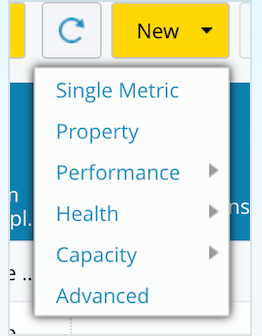
Navigate to New Rule>Advanced.
In Rule Name, enter a descriptive name for your advanced rule.
Add a Description to explain the purpose of the rule.
Under Target Entity, select the entity type to monitor.
Click Apply Filters to limit the rule to specific entities based on attributes.
Define Variables
Variables represent the metrics or properties used in rule evaluation.
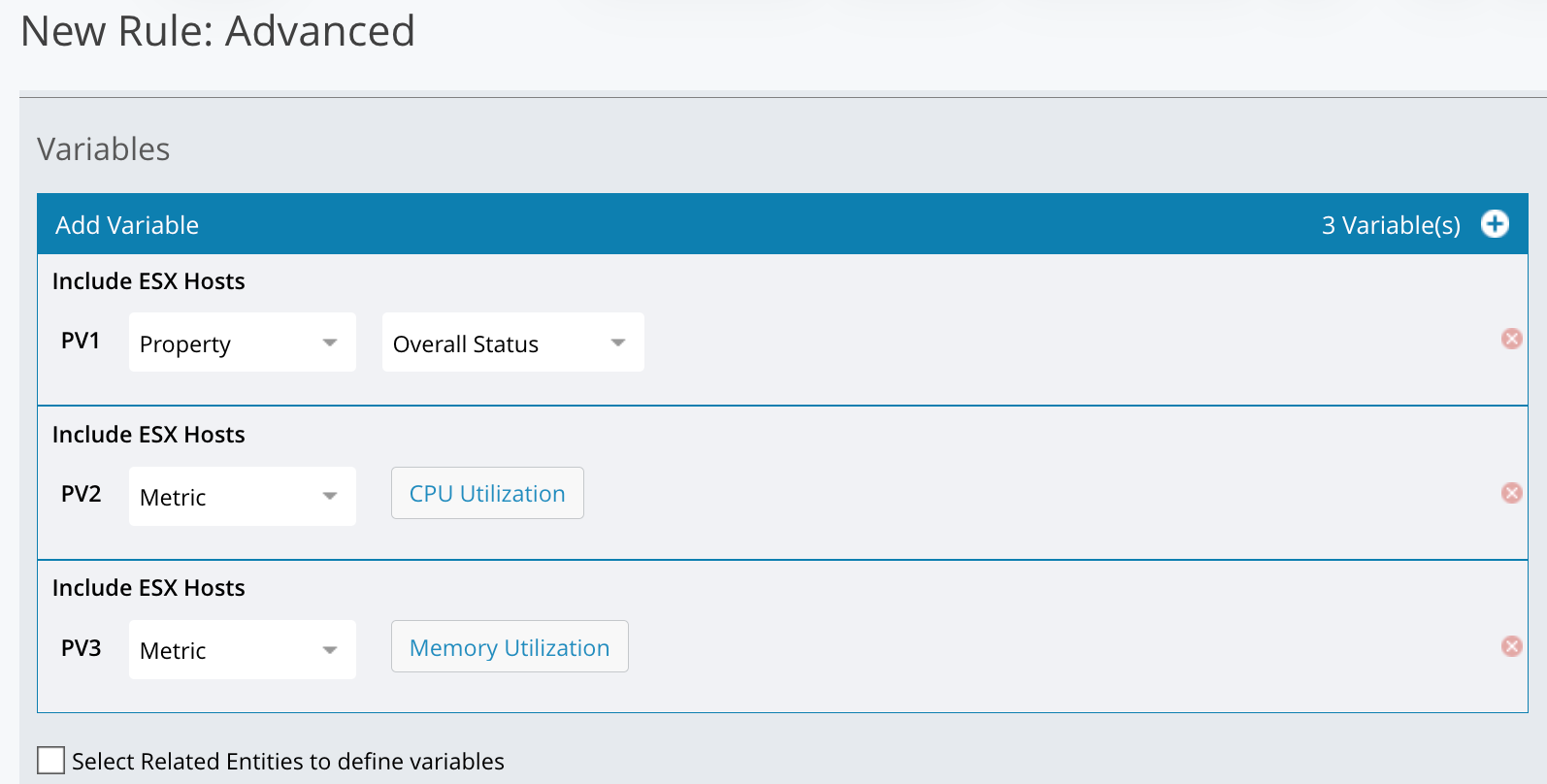
In the Variables section, click Add Variable.
Choose the variable type: Property, or Metric.
Assign each variable a label. (example, PV1: Property → Overall Status).
(Optional): Select Select Related Entities to define variables. Choose the topology and related entity type.
Configure Rule Expression and Conditions
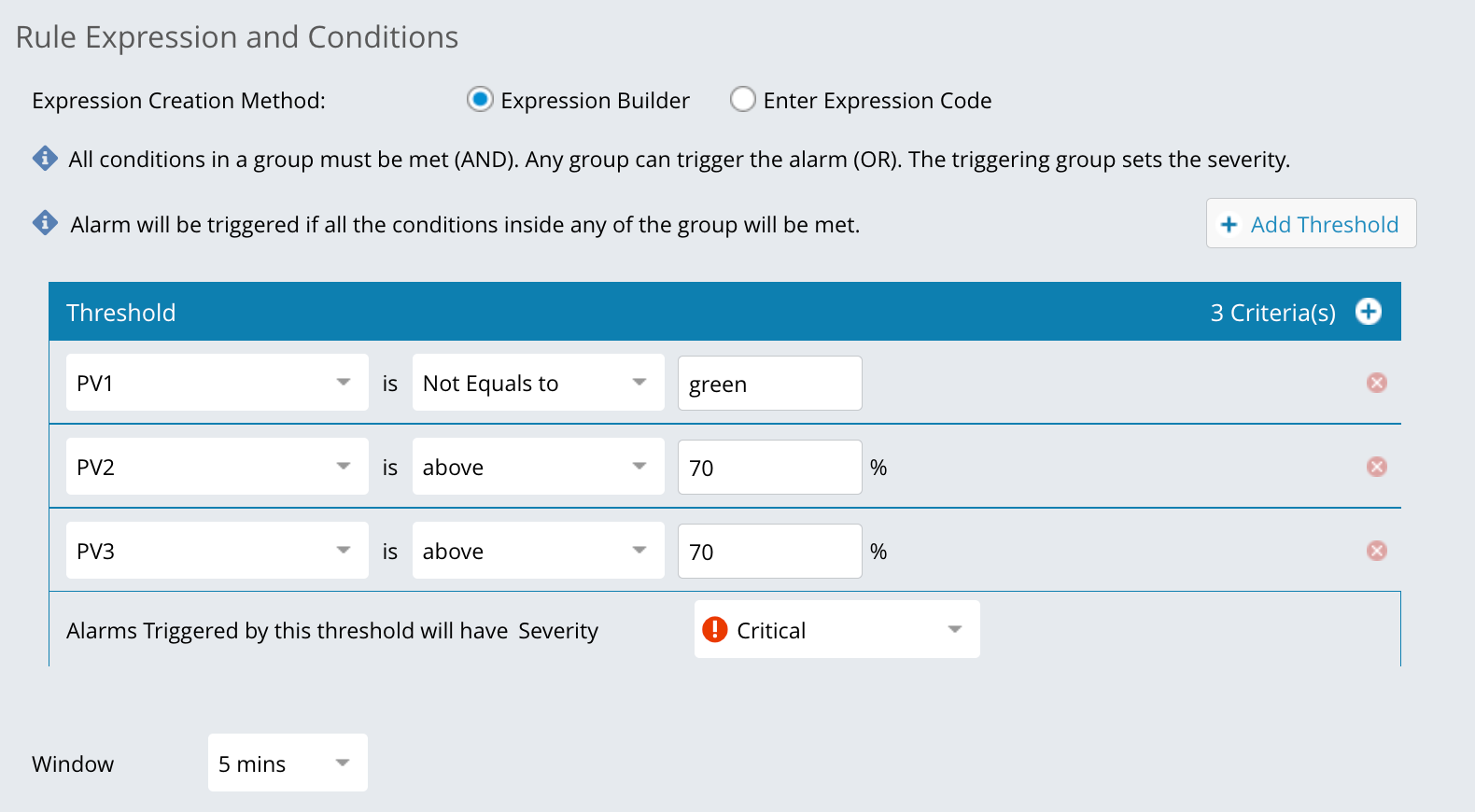
Under Rule Expression and Conditions, select Expression Builder.
Define one or more Threshold Groups.
Why Use Threshold Groups?
Threshold groups allow you to define multiple independent conditions that can trigger an alarm.
Monitor multiple conditions within a single rule.
Trigger an alarm when any one set of conditions is met.
Assign severity based on the condition that occurs.
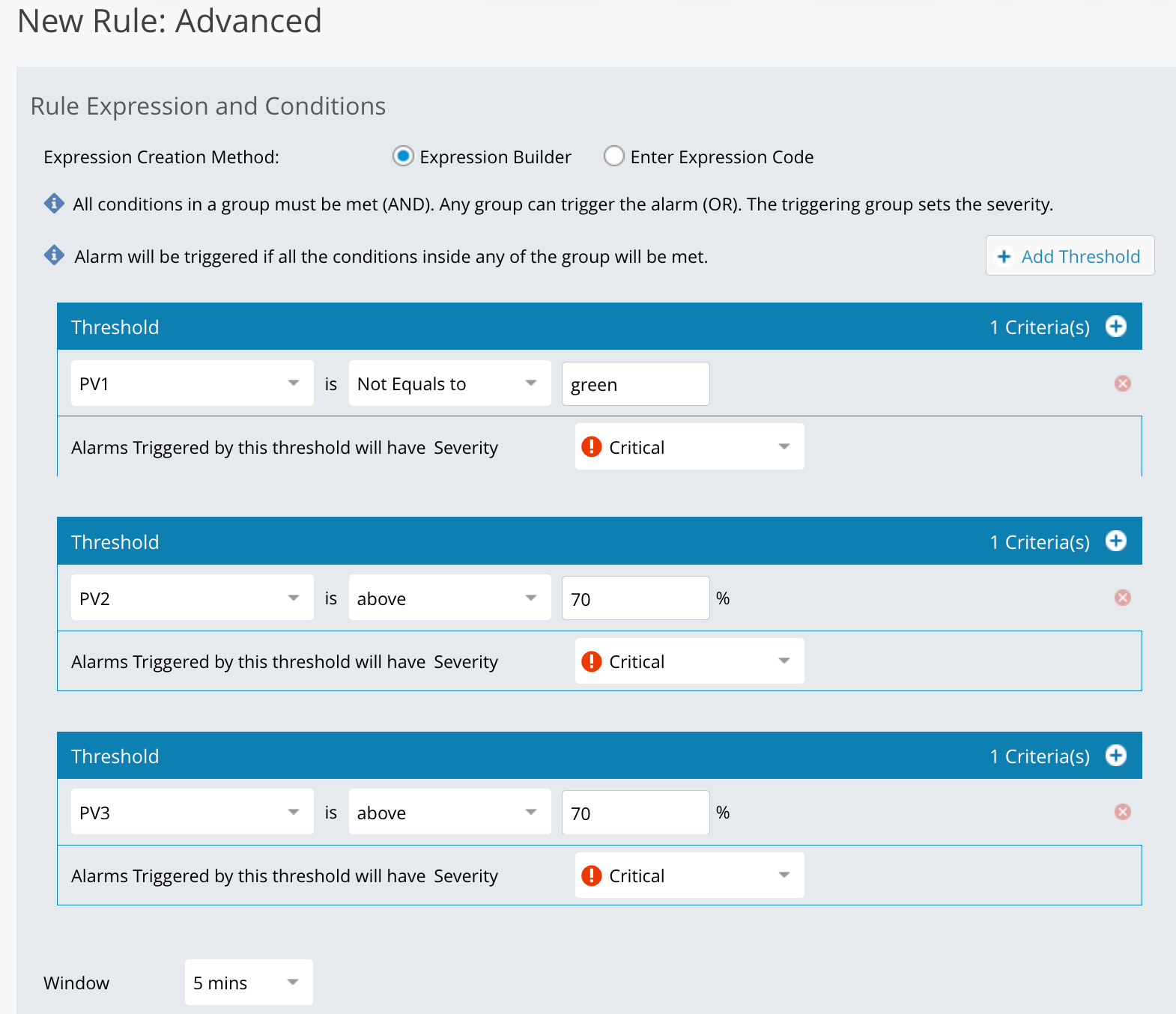
How Threshold Groups Work:
All conditions within a group must be met (AND).
Any group can trigger the alarm (OR).
The group that triggers the alarm determines the severity.
Define Threshold Criteria.
Select a variable (PV or RV).
Choose an operator (for example, above, equals, not equals).
Enter the threshold value.
Set the Severity for alarms triggered by this group (for example, Critical).
Select the Window duration (for example, 5 minutes).
Click Save to activate the Advanced Rule.
Configure notifications.
You can set up a notification plan for the alarm rule to notify users when the alarm is triggered.To add users to the notification plan, click the Add box and check the users to be added. You can also use an email distribution list for the notification plan.
Note
Available users are determined by the users listed in the LDAP and User Management sections of the Settings tab.
Choose Action.
You can choose a default action, which might be predefined in your system. Alternatively, you can select actions such as sending notifications through Webex, Teams, Slack, or other integrated platforms.
Save Rule: Once you have configured all the necessary parameters, click "Save" to create your new alarm rule
Note
Make sure the UI property com.vi.ui.property.alarm is set to true for Advanced Rules to function correctly.
Alarms for Percentile and Rate of Change Metrics
Advanced Rules can trigger alarms based on a percentile aggregation or the rate of change of a metric. These calculations are available only for percentile-supported metrics. When you select a percentile-supported metric in a variable, an aggregation dropdown appears next to the metric so you can choose the calculation.
Before You Begin
Identify a percentile-supported metric on your target entity type. The aggregation dropdown does not appear for metrics that do not support percentiles.
An alarm rule cannot combine metrics that have a percentile type with metrics that do not. Set a percentile type on every metric in the rule, or leave it off every metric.
Create the Alarm Rule
Select the target entity.
In the rule editor, enter a Rule Name and, optionally, a Description.
Under Target Entity, select an entity type from the Alarm on dropdown, then click the entity button that appears next to it.

Add a primary variable.
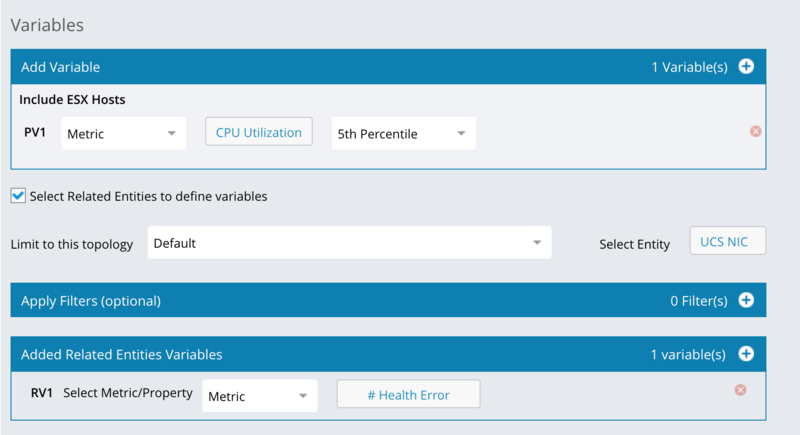
In the Variables panel, click Add Variable.
Select variables - Metric and choose a percentile-supported metric.
Add a related-entities variable.
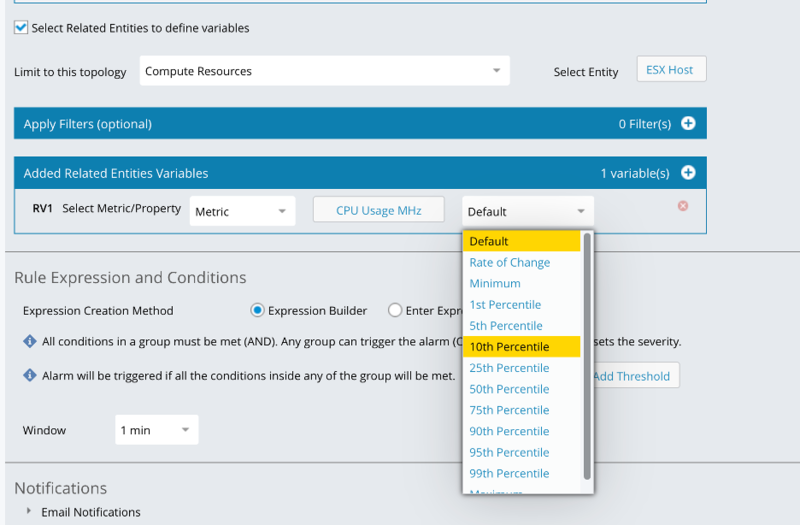
Select the Select Related Entities to define variables checkbox.
Choose a topology from the Limit to this topology dropdown, then click the entity button next to Select Entity.
In the Added Related Entities Variables panel, click Add Variable.
Select Metric and choose a percentile-supported metric.
Add a threshold.
In the Rule Expression and Conditions panel, click Add Threshold.
Select the variable, choose an operator (Above, Below, Equals to, Not Equals to, Within range, or Outside of range), and enter a value.
Select the Severity for alarms that this threshold triggers.
Set the window time.
The Window control appears below the threshold. The starting value depends on the aggregation you selected in the previous steps. See Time Window Defaults for the specific rules.
Click Save to create the rule.
If You See the Mixed-Metrics Error
If a rule combines metrics that have a percentile type with metrics that do not, the save is blocked and the following error dialog opens:
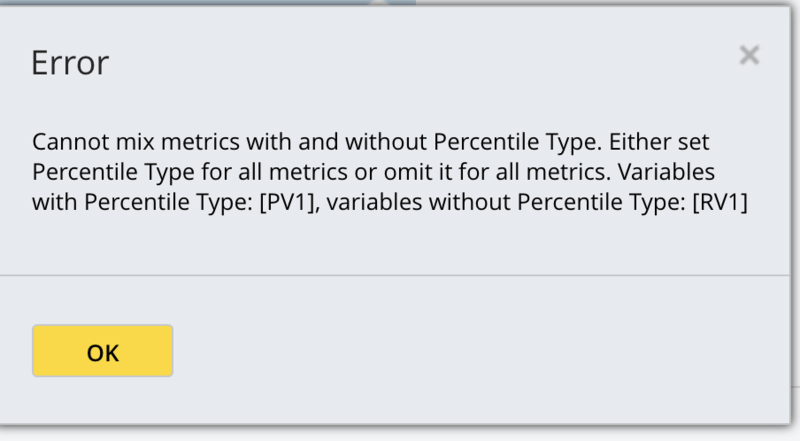
To resolve, either set a percentile type on the variables listed in the second group, or clear it from the variables in the first group, so that every metric in the rule uses the same approach.
Time Window Defaults
The window time defaults for a variable depend on the aggregation you select:
Default aggregation: the window time starts at 1 minute, and you can select any supported window from 1 minute upward.
Rate of Change or any percentile aggregation: the window time starts at 1 hour, and you can select any supported window from 1 hour upward.
Note
Existing alarm rules continue to work without changes. The aggregation dropdown and the 1 hour window minimum apply only when you add or edit a variable that uses a percentile type or rate of change.
Threshold operators for Generic Alarms
Alarms in IO support threshold operators that define the condition a metric or property value must meet to trigger an alarm. You use these operators when configuring the conditional match for a Generic Alarm rule. The following operators are available for both Metric Based alarms and Property Based alarms:
Operator | Syntax | Description |
|---|---|---|
Above | X > value | Triggers when the value is strictly greater than the threshold you specify. |
Below | X < value | Triggers when the value is strictly less than the threshold you specify. |
Equals | X == value | Triggers when the value exactly matches the threshold you specify. |
Not Equals | X != value | Triggers when the value does not match the threshold you specify. |
Within Range | min <= X <= max | Triggers when the value falls within the range you specify, inclusive of both boundary values. |
Outside Range | X < min OR X > max | Triggers when the value falls outside the range you specify, exclusive of both boundary values. |
Advanced Rule – Supported Scenarios
Advanced rules allow you to create alarms using metrics, properties, and filters for a single entity. The following scenarios are supported when using the Expression Builder.
Single Entity – Single Metric
Create an alarm based on a single metric value.
Entity: ESXHost
Input: CPU Utilization (Metric)
Condition: CPU Utilization > 1
Single Entity – Single Property
Create an alarm based on a property value.
Entity: ESXHost
Input: Overall Status (Property) Condition
Overall Status = Green
Single Entity – Metric and Property
Create an alarm using a combination of a metric and a property.
Entity: ESXHost
Inputs: CPU Utilization, Overall Status
Condition: CPU Utilization > 1 OR Overall Status = Green
Single Entity – Multiple Metrics
Create an alarm using multiple metrics.
Entity: ESXHost Inputs: CPU Utilization, Avg VM CPU Ready % Condition: CPU Utilization > 1 OR Avg VM CPU Ready % > 1
Inputs: CPU Utilization, Avg VM CPU Ready %
Condition: CPU Utilization >1 OR Avg VM CPU Ready >1
Enabling the New Alarms Engine
By default, the new Alarm Engine is enabled and supports both property alarms and advanced alarms.
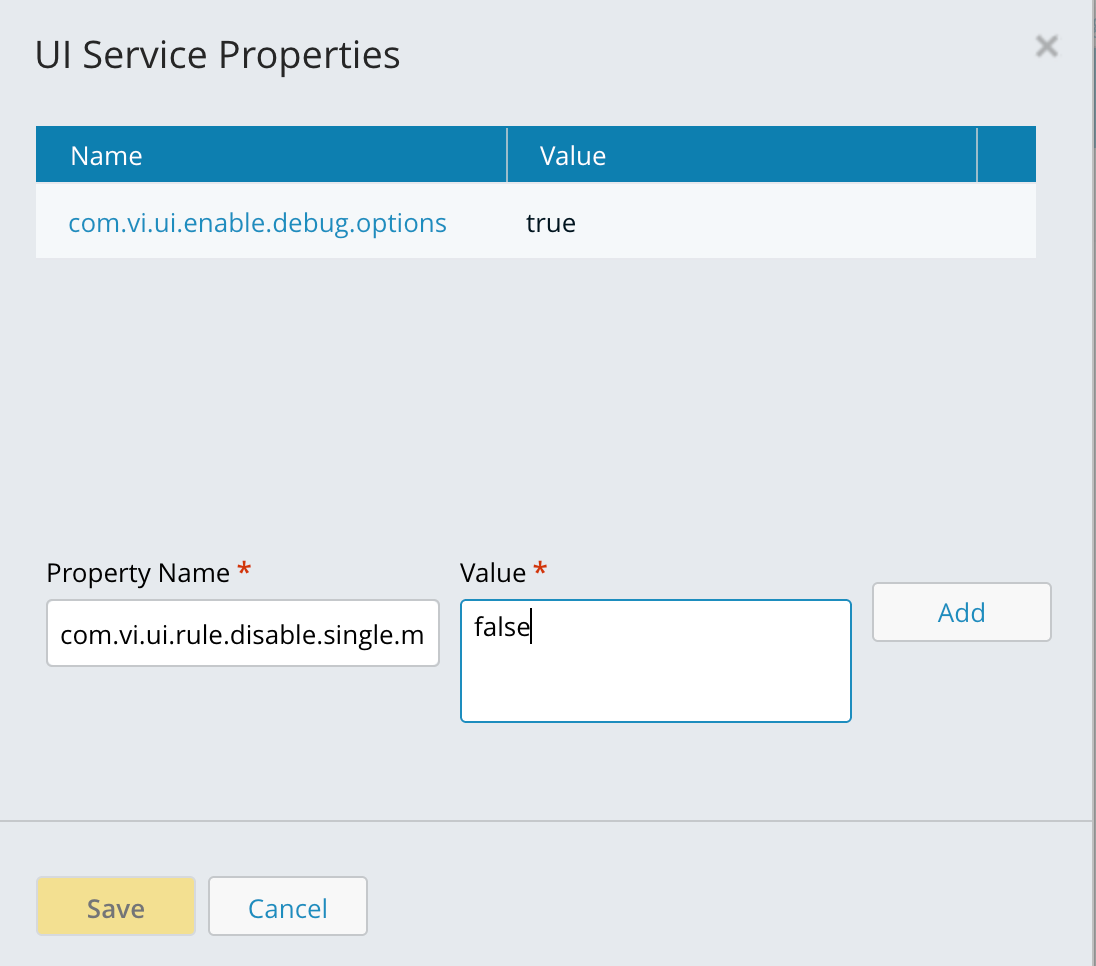
Enabling the New Alarms Engine to Process Existing Templates
To migrate supported alarm templates from the existing alarms service to the new Alarms Engine, complete the following steps.
Step 1: Enable the New Alarms Engine
Navigate to Settings> Service Management.
Search for Alarm Service and add the following property:
com.vi.alarms.engine.enabled = true
Step 2: Disable Supported Templates in the Existing Alarms Service
To avoid duplicate alarm evaluation, disable the templates that will be processed by the new engine.
In the Alarm Service, set the following property:
com.vi.alarms.disabled.templates = template1, template2
This property specifies the list of alarm templates that should be disabled in the existing alarms service.
Step 3: Enable Template Processing in the New Alarms Engine
Navigate to Settings >Service Management.
Search for Alarms Data Extractor service and set the following property:
alarms.engine.templates.enabled = template1, template2
This property enables the new Alarms Engine to process the specified templates. The list of supported templates is the same as those listed in Step 2.
By default, the new Alarms Engine supports the following templates:
PropertyAlarm - advance
GenericAlarm- advance
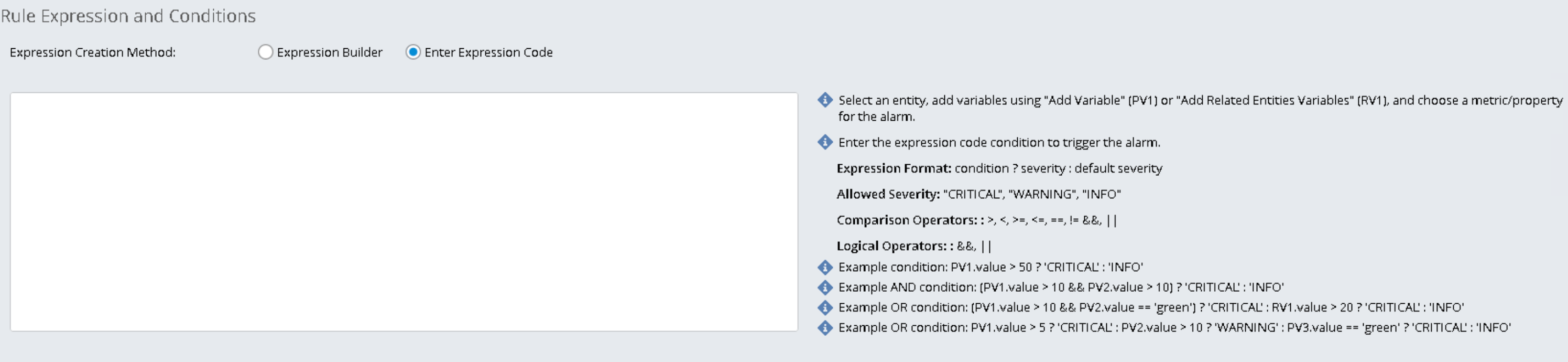
Rule Expression and Conditions - Expression Code
Expression Code lets users define custom alarm conditions using variable-based logic. After selecting an entity and defining variables, users enter a conditional expression that evaluates threshold values and returns a severity level such as CRITICAL, WARNING, or INFO.
When to Use Expression Code
Use Expression Code to define alarm logic that requires greater flexibility than the standard expression builder. It supports variable-based conditions (such as PV1 and RV1) and allows multiple checks within a single expression.
Format
The system uses a ternary expression format:
condition ? valueIfTrue : valueIfFalse
Supported operators
Comparison: >, <, >=, <=, ==, !=
Logical: &&, for AND, || for OR
Allowed outputs
Return one of these severity values:
"CRITICAL"
"WARNING"
"INFO"
Example
PV1.value > 95 && RV1.value > 90 ? "CRITICAL" :
PV1.value > 85 || RV1.value > 80 ? "WARNING" :
"INFO"
This expression returns CRITICAL when both values are above the critical threshold, WARNING when either value crosses the warning threshold, and INFO for all other cases.
Step-by-Step: Building an Expression
Add the required variables, such as PV1 and RV1.
Select Enter Expression Code.
In the input box, write your expression using this pattern:
<variable>.value <operator> <threshold>
Combine multiple conditions using && or ||.
End the expression by returning a severity string: "CRITICAL", "WARNING", or "INFO".
In summary, Expression Code lets you build custom alarm logic by combining variables, operators, and severity outputs in a simple conditional format.