Set up access between Infrastructure Observability and Global View
The integration between IO and Global View enables you to synchronize infrastructure performance and utilization data with Global View, which provides a unified platform for monitoring, analysis, and proactive management. The integration helps you manage events and gives you visibility into resource efficiency and cost trends across your hybrid environments, so you can quickly identify anomalies, optimize spending, and respond to alerts in context.
The ultimate goal is to enable IO data, including collected metrics and triggered alarms, to be successfully synchronized and displayed in the Global View Capacity and Alerts dashboards, providing a unified monitoring and analysis environment.
Prerequisites of IO and Global View integration
Before you start the integration, make sure you meet the following requirements:
You must have administrator privileges in both Global View and IO.
Make sure that you have an active Virtana Platform account and have generated OAuth client credentials by following the steps below.
Generate OAuth credentials
You can generate OAuth client credentials by performing the following steps:
Log in to your Virtana account and click Settings (
 ).
).In the side menu, click Integrations and select Virtana Platform API.
In the Virtana Platform API page, click Generate OAuth Client Credentials.
The New Credentials window opens.
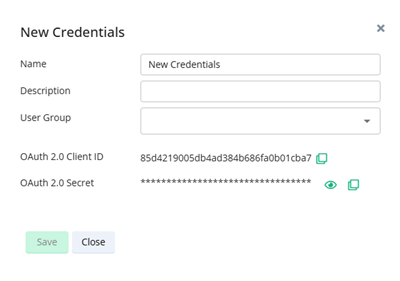
Enter a name, description for the credentials, and assign a user group.
You can select the user group, such as Administrators, Administrators only, to ensure secure and appropriate access control.
The impact of selecting Administrators or Administrators only as a user group is as follows:
Aspect
Administrators
Administrators only
Type
System‑wide (global) user group
Tenant‑specific user group
Purpose
Provide unified, OOB admin mapping across tenants/products
Can customize who your organization considers as an admin
User Membership
Automatically managed by the platform
Only users you explicitly add
Scope of Admin Entitlements
Admin rights are defined at the system/global level
Admin rights only within your organization’s context
Access Control Style
Broad, aligned with default system mappings
Tight, isolated, not tied to global mappings
Click Save.
If you need to remove credentials, perform the following steps:
Select and left-click on the credentials that you want to remove in the list.
The Edit Credentials window opens.
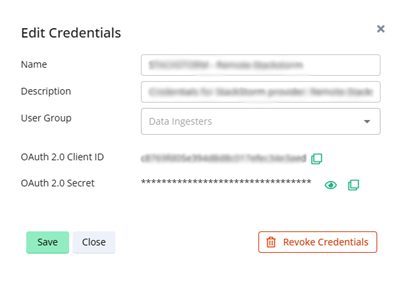
Select Revoke Credentials.
The Revoke Credentials window opens.
In the Revoke Credentials window, click Revoke.
Click Save.
Integrating IO with Global View at a glance
This section outlines the process for integrating IO with Global View.
In Infrastructure Observability, click Settings, and then in Probes and Integrations, click Connect to Virtana Platform.
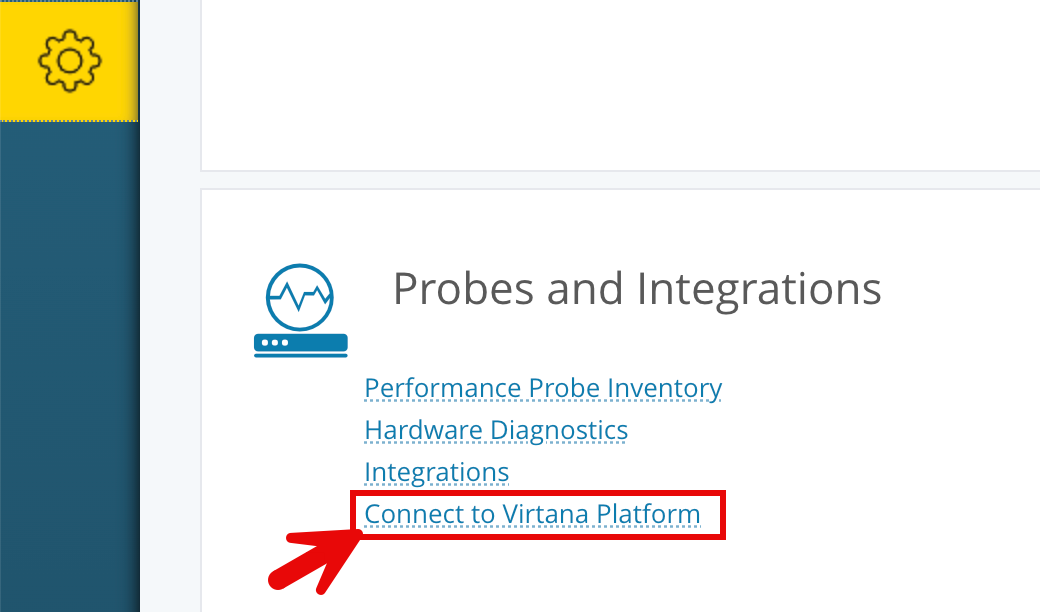
To configure IO properties to integrate with Global View, perform the following steps:
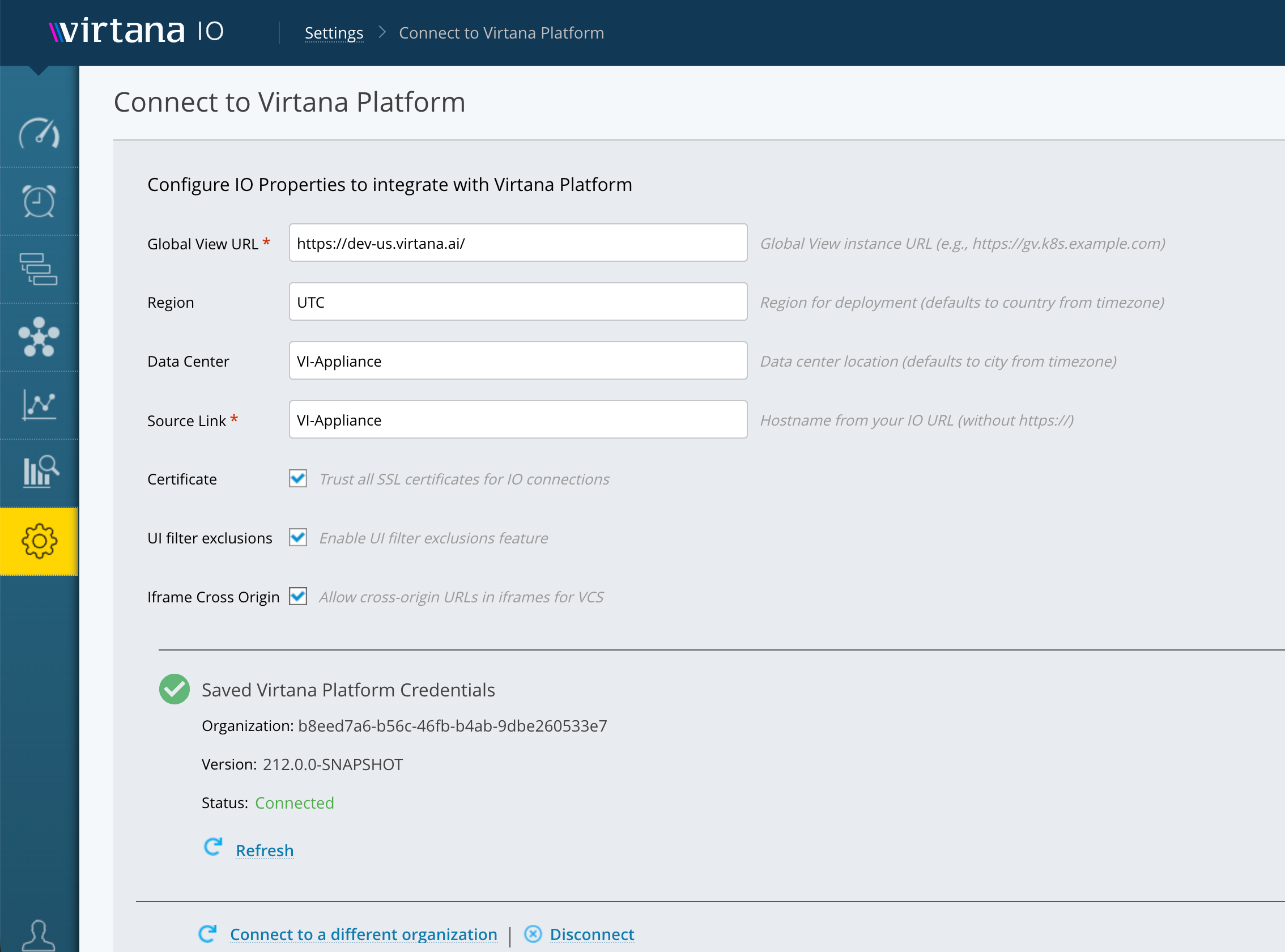
Go to Settings > Connect to Virtana Platform.
Under Configure IO Properties to integrate with Virtana Platform, complete the fields described in the following table:
Field
Description
Required
Global View URL
URL of your Global View instance, for example, https://gv.k8s.example.com.
Yes
Region
Region for deployment. Defaults to the country derived from the appliance's time zone, for example, UTC
No
Data Center
Data center location. Defaults to the city derived from the appliance's time zone. If the city can't be determined, it falls back to the hostname, for example, VI-Appliance.
No
Source Link
Hostname from your IO URL, without https://, for example, VI-Appliance.
Yes
Select or clear the following check boxes based on your environment:
Certificate: Select to trust all SSL certificates for IO connections. Select this if your environment uses self-signed or untrusted certificates.
UI filter exclusions: Select to enable the UI filter exclusions feature in IO. When enabled, this allows certain UI-level filters in IO to be excluded when IO data is viewed or embedded within the integrated Global View context.
Iframe Cross Origin: Select to allow cross-origin URLs in Iframes for VCS integration. This controls browser-level cross-origin security for Iframe embedding.
Enter your Client ID and Client Secret.
If no connection exists to a Virtana Platform organization:
Add the OAuth 2.0 client ID and client secret for the target organization in Virtana Platform.
Click Validate & Connect.
A confirmation message informs you that the connection was successful.
When you add or update the Client ID and Client Secret on the Connect to Virtana Platform screen, the system now displays the current VCS connection status. Virtana Cloud Sync (VCS) is a core service within the IO ecosystem that plays a crucial role in syncing data from on-premises IO appliances to the Virtana Platform's Global View cloud platform.
Click Validate and Connect. IO validates the configuration and establishes the connection to Virtana Platform. If the IO Cloud Sync service is stopped, IO starts it automatically. When the connection is successful, the Saved Virtana Platform Credentials section displays the following information:
Organization: The organization ID associated with your Virtana Platform account.
Version: The current version of the connected instance.
Status: Displays Connected when the connection is active.
The following options are available after a successful connection:
Refresh: Click to manually refresh the connection status.
Connect to a different organization: Click to re-enter credentials and connect to a different Virtana Platform organization.
Disconnect: Click to end the current connection to Virtana Platform.
Single Sign-On (SSO) Setup
SSO setup properties and configuration options required to enable and manage Single Sign-On (SSO) in Virtana Platform. These properties are typically set during SSO integration with providers such as Okta, Azure AD, or any SAML 2.0-compliant identity provider.
Configure an application in the SSO provider:
A SAML 2.0 provider can be, for example, OKTA. In provider one needs to add an application, and provide:
SSO URL, for example,
https://vi.okta.com/api/sec/saml/login.Audience URL, for example,
https://[FODT]/.The application username should be set as the email ID.
To log in with the SSO-generated IdP, see the section Log in with SSO.
On successful login, the SSO provider will redirect the page back to the Virtana Platform SAML login link. With this, Virtana Platform will validate SSO details, and upon successful validation, the user will be taken to the appropriate landing page.
Collection Policies and Sync Frequency
When you enable IO Cloud Sync and establish a healthy connection between Infrastructure Observability and Global View, data synchronization from IO to GV occurs according to the following default collection policies and schedules:
Data Type | Sync Frequency | Page to view policy |
|---|---|---|
Alerts | 24 hours (daily) | View the new alert and its severity in the Alerts section and the Alerts Dashboard every minute. |
Compute (Inventory/Metric) | 24 hours (daily) | Within every 6 hours, Global View On-Premises Compute Cost and Capacity inventory is updated. |
Storage (Inventory/Metric) | 24 hours (daily) | The new values for each day's sync updates are available in Global View's On-Premises Storage Array Cost and Capacity Summary views. |
GPU Fleet (Inventory/Metric) | 24 hours (daily) | The host and GPUs appear in the Global View GPU Fleet analysis every six hours. |
LLM Token Usage (Inventory/Metric) | 24 hours (daily) | The Token Usage Dashboard in Global View shows the application’s token usage and cost contribution every six hours. |
License (Inventory/Metric) | 24 hours (daily) | View the daily and monthly sync of updated license capacity, usage, and compliance status in Settings > License Usage. |
Switch, Application (Inventory) | 24 hours (daily) | The discovered network switches appear in the Global View Inventory and Topology views every four hours. |
Volume (Inventory) | 24 hours (daily) | After the daily sync, Global View surfaces impacted storage volumes through storage dashboards, alerts, and topology. |
Note
These are the default schedules for data collection and synchronization between IO and GV. The actual sync intervals may vary if custom policies are configured.
Note
After you configure the IO appliance, data synchronization can take up to 24 hours to complete. During this time, some data might be missing or incomplete in the Virtana Platform UI. If data still doesn’t appear after 24 hours, contact Virtana Support.
Verifying if IO Data Appears in Global View
This section outlines the verification steps to ensure a seamless connection has been established between IO and Global View.
Activate IO Cloud Sync. Make sure that the IO Cloud Sync service is running by navigating to Service Management in Settings, and verify that the IO Cloud Sync service is running.
Data metrics should be successfully collected and discovered by at least one integration in IO without any issues. Navigate to the Service Management in Settings section of IO to verify that the key data collection services are running. This ensures that IO captures essential data for monitoring.
Configure Alarms in IO if you do not have any existing alarms.
To create alarm rules, see Alarm Rule Templates.
Once an alarm is triggered in IO according to configured rules, it will appear as an alert in the Global View Alerts dashboard.
Check the Capacity Dashboard
Navigate to the On-Premises Storage Array Cost And Capacity Summary/On-Premises Compute Cost And Capacity in the Dashboard section of the Global View.
Verify if the data is displayed accurately.
Note
The datacenter set in the parameters will display as the site property on the array capacity pages in Global View. See On-Premises storage array cost and capacity summary.
Troubleshooting
Perform the following tasks if the data is not syncing:
Check IO health: In Global View, click IO in the top menu to view the IO appliance that is having syncing issues.
Validate OAuth credentials: Confirm that you have entered the correct OAuth 2.0 client ID and client secret for your Virtana Platform organization in the IO appliance settings.
Verify Global View URL: On the Connect to Virtana Platform page, confirm that the Global View URL is correct. An incorrect URL can prevent data synchronization.
Refresh the Service: If the service is stopped in IO, enable Auto Refresh under Settings >Service Management.
Check Data Collection: On the Connect to Virtana Platform page, verify the connection status. If the connection is not established, review the displayed error message to identify the cause of the synchronization failure.
Perform the following tasks if unable to log in to Global View/IO:
Credentials: Double-check your username and password. If you are using SSO, ensure your SSO credentials are correct.
Password reset: If you have forgotten your password, use the password reset option or contact your administrator.
Perform the following tasks if the connection between GV and IO is unsuccessful:
Check DNS Resolution from the IO Appliance: Ensure the IO appliance can resolve the configured Global View URL. If DNS resolution fails, update your DNS configuration or add the appropriate host entries.
Confirm Global View Base URL: Navigate to the Connect to Virtana Platform page and verify that the Global View URL, including the protocol, is correct. If you update the URL, restart or refresh the UI service (enable Auto Refresh if needed) and retry the connection.
Check IO Cloud Sync Properties: Navigate to the Connect to Virtana Platform page and verify that the required properties are configured correctly. If any properties are updated, enable Auto Refresh for the IO Cloud Sync service and confirm that the service restarts successfully.
For example:
Good values
Bad Values
region = us-east-1
region = us_east (incorrect format or invalid region code)
region = us-west-2
region = us west 2 (spaces instead of hyphens)
region = APAC
region = @merica-east (unexpected special character)
region = NA-Primary
region = "" (empty) (empty value; effectively unset)
datacenter = dc1
datacenter = data center 1 (spaces or unexpected characters)
datacenter = dc2
datacenter = DC 2 (Primary) (spaces and parentheses)
datacenter = lab1
datacenter = n/a (placeholder, not a real site)
vw.vp_base_url = https://cloud.virtana.com/
vw.vp_base_url = http://cloud.virtana.com/ (HTTP instead of HTTPS)
vw.vp_base_url = https://10.10.10.10/
vw.vp_base_url = https://cloud.virtana.com/global-view (includes path; must be base URL only)
Perform the following tasks if SSO is not working:
SSO provider configuration: Confirm that the SSO application is correctly configured in your identity provider with the correct SSO URL and Audience URL.
Certificate validity: Ensure the certificate is valid and not expired.
Attribute mapping: Verify that the required attributes, such as name or groups, are being sent by the IdP and are correctly mapped in Virtana Platform. You can access the Inspect ID Token/Access Token/Preview/Test SAML options in Okta/Auth0/Other IdPs to view:
For SAML: attributes inside <Attribute Name="...">.
For OIDC: JSON claims in the ID token (name, preferred_username, groups, etc.).
SSO URL: Make sure you are accessing the correct SSO login URL as configured in your provider.
Logs and error messages: Review any error messages displayed during login and consult the authentication logs in both Virtana Platform and your SSO provider for more details.
Contact support: If the issue persists, contact your IT administrator or Virtana support at support@virtana.com for assistance and include a brief description of the troubleshooting steps already performed.