Configure resource groups
You can configure Resource Groups to define, view, and filter resources that align with organizational structures like business units, workload, or SLA level.
Create resource group
Perform the following steps to create the resource group:
To create a new resource group, click Add Resource Group.
The Configure Resource Group window opens.
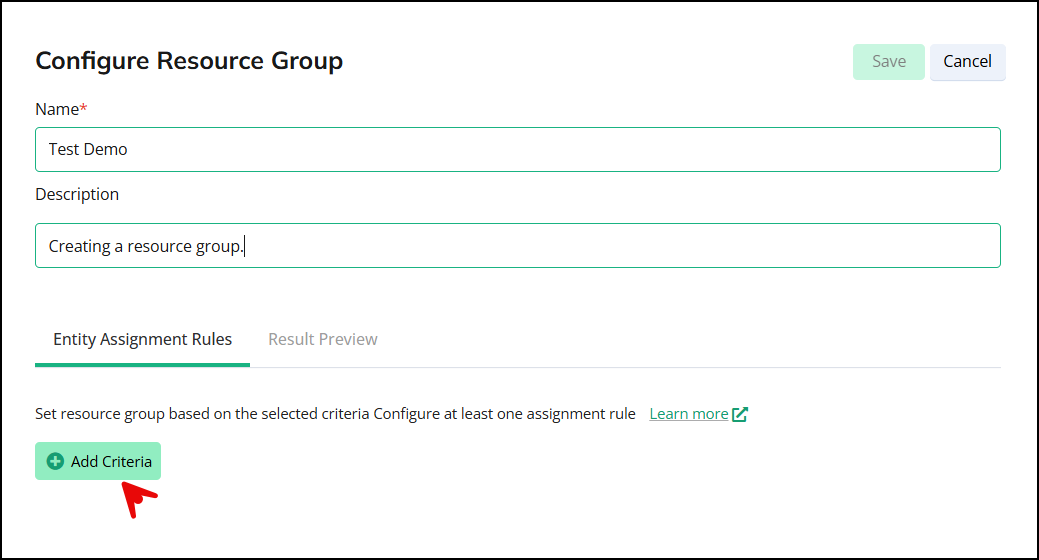
In the Configure Resource Group window, enter the group name and a description of it, then click Add Criteria or, to edit existing criteria, click the edit button.
The Add/Edit Criteria window opens.
In the Add/Edit Criteria window, select the source type as Container Observability (CO) or Infrastructure Observability (IO).
You will get additional fields in the same window.
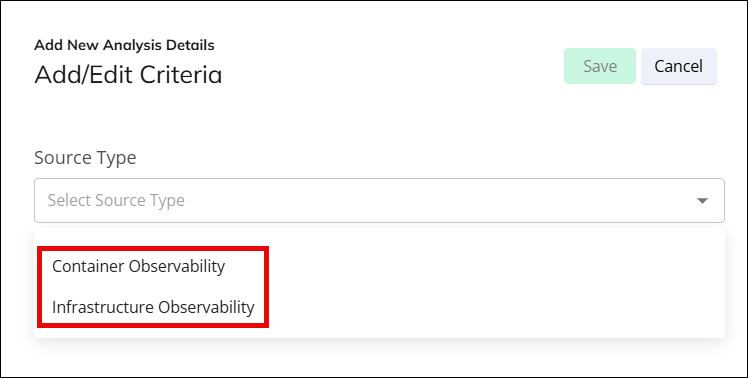
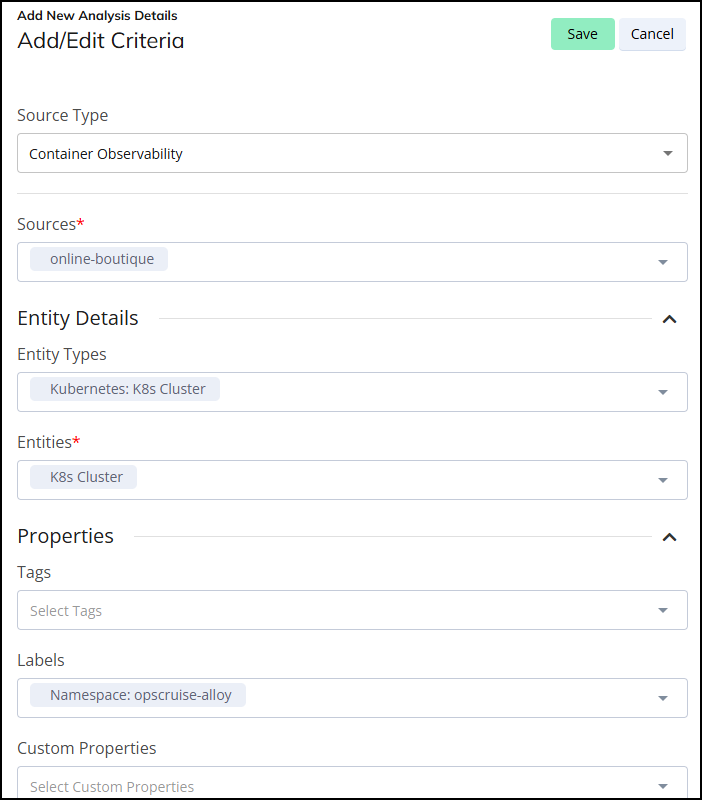
Enter the relevant details in all the fields and click Save.
Field
Description
Source Type
You use this field to specify the origin or category of resources you want to include in your resource group.
Sources
This is a mandatory field and lets you specify the particular instances or deployments of the selected Source Type from which resources will be drawn.
Entity Types
Here, you define the categories of entities, such as Kubernetes clusters, VMs, or databases, to include from your selected sources.
Entities
This is a mandatory field and allows you to pick specific instances of the chosen entity types to include in your resource group.
Tags
Use this field to include only those entities that have specific tags applied.
Labels
This field lets you filter entities based on their labels, such as Kubernetes labels.
Custom Properties
This field enables you to filter entities using custom properties not covered by standard tags or labels.
Check and confirm the created criteria and click Save on the Configure Resource Group window.
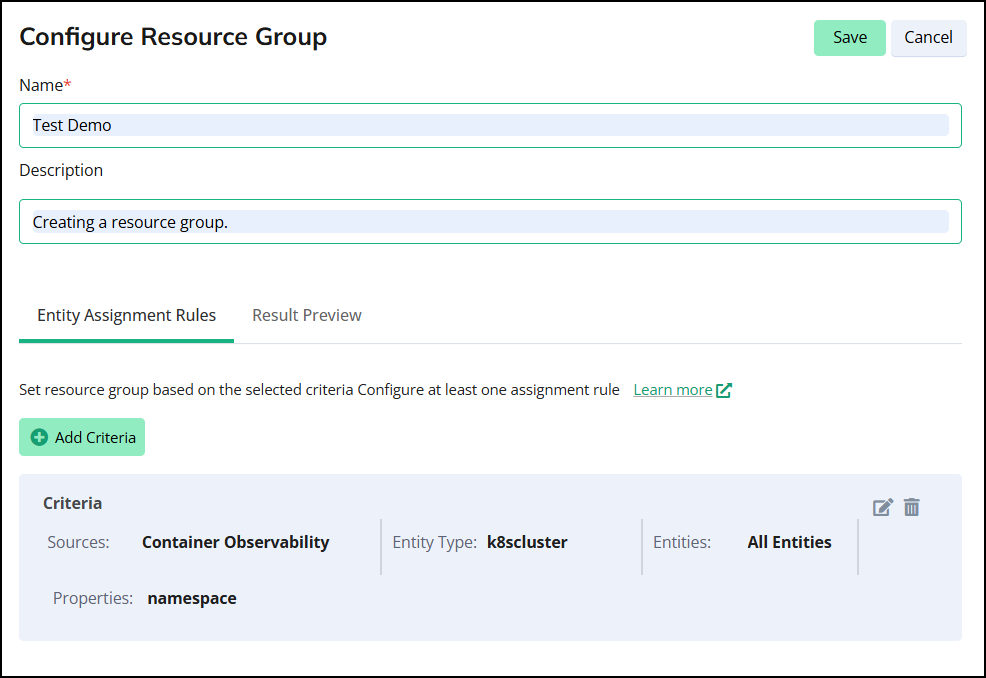
Open the Results Preview tab to view the list of entities associated with the new resource group.
Edit resource group
Perform the following steps to edit the resource group:
To edit any existing Resource Group, click the particular resource group name to edit.
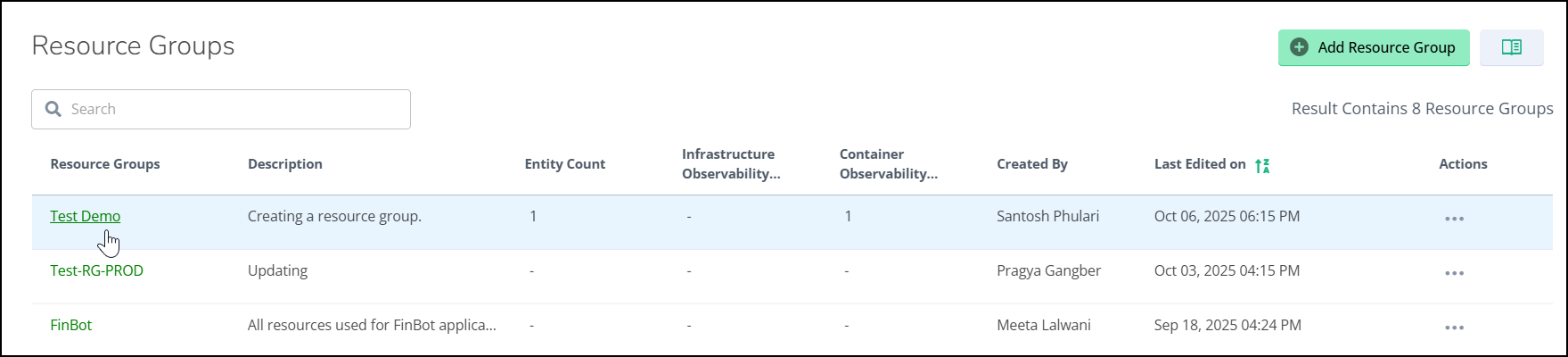
The Update Resource Group window opens.
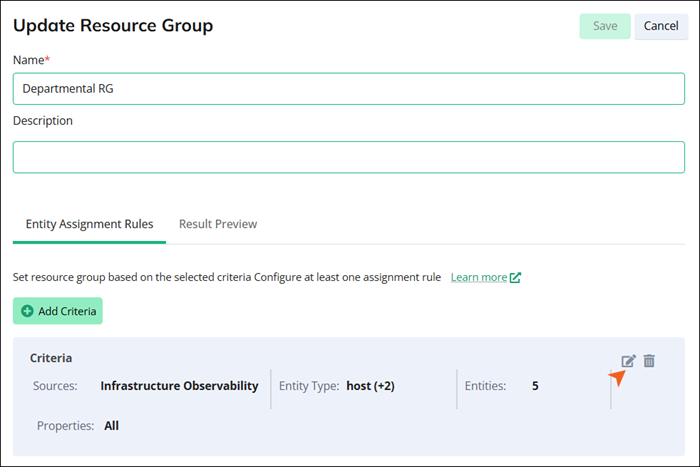
In the Update Resource Group window, edit the group name and a description of it, then click Add Criteria or click the edit (
 ) button to edit the existing criteria.
The Add/Edit Criteria window opens.
In the Add/Edit Criteria window, edit the relevant details in all the fields and click Save.
Field
Description
Source Type
You use this field to specify the origin or category of resources you want to include in your resource group.
Sources
This is a mandatory field and lets you specify the particular instances or deployments of the selected Source Type from which resources will be drawn.
Entity Types
Here, you define the categories of entities, such as Kubernetes clusters, VMs, or databases, to include from your selected sources.
Entities
This is a mandatory field and allows you to pick specific instances of the chosen entity types to include in your resource group.
Tags
Use this field to include only those entities that have specific tags applied.
Labels
This field lets you filter entities based on their labels, such as Kubernetes labels.
Custom Properties
This field enables you to filter entities using custom properties not covered by standard tags or labels.
Check and confirm the created criteria and click Save on the Update Resource Group window.
To delete the criteria, click the delete button to remove it from the resource group.
Open the Results Preview tab to view the list of entities associated with the new resource group.