Create a report
Use this procedure to create a report and add charts to it.
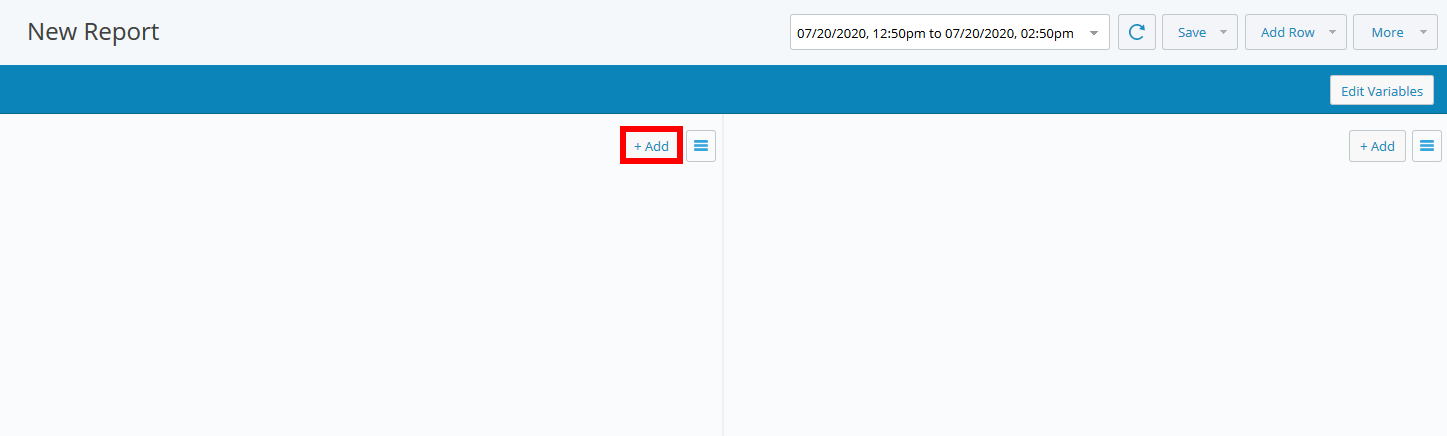
Navigate to the Reports tab and click New Report.

Click Add Row, then select the row layout.

The chart areas are initially blank.
Click Add.
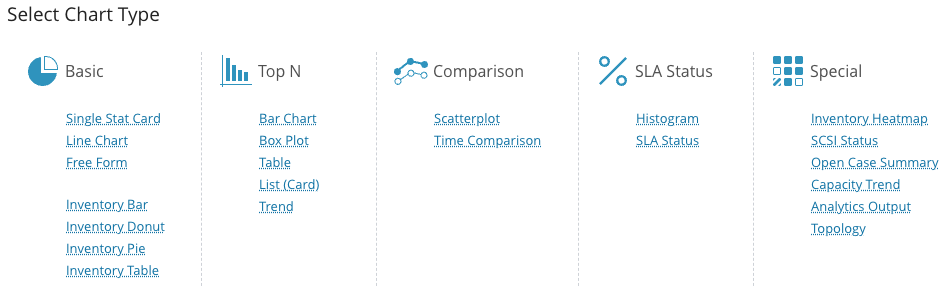
In the chart type selection dialog, select the chart type you want to add to the report.
Note
In IO (Infrastructure Observability) 2026.2.1, reports that include inventory tables are exported as CSV files. This format supports scheduled report runs and email delivery. Reports that contain multiple tables are delivered as a ZIP file, with each table in its own CSV file.
Select the entities and metrics for the report.
The chart type determines which entities and metrics you can select.
The entities and metrics available depend on your configured integrations. If an integration is not configured, the entities and metrics for that integration are not available for selection.
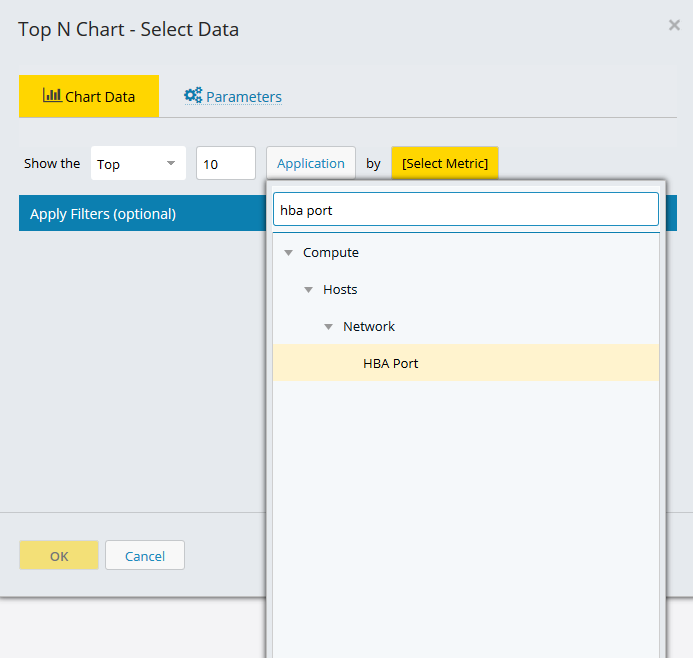
Click in the entity field and select an entity type from the drop-down list. You can use the search field to quickly find an entity type.
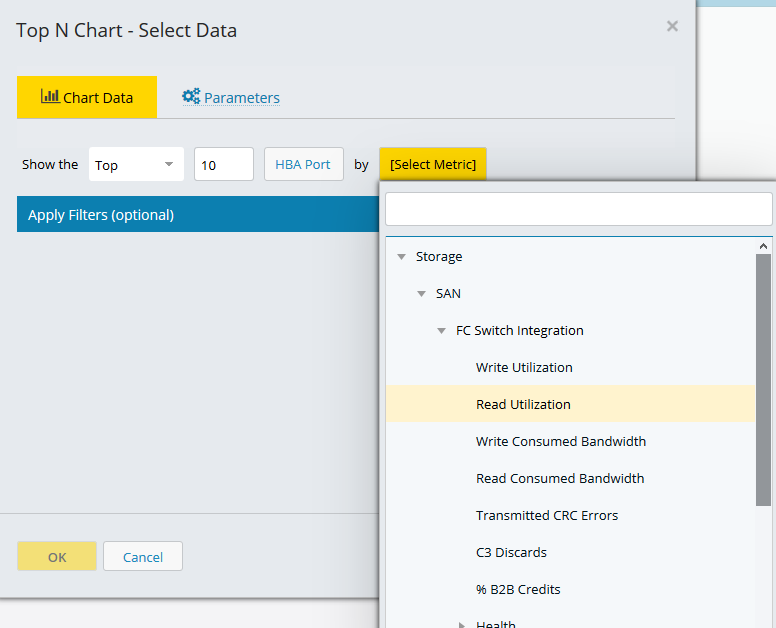
Select a metric from the list of available metrics and click OK.
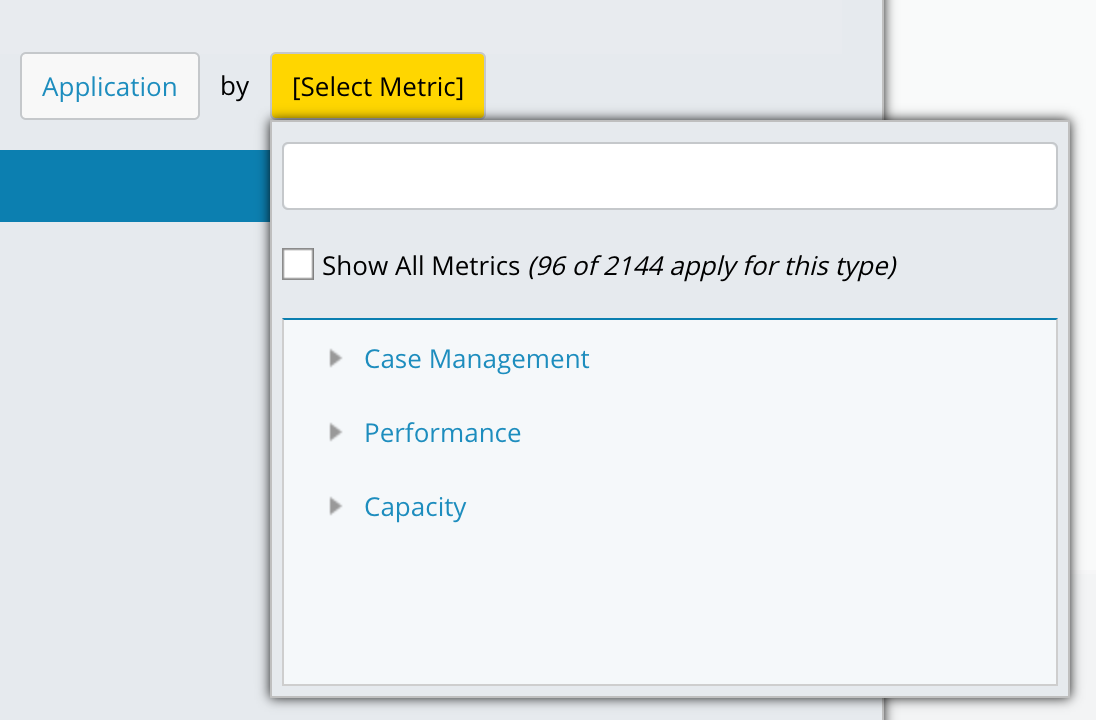
When you select Application as the entity type, you can choose to display all metrics or only metrics specific to the Application entity. Selecting the Application-specific option filters the list to show only entities assigned to at least one application. Unassigned entities are excluded. The total number of applicable metrics appears in the selection window.
Tip
If you plan to add entity types to an application later and want to configure your report, dashboard, or alarm to include those metrics in advance, select the Show All Metrics checkbox to make them available for selection.
The chart updates with entity and metric data for the selected date range.
Percentile metrics and rate of change
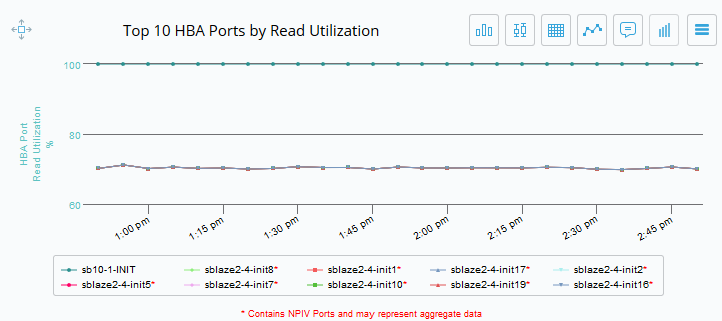
IO captures percentile values for supported metrics. When you configure a chart, you can select percentile values and view the rate of change for a metric.
Rate of change indicates the direction and magnitude of change for a metric over a selected time range. It is calculated from the start and end percentile values stored in the database for the selected period.
The following rules apply to rate of change values:
A positive value indicates the metric is increasing over time.
A negative value indicates the metric is decreasing over time.
Availability
Rate of change is not available for all metrics. The Rate of Change option appears in the chart configuration panel only when the selected metric supports percentile values.
If the selected metric supports percentiles, the Rate of Change option appears in the chart configuration panel.
If the selected metric does not support percentiles, the Rate of Change option is not displayed.
Rate of change is available for the following chart types:
Note
The Rate of Change option is available for both the Top N Table and Box Plot visualizations. However, the Rate of Change dropdown is not displayed for these visualization types.
Top-N Trend
Line chart
Top-N table
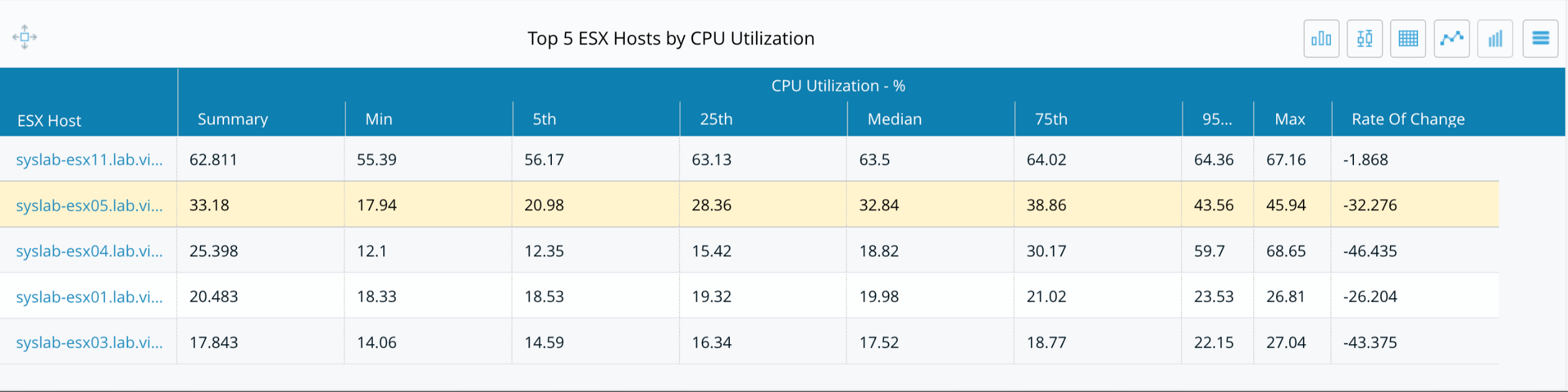
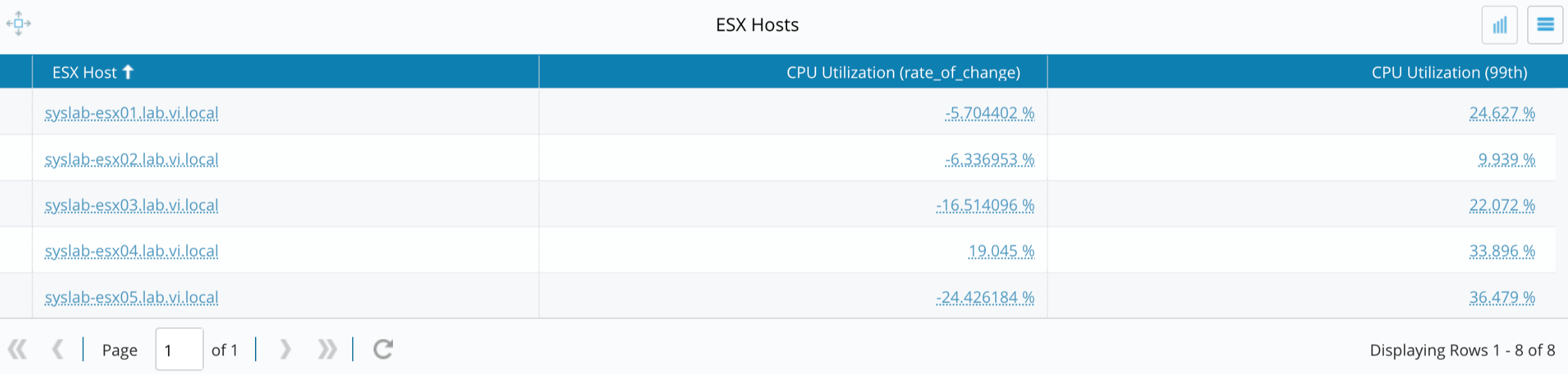
Inventory table
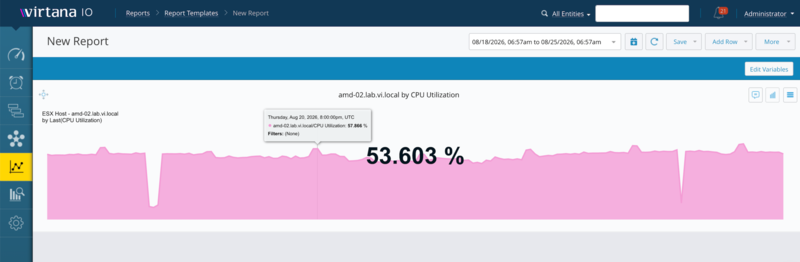
Basic- Single stat card
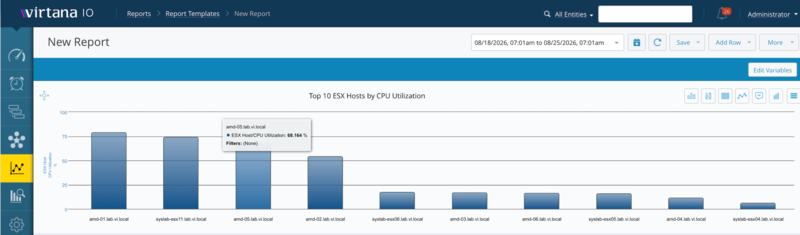
Top End- Bar Chart
Box Plot
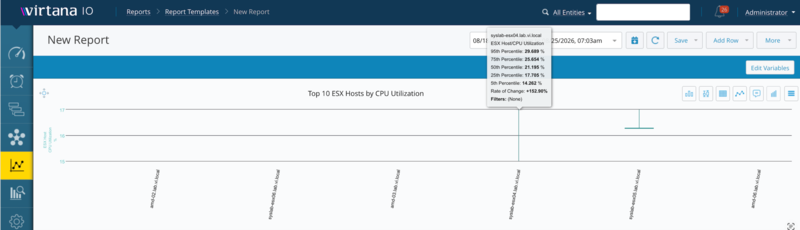
List (Card)
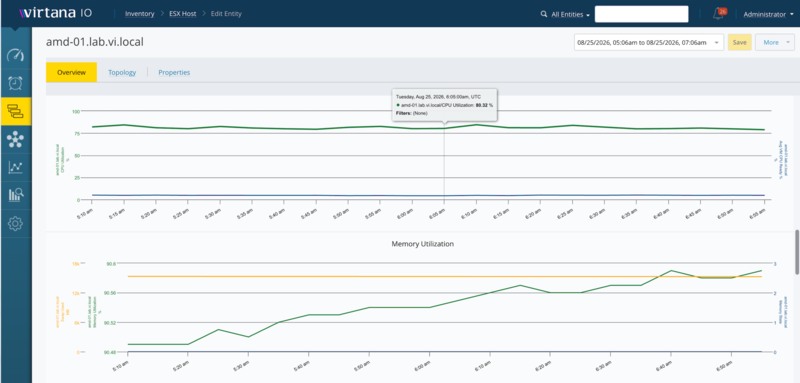
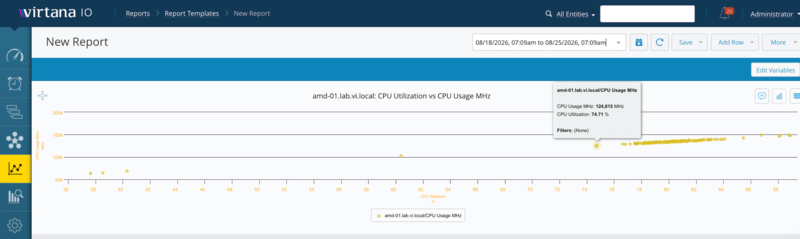
Scatterplot
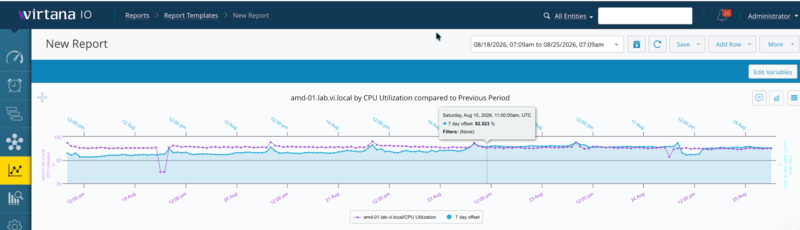
Time Comparison
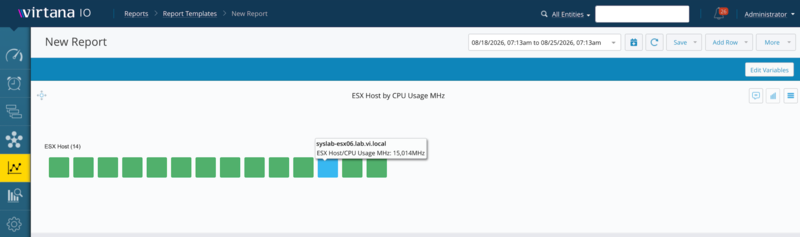
Inventory Heatmap
Trend plot display options
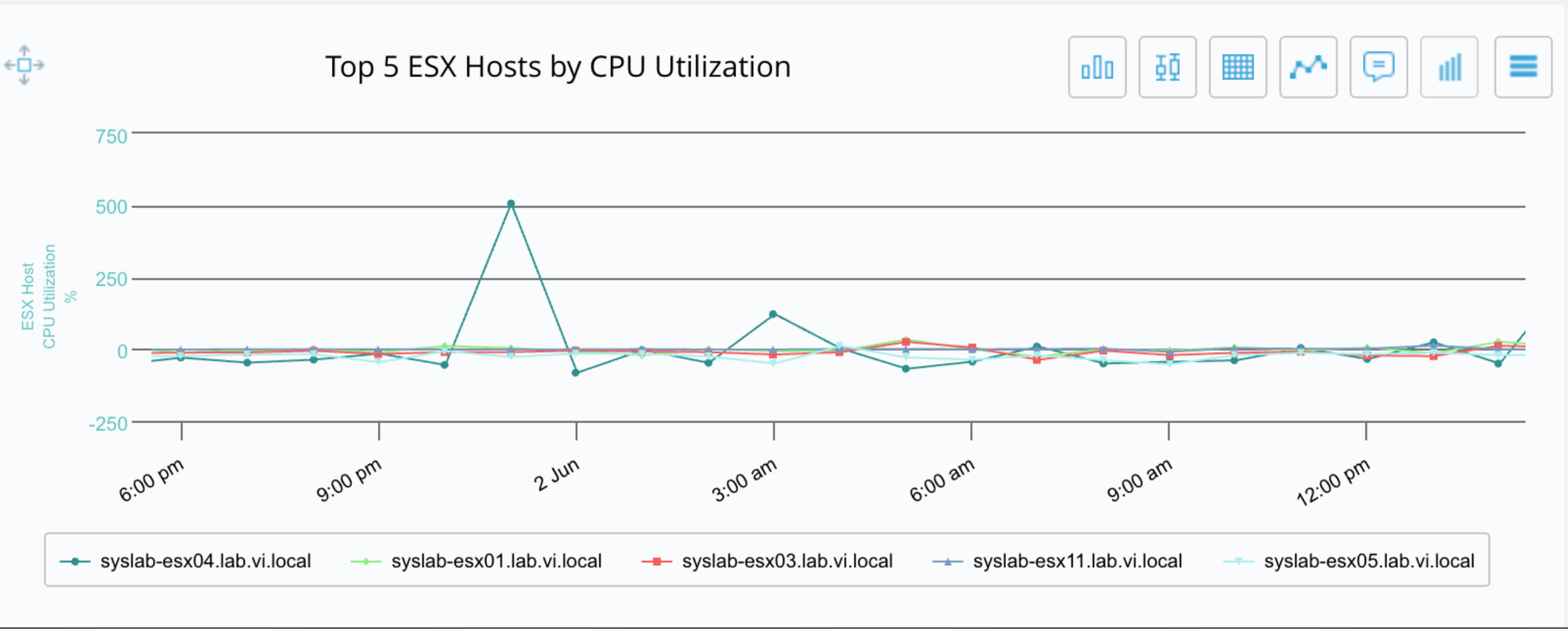
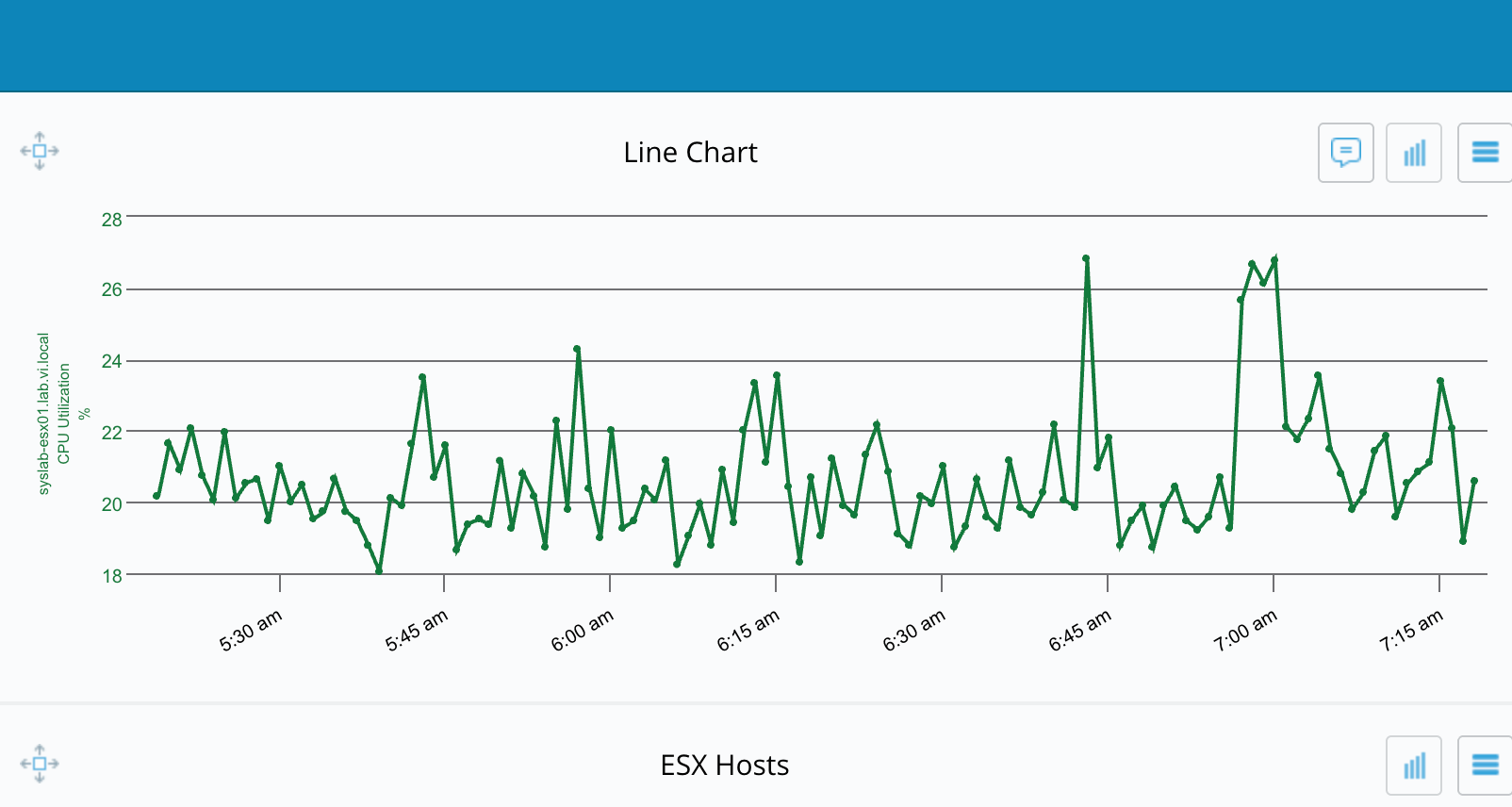
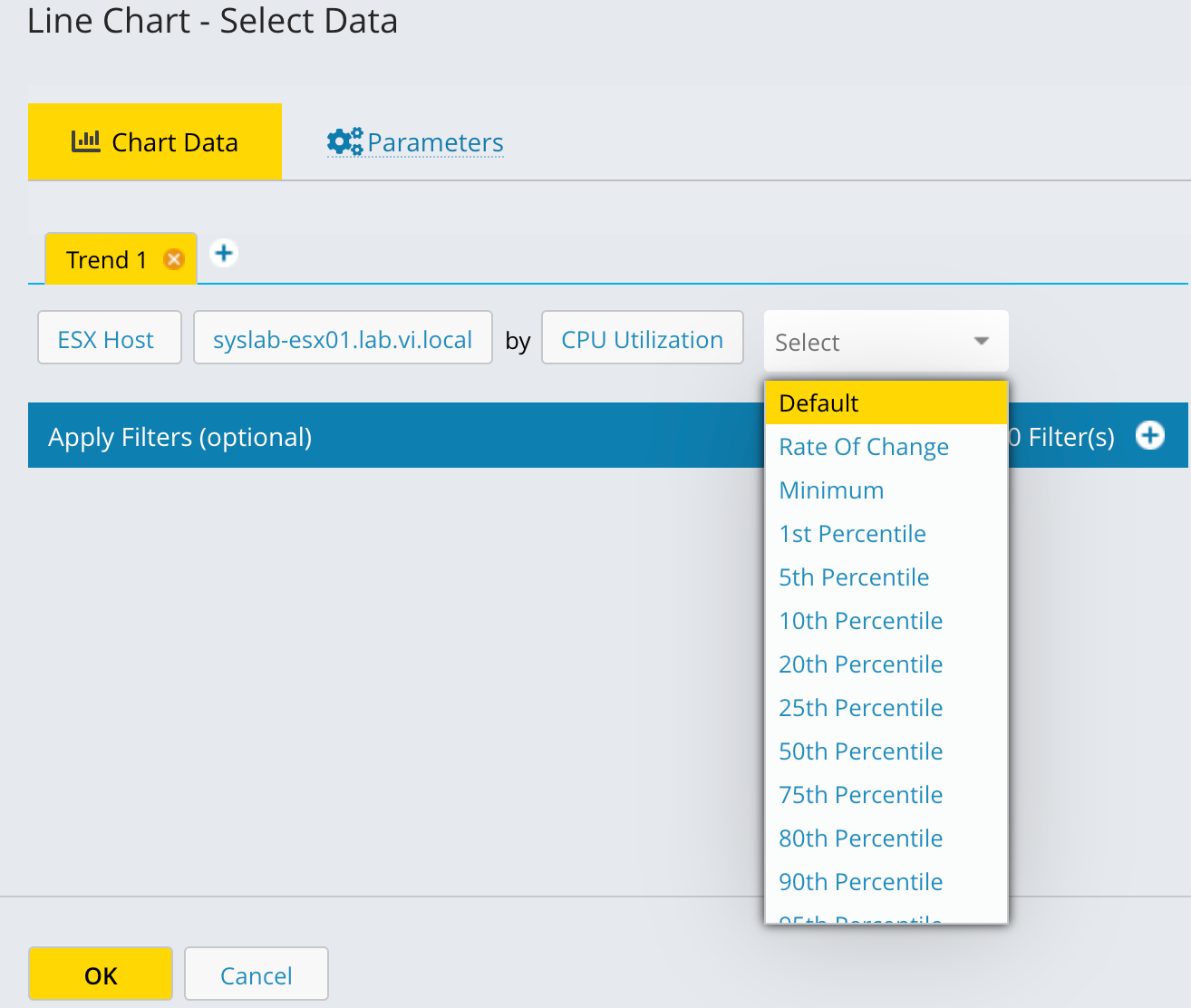
For the Top-N Trend chart and the line chart, you can select what the trend plot displays. The following options are available:
Default summary values: Displays the default aggregated metric summary.
Percentile values: Displays percentile data points (for example, the 95th percentile) for the selected metric.
When you select Percentile values, the plot also displays the rate of change summary value and percentile metric for the chart.
Note
If no display option is selected, the chart fetches data from the summary table by default. If you clear the selection when editing the chart later, you must reselect an option to regenerate the percentile chart.
Chart parameters
You can configure several parameters for any chart type. Access these options on the Parameters tab in the data selection modal.
The configurable options include setting an automatic or custom chart name, setting thresholds, specifying the number of entities to display (such as the top 10), modifying the sort order, incorporating a report variable into the chart name, and selecting the display location for tooltips and legends.
The following example shows a chart where you can specify a variable for the chart name, select the number of top entities to display, and change the sort order.
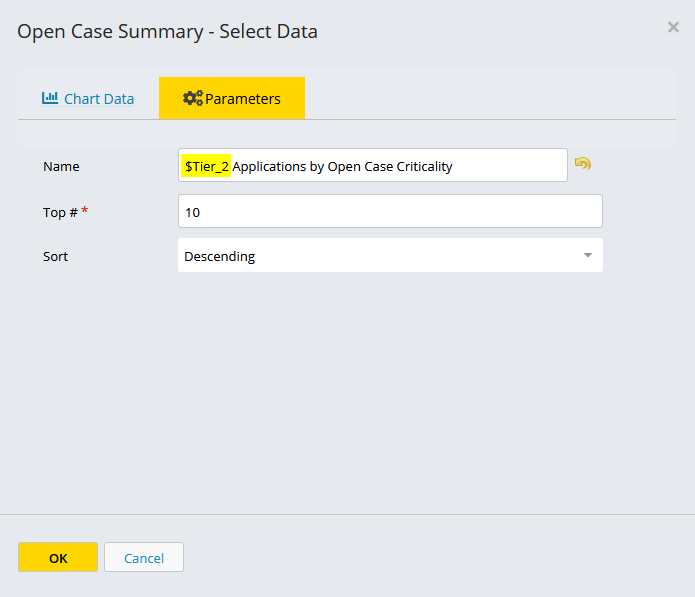
To reset the default chart name, click the back arrow next to the Name field.
Thresholds
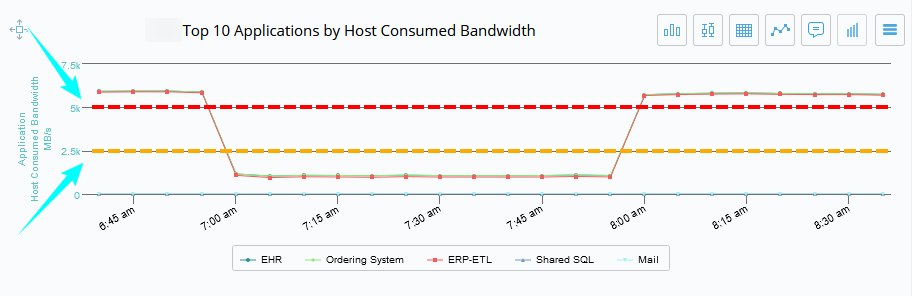
Some chart types, including Top-N Trend, Line Chart, and Inventory Heatmap, let you set thresholds that appear as yellow and red lines on the chart. In the following example, both thresholds are set so you can see where observed data exceeds a user-defined limit.
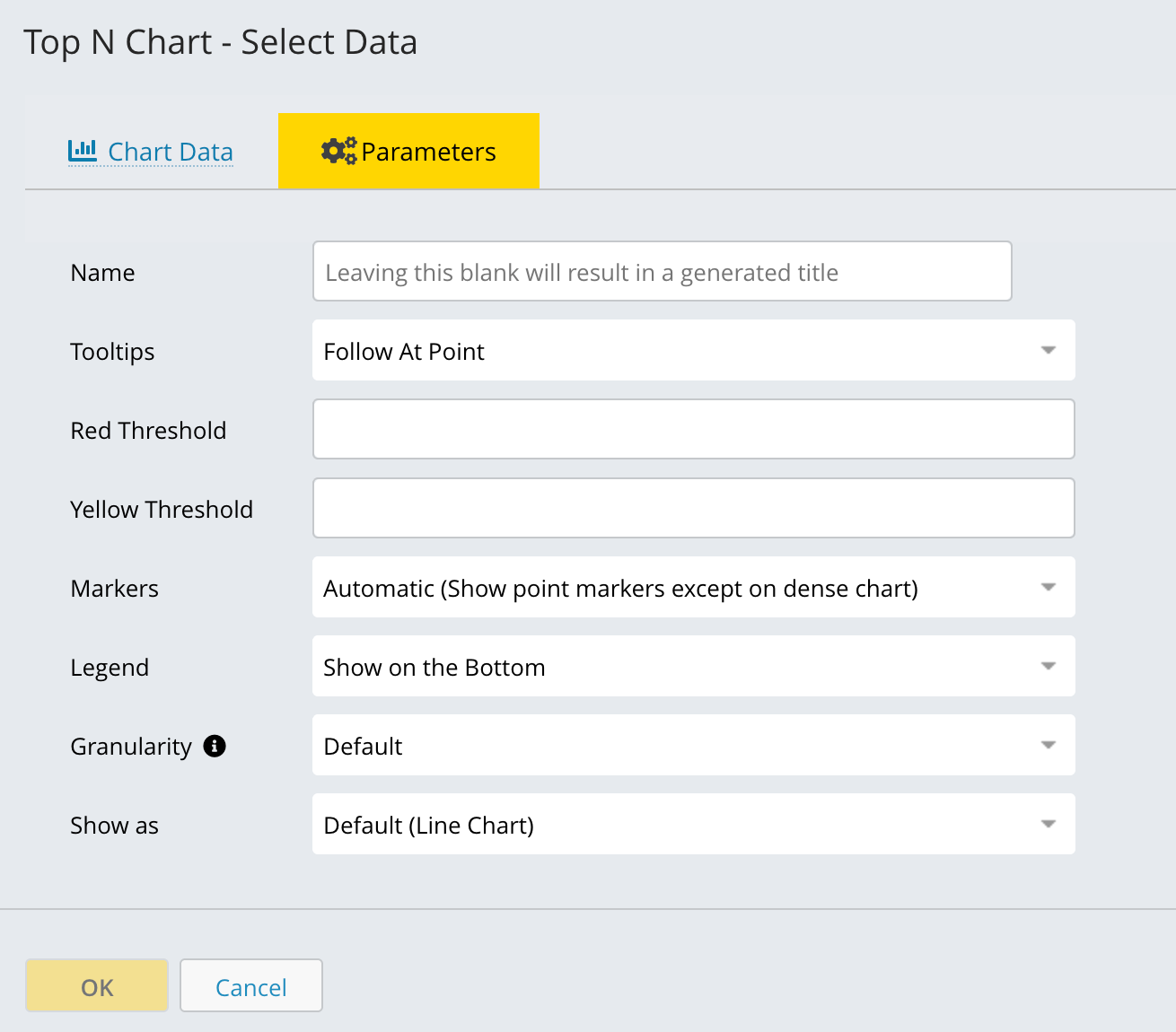
The yellow and red threshold lines appear on the chart.
Important
Threshold lines have no unit. The system interprets the threshold value based on the unit of the plotted metric. For example, a threshold set to 10 represents 10 GB if the metric is in GB, or 10% if the metric is a percentage.
In charts that display multiple metrics, such as a line chart, the following applies:
Threshold lines apply only to the first metric listed.
If multiple metrics share the same unit type (for example, two GB metrics), you can use Linked Axes Mode to share a single axis. The threshold line still applies only to the first metric.
Note
The y-axis does not always start at zero. The system automatically scales the minimum and maximum y-axis values based on the metric values in the selected time range. If you define yellow or red threshold lines, the chart scales to include them.
Point markers
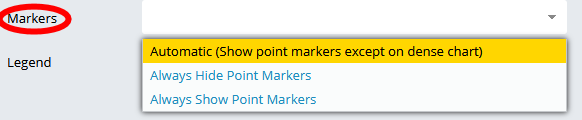
You can specify whether point markers appear automatically, are always shown, or are always hidden.
Tooltips
You can specify where tooltips appear on the chart.
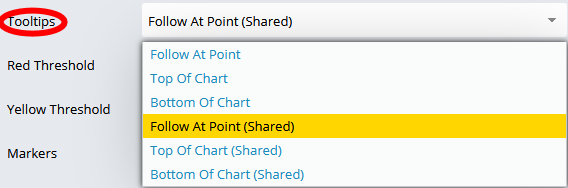
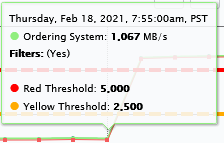
Tooltips appear when you hover over a data point. They show the value for the entity and metric at that point in time.
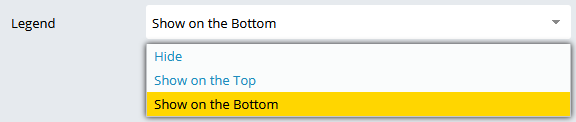
Legend
You can show or hide the legend and select where it appears in the chart.
Granularity
Granularity controls the time resolution at which data is aggregated and displayed. This setting determines how detailed or summarized the chart appears across the selected timeframe.
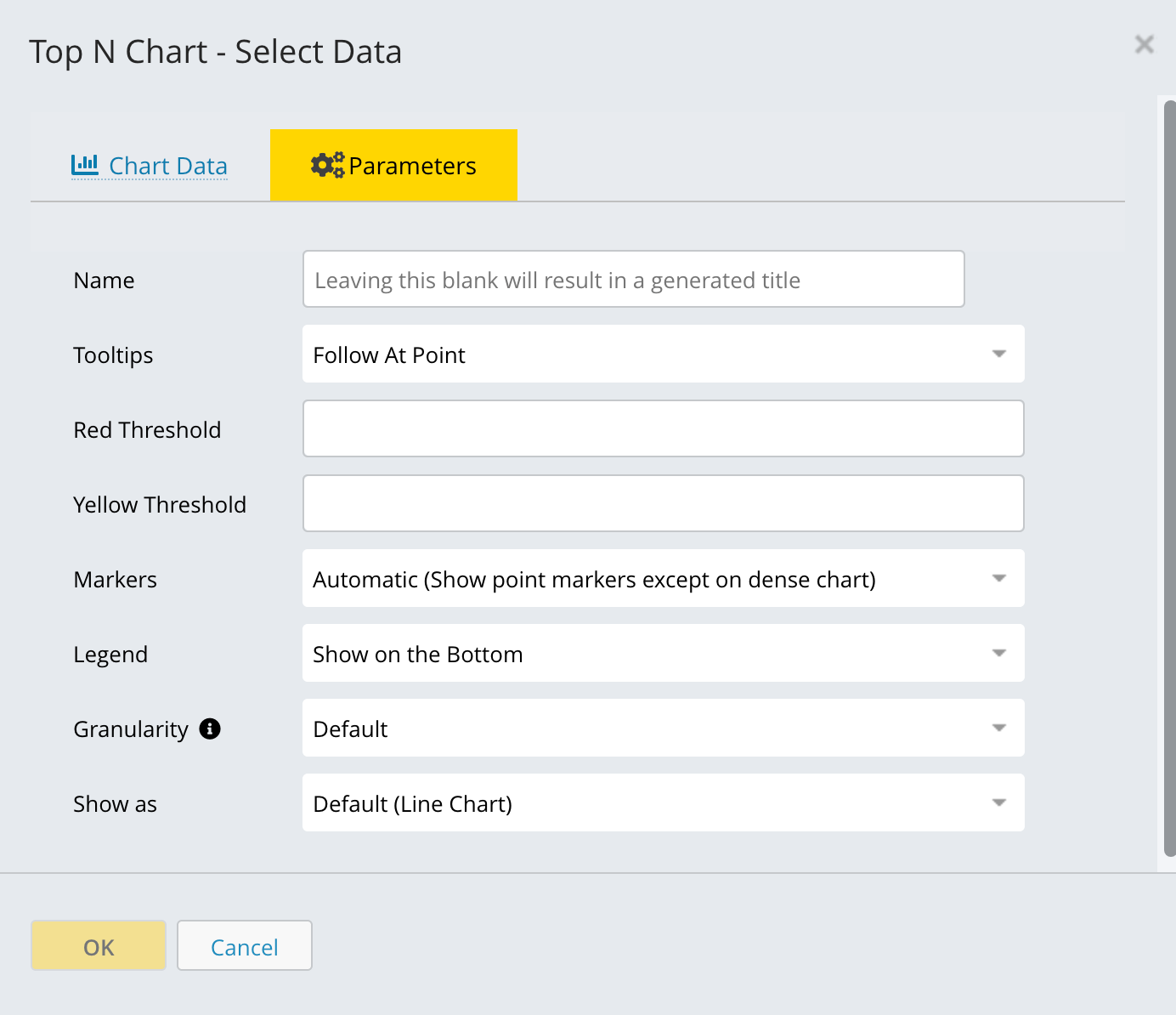
Select a granularity option based on the level of detail you need and the length of the selected time range:
Default: Uses the system-recommended granularity.
Lowest granularity covering timeframe: Uses the coarsest granularity that still covers the selected timeframe.
As collected: Shows data exactly as collected, with no aggregation.
1-hour resolution: Aggregates data into 1-hour intervals. Useful for identifying hourly trends.
5 minute: Finest resolution. Ideal for short timeframes that require high detail.
10 minute: Moderate resolution for near-real-time trend analysis.
4 hour: Coarser aggregation suited for multi-day views.
1 day: Highest-level summarization for long-range trend comparison.
Show as
The Show as option controls how data is visually displayed in the chart. Selecting the correct display type helps you understand trends, comparisons, and distributions.
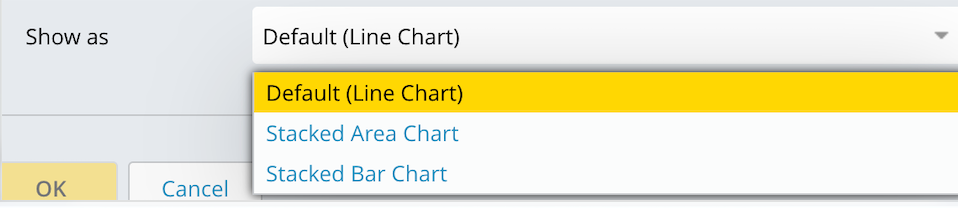
The following display types are available:
Default (line chart): Displays data as a line over time. Line charts make it easy to spot spikes, drops, and overall performance trends.
Stacked area chart: Displays data as stacked areas, showing how individual components contribute to the total over time. Use this type to highlight total growth and the relative contribution of each component.
Stacked bar chart: Displays data as stacked bars for each time interval. Use this type to compare contributions across time slices without focusing on continuous trends.