Working with queries in Inventory
The Inventory view helps you manage your query results in one place. You can review details, use summary, and take actions like filtering, sorting, grouping, and updating properties. It also lets you save, share, and export results, so you can easily look into your data and take the right actions.
Search your inventory
In the Inventory view, you can browse, search, and filter your inventory of devices, property names, and more.
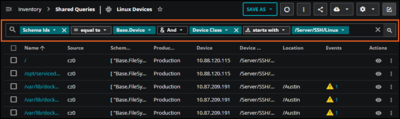
Create a tailored search from scratch, a template, or a saved query using the query builder. As you enter text, the search bar suggests options for each part of the query, including property names, operators, values, and connectors. If needed, use the auto-complete dropdowns to change a part of the query.
For example, you might have saved a query to browse your Linux devices, but maybe you want to focus only on those devices that are in maintenance. You can add on to your existing query by adding a connector, property, operator, and value. In this example, you might enter "Production State" with the operator "equal to" and the value "Maintenance" to filter your results to just those Linux devices in maintenance.

Let's take a closer look at the query parts:

Number | Query part |
|---|---|
1 | Property name that you are asking for in the query, such as "Schema IDs" or "Device Class". To view or add user-friendly alternatives to computer-generated entity field names, see the Entity Fields page in the Dictionary. |
2 | Operators that control whether or not an entity meets the criteria defined in the query. String operators 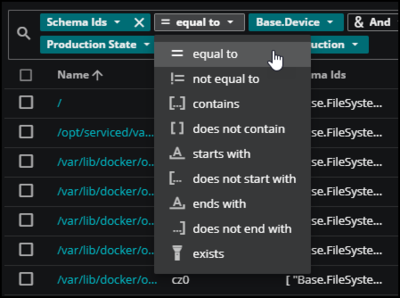 = equal to: Returns results where the property equals the defined value. ≠ not equal to: Returns results where the property doesn't equal the defined value. [...] contains : Returns results where the property contains the string in the defined value. [ ] does not contain: Returns results where the property doesn't contain the string in the defined value. A̲ starts with: Returns results where the property starts with the defined value. ...] does not end with: Returns results where the property doesn't end with the defined value. 🔦 exists: Tests whether an entity has a property and, if so, whether the property's value is non-null. Numeric operators 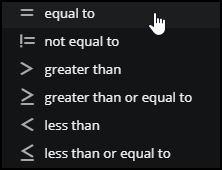 = Equal to: Returns results where the property is equal to the defined value. != Not equal to: Returns results where the property is not equal to the defined value. > Greater than: Returns results where the property is greater than the defined value. ≥ Greater than or equal to: Returns results where the property is greater than or equal to the defined value. < Less than: Returns results where the property is less than the defined value. ≤ Less than or equal to: Returns results where the property is less than or equal to the defined value. |
3 | Value that is controlled by the operator. For example, you might build a query to find schema IDs that are equal to the value "Base.Device" in your inventory. "Base.Device" is the value controlled by the operator. |
4 | Connector for conditions, such as AND and OR. The AND connector has precedence. |
If your query contains multiple lines, use the scroll control in the query bar.
Create a query
You can search your inventory by creating queries composed of one or more entity property-value comparisons. As you build and refine your query, the results update automatically.
Note
This query bar supports keyboard accessibility. For example, press the keyboard arrow keys to move through menus, press Enter or Tab to select options, and press Backspace or Delete to remove options.
From a template or saved query, click Expand query bar to open the query builder, then create a query to narrow the entities to just those that you want to view in your inventory.

Select a property. Enter text and select a field in the dropdown menu.
Select an operator in the dropdown menu.
Enter a value.
Optionally, build a more targeted query. Choose between AND and OR to join another property-value comparison.
Click the search button (magnifying glass icon) to search for results that match your criteria.
Save a query
After you are satisfied with the results of your query, you can save it for future use. Click Save or Save as and name it for easy identification.
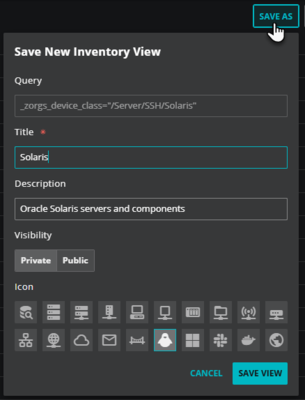
Share a query
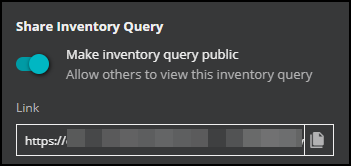
After you create a query or open a saved query, you can share it. Click the Share button and turn on the Make inventory query public option. You can copy the link to share with other users.
Export query results
To download the table to your local machine, click the Export table button. You can export up to 100,000 rows of your Inventory table. Optionally, select the Email a copy checkbox to send a copy to your logged-in email address. This feature is useful for large datasets, ensuring reliable delivery and allowing you to perform other tasks while the whole table is processed.
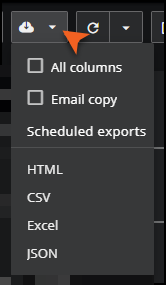
Decide if you want to download all columns, then select the format for the table. Keep in mind that selecting the All columns checkbox might impact the size of your exported file.
If you clear the All columns checkbox, then only those columns visible in the table are downloaded. These columns are selected in the ADJUST COLUMNS dialog box which you can open from Settings.
If you select the All columns checkbox, all the columns available in the ADJUST COLUMNS dialog box are downloaded, regardless of if they are selected or not.
If you selected to email a copy to yourself, look for the email sent from noreply@virtana.ai with the subject line Export: Inventory in your inbox. Open it and click the provided link to view your exported inventory table.
Learn more
About Inventory Learn how to navigate and manage items within the Inventory module.
Viewing query results Learn how to view and interpret the results of your queries.
Advanced Inventory Actions Explore advanced actions you can perform to manage Inventory effectively.
About production states Learn about different production states and how they impact Inventory items.