Interface Volume
The Interface Volume report shows the total input and output traffic for the report period, along with a calculation of the input and output traffic per day. The report is generated in a tabular form with the calculations shown by each interface.
Report filtering

The following fields filter the results.
- Device Class
The device class associated with the interfaces to include in the report. The default is
/Devices/Network, all network devices.- Device Filter
A complete or partial name of the interfaces to include in the report. Letter case is ignored. A partial name matches all interface names that include it. You can also use a regular expression for this filter.
- Start Date / End Date
The first and last dates of the range of dates to include in the report. To select a date from a calendar, click Select. The default range is the week ending with the current date.
To generate or refresh the report, click Update. To show all interfaces on the report, select the Show All Interfaces check box before clicking Update.
Report contents
Column | Content |
|---|---|
Path | The path of the device class. |
Device | The name of the device that contains the interface, with a link to its overview page. |
Interface | The name of the interface, with a link to its overview page. |
Description | A description of the interface. |
Speed | The maximum transfer rate the interface supports, per second. |
In Vol | The input traffic through the interface for the time period of the report. |
In Vol/day | The input traffic through the interface, per day. |
Out Vol | The output traffic through the interface for the time period of the report. |
Out Vol/day | The output traffic through the interface, per day. |
Total Vol | Total volume of traffic through the interface for the time period of the report. |
The following shows the navigation bar at the bottom of the report. To quickly navigate to other pages, select the device name from the popup list. In this example, there are 5 pages of results from device 10.171.100.107 followed by one page of results from device 10.171.100.109, and so on.
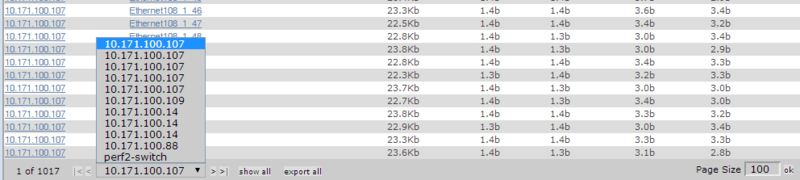
Click Export all to export the report as a CSV file.