Using the Title Bar and Accessing Documentation
Every screen, including the Home screen, has a title bar at the top. The title bar gives you quick and easy access to some SLT capabilities.
Search Box
Use the search box, populated with the text “Search system entities,” to search for resources by name or tag.
New Item Menu
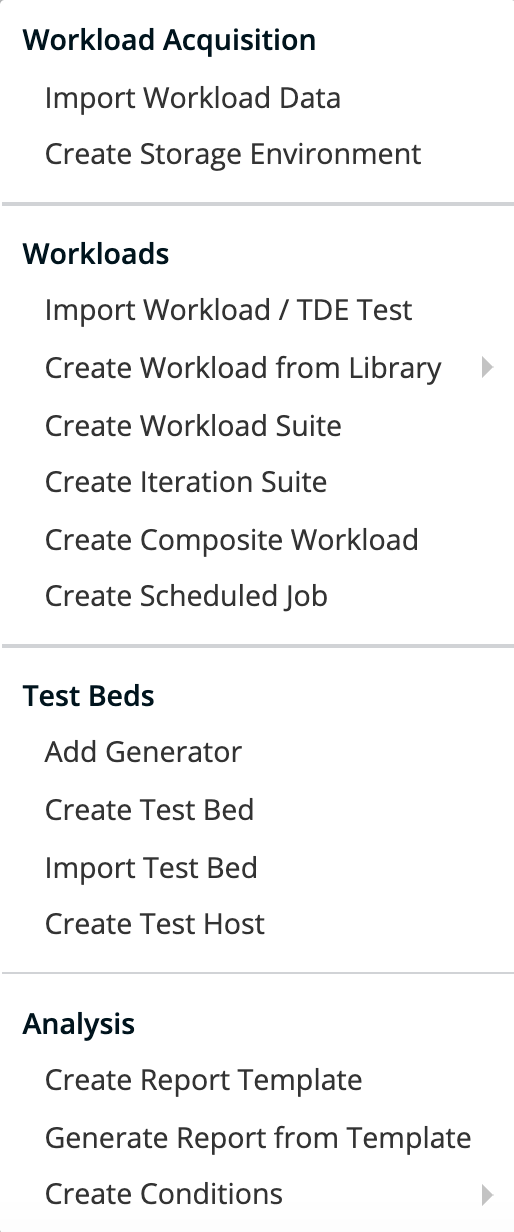
Click  , also known as the New Item menu to access the following drop-down menu from which you can quickly access various SLT tasks.
Task Shortcut Menu
Click  , also known as the Task Shortcut menu to access a shortcut that brings the four vertical sections of SLT tasks from the Home page into view. You can access any of the tasks from this shortcut view.
User Menu
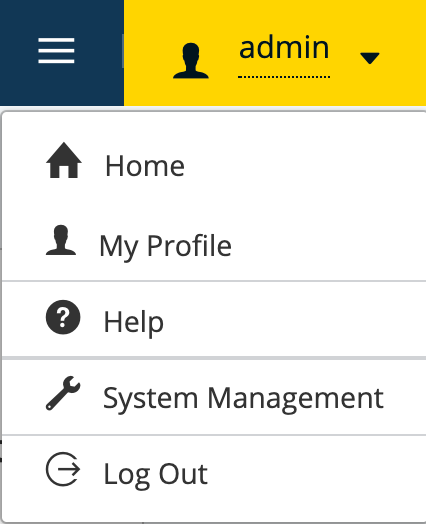
The drop-down User menu displays as either admin, if you are an administrator, or <your name> if you are not an administrator. Use this drop-down menu to access the Home screen, your user profile (My Profile), the User Guide (Help) or to logout (Log Out). Only administrators have assess to the System Management option, which also only displays for administrators.
Documentation
In the lower righthand corner of the Home screen, and all screens, there are links to documentation. Click the title of the documentation that you would like to access to view it.
Note
is formerly known as WorkloadWisdom. References in the UI and documentation might still refer to WorkloadWisdom.
