Add and view a log file
Add a log file to View Logs in Virtana IO to inspect log entries without leaving the platform.
Prerequisites
You are logged in to Virtana IO as a user with access to the Settings page.
The log file you want to view exists on a log source available to Virtana IO
Procedure
In the navigation pane, click Settings, then click View Logs.
Click Add Row.
The Select Log Source dialog opens. It lists the available log files, along with each file's Log Name, Last Modified date, and File Size.
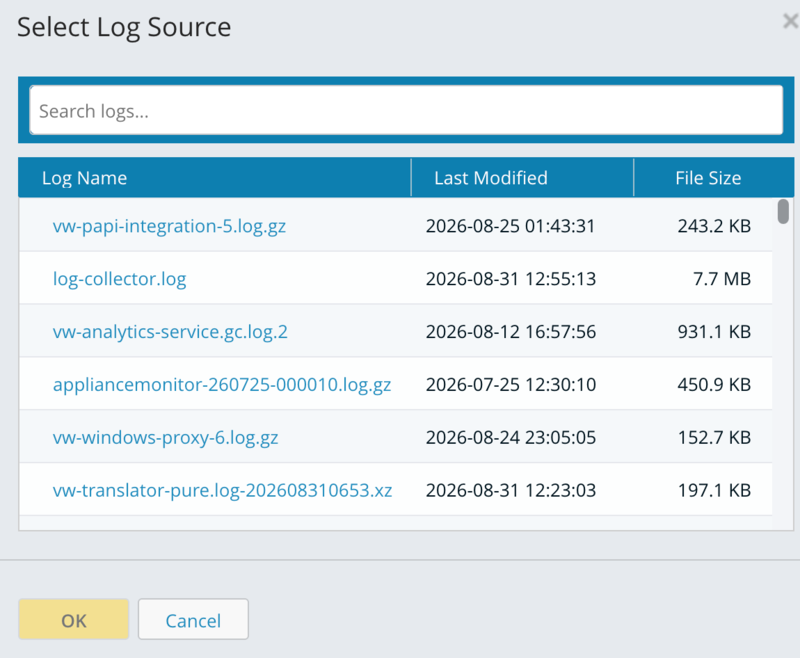
Find the log file you want to view:
To browse the list, scroll through the available log files.
To search for a specific file, enter a search term in the Search logs field.
Click the name of the log file, then click OK.
This lets you view the log files.
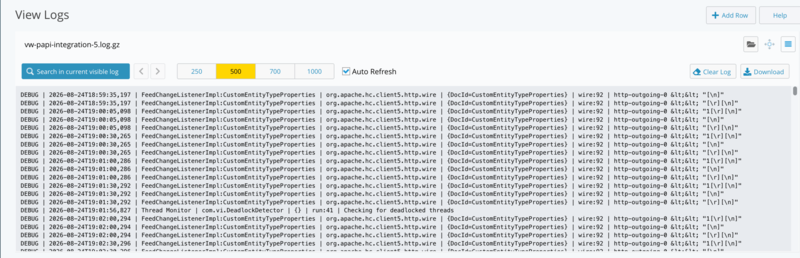
Toolbar controls
Lists the controls available when you view a log file in Virtana IO, and describes what each one does.
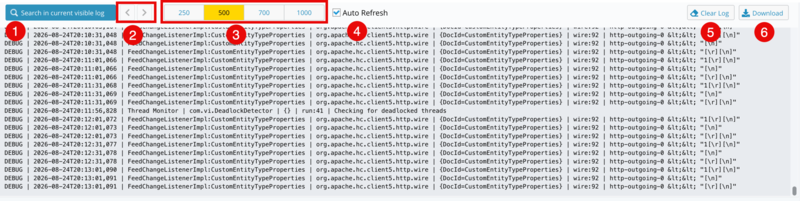
Item | Control | Description |
|---|---|---|
1 | Search in current visible log | Enter a search term to find matching text in the log entries currently loaded in the viewer. |
2 | ‹ and › (previous match, next match) | Move to the previous or next occurrence of your search term in the visible log. |
3 | Number of log lines the viewer loads | Set the number of log lines the viewer loads and displays at once. A higher number shows more history, but takes longer to load. |
4 | Auto Refresh | Reload the viewer automatically as new log entries are written. Clear this checkbox to keep the current view static. |
5 | Clear Log | Clear the entries currently shown in the viewer. This does not delete the underlying log file. |
6 | Download | Download the currently selected log file to your computer. |
Row Control
Each row in the log list has three icons that control the row itself, separate from the log content shown in the viewer.
Icon | Description |
|---|---|
| Open the Select Log Source dialog again to assign a different log file to this row. |
| Drag the row up or down to change its position in the log list. |
| Open a menu with two options: Clear Log Source, which removes the assigned log file from the row without deleting the row, and Delete Row, which removes the row from the log list. |


