Creating a New Discovery Instance
About This Task
Access to the target integration device is required for discovery to occur.
After you configure and subscribe to the integration instance, IO adjusts the appropriate Wisdom Pack license count to reflect additional license consumption.
Prerequisites
To perform this task, the user must meet the following requirements:
Ensure that all items identified in Installation Prerequisites have been met.
Have the following information available for integration configuration. These are needed so IO can connect to and collect metrics from the target integration device:
Warning
This integration does not support device connection through a proxy.
The following fields apply to all devices:
Name - Configuration name
Poll Interval - The interval (in minutes) at which data is collected from the target devices.
Monitoring Level - Determines if all devices in this configuration should poll for metrics and entity changes, just entity changes, or do nothing.
The following fields apply to each device entry:
IP/Hostname - The fully qualified domain name or IP address of the NVIDIA GPU host
Prometheus Port - Prometheus collector port. The default port is
9400.Mode - Indicates how the device exchanges data with the integration, for example
pushorpullmode.Error Message - Displays the most recent error encountered while collecting entities or metrics from the device, for example
failed to collect entities for otel device. This field is blank when the device is working correctly.Licensing Status - Identifies the current licensing status of this configuration, which is determined after first publish.
If you intend to use credential sets when configuring devices, the credential sets must already have been created.
Steps
From the Settings page, click Integrations in the Probes and Integrations section.
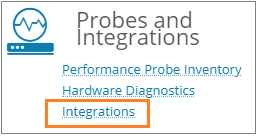
Click View for the licensed integration you want to configure.
If this is an initial configuration: You are directed to the New Integration page to configure the first integration.
If there are existing configurations: The Integration page opens, displaying a list of all existing licensed and unlicensed configurations.
Click New.
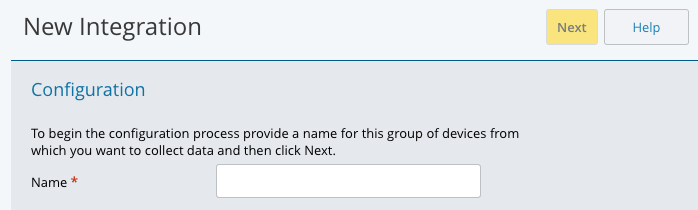
The New Integration page displays.
Enter a Name for the configuration and click Next.
Each configuration must have a unique name to avoid save errors. If you are using more than one IO integration, it is recommended that a naming convention be used to ensure unique configuration names for each integration.
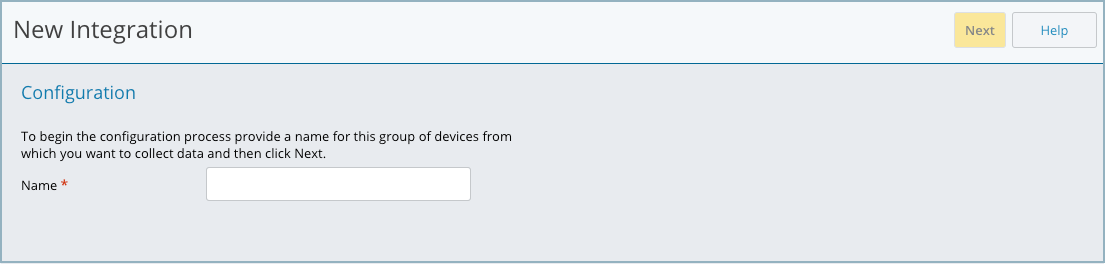
A second configuration page displays.
Select a Poll Interval.
When selecting the poll interval, note that metric collection automatically begins when the first poll interval is reached.
Select a Monitoring Level: Discovery and Metric Collection (the default), Discovery Only, or Disabled. For new configurations, the default is the best choice. More information about each choice follows.
Discovery and Metric Collection (default) - for each polling interval, discovery and metrics will be collected, and licenses will be consumed.
Discovery Only - for each polling interval, discovery and metrics will be collected, but the metric data will be discarded. Licenses will not be consumed. Please note that this option will not lead to less load on the target system(s).
Disabled - all communication with the target system(s) will cease and licenses will not be consumed.
In the Devices area, add the configurations.
To add one configuration at a time, click Add.
You must select a credential set or enter a name/IP address, username, and password.
To add multiple configurations at one time, click Import, select a CSV file to upload, and then select how the file content should impact existing records.
You can Replace, Merge, or Add records.
Warning
If you select Replace, the entire contents currently in the table are deleted and replaced. This deletion cannot be undone.
See Using a CSV File for Configuration for details about using a configuration file.
Complete the device connection details and then click Save.
Click Save on the Configuration page.
If properly configured, the hosts are subscribed when the first metrics data is collected, based on the polling interval. You can verify subscription from the Integration page, that lists integration configuration instances.
Managing Devices
After you create a discovery instance, use the actions on the Devices table to add, update, or remove individual devices.
Add - Opens the New Device dialog, where you configure a single device. Enter the IP/Hostname and Prometheus Port (defaults to
9400). Select Enable trace to turn on device discovery tracing for troubleshooting. This option is for use by support only; leave it cleared unless support asks you to enable it.Import - Opens the Import dialog, where you upload a CSV file to add or update multiple devices at once. The file must list values in the order
IP/Hostname, Prometheus Port, Mode, traceEnabledWarnMsg, Enable trace, with no header row. Choose one of the following options for how the imported records affect the existing table:Replace - Deletes all existing records and adds only the records from the file. This action cannot be undone.
Merge - Updates existing records with values from the file. Blank fields in the CSV are ignored. New records from the file are added.
Add - Leaves existing records unchanged and adds new records from the file.
See Using a CSV File for Configuration for details about using a configuration file.
Export - Downloads the current device list as a CSV file named
Integrations_Export.csv.Bulk Edit - Available after you select two or more devices in the table. Lets you change field values across all selected devices at once.
Delete - Available after you select one or more devices in the table. Removes the selected devices from the table.