Viewing Alarm Notification
After you configure an alarm using either a Single Metric Rule , Advance Rule, or a Property Rule, the system sends notifications through the action methods you selected—Slack, Microsoft Teams, Webex, or HTTP endpoints.
All notification types follow a consistent format, making it easy to understand the details of the triggered alarm.
Notification Fields (Common for All Rule Types)
Field | Description |
|---|---|
Case ID | Unique identifier assigned to the alarm case. |
Case Name | Name automatically generated or assigned to the case. |
Case Description | Description of the rule that triggered the alarm. |
Entity Name | Name of the VM, host, switch, or entity involved. |
Entity Type | Type of the monitored entity (e.g., VirtualMachine, ESX VM). |
Rule Name | Name of the rule that triggered the alarm. |
Rule Type | Indicates whether the rule is Single Metric or Property. |
Source UUID | Unique identifier for the entity where the alarm originated. |
Appliance Name | Name of the appliance sending the notification. |
Open Time | Timestamp when the alarm was triggered. |
A Single Metric Rule alarm occurs when a monitored metric value crosses the threshold defined in your configuration.
Additional fields displayed:
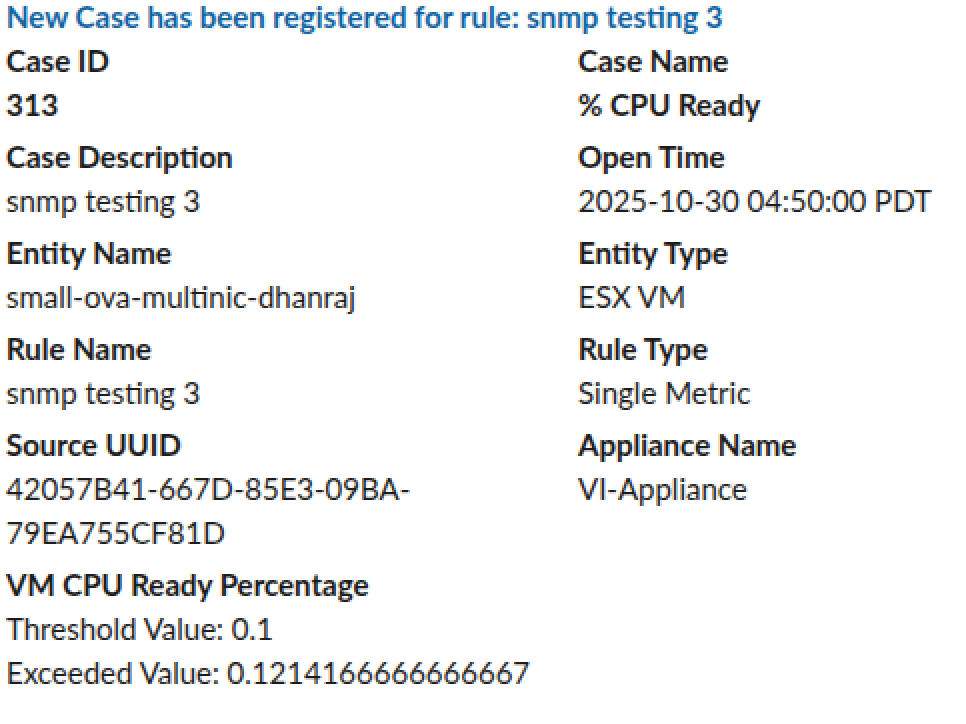
Threshold Value: The metric value that triggers the alarm when exceeded.
Exceeded Value: Actual value recorded at the time the alarm fired.
A Property Rule alarm occurs when an entity property matches the condition defined in the rule.
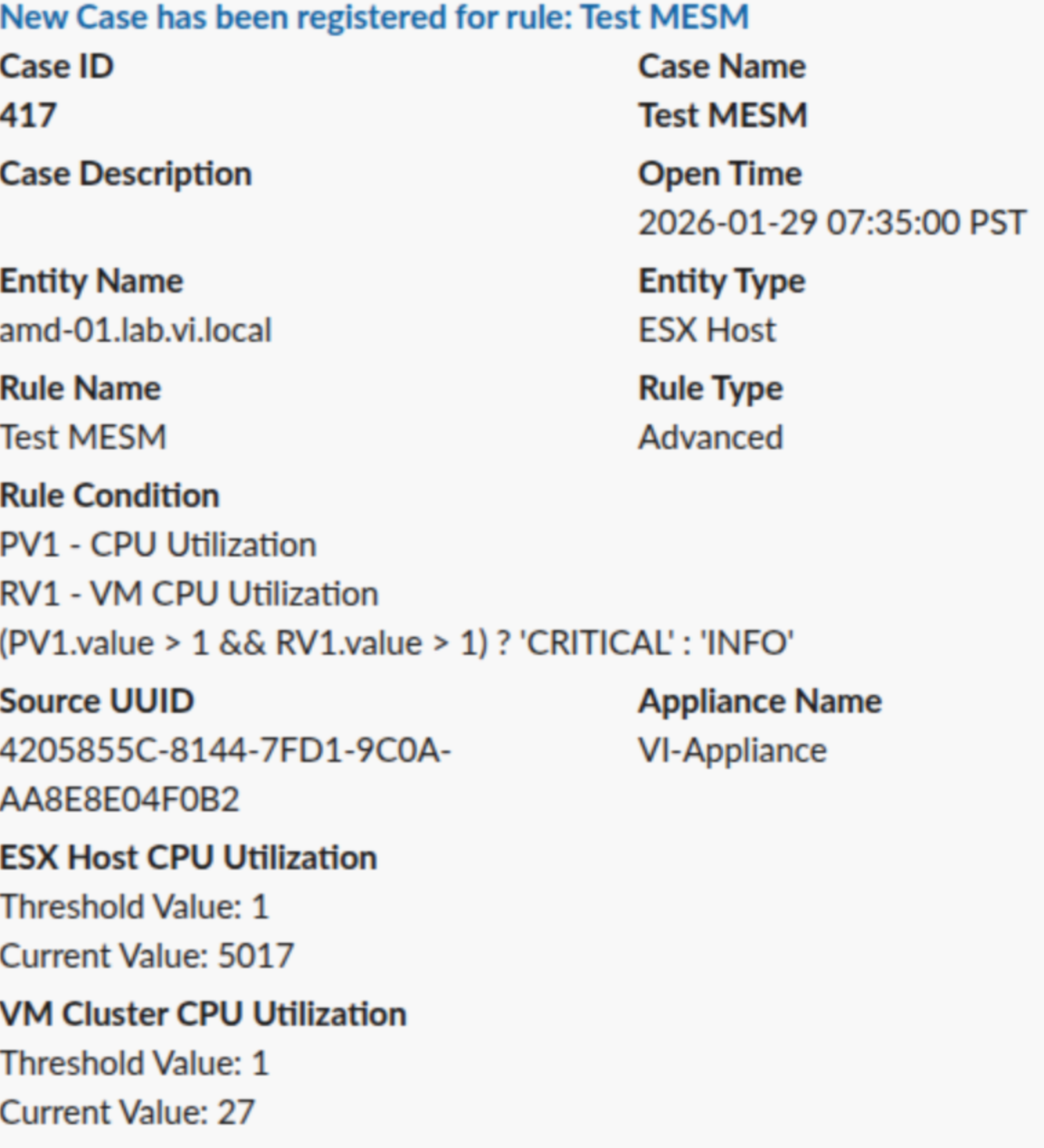
Additional fields displayed:
Rule Condition: Condition applied to the property (e.g., Alarm when OverallStatus equals green).
Property Value: Actual value of the monitored property at trigger time.
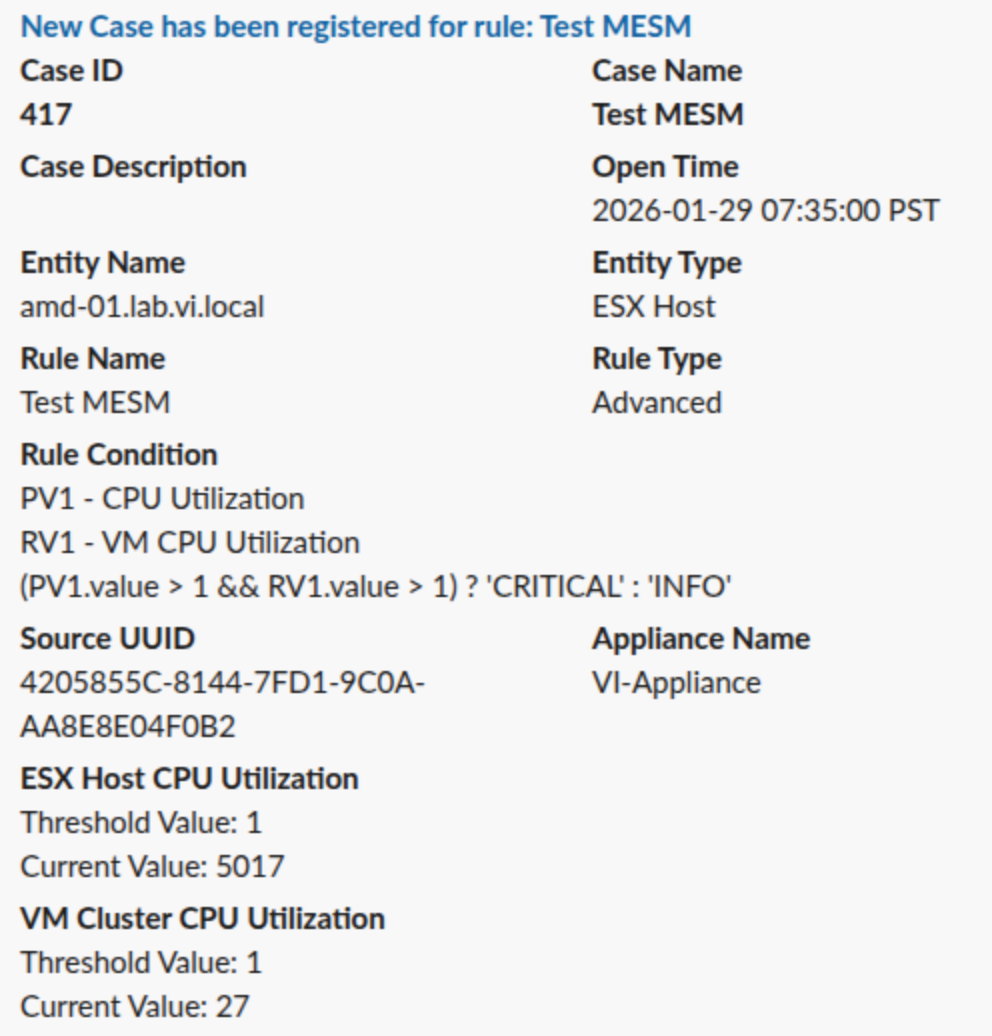
Advance Rule: An Advanced Rule notification occurs when a complex rule expression, based on multiple metrics and/or properties, evaluates to true for an entity.
Note
No matter which action method you configure—Slack, Teams, Webex, or HTTP—the notification layout remains consistent.