Setting Up AI in Virtana IO
This topic shows you exactly how to configure AI-powered queries in your Virtana IO platform using the Settings interface.
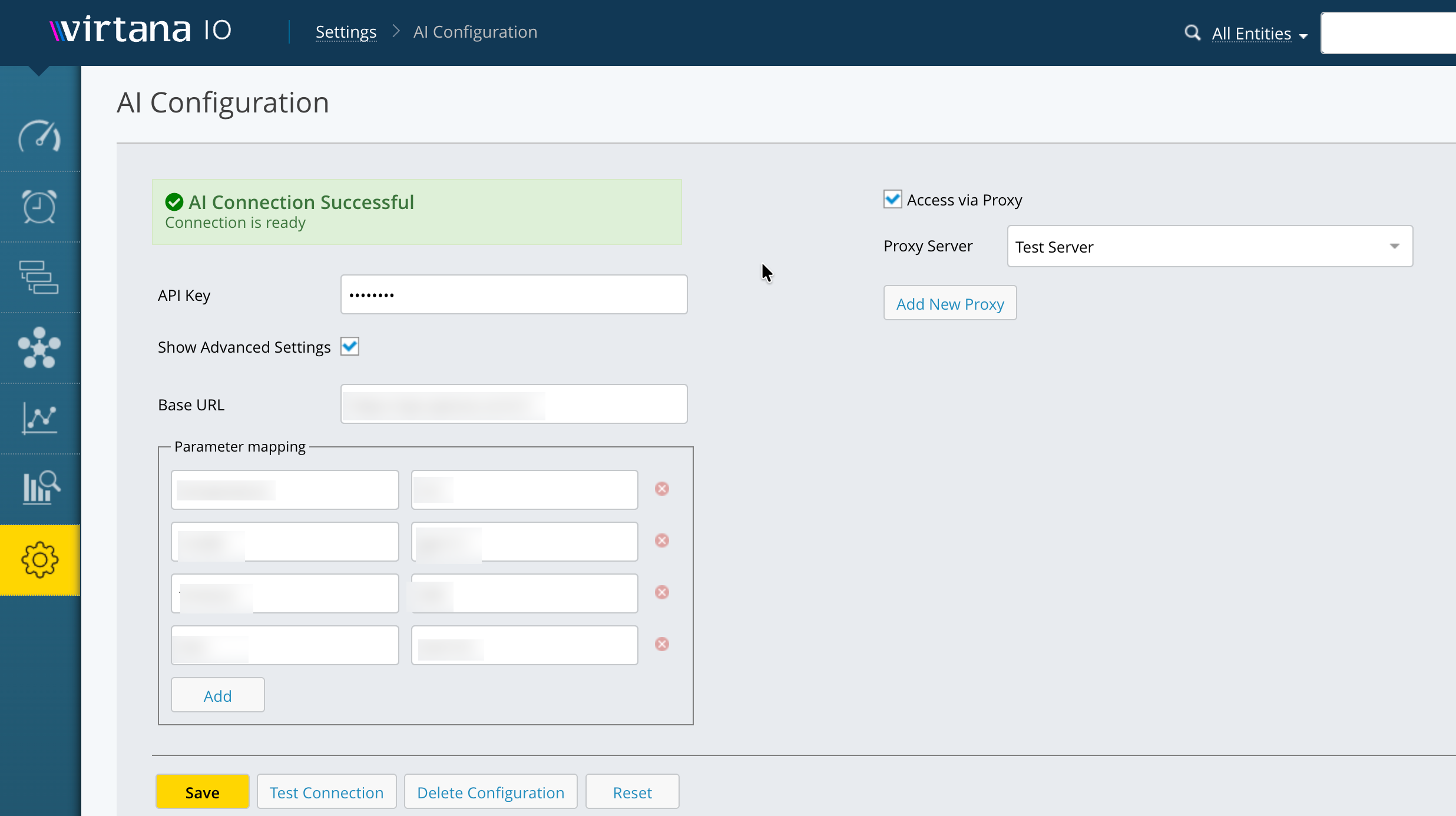
Navigate to Settings > AI Configuration.
The AI Configuration page opens, where you can set up your AI provider.
Connect to OpenAI (Basic Setup)
The Virtana MCP servers require access to a Large Language Model (LLM) to ensure accurate responses to tool requests.
By default, the system uses OpenAI models.
Enter your OpenAI API key in the masked field. This key automatically connects Virtana to OpenAI’s models using your credentials. Keys are encrypted and stored securely.
If you see “AI Connection Successful” with a green checkmark, your setup is working.
Customize Your AI Provider (Advanced Settings)
To customize the model provider, change the model, or customize the parameters, you can view the advanced settings.
Change this only if you are:
Using a custom AI proxy (for example, a LiteLLM proxy), or
Connecting to a different OpenAI-compatible provider, for example, Azure OpenAI Service and OpenRouter.
Most users should leave this value unchanged.
Proxy Configuration
If your network requires proxy access to reach external AI providers or the IO Server, enable proxy support in the MCP extension settings.
Select the “Access via Proxy” option.
Action Buttons
At the bottom of the page, you have four options:
Save: Stores your current configuration
Test Connection: Validates your API key and connection.
Delete Configuration: Removes all AI settings.
Reset: Returns all fields to default values.
Once configured, you can: Ask natural language questions about your infrastructure.
Troubleshooting
Use the table below to diagnose and resolve common issues when configuring or using the MCP extension.
Note
Because AI agents perform reasoning to generate responses, occasional delays are normal. If timeouts persist, increase the timeout value or contact Virtana Support.
Issue | Potential Cause | Resolution |
|---|---|---|
401 Unauthorized | Missing or invalid IO API Token | Verify the Authorization header in the Extension settings contains a valid Bearer token. |