Solaris
ZenPacks.zenoss.SolarisMonitor
The SolarisMonitor ZenPack enables Virtana Service Dynamics to use either Secure Shell (SSH) or the Simple Network Management Protocol (SNMP) to monitor Solaris hosts. Virtana Service Dynamics models and monitors devices placed in the /Server/Solaris or /Server/SSH/Solaris device classes. Data collection is performed on the Virtana Service Dynamics server (if using a local collector) or on a distributed collector. The account used to monitor the device does not require root access or special privileges.
This ZenPack enables Virtana Service Dynamics to model and monitor the following Solaris features:
File system and process monitoring
Network interfaces and route modeling
CPU utilization information
Hardware information (memory, number of CPUs, and model numbers)
OS information (OS-level, command-style information)
Pkginfo information (such as installed software)
Sun Solaris LDOM servers discovery and monitoring.
Solaris Zones discovery and monitoring.
Oracle Solaris Cluster environment information and monitoring.
Applications Monitored: Solaris (9, 10, 11), OpenSolaris (5.11)
Releases
Version 2.5.2
Summary of changes: Improved support for Solaris 10 and 11
Released on 2018/11/16
Tested with Virtana Service Observability, Virtana Service Dynamics 6.2.1 and 5.3.3
Version 2.5.1
Summary of changes: Fix performance issue with Virtana Analytics.
Released on 2017/10/31
Compatible with Virtana Service Dynamics 4.2.x, Virtana Service Dynamics 5.x.x
Version 2.4.2
Summary of changes: Added support for updating zone status during monitoring.
Released on 2016/09/06
Compatible with Virtana Service Dynamics 4.2.x, Virtana Service Dynamics 5.x.x
Version 2.3.1
Summary of changes: Adds support for Solaris Cluster.
Released on 2015/04/07
Compatible with Virtana Service Dynamics 4.2.x, Virtana Service Dynamics 5.x.x
Version 2.2.0
Summary of changes: Adds support for zones.
Released on 2014/01/27
Compatible with Virtana Service Dynamics 4.2.x
Discovery
The following components will be automatically discovered through the Windows server address, username, and password you provide. The properties and relationships will be periodically updated by modeling.
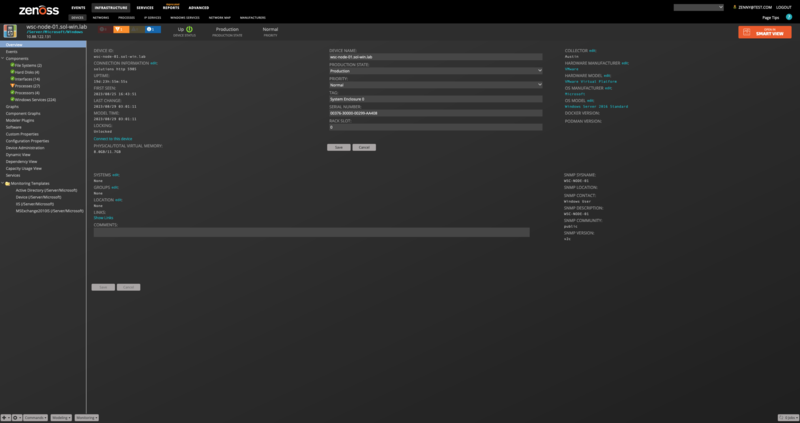
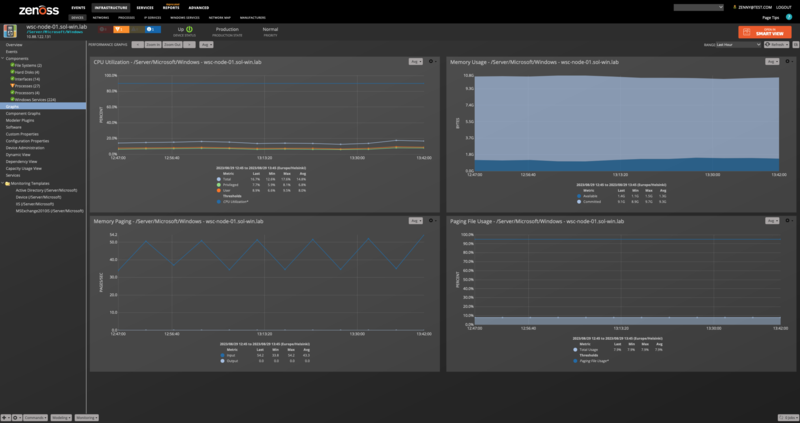
Server (Device)
Attributes
Name
Contact
Description
Serial Number
Tag
Hardware Model
Physical Memory
Total Virtual Memory
Operating System
Cluster
Relationships
File Systems
Hard Disks
Processes
Network Routes
CPUs
Interfaces
Windows Services
HyperV
SQL Server Instances
IIS Sites
Server (Device)
Attributes
Name
Contact
Description
Serial Number
Tag
Hardware Model
Physical Memory
Total Virtual Memory
Operating System
Cluster
Relationships
File Systems
Hard Disks
Processes
Network Routes
CPUs
Interfaces
Windows Services
HyperV
SQL Server Instances
IIS Sites
Cluster (Device)
Attributes
Name
Contact
Description
Physical Memory
Total Virtual Memory
Operating System
Member Servers
Relationships
SQL Server Instances
IIS Sites
Cluster Services
Cluster Resources
Cluster Networks
Cluster Disks
Cluster Interfaces
Cluster Nodes
Processors
Attributes
Name
Description
Model
Socket
Cores
Threads
Clock Speed
External Speed
Voltage
L1 Cache Size
L2 Cache Size and Speed
L3 Cache Size and Speed
Relationships
Device
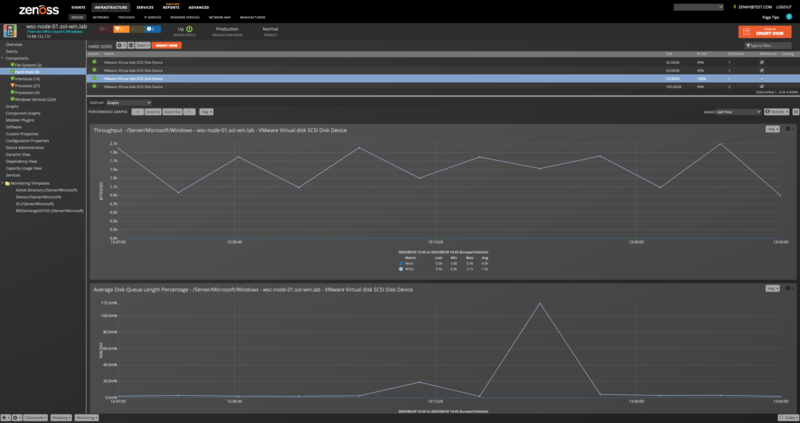
Hard Disks
Attributes
Name
Size
Number of Partitions
Disk Ids
Free Space
Capabilities
Relationships
Device
File Systems
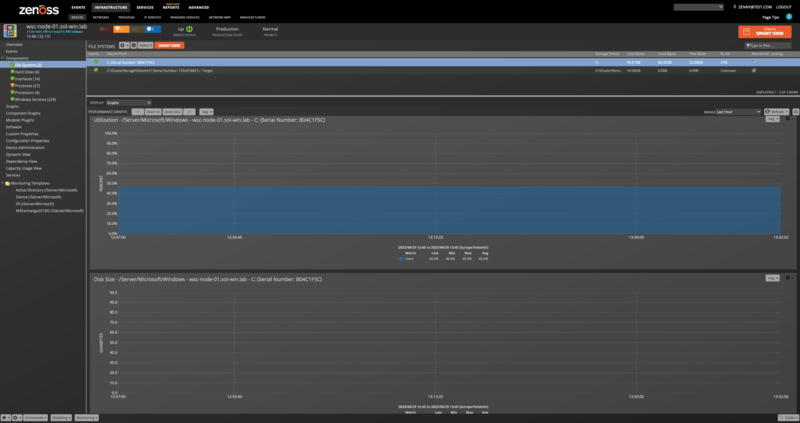
File Systems
Attributes
Mount Point
Status
Storage Device
Type
Block Size
Total Blocks
Total Bytes
Maximum Name Length
Relationships
Device
Hard Disks
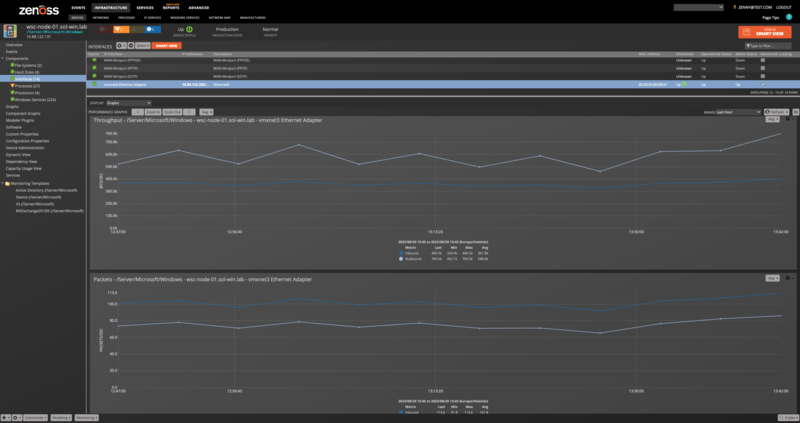
Interfaces
Attributes
Name
Description
MAC Address
MTU
Speed
Duplex
Type
Administrative Status
Operational Status
IP Addresses
Relationships
Device
Network Routes
Attributes
Destination
Next Hop
Interface
Protocol
Type
Relationships
Device
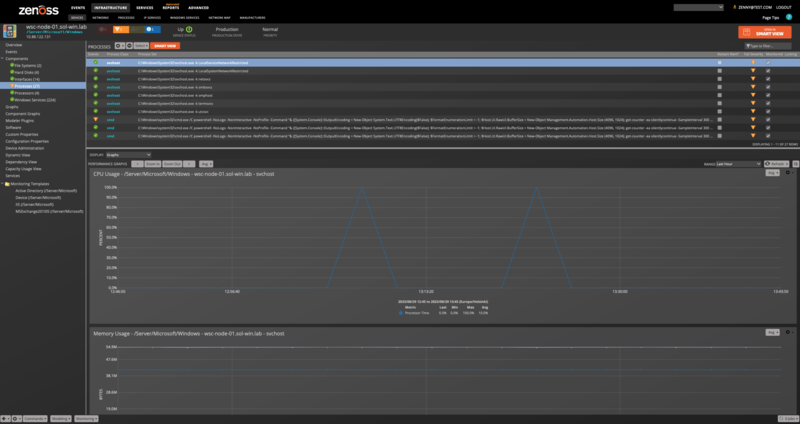
Process Sets
Attributes
Name
Recent Matches
Process Class
Relationships
Device
Software
Attributes
Name
Vendor
Installation Date
Relationships
Device
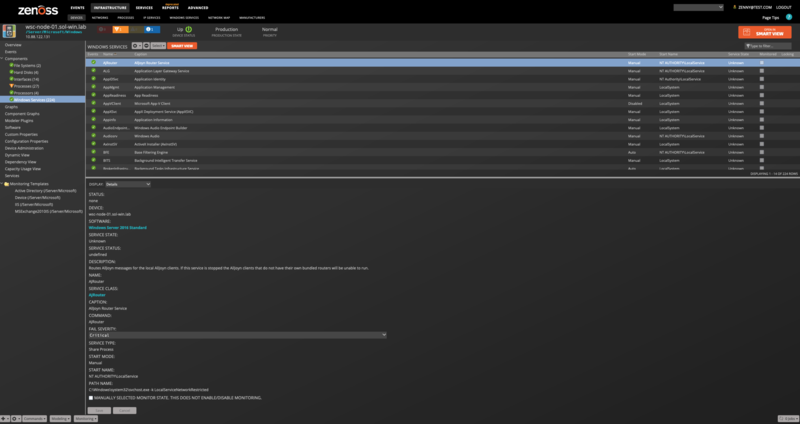
Services
Attributes
Name
Display Name
Start Mode
Account
Relationships
Device
Cluster Services
Attributes
Name
Core Group
Owner Node
State
Description
Priority
Relationships
Cluster Resources
Cluster Resources
Attributes
Name
Owner Node
Description
Owner Group
State
Relationships
Cluster Service
Cluster Nodes
Attributes
Name
Assigned Vote
Current Vote
State
Relationships
Cluster Disks
Cluster Interfaces
Cluster Networks
Attributes
Name
Description
State
Cluster Disks
Attributes
Name
Owner Node
Volume Path
Disk Number
Partition Number
Capacity
Free Space
State
Relationships
Cluster Nodes
Note
If a cluster disk has not been allocated, there are no partitions, so the representation of free space is invalid. We will therefore show free space as N/A. Disk number will not be discovered on Windows 2008 servers because the Powershell Storage Module is not available.
Cluster Interfaces
Attributes
Name
Owner Node
Network
IP Addresses
Adapter
State
Relationships
Cluster Nodes
IIS Sites
Attributes
Name
Status
App Pool
Relationships
Device
Certification Authority Certificate
Attributes
Name
Issued Common Name
Requester Name
Effective Date
Expiry Date
Relationships
Device
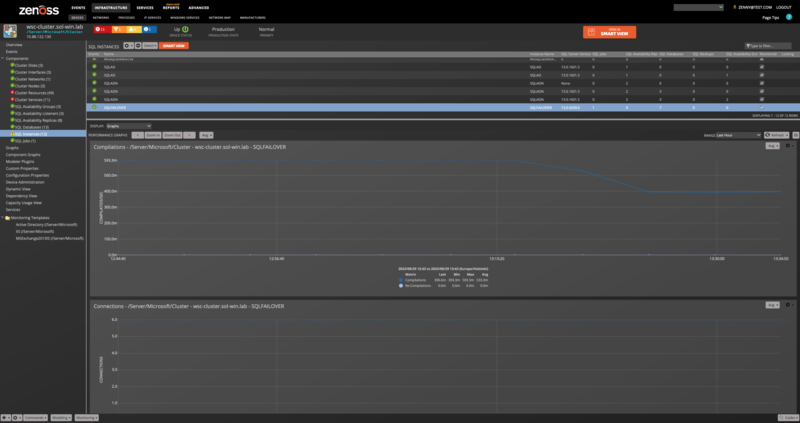
SQL Instances
Attributes
Name: Name
Instance Name
SQL Server Version
Backup Devices
Roles
Cluster Node Server
Perfmon Counter Instance Name
Relationships
Device
SQL Backups
SQL Databases
SQL Jobs
SQL Availability Groups
SQL Availability Replicas
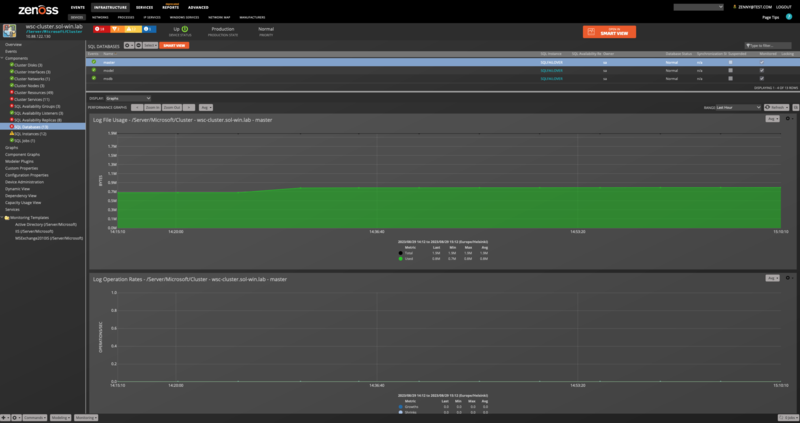
SQL Databases
Attributes
Name
Owner
Database Status
Synchronization State
Suspended
Cluster Node Server
Last Backup
System Object
Recovery Model
Created On
Always On Unique ID
Database Snapshot File Group
Version
Collation
File Path
Last Log Backup
Accessible
Relationships
SQL Server Instance
SQL Availability Group Replica
SQL Backups
Attributes
Name
Device Type
Instance Name
Physical Location
Status
Relationships
SQL Instance
SQL Jobs
Attributes
Name
Enabled
Cluster Node Server
Description
Date Created
User
Job ID
Instance Name
Relationships
SQL Instance
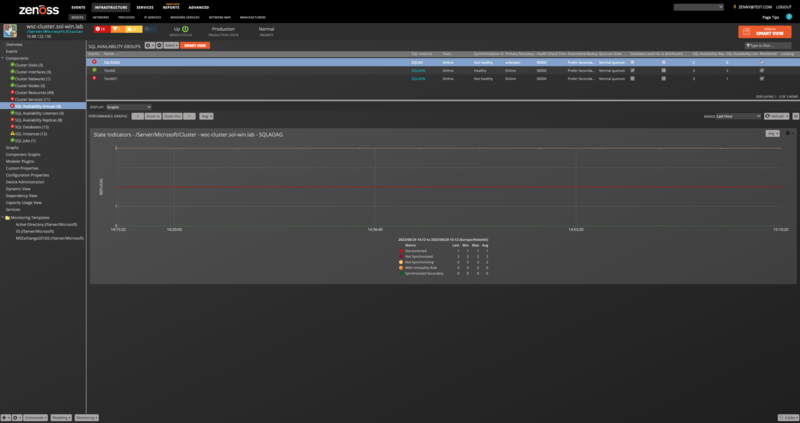
SQL Availability Group
Attributes
Name
State
Synchronization Health
Primary Recovery Health
Health Check Timeout
Automated Backup Preference
Quorum State
Database Level Health Detection
Is distributed
SQL Instances
Cluster Node Server
Perfmon Counter Instance Name
Unique ID
Cluster Type
Instance Name
Owner Node IP
Failure condition level
Relationships
SQL Instance
SQL Availability Group Replicas
SQL Availability Group Listeners
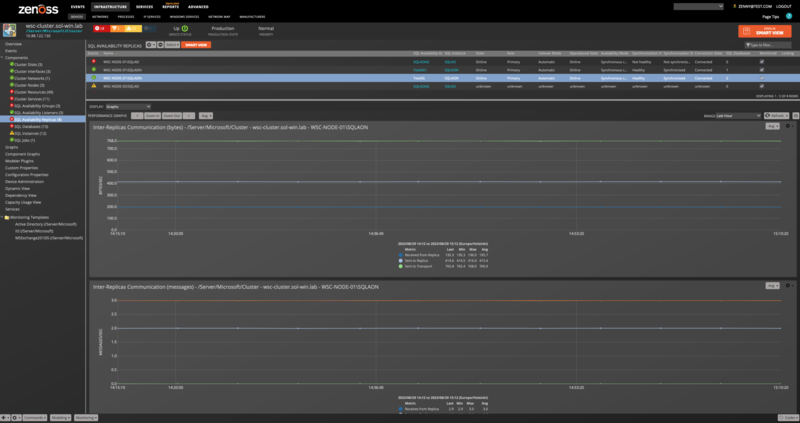
SQL Availability Group Replica
Attributes: Name, State, Role, Failover Mode, Operational State, Availability Mode, Synchronization Health, Synchronization State, Connection State, Cluster Node Server, Perfmon Counter Instance Name, Unique ID, Instance Name, Owner Node IP, Endpoint Url Relationships: SQL Availability Group, SQL Instance, SQL Databases
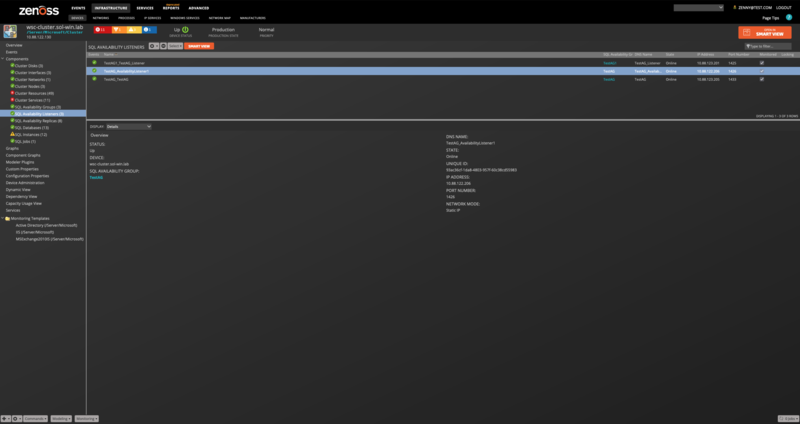
SQL Availability Group Listener
Attributes: Name, DNS Name, State, IP Address, Port Number, Unique ID, Network Mode Relationships: SQL Availability Group
Note
MS SQL Always-On components only supported at /Server/Microsoft/Cluster level when the WinMSSQL modeler plugin is added, and the value of zSQLAlwaysOnEnabled property set to True.
Note
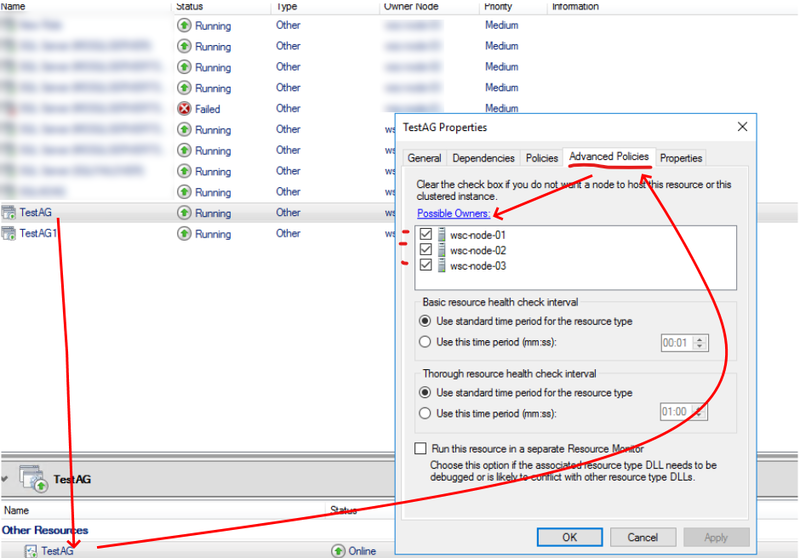
To get most info about Replicas and Availability Databases it needs to set a 'possible nodes' for Availability Group resource. In this case, the collection will be performed per each checked node from the possible nodes list. However, even one node is sufficient for the collection.
To do this:
Run
'Failover Cluster Manager';Select the Role which corresponds to a particular Always On Availability Group;
Select
'SQL Server Availability Group'the resource type for this resource;Pick
'Advanced Policies'tab and check'Possible Owners'.
Performance Monitoring
Performance counters are collected using the PowerShell Get-Counter Cmdlet within a remote shell (WinRS). The following metrics will be collected every 5 minutes by default. Any other Windows Perfmon counters can also be collected by adding them to the appropriate monitoring template.
Device
\Memory\Available bytes
\Memory\Committed Bytes
\Memory\Pages Input/sec
\Memory\Pages Output/sec
\Paging File(_Total)\% Usage
\Processor(_Total)\% Privileged Time
\Processor(_Total)\% Processor Time
\Processor(_Total)\% User Time
\System\System Up Time
Collected directly through Windows Remote Shell DataSource
\PhysicalMemory.AvailableBytes
\PhysicalMemory.InUseBytes
File Systems
\LogicalDisk({$here/instance_name})\Disk Read Bytes/sec
\LogicalDisk({$here/instance_name})\% Disk Read Time
\LogicalDisk({$here/instance_name})\Disk Write Bytes/sec
\LogicalDisk({$here/instance_name})\% Disk Write Time
\LogicalDisk({$here/instance_name})\Free Megabytes (Disabled)
Collected directly through Windows Remote Shell DataSource
\DiskSpace.TotalSizeGB
\DiskSpace.UtilizationPercent
Note
Starting in v.3.2.0, in order to achieve the precise performance data calculation, we changed the collection algorithm for File System Utilization and Disk Space data. To view the historical data of these metrics, add the FreeMegabytes data point to the existing or new graph with this data point and apply applicable RPN formulas.
Hard Disks
\PhysicalDisk({$here/instance_name})\Disk Read Bytes/sec
\PhysicalDisk({$here/instance_name})\% Disk Read Time
\PhysicalDisk({$here/instance_name})\Disk Write Bytes/sec
\PhysicalDisk({$here/instance_name})\% Disk Write Time
Interfaces
\Network Interface(${here/instance_name})\Bytes Received/sec
\Network Interface(${here/instance_name})\Bytes Sent/sec
\Network Interface(${here/instance_name})\Packets Received Errors
\Network Interface(${here/instance_name})\Packets Received/sec
\Network Interface(${here/instance_name})\Packets Outbound Errors
\Network Interface(${here/instance_name})\Packets Sent/sec
Interfaces on Windows 2012 and later
\Network Adapter(${here/instance_name})\Bytes Received/sec
\Network Adapter(${here/instance_name})\Bytes Sent/sec
\Network Adapter(${here/instance_name})\Packets Received Errors
\Network Adapter(${here/instance_name})\Packets Received/sec
\Network Adapter(${here/instance_name})\Packets Outbound Errors
\Network Adapter(${here/instance_name})\Packets Sent/sec
Active Directory
\NTDS\DS Client Binds/sec
\NTDS\DS Directory Reads/sec
\NTDS\DS Directory Searches/sec
\NTDS\DS Directory Writes/sec
\NTDS\DS Monitor List Size
\NTDS\DS Name Cache hit rate
\NTDS\DS Notify Queue Size
\NTDS\DS Search sub-operations/sec
\NTDS\DS Server Binds/sec
\NTDS\DS Server Name Translations/sec
\NTDS\DS Threads in Use
\NTDS\KDC AS Requests
\NTDS\KDC TGS Requests
\NTDS\Kerberos Authentications
\NTDS\LDAP Active Threads
\NTDS\LDAP Bind Time
\NTDS\LDAP Client Sessions
\NTDS\LDAP Closed Connections/sec
\NTDS\LDAP New Connections/sec
\NTDS\LDAP New SSL Connections/sec
\NTDS\LDAP Searches/sec
\NTDS\LDAP Successful Binds/sec
\NTDS\LDAP UDP operations/sec
\NTDS\LDAP Writes/sec
\NTDS\NTLM Authentications
Note
The Active Directory monitoring template will only be used when the server has the Primary or Backup Domain Controller role.
Exchange 2007 & 2010
\MSExchangeIS Mailbox(_Total)\Folder opens/sec
\MSExchangeIS Mailbox(_Total)\Local delivery rate
\MSExchangeIS Mailbox(_Total)\Message Opens/sec
\MSExchangeIS\RPC Averaged Latency
\MSExchangeIS\RPC Operations/sec
\MSExchangeIS\RPC Requests
\MSExchangeTransport Queues(_Total)\Active Mailbox Delivery Queue Length
\MSExchangeTransport SmtpSend(_Total)\Messages Sent/sec
Exchange 2013
\MSExchangeIS Store(_Total)\Folders opened/sec
\MSExchangeIS Store(_Total)\Messages Delivered/sec
\MSExchangeIS Store(_Total)\Messages opened/sec
\MSExchange Store Interface(_Total)\RPC Latency average (msec)
\MSExchange Store Interface(_Total)\RPC Requests sent/sec
\MSExchange Store Interface(_Total)\RPC Requests sent
\MSExchangeTransport Queues(_Total)\Active Mailbox Delivery Queue Length
\MSExchange Delivery SmtpSend(_Total)\Messages Sent/sec
Note
If monitoring Exchange with a non-administrator user, the user must be a member of the Active Directory group "Exchange View-Only Administrators" for pre-2010 Exchange installations or "View-Only Organization Management" for 2010 and later installations.
IIS Management Scripts and Tools need to be installed on the server-side in order to model and monitor IIS sites. This is done through the Add Roles and Features tool on the Windows Server under Web Server > Management Tools > IIS Management Scripts and Tools.
IIS
\Web Service(_Total)\Bytes Received/sec
\Web Service(_Total)\Bytes Sent/sec
\Web Service(_Total)\CGI Requests/sec
\Web Service(_Total)\Connection Attempts/sec
\Web Service(_Total)\Copy Requests/sec
\Web Service(_Total)\Delete Requests/sec
\Web Service(_Total)\Files Received/sec
\Web Service(_Total)\Files Sent/sec
\Web Service(_Total)\Get Requests/sec
\Web Service(_Total)\Head Requests/sec
\Web Service(_Total)\ISAPI Extension Requests/sec
\Web Service(_Total)\Lock Requests/sec
\Web Service(_Total)\Mkcol Requests/sec
\Web Service(_Total)\Move Requests/sec
\Web Service(_Total)\Options Requests/sec
\Web Service(_Total)\Other Request Methods/sec
\Web Service(_Total)\Post Requests/sec
\Web Service(_Total)\Propfind Requests/sec
\Web Service(_Total)\Proppatch Requests/sec
\Web Service(_Total)\Put Requests/sec
\Web Service(_Total)\Search Requests/sec
\Web Service(_Total)\Trace Requests/sec
\Web Service(_Total)\Unlock Requests/sec
IIS Sites
\Web Service(${here/sitename})\Bytes Received/sec
\Web Service(${here/sitename})\Bytes Sent/sec
\Web Service(${here/sitename})\CGI Requests/sec
\Web Service(${here/sitename})\Connection Attempts/sec
\Web Service(${here/sitename})\Copy Requests/sec
\Web Service(${here/sitename})\Connection Attempts/sec
\Web Service(${here/sitename})\Delete Requests/sec
\Web Service(${here/sitename})\Files Received/sec
\Web Service(${here/sitename})\Files Sent/sec
\Web Service(${here/sitename})\Get Requests/sec
\Web Service(${here/sitename})\Head Requests/sec
\Web Service(${here/sitename})\ISAPI Extension Requests/sec
\Web Service(${here/sitename})\Lock Requests/sec
\Web Service(${here/sitename})\Mkcol Requests/sec
\Web Service(${here/sitename})\Move Requests/sec
\Web Service(${here/sitename})\Options Requests/sec
\Web Service(${here/sitename})\Other Request Methods/sec
\Web Service(${here/sitename})\Post Requests/sec
\Web Service(${here/sitename})\Propfind Requests/sec
\Web Service(${here/sitename})\Proppatch Requests/sec
\Web Service(${here/sitename})\Put Requests/sec
\Web Service(${here/sitename})\Search Requests/sec
\Web Service(${here/sitename})\Trace Requests/sec
\Web Service(${here/sitename})\Unlock Requests/sec
\APP_POOL_WAS(${here/apppool})\Current Application Pool State
Note
The IIS monitoring template will only be used when IIS is found during modeling.
The IISAdmin service must be running in order to collect IIS data.
Processes (Win32_PerfFormattedData_PerfProc_Process)
PercentProcessorTime
WorkingSet
WorkingSetPrivate
Collected directly through WMI over WinRM.
Certificate
DaysToExpire
Collected directly through Windows Remote Shell DataSource
SQL Server Instance - WinDBInstance template
\SQLServer:Buffer Manager\Buffer cache hit ratio
\SQLServer:Buffer Manager\Page life expectancy
\SQLServer:SQL Statistics\Batch Requests/Sec
\SQLServer:SQL Statistics\SQL Compilations/Sec
\SQLServer:SQL Statistics\SQL Re-Compilations/Sec
\SQLServer:General Statistics\User Connections
\SQLServer:Locks(_Total)\Lock Waits/Sec
\SQLServer:Access Methods\Page Splits/Sec
\SQLServer:General Statistic\Processes Blocked
\SQLServer:Buffer Manager\Checkpoint Pages/Sec
\SQLServer:Locks(_Total)\Number of Deadlocks/sec
Note
For a named instance, the counter instance will be \MSSQL$INSTANCE_NAME. To add custom SQL Server instance counters, create a Windows Perfmon datasource and datapoint with matching names and specify the counter as \${here/perfmon_instance}\counter name. During modeling, the plugin will assign the correct counter name.
We show the following graphs for an instance:
Buffer Cache Hit Ratio
Page Life Expectancy
Batch Requests
Compilations
Connections
Lock Waits
Page Splits
Processes Blocked
Checkpoint Pages
Deadlocks
SQL Server Database - WinDatabase template
\Active Transactions
\Backup/Restore Throughput/sec
\Bulk Copy Rows/sec
\Bulk Copy Throughput/sec
\Cache Entries Count
\Cache Entries Pinned Count
\Cache Hit Ratio
\Cache Hit Ratio Base
\DBCC Logical Scan Bytes/sec
\Data File(s) Size (KB)
\Log Bytes Flushed/sec
\Log Cache Hit Ratio
\Log Cache Hit Ratio Base
\Log Cache Reads/sec
\Log File(s) Size (KB)
\Log File(s) Used Size (KB)
\Log Flush Wait Time
\Log Flush Waits/sec
\Log Flushes/sec
\Log Growths
\Percent Log Used
\Log Shrinks
\Log Truncations
\Percent Log Used
\Repl. Pending Xacts
\Repl. Trans. Rate
\Shrink Data Movement Bytes/sec
\Transactions/sec
Collected via PowerShell SQL connection to the server instance.
Database Statuses
AutoClosed- The database has been automatically closed.EmergencyMode- The database is in emergency mode.Inaccessible- The database is inaccessible. The server might beswitched off or the network connection has been interrupted.Normal- The database is available.Offline- The database has been taken offline.Recovering- The database is going through the recovery process.RecoveryPending- The database is waiting to go through the recovery process.Restoring- The database is going through the restore process.Shutdown- The server on which the database resides has been shut down.Standby- The database is in standby mode.Suspect- The database has been marked as suspect. You will have to check the data, and the database might have to be restored from a backup.
Events
Normalwill send a clear eventEmergencyMode,Suspect,Inaccessiblewill send a critical eventShutdown,RecoveryPending,Restoring,Recovering,Standby,AutoClosed,Offlinewill send Info events
Status can be multiple items from above. For example, taking a database offline will set the status to 'Offline, AutoClosed'. Transforms can be applied in the WinDatabaseStatus event mapping under /Status. You can raise/lower the severity of the status, or drop it altogether.
For example, to raise the severity of the Offline status:
if 'Offline' in evt.summary: evt.severity = 4
Note: Database status is discovered in the same PowerShell script as the database counters. While it is possible to use a different cycle time for status, we advise against that as it will add extra load onto the target device and could inadvertently skew memory/CPU usage.
The WinDBInstance monitoring template will also monitor the status of a SQL Server instance to inform the user if it is up or down.
The WinSQLJob monitoring template will monitor the status of a job on a SQL Server instance to inform the user if it has succeeded, failed, unknown, or another state.
Note: Collection errors are sent with the winrsCollectionMSSQLJob event class key. Use an event class mapping with or without a transform to forward the event to a specific event class. These include connection and other Powershell issues.
SQL Availability Group - WinAvailabilityGroup template
\\IsOnline
\\NumberOfDisconnectedReplicas
\\NumberOfNotSynchronizedReplicas
\\NumberOfNotSynchronizingReplicas
\\NumberOfReplicasWithUnhealthyRole
\\NumberOfSynchronizedSecondaryReplicas
Collected via PowerShell SQL connection to the server instance.
SQL Availability Group state indicators' info can be found here.
SQL Availability Group Replica - WinAvailabilityReplica template
\\Bytes Received from Replica/sec
\\Bytes Sent to Replica/sec
\\Bytes Sent to Transport/sec
\\Flow Control Time (ms/sec)
\\Flow Control/sec
\\Receives from Replica/sec
\\Resent Messages/sec
\\Sends to Replica/sec
\\Sends to Transport/sec
Zone Features
Solaris Zones information is collected using Secure Shell (SSH) and will be displayed as components of the Zones host server.
It is required to have Solaris 11 or above in order to collect and monitor Zones information.
Discovery
The following entities will be discovered.
Zones
Attributes
Name
Path
Brand
IP Type
Zone Status
Autoboot
Host ID
Capped CPU
Capped Memory
Relationships
Zone File Systems
Zone Network Adapters
Zone Dedicated CPUs
Zone File Systems
Attributes
Name
FS Type
Special
Raw
Zone Network Adapters
Attributes
Name
IP Address
Network Mask
Physical NIC
Default Router
Zone Dedicated CPUs
Attributes
Name
Importance
Performance Monitoring
The following metrics will be collected every 5 minutes by default.
Zones
CPU Utilization: Usage (percent)
Memory Utilization: Usage (bytes)
Swap Utilization: Usage (bytes)
Solaris 10 only:
Light-Weight Process: lwps (count)
Number of Processes: nproc (count)
Zone File Systems
File System Size: System Size (bytes)
Zone Network Adapters
Errors: Incoming packet errors, Outgoing packet errors (count)
Packets: Packets incoming, Packets outgoing (count)
Non-global Zone only:
Collisions: Collisions (count)
Queue: Queue (count)
LDOM Features
LDOM information is collected using the Simple Network Management Protocol (SNMP). The discovered LDOM information will be displayed as components of the LDOM host server.
Discovery
The following entities will be discovered.
LDOM
Attributes
LDOM
Guest Device
Host ID
MAC Address
Memory
VCPUs
Oper State
LDOM Virtual CPUs
Attributes
LDOM
VCPU ID
Core ID
CPU Bind
CPU Bind Usage
Percentage Utilized
Oper Status
LDOM Virtual Disk Services
Attributes
LDOM
Disk Service Name
Available Volume
Used Volume
Performance Monitoring
The following metrics will be collected every 5 minutes by default.
LDOM Virtual CPUs
CPU Utilization: Utilized (percent)
LDOM Virtual Disk Services
Volumes: Available, Volume (volumes)
LDOM Device Discovery
You can optionally configure each Solaris LDOM server to attempt to discover and monitor the guest operating systems running within each Solaris LDOM. This requires that your Virtana system has the network and server access it needs to monitor the guest system.
LDOM Device Discovery
You can optionally configure each Solaris LDOM server to attempt to discover and monitor the guest operating systems running within each Solaris LDOM. This requires that your Virtana system has the network and server access it needs to monitor the guest system.
Cluster Features
Cluster information is collected using Secure Shell (SSH) and will be displayed as components of the Cluster server.
Discovery
The following entities will be discovered.
Cluster Nodes
Attributes
Name
IP Address
Node Status
Relationships
Cluster DIDs
Cluster Resource Groups
ClusterDeviceGroup
Attributes
Name
Device Group Status
Cluster DIDs
Attributes
Name
Full Path
Replication
DID Status
ClusterIPMPGroup
Attributes
Name
IPMP Group Status
ClusterNASDevice
Attributes
Name
NAS Type
Cluster Resources
Attributes
Name
Resource Group
Status Message
Resource State
Cluster Resource Groups
Attributes
Name
Node Name
Suspended
Resource Group State
Relationships
Cluster Resources
Cluster Switches
Attributes
Name
Type
State
Relationships
Cluster Switch Ports
Cluster Switch Ports
Attributes
Name
Port State
Cluster Transport Paths
Attributes
Endpoint #1
Endpoint #2
Transport Path Status
Performance Monitoring
The following metrics will be collected every 5 minutes by default.
Cluster (Device)
Nodes: Offline Nodes, Online Nodes, Total Nodes (count)
Quorum: Votes Needed, Votes Possible, Votes Present (count)
Cluster Node Device Discovery
You can optionally configure each Solaris Cluster server to attempt to discover and monitor the guest operating systems running within each Solaris Cluster node. This requires that your Virtana system has the network and server access it needs to monitor the guest system.
Configure Cluster Node Device Discovery
Navigate to the Configuration Properties panel.
Checkmark zNodesAutodiscover to set it to true.
Service Impact
When combined with the Virtana Service Dynamics product, this ZenPack adds built-in service impact capability for Solaris. The following service impact relationships are automatically added. These will be included in any services that contain one or more of the explicitly mentioned entities.
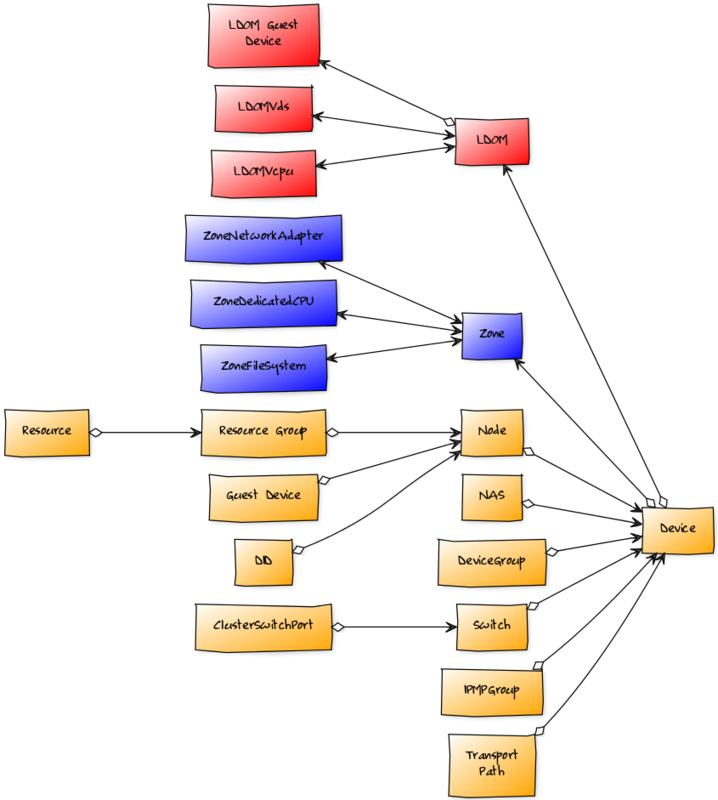
Impact Relationship Diagram
Solaris Impact Relationships
Zone or LDOM failure affects related device.
Zone File System, Zone Network Adapter or Zone Dedicated CPU failure affects related Zone.
LDOM Virtual CPUs, LDOM Virtual Disk Services failure affects related LDOM.
Cluster Impact Relationships
Node, NAS Device, Device Group, Switch, IPMP Group of Transport Path failure affects related device.
Resource Group or DID failure affects related Node.
Resource failure affects related Resource Group.
Switch Port failure affects related Switch.
Node is affected by the associated device failure.
Usage
Depending on the version of Solaris you may be able to monitor the server using either SSH or SNMP. For OpenSolaris and Solaris 10, you can choose to use either SSH or SNMP monitoring. For Solaris 9, only SSH monitoring is supported.
Configure SSH Monitoring
Use the following steps to configure Virtana to monitor your Solaris server(s) using SSH.
Navigate to the /Server/SSH/Solaris device class' configuration properties.
Verify that the zCommandUsername and zCommandPassword are set to valid login credentials.
Add your Solaris server(s) to the /Server/SSH/Solaris device class.
Note: For Solaris 10 add your Solaris server(s) to the /Server/SSH/Solaris/Solaris10 device class.
Configure SNMP Monitoring
Use the following steps to configure Virtana to monitor your Solaris server(s) using SNMP.
Verify that the snmpd process is running on your Solaris server(s).
Navigate to the /Server/Solaris device class' configuration properties.
Verify that your Solaris server(s) SNMP community strings are listed in the zSnmpCommunities property.
Add your Solaris server(s) to the /Server/Solaris device class.
Configure LDOM Monitoring
For OpenSolaris and Solaris 10 servers you will also get support for monitoring LDOMs if they're used on the server. However, this monitoring is always performed using SNMP. If you're already monitoring your Solaris server using SNMP there is no additional configuration required to monitor its LDOMs. If you configured Virtana to monitor your Solaris server using SSH you should take the following steps to monitor LDOMs.
Verify that the snmpd process is running on your Solaris server(s).
Navigate to the /Server/SSH/Solaris device class' configuration properties.
Verify that your Solaris server(s) SNMP community strings are listed in the zSnmpCommunities property.
Navigate to the Modeler Plugins panel and enable zenoss.snmp.solaris.ldommap plugin.
Remodel your Solaris server(s) if they're already in the system. Otherwise add them to the /Server/SSH/Solaris device class.
Configure Cluster Monitoring
This ZenPack also provides support for monitoring Solaris Cluster, however, this monitoring is always performed using SSH. Use the following steps to configure Virtana to monitor your Solaris Cluster server(s).
Add your Solaris Cluster server(s) to the /Server/SSH/Solaris/Cluster device class.
Verify that the zCommandUsername and zCommandPassword are set to valid login credentials.
Verify that zenoss.cmd.solaris.cluster is selected on the Modeler Plugins panel.
By default zenoss.cmd.solaris.cluster_did modeler plugin is unselected. To enable Cluster DIDs collection move it to selected plugins box. To monitor DIDs statuses enable didstatuses data source in Cluster monitoring template. It is disable dy default by performance reasons.
Note: For Solaris 10 Cluster add your Solaris server(s) to the /Server/SSH/Solaris/Solaris10/Cluster device class.
Troubleshooting
Please refer to the Zenoss Service Dynamics documentation if you run into any of the following problems:
ZenPack will not install
Adding a device fails
Don't understand how to add a device
Don't understand how to model a device
If you cannot find the answer in the documentation, then Resource Manager (Service Dynamics) users should contact Zenoss Customer Support. Core users can use the #zenoss IRC channel or the community.zenoss.org forums.
Resolving CHANNEL_OPEN_FAILURE Issues
The zencommand daemon's log file ($ZENHOME/collector/zencommand.log) may show messages stating:
ERROR zen.SshClient CHANNEL_OPEN_FAILURE: Authentication failure
WARNING:zen.SshClient:Open of command failed (error code 1): open failed
If the sshd daemon's log file on the remote device is examined, it may report that the MAX_SESSIONS number of connections has been exceeded and that it is denying the connection request. In the OpenSSH daemons, this MAX_SESSIONS number is a compile-time option and cannot be reset in a configuration file.
To work around this sshd daemon limitation, use the configuration property zSshConcurrentSessions to control the number of connections created by zencommand to the remote device:
Navigate to the device or device class in the Virtana Service Dynamics interface.
If applying changes to a device class:
Select the class in the devices hierarchy.
Click Details.
Select Configuration Properties.
If applying changes to a device:
Click the device in the device list.
Select Configuration Properties.
Set the zSshConcurrentSessions property. Try 10 first, and 2 if that doesn't resolve the problem.
Resolving Command Timeout Issues
The zencommand daemon's log file ($ZENHOME/collector/zencommand.log) may show messages stating:
WARNING:zen.zencommand:Command timed out on device device_name: command
If this occurs, it usually indicates that the remote device has taken too long to return results from the commands. To increase the amount of time to allow devices to return results, change the configuration property zCommandCommandTimeout to a larger value.
Navigate to the device or device class in the Virtana Service Dynamics interface.
If applying changes to a device class:
Select the class in the devices hierarchy.
Click Details.
Select Configuration Properties.
If applying changes to a device:
Click the device in the device list.
Select Configuration Properties.
Increase the zCommandCommandTimeout property incrementally to a maximum of 240 until the timeout is resolved.
Blank Fields in Analytics View
Having blank fields when creating Ad Hoc Views in Analytics server may mean that your device have been monitored before Analytics support was implemented for this ZenPack. To resolve this, you have to delete the dimension tables for Solaris components in the reporting database on the analytics server and restart the ZenETL daemons.
Known issues
This zenpack uses df utility to monitor filesystems capacity, and this utility could give misleading results for ZFS. When there are more then one filesystems in the same disk pool, the used plus free space for them will be less than total space, because some of it will be used for other filesystem. See: Oracle Solaris ZFS and Traditional File System Differences.
Virtana Analytics
This ZenPack provides additional support for Virtana Analytics. Perform the following steps to install extra reporting resources into Virtana Analytics after installing the ZenPack.
Copy analytics-bundle.zip from $ZENHOME/ZenPacks/ZenPacks.zenoss.SolarisMonitor*/ZenPacks/zenoss/SolarisMonitor/analytics/ on your Virtana server.
Navigate to Virtana Analytics in your browser.
Login as superuser.
Remove any existing SolarisMonitor ZenPack folder.
Choose Repository from the View menu at the top of the page.
Expand Public in the list of folders.
Right-click on SolarisMonitor ZenPack folder and choose Delete.
Confirm deletion by clicking OK.
Add the new SolarisMonitor ZenPack folder.
Choose Server Settings from the Manage' menu at the top of the page.
Choose Import in the left page.
Remove checks from all check boxes.
Click Choose File to import a data file.
Choose the analytics-bundle.zip file copied from your Virtana server.
Click Import.
You can now navigate back to the SolarisMonitor ZenPack folder in the repository to see the following resources added by the bundle.
Domains
SolarisMonitor Domain
SolarisMonitor Zone Domain
SolarisMonitor Cluster Domain
Domains can be used to create Ad Hoc views using the following steps.
Choose Ad Hoc View from the Create menu.
Click Domains at the top of the data chooser dialog.
Expand Public then SolarisMonitor ZenPack.
Choose the SolarisMonitor Domain domain
Installed Items
Installing this ZenPack will add the following items to your Virtana system.
Configuration Properties
zLDOMsAutodiscover
zNodesAutodiscover
Device Classes
/Server/Solaris
/Server/SSH/Solaris
/Server/SSH/Solaris/Solaris10
/Server/SSH/Solaris/Cluster
/Server/SSH/Solaris/Solaris10/Cluster
Modeler Plugins
zenoss.cmd.solaris.cluster
zenoss.cmd.solaris.cluster_did
zenoss.cmd.solaris.cpu
zenoss.cmd.solaris.df_ag
zenoss.cmd.solaris.ifconfig
zenoss.cmd.solaris.iostat
zenoss.cmd.solaris.kstat
zenoss.cmd.solaris.memory
zenoss.cmd.solaris.netstat_an
zenoss.cmd.solaris.netstat_r_vn
zenoss.cmd.solaris.solaris_uname_a
zenoss.cmd.solaris.pkginfo
zenoss.cmd.solaris.process
zenoss.cmd.solaris.prpool
zenoss.cmd.solaris.uname_a
zenoss.cmd.solaris.zone
zenoss.snmp.CpuMap
zenoss.snmp.DeviceMap
zenoss.snmp.IpServiceMap
zenoss.snmp.HRFileSystemMap
zenoss.snmp.HRSWInstalledMap
zenoss.snmp.HRSWRunMap
zenoss.snmp.InterfaceMap
zenoss.snmp.NewDeviceMap
zenoss.snmp.RouteMap
zenoss.snmp.solaris.hostid
zenoss.snmp.solaris.ldommap
Monitoring Templates
ClusterDevice (in /Server/SSH/Solaris/Cluster)
ClusterDevice (in /Server/SSH/Solaris/Solaris10/Cluster)
ClusterDID (in /Server/SSH/Solaris/Cluster)
ClusterDID (in /Server/SSH/Solaris/Solaris10/Cluster)
ClusterIPMPGroup (in /Server/SSH/Solaris/Cluster)
ClusterIPMPGroup (in /Server/SSH/Solaris/Solaris10/Cluster)
ClusterNode (in /Server/SSH/Solaris/Cluster)
ClusterNode (in /Server/SSH/Solaris/Solaris10/Cluster)
ClusterResource (in /Server/SSH/Solaris/Cluster)
ClusterResource (in /Server/SSH/Solaris/Solaris10/Cluster)
ClusterResourceGroup (in /Server/SSH/Solaris/Cluster)
ClusterResourceGroup (in /Server/SSH/Solaris/Solaris10/Cluster)
ClusterSwitch (in /Server/SSH/Solaris/Cluster)
ClusterSwitch (in /Server/SSH/Solaris/Solaris10/Cluster)
ClusterSwitchPort (in /Server/SSH/Solaris/Cluster)
ClusterSwitchPort (in /Server/SSH/Solaris/Solaris10/Cluster)
ClusterTransportPath (in /Server/SSH/Solaris/Cluster)
ClusterTransportPath (in /Server/SSH/Solaris/Solaris10/Cluster)
ZoneContainer (in /Server/SSH/Solaris)
ZoneFileSystem (in /Server/SSH/Solaris)
ZoneNetworkAdapter (in /Server/SSH/Solaris)
Solaris10GlobalZoneNetworkAdapter (in /Server/SSH/Solaris/Solaris10)
Solaris10ZoneNetworkAdapter (in /Server/SSH/Solaris/Solaris10)
Device (/Server/SSH/Solaris)
FileSystem (/Server/SSH/Solaris)
OSProcess (/Server/SSH/Solaris)
ethernetCsmacd (/Server/SSH/Solaris)
ProcessorPool (in /Server)
LDOM (in /Server)
LDOMVcpu (in /Server)
LDOMVds (in /Server)
Component Types
ZoneContainer (on related device)
ZoneFileSystem (on ZoneContainer)
ZoneNetworkAdapter (on ZoneContainer)
ZoneDedicatedCPU (on ZoneContainer)
LDOM (on related device)
LDOMVcpu (on LDOM)
LDOMVds (on LDOM)
ProcessorPool (on related device)
ClusterIPMPGroup (on related device)
ClusterNASDevice (on related device)
ClusterDeviceGroup (on related device)
ClusterTransportPath (on related device)
ClusterSwitch (on related device)
ClusterSwitchPort (on ClusterSwitch)
ClusterNode (on related device)
ClusterDID (on ClusterNode)
ClusterResourceGroup (on ClusterNode)
ClusterResource (on ClusterResourceGroup)
Required Daemons
In addition to the core platform daemons the following optional daemons are required for this ZenPack to fully function.
zenperfsnmp
zencommand
Installed Items
Installing this ZenPack will add the following items to your Virtana system.
Configuration Properties
zLDOMsAutodiscover
zNodesAutodiscover
Device Classes
/Server/Solaris
/Server/SSH/Solaris
/Server/SSH/Solaris/Solaris10
/Server/SSH/Solaris/Cluster
/Server/SSH/Solaris/Solaris10/Cluster
Modeler Plugins
zenoss.cmd.solaris.cluster
zenoss.cmd.solaris.cluster_did
zenoss.cmd.solaris.cpu
zenoss.cmd.solaris.df_ag
zenoss.cmd.solaris.ifconfig
zenoss.cmd.solaris.iostat
zenoss.cmd.solaris.kstat
zenoss.cmd.solaris.memory
zenoss.cmd.solaris.netstat_an
zenoss.cmd.solaris.netstat_r_vn
zenoss.cmd.solaris.solaris_uname_a
zenoss.cmd.solaris.pkginfo
zenoss.cmd.solaris.process
zenoss.cmd.solaris.prpool
zenoss.cmd.solaris.uname_a
zenoss.cmd.solaris.zone
zenoss.snmp.CpuMap
zenoss.snmp.DeviceMap
zenoss.snmp.IpServiceMap
zenoss.snmp.HRFileSystemMap
zenoss.snmp.HRSWInstalledMap
zenoss.snmp.HRSWRunMap
zenoss.snmp.InterfaceMap
zenoss.snmp.NewDeviceMap
zenoss.snmp.RouteMap
zenoss.snmp.solaris.hostid
zenoss.snmp.solaris.ldommap
Monitoring Templates
ClusterDevice (in /Server/SSH/Solaris/Cluster)
ClusterDevice (in /Server/SSH/Solaris/Solaris10/Cluster)
ClusterDID (in /Server/SSH/Solaris/Cluster)
ClusterDID (in /Server/SSH/Solaris/Solaris10/Cluster)
ClusterIPMPGroup (in /Server/SSH/Solaris/Cluster)
ClusterIPMPGroup (in /Server/SSH/Solaris/Solaris10/Cluster)
ClusterNode (in /Server/SSH/Solaris/Cluster)
ClusterNode (in /Server/SSH/Solaris/Solaris10/Cluster)
ClusterResource (in /Server/SSH/Solaris/Cluster)
ClusterResource (in /Server/SSH/Solaris/Solaris10/Cluster)
ClusterResourceGroup (in /Server/SSH/Solaris/Cluster)
ClusterResourceGroup (in /Server/SSH/Solaris/Solaris10/Cluster)
ClusterSwitch (in /Server/SSH/Solaris/Cluster)
ClusterSwitch (in /Server/SSH/Solaris/Solaris10/Cluster)
ClusterSwitchPort (in /Server/SSH/Solaris/Cluster)
ClusterSwitchPort (in /Server/SSH/Solaris/Solaris10/Cluster)
ClusterTransportPath (in /Server/SSH/Solaris/Cluster)
ClusterTransportPath (in /Server/SSH/Solaris/Solaris10/Cluster)
ZoneContainer (in /Server/SSH/Solaris)
ZoneFileSystem (in /Server/SSH/Solaris)
ZoneNetworkAdapter (in /Server/SSH/Solaris)
Solaris10GlobalZoneNetworkAdapter (in /Server/SSH/Solaris/Solaris10)
Solaris10ZoneNetworkAdapter (in /Server/SSH/Solaris/Solaris10)
Device (/Server/SSH/Solaris)
FileSystem (/Server/SSH/Solaris)
OSProcess (/Server/SSH/Solaris)
ethernetCsmacd (/Server/SSH/Solaris)
ProcessorPool (in /Server)
LDOM (in /Server)
LDOMVcpu (in /Server)
LDOMVds (in /Server)
Component Types
ZoneContainer (on related device)
ZoneFileSystem (on ZoneContainer)
ZoneNetworkAdapter (on ZoneContainer)
ZoneDedicatedCPU (on ZoneContainer)
LDOM (on related device)
LDOMVcpu (on LDOM)
LDOMVds (on LDOM)
ProcessorPool (on related device)
ClusterIPMPGroup (on related device)
ClusterNASDevice (on related device)
ClusterDeviceGroup (on related device)
ClusterTransportPath (on related device)
ClusterSwitch (on related device)
ClusterSwitchPort (on ClusterSwitch)
ClusterNode (on related device)
ClusterDID (on ClusterNode)
ClusterResourceGroup (on ClusterNode)
ClusterResource (on ClusterResourceGroup)
Required Daemons
In addition to the core platform daemons the following optional daemons are required for this ZenPack to fully function.
zenperfsnmp
zencommand