Microsoft Windows
ZenPacks.zenoss.Microsoft.Windows
This ZenPack provides support for monitoring Microsoft Windows. Monitoring is performed using the Windows Remote Management (WinRM) and Windows Remote Shell (WinRS) to collect Windows Management Instrumentation (WMI) and Perfmon data.
Applications Monitored
Microsoft SQL Server
Microsoft Cluster Services
Microsoft Windows (2026, 2022, 2019, 2016, 2012 Server)
Microsoft IIS
Microsoft Active Directory
Microsoft Exchange
The features added by this ZenPack can be summarized as follows. They are each detailed further below.
Initial discovery and periodic remodeling of relevant components.
Performance monitoring.
Event management.
Custom commands.
Service monitoring.
Releases
Version 3.3.0
Released on 2026/06/18
Requires PythonCollector ZenPack (>=1.4), ZenPackLib ZenPack (>=2.0.5)
Compatible with Virtana Service Observability (formerly Zenoss Cloud) and Virtana Service Dynamics 6.x
Version 3.2.0
Released on 2025/04/14
Requires PythonCollector ZenPack (>=1.4), ZenPackLib ZenPack (>=2.0.5)
Compatible with Virtana Service Observability (formerly Zenoss Cloud) and Virtana Service Dynamics 6.x
Discovery
The following components will be automatically discovered through the Windows server address, username, and password you provide. The properties and relationships will be periodically updated by modeling.
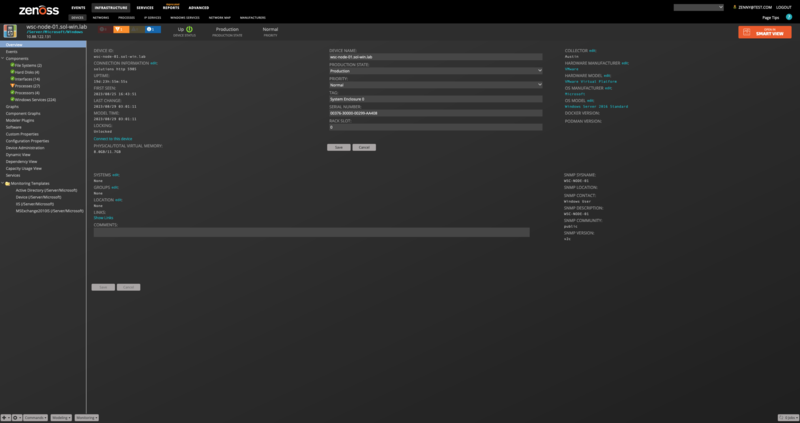
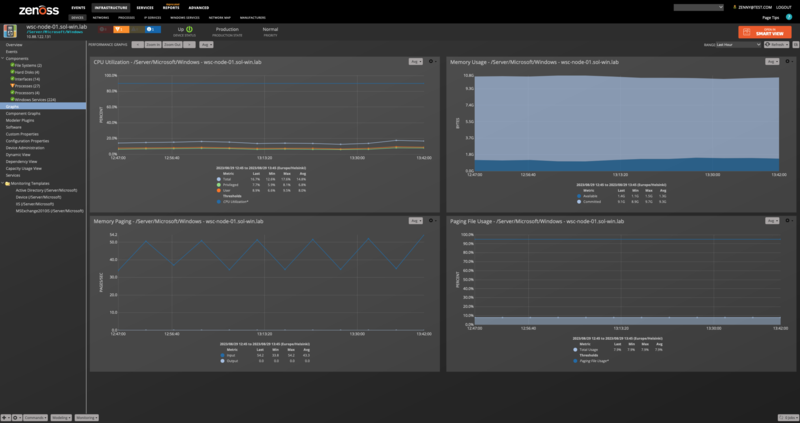
Server (Device)
Attributes
Name
Contact
Description
Serial Number
Tag
Hardware Model
Physical Memory
Total Virtual Memory
Operating System
Cluster
Relationships
File Systems
Hard Disks
Processes
Network Routes
CPUs
Interfaces
Windows Services
HyperV
SQL Server Instances
IIS Sites
Server (Device)
Attributes
Name
Contact
Description
Serial Number
Tag
Hardware Model
Physical Memory
Total Virtual Memory
Operating System
Cluster
Relationships
File Systems
Hard Disks
Processes
Network Routes
CPUs
Interfaces
Windows Services
HyperV
SQL Server Instances
IIS Sites
Cluster (Device)
Attributes
Name
Contact
Description
Physical Memory
Total Virtual Memory
Operating System
Member Servers
Relationships
SQL Server Instances
IIS Sites
Cluster Services
Cluster Resources
Cluster Networks
Cluster Disks
Cluster Interfaces
Cluster Nodes
Processors
Attributes
Name
Description
Model
Socket
Cores
Threads
Clock Speed
External Speed
Voltage
L1 Cache Size
L2 Cache Size and Speed
L3 Cache Size and Speed
Relationships
Device
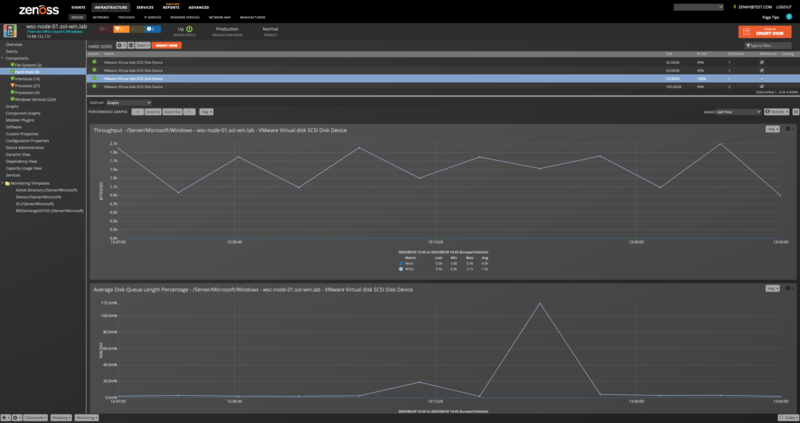
Hard Disks
Attributes
Name
Size
Number of Partitions
Disk Ids
Free Space
Capabilities
Relationships
Device
File Systems
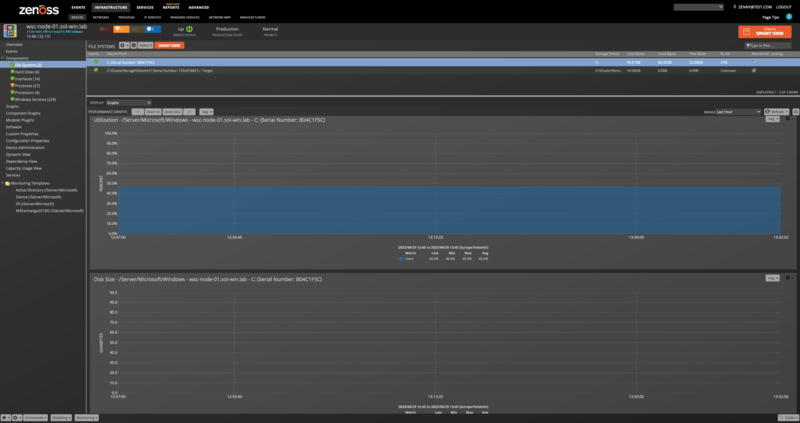
File Systems
Attributes
Mount Point
Status
Storage Device
Type
Block Size
Total Blocks
Total Bytes
Maximum Name Length
Relationships
Device
Hard Disks
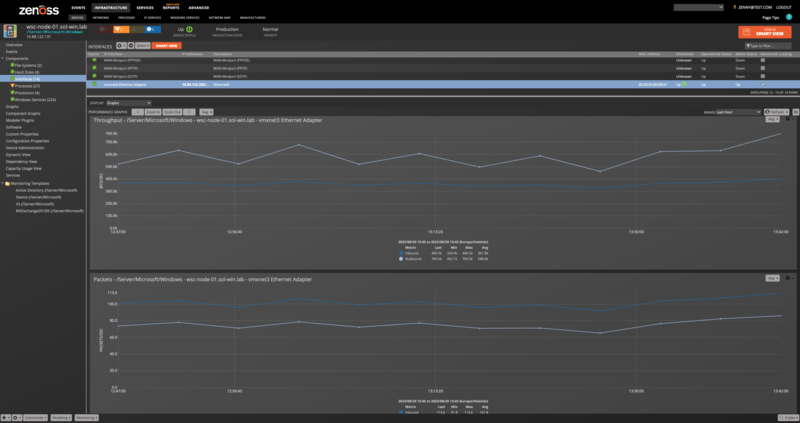
Interfaces
Attributes
Name
Description
MAC Address
MTU
Speed
Duplex
Type
Administrative Status
Operational Status
IP Addresses
Relationships
Device
Network Routes
Attributes
Destination
Next Hop
Interface
Protocol
Type
Relationships
Device
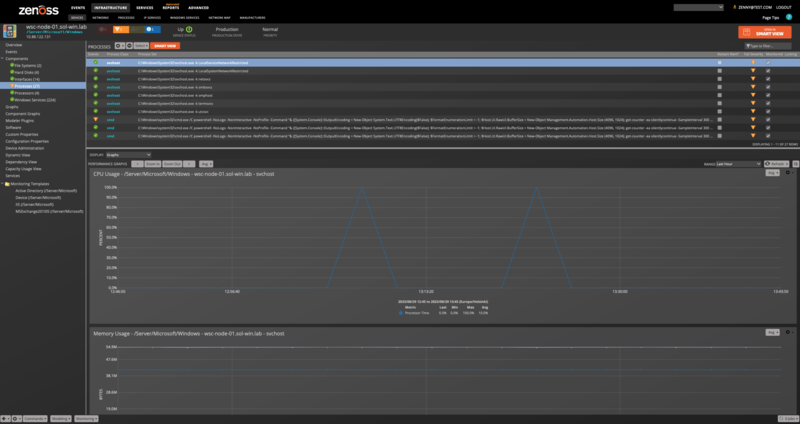
Process Sets
Attributes
Name
Recent Matches
Process Class
Relationships
Device
Software
Attributes
Name
Vendor
Installation Date
Relationships
Device
Services
Attributes
Name
Display Name
Start Mode
Account
Relationships
Device
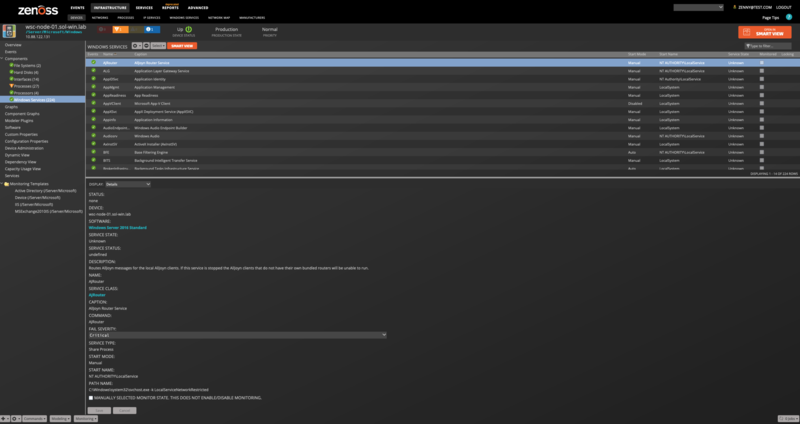
Cluster Services
Attributes
Name
Core Group
Owner Node
State
Description
Priority
Relationships
Cluster Resources
Cluster Resources
Attributes
Name
Owner Node
Description
Owner Group
State
Relationships
Cluster Service
Cluster Nodes
Attributes
Name
Assigned Vote
Current Vote
State
Relationships
Cluster Disks
Cluster Interfaces
Cluster Networks
Attributes
Name
Description
State
Cluster Disks
Attributes
Name
Owner Node
Volume Path
Disk Number
Partition Number
Capacity
Free Space
State
Relationships
Cluster Nodes
Note
If a cluster disk has not been allocated, there are no partitions, so the representation of free space is invalid. We will therefore show free space as N/A. Disk number will not be discovered on Windows 2008 servers because the Powershell Storage Module is not available.
Cluster Interfaces
Attributes
Name
Owner Node
Network
IP Addresses
Adapter
State
Relationships
Cluster Nodes
IIS Sites
Attributes
Name
Status
App Pool
Relationships
Device
Certification Authority Certificate
Attributes
Name
Issued Common Name
Requester Name
Effective Date
Expiry Date
Relationships
Device
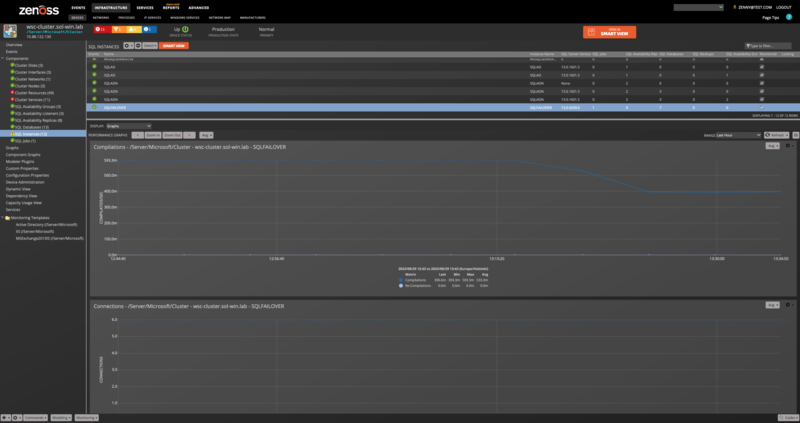
SQL Instances
Attributes
Name: Name
Instance Name
SQL Server Version
Backup Devices
Roles
Cluster Node Server
Perfmon Counter Instance Name
Relationships
Device
SQL Backups
SQL Databases
SQL Jobs
SQL Availability Groups
SQL Availability Replicas
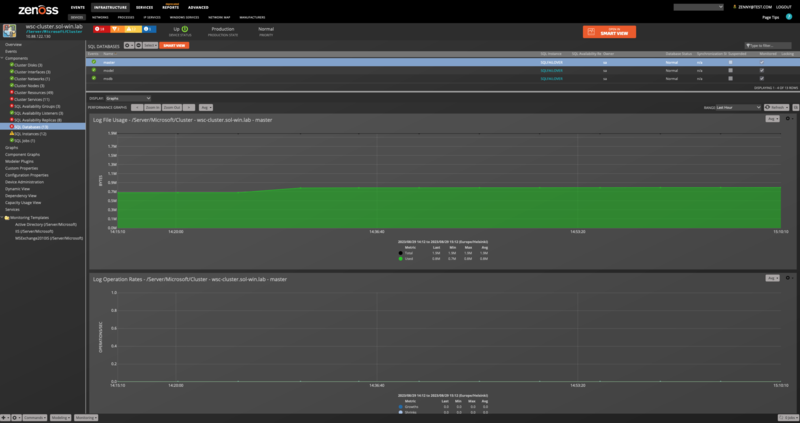
SQL Databases
Attributes
Name
Owner
Database Status
Synchronization State
Suspended
Cluster Node Server
Last Backup
System Object
Recovery Model
Created On
Always On Unique ID
Database Snapshot File Group
Version
Collation
File Path
Last Log Backup
Accessible
Relationships
SQL Server Instance
SQL Availability Group Replica
SQL Backups
Attributes
Name
Device Type
Instance Name
Physical Location
Status
Relationships
SQL Instance
SQL Jobs
Attributes
Name
Enabled
Cluster Node Server
Description
Date Created
User
Job ID
Instance Name
Relationships
SQL Instance
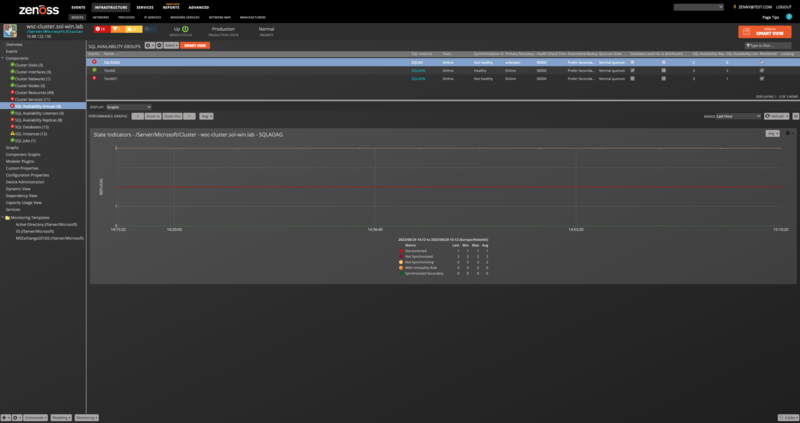
SQL Availability Group
Attributes
Name
State
Synchronization Health
Primary Recovery Health
Health Check Timeout
Automated Backup Preference
Quorum State
Database Level Health Detection
Is distributed
SQL Instances
Cluster Node Server
Perfmon Counter Instance Name
Unique ID
Cluster Type
Instance Name
Owner Node IP
Failure condition level
Relationships
SQL Instance
SQL Availability Group Replicas
SQL Availability Group Listeners
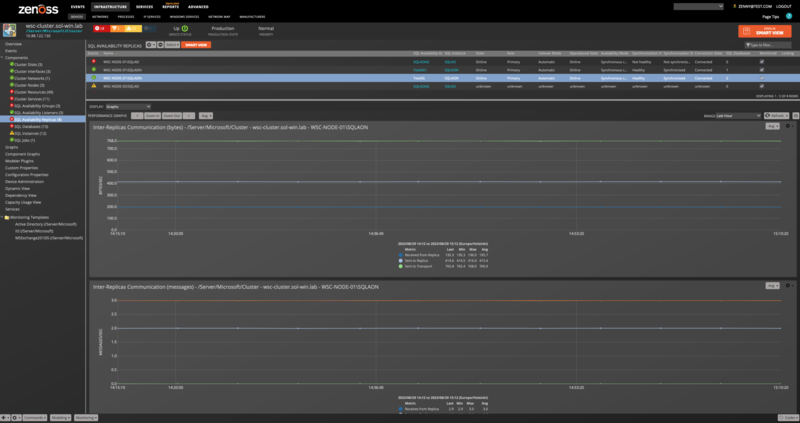
SQL Availability Group Replica
Attributes: Name, State, Role, Failover Mode, Operational State, Availability Mode, Synchronization Health, Synchronization State, Connection State, Cluster Node Server, Perfmon Counter Instance Name, Unique ID, Instance Name, Owner Node IP, Endpoint Url Relationships: SQL Availability Group, SQL Instance, SQL Databases
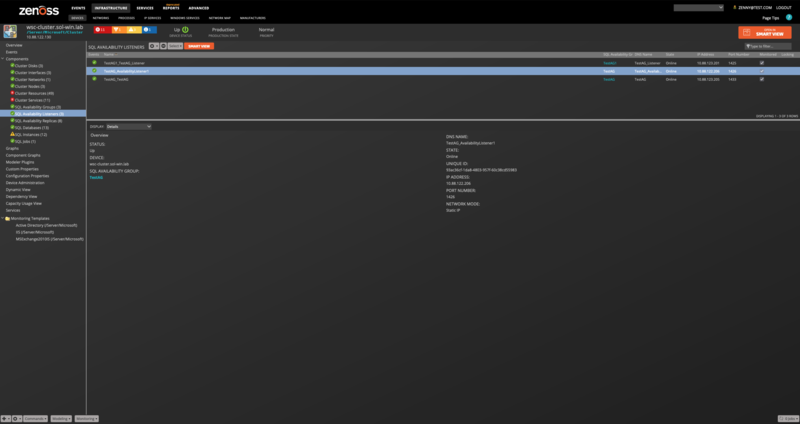
SQL Availability Group Listener
Attributes: Name, DNS Name, State, IP Address, Port Number, Unique ID, Network Mode Relationships: SQL Availability Group
Note
MS SQL Always-On components only supported at /Server/Microsoft/Cluster level when the WinMSSQL modeler plugin is added, and the value of zSQLAlwaysOnEnabled property set to True.
Note
To get most info about Replicas and Availability Databases it needs to set a 'possible nodes' for Availability Group resource. In this case, the collection will be performed per each checked node from the possible nodes list. However, even one node is sufficient for the collection.
To do this:
Run
'Failover Cluster Manager';Select the Role which corresponds to a particular Always On Availability Group;
Select
'SQL Server Availability Group'the resource type for this resource;Pick
'Advanced Policies'tab and check'Possible Owners'.
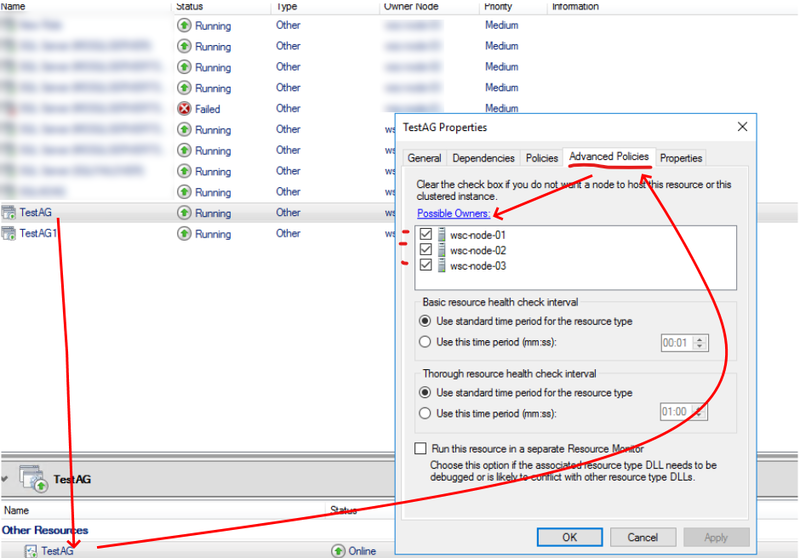
Performance Monitoring
Performance counters are collected using the PowerShell Get-Counter Cmdlet within a remote shell (WinRS). The following metrics will be collected every 5 minutes by default. Any other Windows Perfmon counters can also be collected by adding them to the appropriate monitoring template.
Device
\Memory\Available bytes
\Memory\Committed Bytes
\Memory\Pages Input/sec
\Memory\Pages Output/sec
\Paging File(_Total)\% Usage
\Processor(_Total)\% Privileged Time
\Processor(_Total)\% Processor Time
\Processor(_Total)\% User Time
\System\System Up Time
Collected directly through Windows Remote Shell DataSource
\PhysicalMemory.AvailableBytes
\PhysicalMemory.InUseBytes
File Systems
\LogicalDisk({$here/instance_name})\Disk Read Bytes/sec
\LogicalDisk({$here/instance_name})\% Disk Read Time
\LogicalDisk({$here/instance_name})\Disk Write Bytes/sec
\LogicalDisk({$here/instance_name})\% Disk Write Time
\LogicalDisk({$here/instance_name})\Free Megabytes (Disabled)
Collected directly through Windows Remote Shell DataSource
\DiskSpace.TotalSizeGB
\DiskSpace.UtilizationPercent
Note
Starting in v.3.2.0, in order to achieve the precise performance data calculation, we changed the collection algorithm for File System Utilization and Disk Space data. To view the historical data of these metrics, add the FreeMegabytes data point to the existing or new graph with this data point and apply applicable RPN formulas.
Hard Disks
\PhysicalDisk({$here/instance_name})\Disk Read Bytes/sec
\PhysicalDisk({$here/instance_name})\% Disk Read Time
\PhysicalDisk({$here/instance_name})\Disk Write Bytes/sec
\PhysicalDisk({$here/instance_name})\% Disk Write Time
Interfaces
\Network Interface(${here/instance_name})\Bytes Received/sec
\Network Interface(${here/instance_name})\Bytes Sent/sec
\Network Interface(${here/instance_name})\Packets Received Errors
\Network Interface(${here/instance_name})\Packets Received/sec
\Network Interface(${here/instance_name})\Packets Outbound Errors
\Network Interface(${here/instance_name})\Packets Sent/sec
Interfaces on Windows 2012 and later
\Network Adapter(${here/instance_name})\Bytes Received/sec
\Network Adapter(${here/instance_name})\Bytes Sent/sec
\Network Adapter(${here/instance_name})\Packets Received Errors
\Network Adapter(${here/instance_name})\Packets Received/sec
\Network Adapter(${here/instance_name})\Packets Outbound Errors
\Network Adapter(${here/instance_name})\Packets Sent/sec
Active Directory
\NTDS\DS Client Binds/sec
\NTDS\DS Directory Reads/sec
\NTDS\DS Directory Searches/sec
\NTDS\DS Directory Writes/sec
\NTDS\DS Monitor List Size
\NTDS\DS Name Cache hit rate
\NTDS\DS Notify Queue Size
\NTDS\DS Search sub-operations/sec
\NTDS\DS Server Binds/sec
\NTDS\DS Server Name Translations/sec
\NTDS\DS Threads in Use
\NTDS\KDC AS Requests
\NTDS\KDC TGS Requests
\NTDS\Kerberos Authentications
\NTDS\LDAP Active Threads
\NTDS\LDAP Bind Time
\NTDS\LDAP Client Sessions
\NTDS\LDAP Closed Connections/sec
\NTDS\LDAP New Connections/sec
\NTDS\LDAP New SSL Connections/sec
\NTDS\LDAP Searches/sec
\NTDS\LDAP Successful Binds/sec
\NTDS\LDAP UDP operations/sec
\NTDS\LDAP Writes/sec
\NTDS\NTLM Authentications
Note
The Active Directory monitoring template will only be used when the server has the Primary or Backup Domain Controller role.
Exchange 2007 & 2010
\MSExchangeIS Mailbox(_Total)\Folder opens/sec
\MSExchangeIS Mailbox(_Total)\Local delivery rate
\MSExchangeIS Mailbox(_Total)\Message Opens/sec
\MSExchangeIS\RPC Averaged Latency
\MSExchangeIS\RPC Operations/sec
\MSExchangeIS\RPC Requests
\MSExchangeTransport Queues(_Total)\Active Mailbox Delivery Queue Length
\MSExchangeTransport SmtpSend(_Total)\Messages Sent/sec
Exchange 2013
\MSExchangeIS Store(_Total)\Folders opened/sec
\MSExchangeIS Store(_Total)\Messages Delivered/sec
\MSExchangeIS Store(_Total)\Messages opened/sec
\MSExchange Store Interface(_Total)\RPC Latency average (msec)
\MSExchange Store Interface(_Total)\RPC Requests sent/sec
\MSExchange Store Interface(_Total)\RPC Requests sent
\MSExchangeTransport Queues(_Total)\Active Mailbox Delivery Queue Length
\MSExchange Delivery SmtpSend(_Total)\Messages Sent/sec
Note
If monitoring Exchange with a non-administrator user, the user must be a member of the Active Directory group "Exchange View-Only Administrators" for pre-2010 Exchange installations or "View-Only Organization Management" for 2010 and later installations.
IIS Management Scripts and Tools need to be installed on the server-side in order to model and monitor IIS sites. This is done through the Add Roles and Features tool on the Windows Server under Web Server > Management Tools > IIS Management Scripts and Tools.
IIS
\Web Service(_Total)\Bytes Received/sec
\Web Service(_Total)\Bytes Sent/sec
\Web Service(_Total)\CGI Requests/sec
\Web Service(_Total)\Connection Attempts/sec
\Web Service(_Total)\Copy Requests/sec
\Web Service(_Total)\Delete Requests/sec
\Web Service(_Total)\Files Received/sec
\Web Service(_Total)\Files Sent/sec
\Web Service(_Total)\Get Requests/sec
\Web Service(_Total)\Head Requests/sec
\Web Service(_Total)\ISAPI Extension Requests/sec
\Web Service(_Total)\Lock Requests/sec
\Web Service(_Total)\Mkcol Requests/sec
\Web Service(_Total)\Move Requests/sec
\Web Service(_Total)\Options Requests/sec
\Web Service(_Total)\Other Request Methods/sec
\Web Service(_Total)\Post Requests/sec
\Web Service(_Total)\Propfind Requests/sec
\Web Service(_Total)\Proppatch Requests/sec
\Web Service(_Total)\Put Requests/sec
\Web Service(_Total)\Search Requests/sec
\Web Service(_Total)\Trace Requests/sec
\Web Service(_Total)\Unlock Requests/sec
IIS Sites
\Web Service(${here/sitename})\Bytes Received/sec
\Web Service(${here/sitename})\Bytes Sent/sec
\Web Service(${here/sitename})\CGI Requests/sec
\Web Service(${here/sitename})\Connection Attempts/sec
\Web Service(${here/sitename})\Copy Requests/sec
\Web Service(${here/sitename})\Connection Attempts/sec
\Web Service(${here/sitename})\Delete Requests/sec
\Web Service(${here/sitename})\Files Received/sec
\Web Service(${here/sitename})\Files Sent/sec
\Web Service(${here/sitename})\Get Requests/sec
\Web Service(${here/sitename})\Head Requests/sec
\Web Service(${here/sitename})\ISAPI Extension Requests/sec
\Web Service(${here/sitename})\Lock Requests/sec
\Web Service(${here/sitename})\Mkcol Requests/sec
\Web Service(${here/sitename})\Move Requests/sec
\Web Service(${here/sitename})\Options Requests/sec
\Web Service(${here/sitename})\Other Request Methods/sec
\Web Service(${here/sitename})\Post Requests/sec
\Web Service(${here/sitename})\Propfind Requests/sec
\Web Service(${here/sitename})\Proppatch Requests/sec
\Web Service(${here/sitename})\Put Requests/sec
\Web Service(${here/sitename})\Search Requests/sec
\Web Service(${here/sitename})\Trace Requests/sec
\Web Service(${here/sitename})\Unlock Requests/sec
\APP_POOL_WAS(${here/apppool})\Current Application Pool State
Note
The IIS monitoring template will only be used when IIS is found during modeling.
The IISAdmin service must be running in order to collect IIS data.
Processes (Win32_PerfFormattedData_PerfProc_Process)
PercentProcessorTime
WorkingSet
WorkingSetPrivate
Collected directly through WMI over WinRM.
Certificate
DaysToExpire
Collected directly through Windows Remote Shell DataSource
SQL Server Instance - WinDBInstance template
\SQLServer:Buffer Manager\Buffer cache hit ratio
\SQLServer:Buffer Manager\Page life expectancy
\SQLServer:SQL Statistics\Batch Requests/Sec
\SQLServer:SQL Statistics\SQL Compilations/Sec
\SQLServer:SQL Statistics\SQL Re-Compilations/Sec
\SQLServer:General Statistics\User Connections
\SQLServer:Locks(_Total)\Lock Waits/Sec
\SQLServer:Access Methods\Page Splits/Sec
\SQLServer:General Statistic\Processes Blocked
\SQLServer:Buffer Manager\Checkpoint Pages/Sec
\SQLServer:Locks(_Total)\Number of Deadlocks/sec
Note
For a named instance, the counter instance will be \MSSQL$INSTANCE_NAME. To add custom SQL Server instance counters, create a Windows Perfmon datasource and datapoint with matching names and specify the counter as \${here/perfmon_instance}\counter name. During modeling, the plugin will assign the correct counter name.
We show the following graphs for an instance:
Buffer Cache Hit Ratio
Page Life Expectancy
Batch Requests
Compilations
Connections
Lock Waits
Page Splits
Processes Blocked
Checkpoint Pages
Deadlocks
SQL Server Database - WinDatabase template
\Active Transactions
\Backup/Restore Throughput/sec
\Bulk Copy Rows/sec
\Bulk Copy Throughput/sec
\Cache Entries Count
\Cache Entries Pinned Count
\Cache Hit Ratio
\Cache Hit Ratio Base
\DBCC Logical Scan Bytes/sec
\Data File(s) Size (KB)
\Log Bytes Flushed/sec
\Log Cache Hit Ratio
\Log Cache Hit Ratio Base
\Log Cache Reads/sec
\Log File(s) Size (KB)
\Log File(s) Used Size (KB)
\Log Flush Wait Time
\Log Flush Waits/sec
\Log Flushes/sec
\Log Growths
\Percent Log Used
\Log Shrinks
\Log Truncations
\Percent Log Used
\Repl. Pending Xacts
\Repl. Trans. Rate
\Shrink Data Movement Bytes/sec
\Transactions/sec
Collected via PowerShell SQL connection to the server instance.
Database Statuses
AutoClosed- The database has been automatically closed.EmergencyMode- The database is in emergency mode.Inaccessible- The database is inaccessible. The server might beswitched off or the network connection has been interrupted.Normal- The database is available.Offline- The database has been taken offline.Recovering- The database is going through the recovery process.RecoveryPending- The database is waiting to go through the recovery process.Restoring- The database is going through the restore process.Shutdown- The server on which the database resides has been shut down.Standby- The database is in standby mode.Suspect- The database has been marked as suspect. You will have to check the data, and the database might have to be restored from a backup.
Events
Normalwill send a clear eventEmergencyMode,Suspect,Inaccessiblewill send a critical eventShutdown,RecoveryPending,Restoring,Recovering,Standby,AutoClosed,Offlinewill send Info events
Status can be multiple items from above. For example, taking a database offline will set the status to 'Offline, AutoClosed'. Transforms can be applied in the WinDatabaseStatus event mapping under /Status. You can raise/lower the severity of the status, or drop it altogether.
For example, to raise the severity of the Offline status:
if 'Offline' in evt.summary: evt.severity = 4
Note: Database status is discovered in the same PowerShell script as the database counters. While it is possible to use a different cycle time for status, we advise against that as it will add extra load onto the target device and could inadvertently skew memory/CPU usage.
The WinDBInstance monitoring template will also monitor the status of a SQL Server instance to inform the user if it is up or down.
The WinSQLJob monitoring template will monitor the status of a job on a SQL Server instance to inform the user if it has succeeded, failed, unknown, or another state.
Note: Collection errors are sent with the winrsCollectionMSSQLJob event class key. Use an event class mapping with or without a transform to forward the event to a specific event class. These include connection and other Powershell issues.
SQL Availability Group - WinAvailabilityGroup template
\\IsOnline
\\NumberOfDisconnectedReplicas
\\NumberOfNotSynchronizedReplicas
\\NumberOfNotSynchronizingReplicas
\\NumberOfReplicasWithUnhealthyRole
\\NumberOfSynchronizedSecondaryReplicas
Collected via PowerShell SQL connection to the server instance.
SQL Availability Group state indicators' info can be found here.
SQL Availability Group Replica - WinAvailabilityReplica template
\\Bytes Received from Replica/sec
\\Bytes Sent to Replica/sec
\\Bytes Sent to Transport/sec
\\Flow Control Time (ms/sec)
\\Flow Control/sec
\\Receives from Replica/sec
\\Resent Messages/sec
\\Sends to Replica/sec
\\Sends to Transport/sec
Thresholds
The following thresholds are set by default on the device monitoring template and will trigger an alert if they are reached
CPU Utilization - 90% used
Paging File Usage - 95% used
Memory - 90% of total memory used
Event Management
Events are collected from a Windows event log using a powershell script which calls Get-WinEvent. Events collected through this mechanism will be timestamped based on the time they occurred within the Windows event log. Not by the time at which they were collected.
Log Level Equivalents
Windows | Virtana |
|---|---|
LogAlways | Info |
Critical | Critical |
Error | Error |
Warning | Warning |
Informational | Info |
Verbose | Info |
Usage
To monitor events, create a monitoring template with a "Windows EventLog" datasource. For the Event Log field put the name of the event log (e.g. "System") that you are interested in, and in the EventQuery enter the filter for events. The filter can be either XPath XML taken from a Windows Event Viewer Custom View or a PowerShell Where-Object block. The max age field is only used the first time the datasource successfully runs. Subsequent runs will only pull events from the last successful polling cycle.
The default Get-WinEvent XML filter returns all events from the last polling cycle. This list can be searched for specific Ids, severity, or specific words in the message using PowerShell.
Custom Event Views
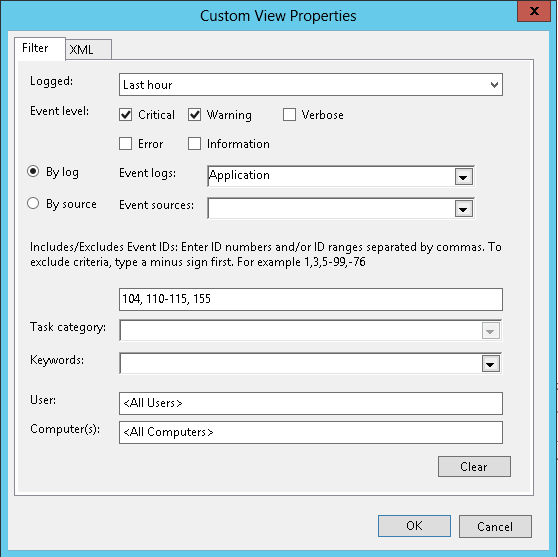
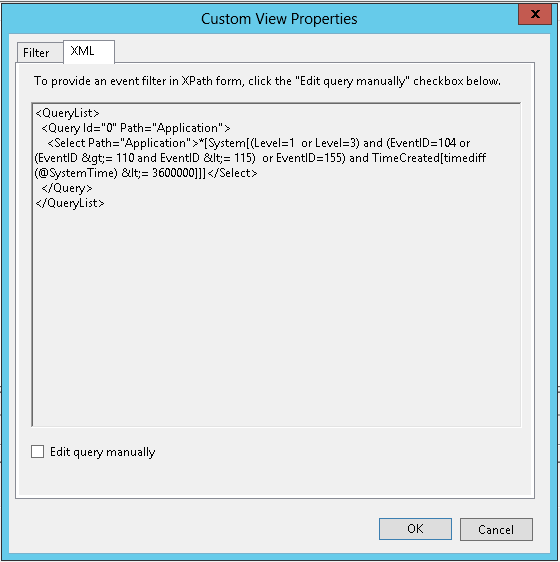
To use the XML query from a custom view in Windows Event Viewer, simply copy the XML and paste it into the Event Query field of the event data source. Because we use a polling cycle to query the event log, any TimeCreated filter will be replaced by us to avoid duplicate events.
Virtana highly recommends using XML when monitoring the Security log. It is more efficient and will put less of a burden on the device's resources. The Windows Security log can and most likely will contain many audit events. See the LogAlways below.
For example, a custom view that searches for events in the last hour, with the severity of Warning or Critical, and Ids of 104, 110-115, 155 will result in the following XPath query:
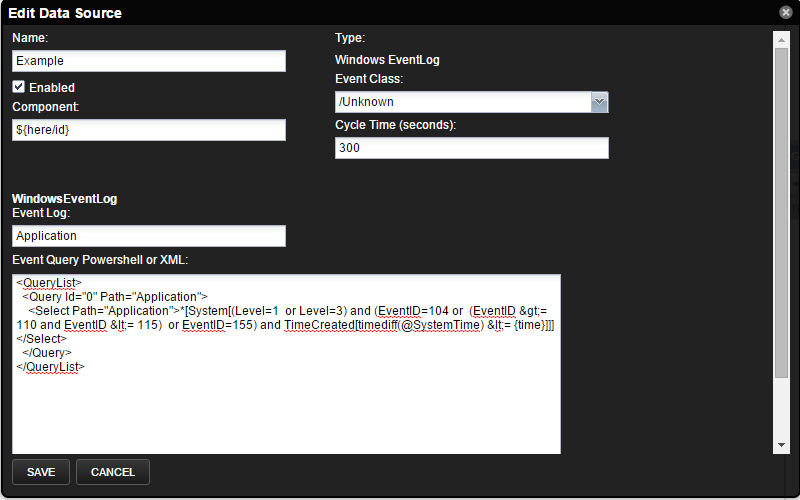
<QueryList>
    <Query Id="0" Path="Application">
        <Select Path="Application">*[System[(Level=1 or Level=3) and (EventID=104 or (EventID >= 110 and EventID <= 115) or EventID=155) and TimeCreated[timediff(@SystemTime) <= 3600000]]]</Select>
    </Query>
</QueryList>
Simply copy this and paste it into the eventlog datasource Event Query field and save. We will convert the TimeCreated query and the following filter will be used:
<QueryList>
<Query Id="0" Path="Application">
<Select Path="Application">*[System[(Level=1 or Level=3) and (EventID=104 or (EventID >= 110 and EventID <= 115) or EventID=155) and TimeCreated[timediff(@SystemTime) <= {time}]]]</Select>
</Query>
</QueryList>{time} will automatically be replaced by the number of milliseconds since the last query.
Note: The max age field is only used the first time that the datasource is run. Subsequent queries will only look at events that have occurred since the last time this datasource was run. We write a timestamp to the registry location HKCU:\SOFTWARE\zenoss\logs\ to know when the last time the datasource was executed. If you are testing a datasource and would like to reset this time, then simply remove the string value with your datasource name in the registry hive, \SOFTWARE\zenoss\logs\, for your use under $.
Note: The script to search for events and return relevant data is approximately 3700 characters. Due to the Windows 8192 character limit on the shell, any XML or PowerShell queries will need to be less than 4400 characters.
Note: The query for servers with .NET 3.5 and later uses the Get-WinEvent PowerShell cmdlet. If your server does not have one of these later versions, we will revert to using the Get-EventLog cmdlet. It is recommended, but not required, to install .NET version 3.5 SP1 or higher. If you have a mix of these servers using the same Event Log Data Source, you can mix and match the differing powershell queries. e.g. { $$_.Id -eq 4001 -or $$_.EventId -eq 4001 }
Note: Collection errors are sent with the WindowsEventLogCollection event class key. Use an event class mapping with a transform to forward the event to a specific event class. These include connection and other Powershell issues.
Powershell Examples
To Target all events with a Warning or higher severity:
{ $$_.Level -le [System.Diagnostics.Eventing.Reader.StandardEventLevel]::Warning}This query will return all events with a Level of LogAlways, Critical, Error, and Warning.
The full list of event levels can be found in the description of the Standard Event Level.
To target all events by a specific id or range:
{ $$_.Id -eq 4001 }This query will return all events with an id of 4001 from a specific log.
Read more about the EventLogRecord class.
And to know more about writing PowerShell conditions, you could read this tutorial
LogAlways Warning
The Windows Security log could contain hundreds or thousands of security audit logs, which use the level of LogAlways. The query above is structured to look for "less than or equal" events, even though we are looking for events "greater than or equal" in severity. This is due to the fact that the Level is an enumeration where the integer values map to 1 = Critical, 2 = Error, 3 = Warning, etc. This means lower numbers indicate higher severity. However, the LogAlways event level evaluates to 0, which is obviously less than a 3(Warning). These events are typically Informational and will display if using the sample powershell query above. To work around this, you could add -and $$_.Level -gt [System.Diagnostics.Eventing.Reader.StandardEventLevel]::LogAlways into your powershell query or use the XML option described above.
For servers with pre-3.5 .NET installed
On some older Windows 2008 Server versions, you may not have .NET 3.5 or higher. These systems will use the Get-EventLog cmdlet instead, which returns a different class that does not contain the same-named properties. See EventLogEntry for the full list.
For example,
{ $$_.EntryType -le [System.Diagnostics.EventLogEntryType]::Warning}$$_ is the event object of EventLogEntry class. EntryType is the attribute that determines severity, and could contain one of the following values: Error, Warning, Information, SuccessAudit, or FailureAudit.
Note: This query is structured to look for "less than" although we are looking for events "greater than" in severity. This is because the EntryType is an enumeration where the integer values map to 1= Error, 2 = Warning, etc. This means lower numbers indicate higher severity.
Or to look for a specific event id:
{ $$_.Id -eq 4001}Changing Event Severity
To change event severity follow the steps:
Navigate to the desired event class to map the event, for example '/Status'.
Edit the mapping instance
Select the desired mapping instance and either double click or click the gear icon at the top of the pane.
If the mapping does not exist:
Create a new one by clicking the ''+'' button at the top of the pane
Use the format of ProviderName_EventId for the mapping name and eventClassKey, e.g. EventService_1001
Click on the 'Transforms' tab, and add "
evt.severity = NUM" where NUM is one of (0: Clear, 1: Debug, 2: Info, 3: Warning, 4: Error, 5: Critical) at the bottomClick the ''Submit'' button
Custom Commands
You can use the custom command datasource in the Windows ZenPack to create custom data points, graphs, and thresholds.
Use either DOS shell commands or Powershell script
Use any valid Windows executable or Powershell cmdlet.
Powershell commands are separated by
;. Always end the script with;.For tales eval, surrounded by single quotes. e.g.
'${here/id}'.For Powershell variables, use 2
$. e.g.$$myvar = 10.There is a character limit of 8192 imposed by Microsoft. Virtana header is ~450 characters so you have about 7500 characters for your script.
Use a standard parser to parse the output or create your own
Nagios have the form =.
JSON - script must put data into JSON format.
The auto will save a returned value into a data point.
Create a custom parser in
$ZENOSS_HOME/Products/ZenRRD/parsers/.
Viewing script output
Create datapoint(s) to collect the data for graphing.
Create a custom parser to send events or transform data.
Note
Avoid using double quotes in Write-Host argument strings. Coupled with Nagios parser it may lead to 'Custom Command Error' Critical events and 'No output from COMMAND plugin' messages in zenpython logs.
Script with TALES expression
Select a windows target device
Navigate to Device (/Server/Microsoft)
On the right-side panel, click '+' to add a Windows Shell datasource
Provide the name (eg. custom) and type (Windows Shell) for the datasource
Click View Edit and Details
Set strategy to custom command
Set parser to Nagios
Uncheck Use Powershell
Set script to echo
OK^|value1=${here/zWinPerfmonInterval}Add data point to datasource called value1 which can be graphed
Using a custom parser
Logon to the Virtana server and create a python file called test1.py in /opt/zenoss/Products/ZenRRD/parsers and restart Virtana
The content of test1.py
from Products.ZenRRD.CommandParser import CommandParser

class test1(CommandParser):
    def processResults(self, cmd, result):
        result.events.append({'summary': 'test1 parser event', 'severity': 5, 'test1.detail': cmd.deviceConfig.name})
Select a windows target device.
Navigate to the Device (/Server/Microsoft) Monitoring Template.
On the Data Sources panel, click '+' to add a 'Windows Shell' datasource.
Provide the name (eg. custom) and type (Windows Shell) for the datasource.
From the gear button, choose View Edit and Details.
Set the strategy to Custom Command and Parser to test1
Add a Windows command or Powershell script.
Run zenpython to collect the data
zenpython run -v10 -d <devicename>Check events after 5 minutes for the test1 event
Powershell Scripting using Auto parser
Select a windows target device
Navigate to Device (/Server/Microsoft)
On the right-side panel, click '+' to add a 'Windows Shell' datasource
Provide the name (eg. custom) and type (Windows Shell) for the datasource
View Edit and Details: strategy >custom command, parser is Auto, and tick the Use Powershell box
Enter script. Be sure to use a double dollar sign,
$$, in order to distinguish any powershell-specific variables from a TALES expression.Add a datapoint to collect the return value from the script which you can then graph
Configuring Service Monitoring
There are multiple ways to configure Windows service monitoring depending on if you want to configure for a single service on a single server, a specific service across all Windows servers, all 'Auto' start services, or somewhere in between.
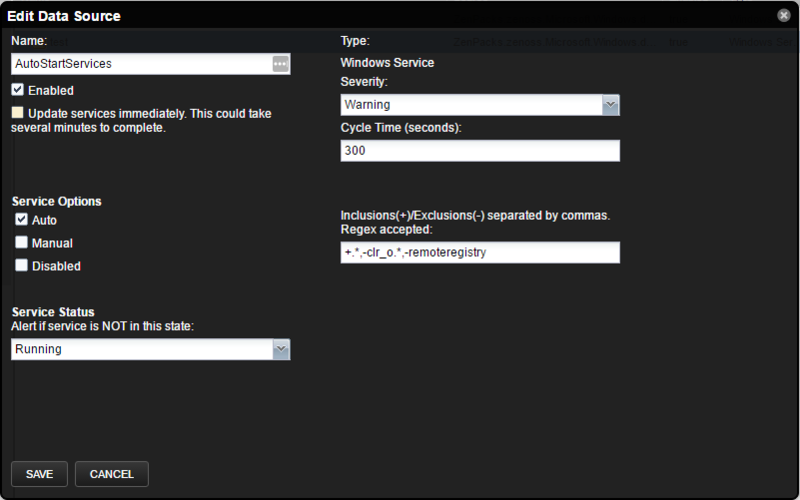
Options
Name: Enter a name for the data source
Enabled: Enable or disable the data source
Severity: Choose the severity of the alert
Cycle Time: Frequency of how often the datasource will query service status
Update services immediately: Changes will be picked up during modeling. To have changes take effect immediately, check this box to start a job to index all services on all devices. This job could take several minutes to complete as it will update every service component on every Windows device in the system.
Service Options: Select the start type(s) to monitor. Add any services to include/exclude using a regex
Service Status: Choose to be alerted if a service is either not Running, not Stopped, not Paused, not Running or Paused, or not Stopped or Paused.
See the following examples:
Manually Enable or disable monitoring for a single service on a single server
Navigate to the service on the server.
Click to select it.
Select Details in the lower component pane.
Choose the Fail
Severity.
Choose Monitoring from the gear menu.
Choose Yes or
No depending on what you want.
Note: Once monitoring has been enabled or disabled for a service, no monitoring template will apply. To reset this option for a service, uncheck the 'Manually Selected Monitor State' box in the Details of the service and save the change. This check box does not enable or disable monitoring for the service component.
Enable monitoring by default for the WinRM service wherever it is enabled
Option 1
Navigate to Advanced > Monitoring Templates.
Verify the list of templates is grouped by a template.
Expand the WinService tree.
Click once to select the /Server/Microsoft copy.
Choose Copy / Override Template from the Template gear menu at the bottom left of the page.
Select /Server/Microsoft (Create Copy) from the target list then click submit.
Expand the resulting copy_of_WinService tree.
Select the /Server/Microsoft copy.
Choose View and Edit Details from the Template gear menu at the bottom left of the page.
Change the template's name to WinRM.
Edit the datasource and optionally select the Update services immediately option.
Tick the Auto checkbox under Service Options and click save.
Option 2
Navigate to Infrastructure > Windows Services.
Locate the WinRM service.
Select the start modes desired for this service.
Enable monitoring by setting a Local Value.
Optionally select a Local Failure Severity.
Save.
Note: Setting a service to be monitored in this fashion will enable monitoring for the service regardless of device class.
Enable/Disable monitoring by default for the WinRM service for a select group of servers
Create a new device class somewhere under /Server/Microsoft/Windows for the select group of servers.
Move the servers to the new device class.
Follow steps 1-5 from the previous section to create a copy of the WinService template.
Choose your new device class as the target then click submit.
Expand the WinService tree then select the copy in your device class.
Choose View and Edit Details from the gear menu at the bottom left of the page.
Change the template's name to WinRM then click submit.
Double-click to edit the *DefaultService' datasource.
Optionally select the Update services immediately option. This will start a background job that could take several minutes to complete for a large number of Windows devices.
Tick/Untick the Auto checkbox under Service Options and click save.
Enable monitoring of all services with a start mode of 'Auto'
Navigate to Advanced > Monitoring Templates.
Verify the list of templates is grouped by a template.
Expand the WinService tree.
Select /Server/Microsoft.
In the Data Sources pane, click the + button to add a new data source, give it a name, and choose Windows Service as the type.
Choose View and Edit Details from the Data Sources gear menu.
Optionally select the Update services immediately option. This will start a background job that could take several minutes to complete for a large number of Windows devices.
Tick the Auto checkbox under Service Options and click save.
Create an organizer to monitor auto-start SQL Server services
Navigate to Advanced > Monitoring Templates.
Verify the list of templates is grouped by a template.
Expand the WinService tree.
Select /Server/Microsoft.
In the Data Sources pane, click the + button to add a new data source, give it a name such as MSSQLSERVER, and choose Windows Service as the type.
Choose View and Edit Details from the Data Sources gear menu.
Optionally select the Update services immediately option. This will start a background job that could take several minutes to complete for a large number of Windows devices.
Tick the Auto checkbox under Service Options.
Enter +MSSQLSERVER.* into the "Inclusions(+)/Exclusions(-)" text box and click save.
The order of precedence for monitoring a service
User manually sets monitoring.
'DefaultService' datasource from the WinService template associated with the service.
Datasource other than the DefaultService in the WinService template associated with the service.
Monitoring is enabled via the Infrastructure > Windows Services page.
Windows Service Startmodes (Template vs Windows Services)
Startmodes | Template includes Service start mode | Template excludes Service start mode |
|---|---|---|
Windows Service Class includes Service start mode | monitored | monitored |
Windows Service Class excludes Service start mode | monitored | NOT monitored |
Note: The Windows Service Template (default WinService) must have at least one datasource enabled for monitoring to function.
You can optionally include or exclude certain services to be monitored when selecting the Auto, Manual, and/or Disabled start mode(s) by entering a comma-separated list of services. These can be the service names or a valid regular expression. Entered names and expressions are case insensitive. To exclude services, you must specify a '-' at the beginning of the name or regular expression. To include services, specify a '+' at the beginning of the name or regular expression. Exclusions will take precedence over inclusions, but the exclusions must be placed before the wildcard +.* inclusion.
Note: To enable monitoring by default of a service or services, you must choose a start mode by ticking the appropriate box. Unticking all three boxes disables monitoring by default.
Note: When saving changes to a service template and you choose to update services immediately, this will create a job to index all services on all devices. These changes may take several minutes to propagate to all of your devices depending upon the size of your organization. Updating is not recommended if you are making several changes in a short period of time. Updates are automatically applied at the time of the next model.
Note: During the time that the indexing of Windows Services job takes, any particular Windows Service could potentially still be monitored using a different datasource. Because of this, it is possible to see the status event(s) using both the old and new severity.
Note: The Windows Service datasource no longer depends on the 'DefaultService' data source name. User-defined datasources are now honored.
DCDiag
Beginning with version 2.4.0, you can now monitor the output of DCDiag. By default, all dcdiag tests are enabled in the Active Directory monitoring template. If a test fails an error event is issued. You can also add other tests, such as DNS, and supply specific test parameters.
See DCDiag for more information.
Note: DCDiag must be run as a user with Administrator permissions. If you will be monitoring a Domain Controller with a nonadministrator user, you should disable these tests.
PortCheck
The Windows Zenpack monitors specific ports on domain controllers. By default, the ZenPack will monitor ports 9389, 3268, 3269, 88, 464, 389, 636, 445, 135, and 3389, as part of the Active Directory monitoring template.
You can add and remove any port you wish to be monitored by editing the PortCheck datasource in the Active Directory monitoring template.
To monitor ports on a Windows server that is not a domain controller, simply create a new datasource and choose Windows PortCheck as the type. Then add the ports you wish to monitor with a short description of each.
See Active Directory port usage for more information.
WinRM Ping
WinRM Ping is a simple datasource that will attempt to retrieve basic data over winrm. If the device cannot return a simple query, then Virtana will view this device as being down. An event will appear in the /Status/Winrm/Ping event class with any resulting error message. This is a more comprehensive test than using a ping. A simple ping test could easily result in a false positive in many scenarios. The following are just a few:
A target's IP has been reassigned to a non-Windows device between models.
The winrm service has stopped and cannot be restarted.
The monitoring user account password has expired.
This datasource is not enabled by default.
Collector Daemons
zenpython
Requirements
This ZenPack has the following requirements.
This ZenPack depends on PythonCollector being installed and having the associated zenpython collector process running.
This ZenPack depends on ZenPackLib being installed.
Note: During ZenPack installation, two jobs may be created, depending on which version is already installed. The first is a mandatory job that resets the python class types of existing Windows devices and components. This job will run if upgrading to v2.7.0 or above. The second is a job to remove incompatible Windows Services. This second job will run if upgrading to v2.7.2 or above. It is recommended to either stop zenjobs before installing or to wait until the job finishes before restarting Virtana. If you restart before the job finishes, you may need to Abort and/or Delete the job after the restart. It is also possible to manually run this job by importing it into zendmd and adding it to the JobManager.
 from ZenPacks.zenoss.Microsoft.Windows.jobs import ResetClassTypes
 dmd.JobManager.addJob(ResetClassTypesJob)
 commit()
Usage
Note
This ZenPack isn't localized and explictly polls for English language performance counters. The English language pack must be installed on every Windows system that you intend to monitor and available to the monitoring account.
You can resolve this with the following guide:
How to localize a language on Windows Server 2019
If you need to configure multiple servers, you can try scripting the installation using the following article:
Monitoring User Account
A monitoring user account must be either an Administrator or a least-privileged user (LPU).
The Least Privileged User account requires the following privileges and permissions:
Enable, Method Execute, Read Security, Remote Access to the following WMI namespaces
"Root"
"Root/CIMv2"
"Root/DEFAULT"
"Root/RSOP"
"Root/RSOP/Computer"
"Root/WMI"
"Root/CIMv2/Security/MicrosoftTpm"
"Root/Webadministration" - If IIS is installed
Permission to use the winrm service
ReadPermissions, ReadKey, EnumerateSubKeys, QueryValues rights to the following registry keys
"HKLM:\SOFTWARE\Microsoft\Windows NT\CurrentVersion\Perflib"
"HKLM:\system\currentcontrolset\control\securepipeservers\winreg"
"HKLM:\SYSTEM\CurrentControlSet\Control\Class{4D36E972-E325-11CE-BFC1-08002bE10318}"
"HKLM:\SYSTEM\CurrentControlSet\Services\Blfp\Parameters\Adapters"
"HKLM:\Software\Wow6432Node\Microsoft\Microsoft SQL Server"
"HKLM:\Software\Microsoft\Microsoft SQL Server"
Membership in the following local groups or domain level groups for a Domain Controller
"Performance Monitor Users"
"Performance Log Users"
"Event Log Readers"
"Distributed COM Users"
"WinRMRemoteWMIUsers__" for Windows 2008, 2012
"Remote Management Users" for Windows 2016 and beyond
“Read Folder” access to "C:\Windows\system32\inetsrv\config" if it exists
Each service needs the following permissions
SERVICE_QUERY_CONFIG
SERVICE_QUERY_STATUS
SERVICE_INTERROGATE
READ_CONTROL
SERVICE_START
Note
An Administrator level user can be denied local logon and remote desktop access through a group policy object.
If using an LPU account, it is the responsibility of the Windows and network administrators of your organization to ensure that the above permissions are understood, in place, and maintained.
Note
Permissions for the LPU account can be configured manually or with the LPU script, zenoss-lpu.ps1, found on the zenoss/microsoft.tools repository on GitHub.
There are two lines in the script that must be removed in order for the script to execute. We recommend you thoroughly read through the script to understand what changes it will make. More information on the Least Privileged User can be found here.
It is recommended to run the LPU script from a "SYSTEM" account. To run this script correctly the SYSTEM account must have "Change Permission" or this script should be executed under the "Administrator" user. Otherwise, you will receive an "Access is denied" error during LPU script execution, and not all Windows Services will be discovered by Windows ZenPack.
Port Requirements
The ZenPack communicates with a Windows device over port 5985 for HTTP or 5986 for HTTPS requests. Compatible ports of 80 and 443 are also acceptable. For domain authentication, Kerberos communicates on port 88 of the KDC and on port 749 of the Admin Server.
Note
If using the compatibility ports of 80 or 443, you must create the appropriate listener in your server's WinRM configuration.
Adding a Windows Device
Use the following steps to start monitoring a Windows server using local authentication in the web interface.
Navigate to the Infrastructure page.
Select the Server/Microsoft/Windows device class.
The Windows server must be added to this class or to a child of this class.
Click Details and set the configuration properties for zWinRMUser and zWinRMPassword.
Click See All.
Choose Add Single Device from the add device button.
Fill out the form.
Name or IP must be resolvable and accessible from the collector server chosen in the Collector field.
Click ADD.
Note
Do not add the WinCluster plugin to the /Server/Microsoft/Windows device class. The /Server/Microsoft/Windows device class uses a python class that is different from the python class used in the /Server/Microsoft/Cluster device class, and they have different relationships.
During the addition of the Cluster node, if this node is associated with the Cluster, it will automatically detect and discover the Cluster device in /Server/Microsoft/Cluster device class.
Starting from 3.1.1 the zenoss.winrm.Software modeler plugin is removed from the defaults in the Modeler Plugins section for /Server/Microsoft/Windows due to ZODB performance reasons. You can manually enable it in the Modeler Plugins section.
Adding a Cluster Device
Use the following steps to start monitoring a Windows cluster using local authentication in the web interface.
Navigate to the Infrastructure page.
Select the Server/Microsoft/Cluster device class.
The Windows cluster must be added to this class or to a child of this class.
Click Details and set the configuration properties for zWinRMUser and zWinRMPassword.
Click See All.
Choose Add Single Device from the add device button.
Fill out the form.
Name or IP must be resolvable and accessible from the collector server chosen in the Collector field.
Click ADD.
Note
The Сluster nodes will automatically be added to /Server/Microsoft/Windows class path during the Cluster device discovering. Once modeled, any Сluster nodes associated with the Сluster are added to device class /Server/Microsoft/Windows. The only three valid modeler plugins for device class /Server/Microsoft/Cluster are WinCluster, OperatingSystem, and WinMSSQL.
Alternatively, you can use zenbatchload to add Windows servers from the command line. To do this, you must create a text file with the hostname, username, and password of all the servers you want to add. Multiple endpoints can be added under the same /Devices/Server/Microsoft/Windows section. Here is an example...
/Devices/Server/Microsoft/Windows
win2008-1d.example.com zWinRMUser="Administrator", zWinRMPassword="password"
Win2012-1d.example.com zWinRMUser="Administrator", zWinRMPassword="password"
Then you can load the Windows servers into Virtana Service Dynamics as devices with the following command.
zenbatchload <filename>
Configuration Options
The Adding a Windows Device steps shown above are for the simplest case of using Windows local authentication. The following configuration properties can be used to support monitoring other environments.
zWinRMUserThe syntax used for zWinRMUser controls whether Virtana will attempt Windows local authentication or domain (kerberos) authentication. If the value of zWinRMUser is username, local Windows authentication will be used. If zWinRMUser is username@example.com, domain authentication will be used. The zWinKDC and potentially the zWinRMServerName properties become important.
zWinRMPasswordPassword for user defined by zWinRMUser.
zWinKDCThe zWinKDC property must be set if domain authentication is used. It must be the IP address or resolvable name of a valid Windows domain controller. To use multiple KDCs, you can enter a comma-separated list of valid addresses or supply different KDCs across different Device Classes. See the Kerberos Tickets section for more information.
zWinTrustedRealmEnter the name of the domain which is trusted by the user's domain. This can be a child or other domain which has a trusting relationship with the user's domain. For example, if zWinRMUser is username@example.com, and austin.example.com is a child of the example domain, enter austin.example.com into zWinTrustedRealm.
zWinTrustedKDCThis property must be set if zWinTrustedRealm is set. It must be the IP address or resolvable name of a valid Windows domain controller for the trusted realm.
zWinRMServerNameThis property should only be used in conjunction with domain authentication when the DNS PTR record for a monitored server's managed IP address does not resolve to the name by which the server is known in Active Directory. For example, if myserver1 is known as myserver1.ad.example.com by Active Directory and is being managed by IP address 192.51.100.21, but 192.51.100.21 resolves to www.example.com, you will have to set zWinRMServerName to myserver1.ad.example.com for domain authentication to work.
If many Windows servers in your environment don't have DNS PTR records that match Active Directory, it is recommended that you set the name of the Virtana devices to be the fully-qualified Active Directory name and set zWinRMServerName to ${here/titleOrId} at the /Server/Microsoft/Windows device class. This avoids the necessity of setting zWinRMServerName on every device.
If the server name cannot be resolved and you are using domain authentication, it is recommended that you set the Id of the device to the IP address and the Title to the server name it is known by in Active Directory. Then use ${here/title} for zWinRMServerName. This situation can occur when no DNS server is available. Kerberos always performs a reverse lookup when obtaining a ticket to use a service on a computer. If your servers are known by multiple names, the reverse lookup may return the wrong name and you will see "Server not found in kerberos database" errors. See the troubleshooting section on this topic for a solution.
zWinSchemeThis must be set to either http or https. The default is HTTP.
zWinUseWsmanSPNIf the HTTP/HTTPS service principals are exclusively in use for a particular service account, such as on an IIS server, set this option to true to use the WSMAN service principal name. You can use this option for all domain-joined Windows Servers that are using a domain monitoring account.
A domain controller may need “Validated write to service principal name” permission for the NETWORK SERVICE account in order for the WSMAN service principal name to be used.
zWinRMPortThe port on which the Windows server is listening for WinRM or WS-Management connections. The default is 5985. It is uncommon for this to be configured as anything else.
zWinPerfmonIntervalThe default interval in seconds at which Windows Perfmon datapoints will be collected. The default is 300 seconds or 5 minutes. It is also possible to override the collection interval for individual counters.
zWinKeyTabFilePathThis property is currently used and reserved for future use when keytab files are supported.
zDBInstancesThis setting is only relevant when the zenoss.winrm.WinMSSQL modeler plugin is enabled. Multiple instances can be specified to monitor multiple SQL Server instances per server using different credentials. The default instance is MSSQLSERVER. Fill in the user and password to use SQL authentication. Leave the user and password blank to use Windows authentication. The default MSSQLSERVER credentials will be used for all instances not specified. Microsoft recommends using Windows authentication to connect to SQL Server.
zWinRMEnvelopeSizeThis property is used when the winrm configuration setting for MaxEnvelopeSizekb exceeds the default of 512k. Some WMI queries return large amounts of data and this envelope size may need to be enlarged. A possible symptom of this is seeing an xml parsing error during collection, OperatingSystem modeler plugin timeout, or "Check WMI namespace and DCOM permission" returned from it.
zWinRMLocaleThe locale to use for communicating with a Windows server. The default is en-US. This property is reserved for future use.
zWinRSCodePageThe code page is in use on the Windows Server for the monitoring user account. The default is to use 65001, the identifier for Unicode. The full list is here. To determine the code page in use on a Windows server, run
chcpat a command prompt.zWinRMKrb5includedirOptional directory which contains one or more kerberos configuration files. This is useful when extra kerberos options are needed, such as disabling reverse DNS lookup. Click here for a description of includedir and krb5.conf options available. The directory must exist and contain only kerberos configuration files. If the directory contains non-kerberos configuration files, it will be ignored.
zWinRMDisableRDNSKerberos always performs a reverse lookup when obtaining a ticket to use the HTTP/HTTPS/WSMAN service principal. If there are multiple names by which servers are known in your organization, or if you do not want to use reverse lookups, set this value to True. Because this is a kerberos property, it can only be set one way or another. You cannot mix and match this value and only the top-level value at /Server/Microsoft will be honored.
zWinRMClusterNodeClassPath under which to create cluster nodes. If you need to add cluster nodes to a specific class under the /Server/Microsoft/Windows device class, specify it with this property. The default is /Server/Microsoft/Windows
zWinRMKRBErrorThresholdHaving a poor network connection can cause erroneous kerberos error events to be sent which could cause confusion or false alarms. The default value is 1, which will always send an event on the first occurrence of an error. You can increase this value to send an event only when there have been x amount of occurrences of an error during collection, where x denotes the threshold number.
zWindowsRemodelEventClassKeysUse in conjunction with schedule_remodel in ZenPacks.zenoss.Microsoft.Windows.actions to initiate a remodel of a Windows or Cluster Device. See the ClusterOwnerChange mapping in the /Status event class for example usage.
zWinRMConnectTimeoutUsed to define the time out for establishing a winrm connection. If you are seeing failing tasks stay in a RUNNING state, you can decrease this number so that the initial attempt to connect to a device times out sooner.
zWinServicesModeledList of regular expressions for services to model. If zWinServicesNotModeled is set, we will skip services from it first.
zWinServicesNotModeledList of regular expressions for services to ignore during the modeling process.
zSQLAlwaysOnEnabledSet to true to enable modeling and monitoring of MS SQL Always-On components.
zSQLAlwaysOnReplicaPerfdataNodeAvailability Replicas performance data location windows node. Possible values: "local", "separate". Default: "separate"
zWinRMLongRunningCommandOperationTimeoutOperation timeout for Powershell long-running command. Default value is slightly greater than zWinPerfmonInterval to allow each step of long-running command to finish.
zWinRMConnectionCloseTimeTime when WinRM connections exist before it being closed. Needed for existing GSS client to decrypt leftover encrypted requests. Used only for domain (Kerberos) authentication.
zWinRMPortCheckTimeoutWinRM port availability check timeout. Used to define the timeout for WinRM port availability check before Kerberos connection initialization.
zWinDBStateMonitoringIgnoreMS SQL Database monitoring ignored statuses. Add database statuses in which monitoring requests will not be performed for MS SQL Databases.
zWinDBSnapshotIgnoreMS SQL Database Snapshots modeling disabled. Set to true to disable modeling and monitoring of MS SQL Database snapshots.
zWinServicesGroupedByClassList of regular expressions for Windows services to model with generic Windows Service Class. Specify class names to set generic Windows Service Class names for matching Windows Services.
This property-appropriate use case is when a target Windows device has a lot of Windows Services with rotating name extension - "service_name_0123456789bcdef". In this case, each Windows service creates a separate Windows Service Class. So we can group these services by Windows Service generic class. This grouping will create only one Windows Service Class for each service group.
Note
The regex is not anchored to the start of the service name. So we have to specify the correct generic Windows Class in zProperty values for services whose Windows Class name should be truncated to specific zProperty value. Example: In order to model all "CDPUserSvc_*" Windows Services under one generic Windows Service Class "CDPUserSvc" we should specify "CDPUserSvc" in zProperty values.
zWinClusterResourcesMonitoringDisabledWindows Cluster Resource monitoring disabling according to its corresponding Windows Service startup type. Set to true to disable monitoring for Windows Cluster Resources if their corresponding Windows Service startup type is "Disabled". To resume monitoring for these Windows Cluster Resource set the value to false and remodel the device manually or wait for the next remodeling cycle.
Note
You need to remodel cluster and node devices if "Startup Type" property of Windows Service was changed on the Windows device side.
zWinClusterParentAutodiscoverEnable Microsoft Windows Cluster Parent devices autodiscover after Windows Cluster Nodes modeling. Set to true to enable Windows Cluster Parent devices autodiscover after Windows Cluster Nodes modeling.
zWinClusterNodesAutodiscoverIncludeMicrosoft Windows Cluster Node devices autodiscover include patterns. List of regular expressions (matched against Windows Cluster Node DNS names) to control which Nodes are modeled. zWinClusterNodesAutodiscoverInclude takes precedence over zWinClusterNodesAutodiscoverExclude.
zWinClusterNodesAutodiscoverExcludeEnable Microsoft Windows Cluster Parent devices autodiscover after Windows Cluster Nodes modeling. List of regular expressions (matched against Windows Cluster Node DNS names) to control which Nodes are NOT modeled. zWinClusterNodesAutodiscoverInclude takes precedence over zWinClusterNodesAutodiscoverExclude.
Note
HyperV and MicrosoftWindows ZenPacks share a krb5.conf file as well as tools for sending/receiving data. Therefore if either HyperV or Windows device has a correct zWinKDC setting, it will be used for another device as well.
Configuring MSSQL Server Modeling/Monitoring
Supported versions of SQL Server:
SQL Server 2012
SQL Server 2014
SQL Server 2016
SQL Server 2017
SQL Server 2019
SQL Server 2022
SQL Server 2025
Note
In order to properly monitor SQL Server, the Client Tools SDK must be installed for each version of SQL Server installed on your Windows servers.
Microsoft will be ending extended support for SQL Server 2008 and 2008 R2 on 7/9/2019. Please take appropriate action to monitor a supported version.
Support for SQL Server and Windows Authentication
Windows Authentication: In zDBInstances property specify only SQL instances names, and leave user and password fields blank. Microsoft prefers this authentication method.
SQL Server Authentication: In zDBInstances property provide the user name and password for each SQL instance.
Specifying authentication per instance is no longer required with version 2.4.2 and above. We will use the credentials specified for the MSSQLSERVER instance by default.
For instances that contain hundreds of databases, you may need to increase zCollectorClientTimeout as this process may take a few minutes or more to complete.
Use the following steps to configure SQL Server Authentication on your SQL Server:
Connect to SQL Instance using MSSQL Management Studio.
Select instance Properties > Security and make sure that SQL Server and Windows Authentication mode is enabled.
Open Security > Logins, and select the user you specified in zDBInstances property or the zWinRMUser property if using Windows Authentication.
Check user Properties > Status and make sure that the user is Enabled.
Check user Properties > Server Roles and make sure that the user has the public role.
If using an Administrator user, make sure it has the sysadmin role.
If not using an Administrator user, check user Properties > Securables and make sure the user has been granted View server state rights.
If not using an Administrator user, go to Properties > User Mapping, and do the following:
In the Users mapped to this login section, select msdb.
Then, in the Database role membership for section, select SQLAgentReaderRole. You must apply the SQLAgentReaderRole to the msdb-mapped database in order to read SQL Job data.
Support for Local and Failover Cluster SQL instances
This ZenPack adds support for both local and failover cluster SQL Server instances. Local SQL Server instances can be modeled/monitored within windows devices (devices in Server/Microsoft/Windows device class). SQL Server failover cluster instances can be modeled/monitored within-cluster devices (devices in Server/Microsoft/Cluster device class). Use the following steps to model/monitor SQL Server instances:
Create a device in Server/Microsoft/Windows device class if you intend to model local SQL instances, or in Server/Microsoft/Cluster device class if you intend to model failover cluster instances.
Optionally specify the instance names to be modeled in zDBInstances zProperty. Provide user names and passwords if SQL Server Authentication is to be used.
Enable zenoss.winrm.WinMSSQL modeler plugin.
Remodel device.
Note: When monitoring MSSQL Enterprise edition using Fail Over mode the WinMSSQL modeler plugin should only be on the cluster hostname. For Single Server mode, the WinMSSQL modeler plugin is installed on the physical node running MSSQL. It is not possible to monitor a Fail Over mode from a single host in /Server/Microsoft/Windows.
SQL Server Monitoring
The monitoring templates for SQL Server are component templates so there is no need to perform a bind. They will automatically be used to monitor databases, instances, and jobs. Note: The default instance of MSSQLSERVER appears as the hostname. Note: The authenticated user will need to be granted permission to view the server state. For example, "GRANT VIEW SERVER STATE TO 'MYDOMAIN\zenoss_user'" or through the GUI in SQL Server Management Studio. A Windows user must also be interactive, i.e. the account must not be denied local logon rights.
Working with WinCommand Notification Action - Deprecated
This ZenPack adds a new event notification action that can be used by the zenactiond daemon to allow an arbitrary command to be executed on the remote windows machine. Use the following steps to set up a notification:
Select Events > Triggers from the Navigation Menu.
Create a trigger, selecting the rules that define it.
Select Notifications from the left panel. Add a new notification, enter a name for it and select WinCommand Action from the drop-down menu. Click Submit.
In the Edit Notification dialog on the Notification tab associate the trigger with the notification and optionally select the notification properties (Enabled, Send Clear, Send only on Initial Occurrence, Delay, Repeat).
On the Content tab of the notification specify the 'Windows CMD Command* to run when configured triggers are matched. You may optionally specify Clear Windows CMD Command to run when the triggering event clears.
Submit changes.
Note: For Zenoss 5.x and up, all wincommands will run in the zenactiond container, which is located on the master host. The master may or may not have the same DNS lookup capabilities as the collector(s). If using the winrs command with kerberos authentication, be sure to set the remote hostname to the FQDN of the device and use the --ipaddress option of winrs to specify the IP address of the device.
For more information please refer to the Triggers and Notifications documentation for Virtana Service Dynamics or Virtana Service Observability.
Setting up WinRM Service for Target Windows Machines
Group Policy
Navigate to Computer Configuration\Policies\Administrative Templates\Windows Components\Windows Remote ManagementWinRMClient
No setting changes are required for the client
WinRMService
Allow remote server management through WinRm
HTTP (Windows default is HTTPS see note below for more information)
Allow unencrypted Traffic (Only necessary when using basic authentication)
Basic Authentication (Windows default is Kerberos see note below for more information)
Allow Basic Authentication
WinRS Computer Configuration\Policies\Administrative Templates\Windows Components\Windows Remote Shell
Allow Remote Shell Access
Max number of processes per shell = 4294967295 or a reasonable large number
Max number of shells per user = 5
Shell Timeout = 600000
Individual Machine configuration
Open ports 5985 (HTTP)/5986(HTTPS) for WinRM
Run command prompt as Administrator
winrm quickconfigwinrm s winrm/config/service '@{MaxConcurrentOperationsPerUser="4294967295"}'or a reasonable large numberwinrm s winrm/config/winrs '@{MaxShellsPerUser="5"}'winrm s winrm/config/winrs '@{IdleTimeout="600000"}'
Basic Authentication (Windows default is Kerberos see note below for more information)
winrm s winrm/config/service/auth '@{Basic="true"}'winrm s winrm/config/service '@{AllowUnencrypted="true"}'
Note: The IdleTimeout/Shell Timeout is the time, in milliseconds, to keep an idle remote shell alive on a Windows Server. It should be between 5-15 minutes. The winrshost.exe process is the remote shell on a Windows Server.
Note: The above instructions use the max values for MaxConcurrentOperationsPerUser. If you do not want to set this value to the max, then a value of 50 should be adequate. The default is 5, which will cause problems because Virtana will open up concurrent requests for a set of Perfmon counters and any other shell-based datasource.
Note: Starting from Windows ZenPack v.3.0.0 some monitoring operations were split into separate collection tasks. Hence, the number of WinRM shells may be increased. It may need to increase the MaxShellsPerUser to meet the new requirements. This is especially applicable for large environments.
Note: If you choose to use Basic authentication it is highly recommended that you also configure HTTPS. If you do not use the HTTPS protocol your user name and password will be sent over in the clear text. If you have challenges setting up HTTPS on the Windows clients but require the user name and password to be encrypted, then using the Kerberos authentication is the best option. HTTPS is not required for Kerberos but is recommended. If you choose to use Kerberos authentication, then your payload will be encrypted.
Note: If you are using kerberos on EL6 and higher to connect to your Windows Server, your data will be encrypted over HTTP. For kerberos on EL5, encryption is not supported so you must set the winrm AllowUnencrypted option to true.
Note: If you choose to take the WinRM default configurations you must supply Kerberos authentication settings in the zProperties. The Kerberos authentication process requires a ticket-granting server. In the Microsoft Active Directory environment, the AD Server is also the KDC. The zWinKDC value must be set to the IP address of the AD Server and the collector must be able to send TCP/IP packets to this server. Once this is set your zWinRMUserName must be an FQDN such as someone@example.com and the zWinRMPassword must be set correctly for this user account. The domain name MUST be the name of the domain, not an alias for the domain.
Note: In order to use a single domain user in a child domain or other trusted domain, set zWinKDC to the AD server of the user's domain. Then enter the trusted domain name and an associated domain controller in the zWinTrustedRealm and zWinTrustedKDC properties, respectively.
Note: The HTTPS setup must be completed on each client. At this time we do not have notes on automating this task but are currently in the process of testing several options. To successfully encrypt your payload between the Virtana server and the Windows client you must install a Server Authentication certificate on the client machine. The process for requesting and installing the appropriate certificate can be found in the following technet article Once the client has the correct certificate installed you only need to change the zWinScheme to HTTPS and zWinRMPort to 5986. If you are still having challenges setting up HTTPS on the client you can execute the following command on any AD server to verify the appropriate SPN record exists for Kerberos authentication.
c:\>setspn -l hostname1
If you do not see a record with HTTPS/ at the beginning of the hostname you can create the record, but this is not typically necessary as Windows will use the HOST/ record as the default for most built-in services. You can also use the zWinUseWsmanSPN property so that Virtana will use the WSMAN service principal. The WSMAN spn is created by running winrm quickconfig.
c:\>setspn -s HTTPS/hostname1.zenoss.com hostname1
Limitations of Current Release
The current release is known to have the following limitations.
Non-Cluster components are no longer valid on a Cluster device. Cluster devices should only use the OperatingSystem, WinCluster, and WinMSSQL modeler plugins because the nodes of a cluster may have different components such as Interfaces, FileSystems, and Processors. If you have upgraded from a version previous to 2.5.0, and you still have the following components you should remove them from your Cluster device: Interfaces/WindowsInterfaces, FileSystems, Processors, Services/Windows Services, Processes.
Support for team NICs is limited to Intel and Broadcom interfaces.
Individual NICs in a team are not monitored and will have a speed of 0. Monitoring them could cause threshold error events.
Starting with version 2.6.0 of the ZenPack, existing Windows Service components are no longer compatible. These will be removed upon installation. Once the device is modeled with the Services plugin enabled, Windows Service components will be discovered. Any existing monitoring templates will still apply. Any services that were manually selected to be monitored will not. See the section on Configuring Service Monitoring.
The current release of this ZenPack uses the ZenPack SDK. Some component classes have changed from pre-2.6.x versions of the ZenPack. During installation, the ZenPack will create a job that will update the Windows Devices and Components class types used by the SDK. Depending on your Virtana instance resources, this job could take a very long time to complete. If the job, ResetClassTypes, was not added during installation, it can be added manually using zendmd:
In [1]: from ZenPacks.zenoss.Microsoft.Windows.jobs import ResetClassTypes
In [2]: dmd.JobManager.addJob(ResetClassTypes)
In [3]: commit()
When removing a Windows device or the Microsoft.Windows ZenPack, you may see errors in the event.log. This is expected and is a known defect in ZenPackLib.
If upgrading from a version prior to 2.6.3 to 2.7.x, you may not be able to view your Windows services until the device is remodeled.
Use of double quotes in Write-Host string arguments inside Windows Shell Custom Command datasources coupled with Nagios parser may lead to 'Custom Command Error' Critical events and 'No output from COMMAND plugin' messages in zenpython logs
You may see warnings of a catalog consistency check during install/upgrade. This is a known issue in ZenPackLib.
If you see duplicated Software items or Software items with the manufacturer wrongly set to 'Unknown', please delete these items at the Infrastructure > Manufacturers page.
The WinCommand notification action is in the process of being deprecated.
Availability Replicas for a particular Availability Group might disappear if all SQL Instances for this Availability Group will be stopped or unreachable. This will happen only if such an outage occurs during the modeling cycle (which occurs every 24 hours by default).
Known Issues
If the configured monitoring user doesn't have the privileges required to model SQL Server and Cluster components, the device can model with incomplete Always On or clustered SQL instance data. In this case, collection may report the warning WinRS: ShellDataSourcePlugin: Failed collection with message: "need more than 1 value to unpack" on <device>. Ensure the monitoring account has the privileges described in Monitoring user account (Administrator or a correctly configured LPU) along with the appropriate SQL Server permissions, then remodel the device.
An incomplete modeling cycle can temporarily leave SQL Always On components without their associated SQL instance. This happens when a modeling cycle can't collect every Availability Group owner node. Common causes include:
A cluster node is unreachable.
The WinRM concurrent shell quota (
MaxShellsPerUser) is exceeded on a node.The device is remodeling excessively.
Because the SQL instance relationship is authoritative, missing instances are removed and the Always On components lose their winsqlinstance link. After this occurs, collection may report:
Cannot determine SQL instance for component '<id>' ... it has no associated SQL instance (empty winsqlinstance relation)Exception calling GetDefaultInitFields with 1 argument(s): Failed to connect to server None
To recover, ensure all cluster nodes are reachable and the WinRM shell quota is sufficient on each node, then remodel the device.
Kerberos Tickets
The ZenPack will automatically generate a kerberos configuration file, krb5.conf, in the $ZENHOME/var/krb5/ directory. To use a custom configuration file, place it in the $ZENHOME/var/krb5/config/ directory. In Zenoss 5.x, this location is in a container so you will need to be certain to commit any changes made. Upgrading Virtana will lose these changes, so you will need to update your container after the upgrade. The file name can be anything that contains alphanumeric, dashes, and underscores. To add a permanent location for your configuration file, you can make use of the zWinRMKrb5includedir property. This must be a location accessible from within a container and contain ONLY kerberos configuration file(s). If the location is invalid or contains files other than kerberos configuration files, it will be ignored and not added to the main krb5.conf file. Example: A common problem with Kerberos is that a reverse DNS lookup will result in multiple records returned, and not always the correct one. Kerberos by default always performs a forward and reverse lookup when establishing a ticket. To disable the reverse lookup, create a file in either the default location or in a user-specified location and add the following:
[libdefaults] rdns = false
See krb5.conf for more information on the includedir and other kerberos options. You can also supply multiple KDCs for a domain with the Windows ZenPack. This can be done using either a comma-separated list in the zWinKDC property or supplying single KDCs for multiple devices or device classes under the /Server/Microsoft device class. This list also supports a simple regex to add, remove, and specify an admin_server.
Adding a KDC
Use just the address or append a "+" to the beginning of the address to add a new kdc.
Removing a KDC
Append a - to the beginning of the KDC address to remove an existing KDC from the krb5.conf file. This can be used if a KDC is no longer in service or if the wrong address was entered previously. This can be removed from zWinKDC once a ticket-granting ticket for the user has been obtained and the krb5.conf file is correct.
Specifying an admin_server
Optionally, use an asterisk, *, to denote the admin_server. If none is provided, the first kdc in the list will be used. The admin_server is used for any admin work, such as changing a password through kinit.
For example, set zWinKDC to *10.10.10.10,10.10.10.20,+10.10.10.30,-10.10.10.40 for specifying a comma-separated list. 10.10.10.10 will be a kdc and admin_server, 10.10.10.20 and 10.10.10.30 will be added as kdcs, and 10.10.10.40 is no longer a valid kdc address and will be removed.
Note
Removing one or more errant KDCs from the system can be a time-consuming process, so we recommend double-checking that the addresses are valid when entering them into the zWinKDC property.
Viewing Kerberos Tickets
The ZenPack uses individual credential cache files in order to support multiple users across multiple domains. The caches are located in the $ZENHOME/var/krb5c/ directory. The caches for individual users are located in separate files based on the user name. Use klist -c <filename> to view the tickets in the file. While monitoring, we will renew the main kerberos ticket-granting ticket 5 minutes before it is set to expire. This will ensure that you receive no "The referenced context has expired" events or errors and will have no collection interruptions due to this error.
Service Impact
When combined with the Virtana Service Dynamics product, this ZenPack adds built-in service impact capability for services running on Microsoft Windows. The following service impact relationships are automatically added. These will be included in any services that contain one or more of the explicitly mentioned entities.
Service Impact Relationships
The Windows server impacts the following:
File Systems
Processes
Network Routes
Processors
Interfaces
Cluster Services
Cluster Nodes
Cluster Networks
Windows Services
HyperV
SQL Server Instances
IIS Sites
Hard Disks
Cluster Services impact Cluster Resources.
Cluster Interfaces and Disks impact Cluster Nodes.
Hard Disks impact File Systems.
SQL Server Instances impact SQL Databases, Backups, Jobs, SQL Availability Replicas, SQL Availability Groups.
SQL Availability Groups impact SQL Availability Replicas and SQL Availability Listeners.
SQL Availability Replicas impact SQL Databases.
Troubleshooting
Please refer to the Virtana Service Dynamics documentation if you run into any of the following problems:
ZenPack will not install
Adding a device fails
Don't understand how to add a device
Don't understand how to model a device
If you cannot find the answer in the documentation, contact Virtana Support.
Troubleshooting Windows
If you see 100% CPU usage on a domain controller and your forest functional level is Windows 2003 or Windows 2008, you could be missing the WinRMRemoteWMIUsers__ security group. Adding this group to your domain should fix this problem.
Troubleshooting Kerberos Error Messages
Cannot determine realm for numeric host address
If you enter an IP address for the device id, make sure that the address is resolvable to a name. A common solution to this is to use the zWinRMServerName property.
Server not found in Kerberos database
More often than not, this error indicates a DNS issue in which the domain controller is unable to locate the specified server by either IP address or name. The best solution varies over different domains and it is left to the user to decide which is best for their environment.
One solution is to disable reverse DNS lookups for kerberos. This can be achieved by setting the zWinRMDisableRDNS property to True. If you use this option, you MUST only set it in at the /Server/Microsoft device class level.
You should also ensure that the correct name is returned for lookups.
If you see
Attempted to get a ticket for HTTP@X.X.X.Xwhere X.X.X.X is an IP address, then try using the zWinRMServerName. To know the exact name by which Active Directory knows this device, you can usesetspn -L <hostname>. This will produce a list of service principals with the FQDN of the device.
Preauthentication failed while getting initial credentials.
This typically indicates a bad or expired password.
Realm not local to KDC while getting initial credentials
This indicates that one or more of the defined KDCs for a domain is incorrect. Add a - to the beginning of the errant KDC address to the beginning of the incorrect address in the zWinKDC property to remove it from the list of KDCs for a domain.
Message stream modified
This indicates that Windows was unable to decrypt the kerberos encrypted payload. This will typically occur if the HTTP and/or HTTPS service principal is dedicated to a specific service account. For example, many IIS servers will do this. To fix this, set the zWinUseWsmanSPN property.
Troubleshooting Kerberos Authentication with Wireshark
There are many reasons for kerberos authentication not to work, and a lot of them result in the following unhelpful error message.
kerberos authGSSClientStep failed (None)
While Virtana is unable to extract a useful error message when this occurs, it turns out that Wireshark can get useful errors by looking at the kerberos packets sent between Virtana, your domain controller (zWinKDC), and the monitored Windows server.
Let's walk through an example of using Wireshark to resolve an authGSSClientStep failed error. First, install Wireshark on your system. Its GUI is easier to use than the command line equivalent. Next, you will need to create a packet capture file on your Virtana collector. Assuming the Windows server you're trying to monitor is 192.0.2.101 and the domain controller (zWinKDC) is 203.0.113.10, you would run the following command as the root user on your Virtana collector that is being used to model and monitor the Windows device.
tcpdump -s0 -iany -w kerberdebug.pcap host 192.0.2.101 or host 203.0.113.10
This will start capturing all packets to or from those two IP addresses. It will continue to capture these packets until you type CTRL-C. Now you should attempt to remodel the Windows server where you're encountering the error. Once it completes, and fails, again you should go back to the terminal where tcpdump is running and type CTRL-C. You will now have a kerberdebug.pcap file in the directory where you ran the command.Copy kerberdebug.pcap to your system where you installed Wireshark. Start Wireshark and open kerberdebug.pcap. You should see something like the following.
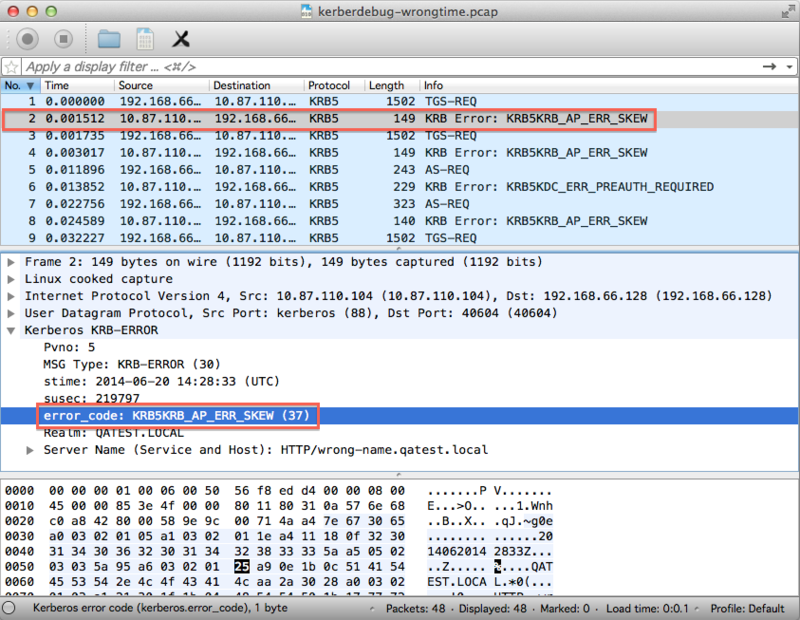
You'll see that there's a KRB5KRB_AP_ERR_SKEW error. Searching for this specific error code will quickly show that it occurs when the kerberos client and server don't have their times synchronized. There's a tolerance for some difference, but in this case, it was a big difference due to misconfiguration. There are some kerberos errors you'll see in the packets that are a completely normal part of negotiation and won't lead to any problems. You should ignore the following errors shown in Wireshark:
KRB5KRB_API_ERR_TKT_EXPIRED
Virtana will subsequently request a new ticket when this occurs.
KRB5KRB_ERR_PREAUTH_REQUIRED
This is a normal part of kerberos negotiation.
KRB5KRB_ERR_RESPONSE_TOO_BIG
Most requests won't fit in UDP. Virtana will automatically switch to TCP.
You'll also see other kerberos messages that are normal. You should ignore these kerberos messages shown by Wireshark:
TGS-REQ
AS-REQ
The following are the most common errors:
KRB5KRB_AP_ERR_SKEW
As shown in the above example. A clock synchronization issue.
KRB5KDC_ERR_S_PRINCIPAL_UNKNOWN
This can happen if zWinRMServerName resolves to the server's IP address, but is not the name the server is known by in Active Directory. This will also be the error if you don't enter a zWinRMServerName and the reverse resolution of the device's manage IP address resolves to a name that doesn't match the server's name in Active Directory. Typical solutions to this are to add the name to the /etc/hosts file or to directly use the IP address of the server.
Troubleshooting Services
If monitoring for one or more services is enabled/disabled on a device and it should be disabled/enabled, use the following:
Refresh the page.
Check how the order of precedence of service monitoring applies to your service(s).
If you have created a template, be sure that you've followed the directions in the Configuring Service Monitoring section and that the Target Class is set to
ZenPacks.zenoss.Microsoft.Windows.WinService.Tick the Update services immediately checkbox on the DefaultService datasource dialog in the /Server/Microsoft/WinService monitoring template and click the Save button so that all services will be reindexed.
Remodel the device to start the reindexing process.
Troubleshooting monitoring
The first step in troubleshooting any monitoring issues is to scan the zenpython log for errors.
If you see OperationTimeout errors in the zenpython log, this is normal. The reason for this is that we run the Get-Counter PowerShell cmdlet over the course of two polling cycles and pull 2 samples by default. There is a 60-second timeout when attempting to receive data. If the received request does not finish within 60 seconds, you will see an OperationTimeout. You can decrease zWinPerfmonInterval to a lower value, which will pull samples more frequently.
Other timeout issues on a domain could involve having a large Kerberos token. This could be caused by the user belonging to a large number of groups. See kb 970875 for more information on the cause and resolution. Possible side effects of a large token include high CPU usage on the Windows server.
If you see a corrupt counters error event, this indicates that the specified counters have been corrupted on the Windows device. No data will be collected for the specified counters until the counters have been repaired on the device and zenpython has been restarted.
If you see the following error, check the zenhub log for errors:
Configuration for <device> unavailable -- is that the correct name?
If you see an event stating that a plugin was disabled due to blocking, see the PythonCollector ZenPack documentation for steps to remedy this.
If you see SNMP agent down - no response received or Unable to read processes events and would like not to see them, set zSnmpMonitorIgnore to true on the /Server/Microsoft or lower device class, depending on your configuration.
Troubleshooting modeling/monitoring
Version 2.6.0 introduces a command-line option to save modeling/monitoring results for troubleshooting. This option will save the results returned from a Windows server from a modeler or datasource plugin. This data can then be viewed/tested using unit tests to determine issues. Usage:
export ZP_DUMP=1;zenmodeler run -d server1.example.com --collect=Interfaces; unset ZP_DUMP
This will unload a pickle of the results to a file in the /tmp folder called Interfaces_process_XXXXXX.pickle. Note: Be sure to unset the environment variable to avoid unwanted pickle files.
If you see an event error that shows The maximum number of concurrent operations for this user has been exceeded, you will need to increase the number of concurrent operations per user in the winrm config. For example:
winrm set winrm/config/service '@{MaxConcurrentOperationsPerUser="4294967295"}'If you see 'HTTP status: 500. Unexpected Response syntax error: line 1, column 0 (--Encrypted Boundary Content-Type...' events or 'WARNING zen.MicrosoftWindows: receive failure on <device-id>>: syntax error: line 1, column 0' messages in zenpython logs or there is a gradual downfall of available RAM, the value of zWinRMConnectionCloseTime property can be increased.
If you see HTTP status: 500. The WS-Management service cannot process the request. The maximum number of concurrent shells for this user has been exceeded... messages in zenpython logs, MaxShellsPerUser should be increased in WinRM configuration.
Troubleshooting Perfmon Collection
If you see errors containing text similar to The term 'New-Object' is not recognized as the name of a cmdlet, function, script file, or operable program, this could indicate a problem with the loading of Powershell modules. Virtana uses common best practices to execute powershell scripts with the -NoProfile option for efficiency. Powershell will fall back on the default system PSModulePath in this case. You must ensure that the default PSModulePath environment variable is valid.
One common problem seen is a UNC (Universal Naming Convention) path in the default system PSModulePath. If there is a UNC path in the default system path, no modules will load due to double-hopping. Because no modules were loaded, even the most basic powershell cmdlets will not run. To fix this, simply remove the UNC path from the default system PSModulePath environment variable.
Perfmon datasource python plugin invokes long-running Powershell command. When you are observing gaps on graphs, data for which is collected by Perfmon datasource plugin and zenpython debug logs show 'The WS-Management service cannot complete the operation within the time specified in OperationTimeout' message, zWinRMLongRunningCommandOperationTimeout property value can be increased. This property is applicable only for Perfmon datasource.
If you see an event and log messages containing: 'Perfmon command(s) did not start: Connection Aborted! Reason: WinRM port <port_number> on <host_ip_address> is not available!' on the devices that do not have connectivity issues, you should increase the value of 'zWinRMPortCheckTimeout'. Keep increasing the value of this zProperty until events and errors will be visible only for the devices with real connectivity issues. This problem could also affect other Windows ZP datasources and strongly depends on the Virtana Infrastructure scale.
Troubleshooting MSSQL Modeling/Monitoring
If you are seeing modeling timeout or datasources not running and have a large number of databases in your SQL Server Instance, check to see if the databases have Auto Close set to True. If so, then consider turning off Auto Close so that our queries to model and monitor the databases can execute in a timely manner.
Virtana Analytics
Note
These steps are applicable only for Virtana Analytics 5.x.x. In Analytics 6.0.0, any third-party reporting tool can be used to generate reports.
This ZenPack provides additional support for Virtana Analytics. Perform the following steps to install extra reporting resources into Virtana Analytics after installing the ZenPack.
Copy analytics-bundle.zip from $ZENHOME/ZenPacks/ZenPacks.zenoss.Microsoft.Windows/ZenPacks/zenoss/Microsoft/Windows/analytics/ on your Virtana server.
Navigate to Virtana Analytics in your browser.
From the Virtana Instance list of options, select Internal Authentication.
Login as an Analytics user with superuser privileges.
Remove any existing Microsoft Windows ZenPack folder.
Choose Repository from the View menu at the top of the page.
Expand Public in the list of folders.
Right-click on Microsoft Windows ZenPack folder and choose Delete.
Confirm the deletion by clicking OK.
Add the new Microsoft Windows ZenPack folder.
Choose Server Settings from the Manage menu at the top of the page.
Choose Import on the left page.
Remove checks from all checkboxes.
Click Choose File to import a data file.
Choose the analytics-bundle.zip file copied from your Virtana server.
Click Import.
You can now navigate back to the Microsoft Windows ZenPack folder in the repository to see the following resources added by the bundle.
Domains
Microsoft Windows Domain
Microsoft Cluster Domain
Ad Hoc Views
Windows IIS Peak Usage
Windows Interfaces Peak Usage
Domains can be used to create Ad Hoc views using the following steps.
Choose Ad Hoc View from the Create menu.
Click Domains at the top of the data chooser dialog.
Expand Public then Microsoft Windows ZenPack.
Choose the Microsoft Windows Domain domain
Installed Items
Installing this ZenPack will add the following items to your Virtana system.
Device Classes
/Server/Microsoft
/Server/Microsoft/Cluster
/Server/Microsoft/Windows
Configuration Properties
zWinRMUser
zWinRMPassword
zWinRMServerName
zWinRMPort
zDBInstances
zWinKDC
zWinKeyTabFilePath
zWinScheme
zWinPerfmonInterval
zWinTrustedRealm
zWinTrustedKDC
zWinUseWsmanSPN
zDBInstances
zWinRMEnvelopeSize
zWinRMLocale
zWinRSCodePage
zWinRMKrb5includedir
zWinServicesModeled
zWinServicesNotModeled
zSQLAlwaysOnEnabled
zSQLAlwaysOnReplicaPerfdataNode
zWinRMLongRunningCommandOperationTimeout
zWinRMConnectionCloseTime
zWinRMPortCheckTimeout
zWinDBStateMonitoringIgnore
zWinDBSnapshotIgnore
zWinServicesGroupedByClass
zWinClusterResourcesMonitoringDisabled
zWinClusterParentAutodiscover
zWinClusterNodesAutodiscoverInclude
zWinClusterNodesAutodiscoverExclude
Modeler Plugins
zenoss.winrm.CPUs
zenoss.winrm.FileSystems
zenoss.winrm.HardDisks
zenoss.winrm.IIS
zenoss.winrm.Interfaces
zenoss.winrm.OperatingSystem
zenoss.winrm.Processes
zenoss.winrm.Routes
zenoss.winrm.Services
zenoss.winrm.Software
zenoss.winrm.WinCluster
zenoss.winrm.WinMSSQL
zenoss.winrm.Certificates
Datasource Types
Windows EventLog
Windows IIS Site
Windows Perfmon
Windows Process
Windows Service
Windows Shell
Windows PortCheck
Monitoring Templates
Device (in /Server/Microsoft)
FileSystem (in /Server/Microsoft)
HardDisk (in /Server/Microsoft)
ethernetCsmacd (in /Server/Microsoft)
OSProcess (in /Server/Microsoft)
OSProcess-2003 (in /Server/Microsoft)
WinService (in /Server/Microsoft)
Active Directory (in /Server/Microsoft)
Active Directory 2008 (in /Server/Microsoft)
Active Directory 2008R2 (in /Server/Microsoft)
IIS (in /Server/Microsoft)
IISADMIN (in /Server/Microsoft)
IISSites (in /Server/Microsoft)
MSExchangeInformationStore (in /Server/Microsoft)
MSExchange2010IS (in /Server/Microsoft)
MSExchange2013IS (in /Server/Microsoft)
WinDBInstance (in /Server/Microsoft)
WinSQLJob (in /Server/Microsoft)
WinDatabase (in /Server/Microsoft)
Cluster (in /Server/Microsoft)
ClusterService (in /Server/Microsoft/Cluster)
ClusterResource (in /Server/Microsoft/Cluster)
ClusterNode (in /Server/Microsoft/Cluster)
ClusterNetwork (in /Server/Microsoft/Cluster)
ClusterDisk (in /Server/Microsoft/Cluster)
ClusterInterface (in /Server/Microsoft/Cluster)
WinAODatabase (in /Server/Microsoft)
WinAvailabilityGroup (in /Server/Microsoft)
WinAvailabilityReplica (in /Server/Microsoft)
CACertificate (in /Server/Microsoft)
Changes
3.3.0
Added support for Windows Server 2025 (ZPS-9266)
Added support for SQL Server 2025, including SMO assembly loading for major version 17 (ZPS-9265)
Tested with Virtana Service Observability (formerly Zenoss Cloud) and Virtana Service Dynamics 6.x, Service Impact 5.7.2 and Analytic 6.0.0
3.2.0
Fixed scenario when PerfMon data collection can fail if too many PerfMon counters are requested (command too long) (ZPS-8643)
Enhanced Windows PerfMon datasource exception handling and event creation (ZPS-8704)
Added -replacement/-addition templates support for WinService and WinDatabase (ZPS-8798)
Fixed Windows Disk Space metrics fluctuations (ZPS-8823)
Enhanced txwinrm authorization logging and events creation (ZPS-8831)
Fixed Windows Device Memory Utilization metrics fluctuations (ZPS-8836)
Added Windows Cluster Node and Parent optional discovery (ZPS-8900)
Added Windows Certification Authority Certificate component (ZPS-8942)
Added DD-MM-YYYY datetime format support for Software modeling (ZPS-9008)
Tested with Virtana Service Observability, Zenoss 6.8.0, Service Impact 5.7.1 and Analytic 6.0.0
3.1.1
Added support of Virtana Collection Zone 7.2.0
Fix device deletion during "Reindex windows services" job execution (ZPS-8862)
Remove the Software modeler plugin from the default selection for /Server/Microsoft/Windows (ZPS-8911)
Tested with Virtana Service Observability, Virtana Service Dynamics, Service Impact 5.7.0 and Analytic 6.0.0
3.1.0
Fixed CPU/Memory increasing on Windows target device (ZPS-3171)
Changed SQL Jobs event mapping by Job ID and not by Job Name (ZPS-5264)
Fixed pattern matching on Windows Cluster Remodel Action (ZPS-7883)
Fixed "'NoneType' object has no attribute 'lower'" errors during Always On components modelling (ZPS-7967)
Fixed Windows Collection fails with error "User timeout caused connection failure" (ZPS-8015)
Remove dependency on obsolete PyXML package and make ZP compatible with Ubuntu 22.04 (ZPS-8277)
Added support for Windows Server 2022 and SQL Server 2022 (ZPS-8387)
Added disabled Cluster Resources detection during modeling and disabling its monitoring (ZPS-8412)
Added missing default Per User Services to zWinServicesGroupedByClass (ZPS-8441)
Fixed component field appearance in events for Custom Datasource (ZPS-8505)
Added "Remote Management Users" group to Windows lpu script needs for 2016+ servers (ZPS-8530)
Added processing of all complex database statuses (ZPS-8540)
Fixed honoring zFailSeverity property that is set at the Windows Service class level (ZPS-8544)
Improve txwinrm Kerberos authentication performance for the devices with unavailable WinRM port (ZPS-8622)
Added a log message when misconfigured counter is in the Perfmon datasource collection (ZPS-8666)
Windows 2008 will no longer be supported
Tested with Virtana Service Observability, Zenoss 6.7.0, Service Impact 5.6.0 and Analytic 6.0.0
3.0.2
Add zWinDBStateMonitoringIgnore configuration property to disable monitoring of MS SQL databases in specified statuses (ZPS-7867)
Add zWinDBSnapshotIgnore configuration property to disable monitoring of MS SQL database snapshots (ZPS-7824)
Fix MSSQL Always incorrect datamaps sending which cause large number of unnecessary datamaps and invalidations (ZPS-8074)
Add zWinServicesGroupedByClass property for Windows Service classes to model services with generic Windows Service class. (ZPS-8115)
Tested with Virtana Service Observability, Zenoss 6.6.0 and Service Impact 5.5.5
3.0.1
Fix numerous WinRM connections spawn (ZPS-7726)
Document a new case for zWinRMEnvelopeSize property (ZPS-7787)
Tested with Virtana Service Observability, Zenoss 6.6.0, Zenoss 6.5.0 and Service Impact 5.5.3
3.0.0
Add MS SQL Always On Availability Groups (ZPS-7363)
Add MS SQL Always On Availability Group Replica component (ZPS-7370)
Add MS SQL Always On Availability Group Database component(ZPS-7371)
Add MS SQL Always On Availability Group Listener component(ZPS-7372)
Add support of MS SQL Always On to Virtana Analytics (ZPS-7511)
Add support for Windows 2019 (ZPS-7364)
Add support for MSSQL 2019 (ZPS-7365)
Model SQL Instances components for MS SQL Always On Availability Groups (ZPS-7366)
Add new datapoint for Service component to monitor status change (ZPS-5759)
Fix 'Class not registered' and 'Illegal operation attempted on a registry key that has been marked for deletion' errors (ZPS-5967)
Fix intermittent connection flood to monitored device (ZPS-6861)
Fix intermittent "Server not found in Kerberos database" events (ZPS-7585)
Fix 100% CPU utilization on MSSQL servers caused by the ZenPack (ZPS-7586)
Fix wincommand notification fails because of Kerberos settings not getting passed to zenactiond container (ZPS-5978)
Fix Windows ZP: zenpython krb5.conf is sometimes missing `rdns = false` despite zWinRMKrb5DisableRDNS = True (ZPS-6326)
Fix zWinRMDisableRDNS not correctly handled in zenactiond (ZPS-5995)
Tested with Virtana Service Observability, Zenoss 6.6.0, Zenoss 6.5.0, Analytics and Service Impact 5.5.3
2.9.5
Add zWinServicesModeled and zWinServicesNotModeled properties to control Services component (ZPS-7220)
Fix Sysname is discovered as unknown for WinRM devices (ZPS-6244)
Fix The datasource "UserConnections" is collecting metrics only for the default SQL instances (ZPS-6946)
Add better timeouts control for connections (ZPS-7329)
Fix ClusterDataSource collection error (ZPS-7433)
Fix blocking code in the Windows ZP monitoring plugin (ZPS-7444)
Tested with Virtana Service Observability, Zenoss 6.5.0, Zenoss 6.4.1 and Service Impact 5.5.3
2.9.4
Fix Traceback seen for zenoss.winrm.Processes modeler plugin (ZPS-5676)
Fix Windows ZP: After upgrade to 2.9.3, seeing "caught returnValue being used in a non-generator" errors (ZPS-5727)
Fix Windows - cluster disks may not be modeled or monitored on 2008 cluster when using Powershell v2.0 (ZPS-5755)
Fix Unexpected Response --Encrypted Boundary during windows collection (ZPS-5767)
Document wincommand notification can be deprecated (ZPS-5501)
Fix Receiving 'NoneType' object has no attribute '__getitem__' when modeling Windows device (ZPS-5770)
Fix Perfmon command(s) did not start: 'NoneType' object has no attribute 'getConnection' (ZPS-5822)
Fix "The referenced context has expired" errors (ZPS-5797)
Fix WinRM device modeler fails to model system OS info if Win32_ComputerSystem doesn't return data (ZPS-5820)
Fix Windows collection attempts to use a dead connection causing a timeout (ZPS-5819)
Fix Cluster Monitoring Doesn't Account for Different Service Names (ZPS-5835)
Fix 'Get-Disk' is not recognized on Windows 2008 Clusters (ZPS-5822)
Tested with Virtana Service Observability, Virtana Service Dynamics 6.3.2 and Service Impact 5.5.0.
2.9.3
Fix deprecated Get-WmiObject cmdlet for PowerShell Core (ZPS-4927)
Fix Windows Perfmon data collection stops for long time after device reboot (ZPS-4473)
Fix Windows - No freespace on cluster shared volumes (ZPS-4612)
Fix Better handling in Perfmon datasource of "is not recognized as the name of a cmdlet" errors (ZPS-3517)
Fix 500 Operation Timeout Errors when modeling and/or monitoring SQL Server (ZPS-4638)
Fix Windows Cluster - wrong ip address can be returned for sql server node (ZPS-4703)
Fix Windows Cluster - sql server fails over doesn't trigger a remodel if cluster group stays the same (ZPS-4707)
Fix Windows Perfmon data collection stops for long time after collection interruption (ZPS-4473)
Fix Windows may connect to device with wrong zWinRMUser (ZPS-3564)
Fix Microsoft.Windows - Detect .NET version better for EventLogDataSource (ZPS-5399)
Fix Windows Disconnected Network Drives that Cause PowerShell Error (ZPS-4866)
Fix After upgrade to 2.9.x, some/most modeler plugins fail with "'NoneType' object has no attribute 'getConnection'" (ZPS-5087)
Fix Windows Cluster - clusterOwnerChange may not be in zWindowsRemodelEventClassKeys after install/upgrade (ZPS-4887)
Fix Windows Cluster - SQL Server instance metrics may not be found (ZPS-4888)
Fix WindowsServiceLog "The referenced context has expired" error (ZPS-3216)
Fix Add ERROR handling for empty win32_SystemEnclsoure data (ZPS-5253)
Fix Windows devices monitored over https regularly fail collection (ZPS-5323)
Fix Increase Flexibility in Microsoft ZenPack for Data Source using Microsoft's Event Log (ZPS-5585)
Fix Windows Cluster - Missing or no data returned when querying job events do not clear after failover remodel (ZPS-4874)
Tested with Virtana Service Observability, Virtana Service Dynamics 6.3.2 and Service Impact 5.3.4.
2.9.2
Fix applyDataMaps call for onSuccess method destabilizing zenhub (ZPS-4422)
2.9.1
Fix Misleading Error when parsing MSSQL status datasource on different cycle than other database datasources (ZPS-3194)
Fix Undefined PrimaryOwnerName or RegisteredUser causes traceback in OperatingSystem plugin (ZPS-3227)
Fix ShellDataSource slow to gather data when hundreds of databases exist. (ZPS-3287)
Fix MSSQL password can be logged in the Windows Event Log as plaintext during query failure (ZPS-3302)
Fix MSSQL Monitoring causes thousands of logon/logoff events in windows event log (ZPS-3392)
Fix WinMSSQL plugin shows 'message stream modified' errors during modeling.(ZPS-3461)
Fix WindowsServiceLog Events never clear.(ZPS-3771)
Fix Potential ticket expiry during collection causes collection issue (ZPS-3216)
Fix Windows device fails to monitor performance counters, generating several log messages per second. (ZPS-3377)
Fix Windows Perfmon data collection stops for long time after device reboot (ZPS-3997)
Fix Microsoft.Windows - wrong counter name for 2016 network interfaces (ZPS-3902)
Fix wincommand notification fails because of Kerberos settings not getting passed to zenactiond container.(ZPS-3422)
Fix WinRM monitoring not properly respecting zWinPerfmonInterval (ZPS-3581)
Fix GetWinEvent error message formatting (ZPS-3484)
Fix IIS Application Pool states (ZPS-3629)
Fix Better handling in Perfmon datasource of "is not recognized as the name of a cmdlet" errors (ZPS-3517)
Fix Windows - error regarding missing ipaddress is generated in zenpython log for cluster device (ZPS-4184)
Fix WinCluster plugin does not honor zCollectorClientTimeout, always times out requests after 60 seconds (ZPS-4272)
Fix Teamed NIC speed not modeled on individual adapters (ZPS-4149)
Fix Modeling errors caused by multiple 'zenoss.winrm.WinCluster' in zCollectorPlugins (ZPS-4300)
Fix Windows services with certain characters are always in 'unknown' state. (ZPS-3424)
Add support for SQL Server 2017
Tested with Virtana Service Observability, Virtana Service Dynamics 6.2.0, Virtana Service Dynamics 5.3.3, Virtana Service Dynamics 4.2.5 RPS 743 and Service Impact 5.3.1
2.9.0
Fix Windows - IIS 7 or higher may show Unknown site status (ZPS-2728)
Fix Windows - Error: local variable 'kerberos' referenced before assignment (ZPS-2738)
Fix Quote issue for polling custom event logs (ZPS-2741)
Fix Modelling a Windows device fails with trace re: Software Plugin (ZPS-2745)
Fix Windows: Tasks building up with bad network connections (ZPS-2829)
Fix MicrosoftExchange - N/A for some graphs of Exchange Server component and on Graphs tab (ZPS-2197)
Fix Microsoft Windows: zenpython memory increases until restart required (ZPS-2176)
Fix CPU use builds over time - PythonCollector MicrosoftWindows (ZPS-2480)
Fix Modelling using Kerberos generates two tickets (ZPS-2394)
Fix Windows data sources are improperly setting eventClass (ZPS-3056)
Fix Windows Event Log Datasource Does not Map Critical Events (ZPS-3109)
Fix Windows - an error 'process scan error: list index out of range' is generated for OS Processes component (ZPS-3116)
Fix Windows - Do not display None as the Service Pack level (ZPS-2289)
Fix Windows - "Check username and password" event still gets generated every cycle even though credentials is correct (ZPS-2712)
Add ability to monitor freespace on Cluster Disks (ZPS-582)
Tested with Virtana Service Dynamics 5.3.3, 6.1.0, and 6.1.1, Virtana Service Dynamics 4.2.5 RPS 743 and Service Impact 5.2.3
2.8.3
Fix Components moving between hosts on a cluster get events as they disappear. (ZPS-2134)
Fix Microsoft.Windows: IIS template shows in Device Templates for non-IIS Server (ZPS-2555)
Fix Winrs failures (powershell datasources) with "Unknown strategy" message (ZPS-2613)
Fix Missing interface counters on non physical adapters (ZPS-2567)
Fix WinRS: Failed collection ipaddress missing (ZPS-2645)
Fix Windows ZenPack: WinMSSQL may not finish modeling when hundreds of databases exist. (ZPS-2644)
Fix Resmgr 5.3.3 upgrade indicates Windows alias is too long (ZPS-2611)
Fix Windows: Tasks building up with a bad config (ZPS-2717)
Tested with Virtana Service Dynamics 5.3.3 and 6.0.1, Virtana Service Dynamics 4.2.5 RPS 743 and Service Impact 5.2.2
2.8.2
Fix Microsoft Windows fails to model 2008 Server Cluster Disks (ZPS-2015)
Fix Windows - traceback when no data returned for wmi class win32_computersystem (ZPS-2384)
Fix Cluster Disk state always 'Inherited' (ZPS-2416)
Fix Unable to monitor MS-SQL Cluser node - see 'Message stream modified' errors (ZPS-2433)
Fix Windows ZP - Missing usedFilesystemSpace__bytes alias for Filesystem utilization report (ZPS-2434)
Fix MicrosoftWindows - Windows Event Log events that have no detectable severity currently come in as DEBUG, should come in as INFO (ZPS-2453)
Fix Microsoft.Windows eight events with same error summary are triggered during modeling (ZPS-2464)
Tested with Virtana Service Dynamics 5.3.2, Virtana Service Dynamics 4.2.5 RPS 743 and Service Impact 5.2.2
2.8.1
Fix "Error in zenoss.winrm.WinMSSQL: too many values to unpack" (ZPS-2206)
Fix Not all bound monitoring templates listed on device overview page (ZPS-2187)
Fix cannot concatenate 'str' and 'NoneType' objects" during Lync modeling (ZPS-2203)
Fix collection hanging caused by network timeouts by applying fix for twisted bug. (ZPS-1765)
Fix 'list' object has no attribute 'lower' (ZPS-2242)
Fix Using the exit code for Windows Shell Datasource to generate events can result in a second error. (ZPS-2252)
Add an error event threshold added so that we can eliminate error noise on systems with poor connections (ZPS-2068)
Fix Windows - No perf data, see "The process cannot access the file because it is being used by another process." in debug log (ZPS-2298)
Fix Microsoft Windows fails to model 2008 Server Cluster Disks (ZPS-2015)
Fix WinCluster plugin generates duplicate Cluster Disks (ZPS-1932)
Update documentation to remove support for SQL Server 2005 (ZPS-2340)
Tested with Virtana Service Dynamics 5.3.2, Virtana Service Dynamics 4.2.5 RPS 743 and Service Impact 5.2.2
2.8.0
Added SQL Server instance performance counters
Added Application Pool Status check for IIS Application Pools
Removed WindowsServiceLog, IISSiteStatus, Kerberos, and Authentication event class mappings.
Fix Microsoft Windows 2.7.8 pack install without RPS712 breaks zenpack command (ZPS-1729)
Fix Microsoft Windows ZenPack floods event server (ZPS-1752)
Fix Windows ZenPack: IISSiteStatus transform can result in AttributeError (ZPS-490)
Fix collection hanging caused by network timeouts. (ZPS-1765)
Fix Shutting down the Zenpython daemon creates unnecessary and or mis-catagorized logging connection failure events in zenpython.log (ZPS-1693, ZPS-1692)
Fix Microsoft Windows: zenpython memory usage increases until restart required (ZPS-1584)
Fix Newlines in mssql job descriptions cause parse failure. (ZPS-1813)
Fix MicrosoftWindows - Cluster component datasources missing default event class (ZPS-1810)
Fix ZP Microsoft Windows 2.7.0 - conhost.exe and winrshost.exe are opened without closing (ZPS-1354)
Fix zenjobs consumes excessive memory for some actions (ZPS-1783)
Fix Windows link to device with no ip instead of cluster node is present in grid of Cluster Nodes component (ZPS-1852)
Fix Windows - Loading of SQL Databases is worse in comparison with Zenoss 4.2.5 and Windows 2.6.4 on Zenoss 5.2.1 (ZPS-1154)
Fix Windows ZenPack does not show the default sql server name as MSSQLSERVER (ZPS-2031)
Fix Multiple zenpython instances on a collector sometimes results in incomplete krb5.conf (ZPS-2072)
Update message for DNS lookup failed events (ZPS-1938)
Added Windows Shell Custom Command datasources usage with Nagios parser limitations (ZPS-1286).
Fix events for IIS Site components (ZPS-2126)
Fix malformed sql job results show 'too many values to unpack' error (ZPS-2143)
Fix Windows Shell Data Source Sets the Component to an Unconventional Value (ZPS-2055)
Fix Unknown Software manufacturers (ZPS-2139). This change fixes the problem only on a new devices. To apply to existing -- please delete Software records manually
Fix some software shows up duplicated (ZPS-1245)
Tested with Virtana Service Dynamics 5.3.1, Virtana Service Dynamics 4.2.5 RPS 743 and Service Impact 5.1.7
2.7.8
Fix HardDisks with a size of 'None' cause unhandled exceptions in modeling (ZPS-1424)
Fix Log line for "periodic maintenance" shows in incorrect logs (ZPS-1600)
Fix Failed model job does not result in event (ZPS-1608)
Fix Performance tables are not created even though performance batch is successful (ZPS-1605)
Fix Traceback modelling with WinMSSQL plugin (ZPS-1676)
Fix Custom command needs to allow datapoints with non-zero exit codes (ZPS-1366)
Fix Shutting down the Zenpython daemon creates unnecessary and or mis-catagorized logging connection failure events in zenpython.log (ZPS-1693)
Fix Microsoft Windows - Cluster MSSQL server is at 100% CPU utilization (ZPS-1697)
2.7.7
Fix redundant publishing of service state datapoints (ZPS-1604)
2.7.6
Fix traceback during modeling (ZPS-1599)
2.7.5
Fix Windows ZP uses a lot of RAM when it contains hundreds of components due to checking for IIS (ZPS-1576)
Fix Microsoft Windows: zenpython memory usage increases until restart required (ZPS-1584)
2.7.3
Fix MicrosoftWindows ZP has problems disks/mount points with "" in their name. (ZPS-1368)
Fix Microsoft Windows: Migrate script takes long time to run, no feedback (ZPS-1473)
2.7.2
Fix WinRS: Failed collection local variable 'databasename' referenced before assignment on a.device.title (ZPS-1271)
Fix ZP Microsoft Windows 2.7.0 - conhost.exe and winrshost.exe are opened without closing (ZPS-1354)
Fix Counters with $ in their name are being shown as missing (ZPS-1404)
Fix Microsoft Windows: v2.7.x shows errors in zenrelationscan, zenchkrels (ZPS-1442)
2.7.1
Fix Microsoft Windows: Honor template severity for MS SQL Instance events (ZPS-1323)
Fix Microsoft Windows: Honor template severity for MS SQL Job events (ZPS-1322)
Fix Microsoft Windows: Graphs missing datapoints every other zenpython cycle (ZPS-1321)
Fix Microsoft Windows: datasource in event details can make the event unreadable on one screen(ZPS-1293)
Fix Microsoft Windows: service datapoint should provide timestamp (ZPS-1341)
Fix Editing a Windows Service (WinService) Locks Up Zope and Times Out (ZPS-1342)
Fix Windows ZP HardDisk Modeler does not check the value of SerialNumber before running strip (ZPS-1279)
Fix Windows 2.7.0 WinService migrate script only updates template bound at /Server/Microsoft (ZPS-1280)
2.7.0
Added support for Hard Disk association with storage servers
Added Session Management to lower number of connections to Windows Servers
Added option to specify winrm envelope size
Added ability to allow multiple KDCs for single domain
Added ability to specify user supplied kerberos configuration directory
Added support for Windows Server 2016
Added support for SQL Server 2014, 2016
Added Paused as valid Windows Service state to monitor
Added ability to disable rdns for kerberos
Improved support for SQL Server database Status
Fix ShellDataSource Doesn't Associate Event Severity or Class from Data Sources (ZPS-491)
Fix Modifying the WinService template causes parallel reindexing of the same components (ZPS-570)
Fix MicrosoftWindows - Device status become down after adding device using local authentication (ZPS-713)
Fix Windows ZP Does not allow compatible ports of 80/443 to be used (ZPS-622)
Fix Windows Zenpack may not properly detect IIS on 2012 servers. (ZPS-719)
Fix Long MSSQL Database names aren't parsed correctly because they exceed the powershell shell width (ZPS-944)
2.6.12
Fix ZenPack throws traceback when non windows data source is added (ZPS-661)
2.6.11
Fix Monitoring of SQL Instances results in a UUID error (ZPS-453)
Added additional event classes and handlers for Kerberos failures (ZEN-25700)
2.6.9
Added Auth event clears, getPingStatus includes /Status/Ping event class (ZEN-25700)
Fix Windows Shell Datasources are sending datamaps and bogging down ZenHub (ZEN-26226)
2.6.7
Fix TypeError during zenpython collection of a ShellDataSource (ZEN-25978)
2.6.6
Added additional event classes to cover connection errors (ZEN-25700)
Fix Windows Error Events come across as Info Events (ZEN-24633)
Fix Windows ZenPack - No "bad credentials" event for monitoring (ZEN-24726)
Fix MSSQL modeling doesn't pick up multiple instances if they're running different versions (ZEN-25851)
Fix Auto Creation of Windows Cluster Device doesn't copy over zWinKDC property (ZEN-25564)
2.6.5
Fix missing Process Set process title (ZEN-25311)
2.6.4
Fix Windows ZenPack incorrectly assumes that the first database returned is the master when modeling databases, backups, and jobs (ZEN-24519)
Fix WinRM ZenPack - WinService components disabled at template still show "Monitored" in component view (ZEN-24528)
2.6.3
Fix potential "clusternetworks" and "clusternodes" errors after upgrading (ZEN-24401)
Fix AttributeError: serviceclass on Windows Services after v515 update (ZEN-24347)
Fix duplicated "Interfaces" components after upgrade (ZEN-24401)
2.6.2
Fix WinRM ZenPack - Windows Services page elections conflict with WinService template exclusions (ZEN-24165)
Fix Modifying the WinService template causes parallel reindexing of the same components (ZEN-24375)
2.6.1
Fix Microsoft Windows ZenPack doesn't work with HyperV pack (ZEN-23967)
Fix Microsoft Windows: no collection when Processes are modeled (ZEN-24010)
Fix Editing a Windows Service (WinService) Locks Up Zope and Times Out (ZEN-23827)
2.6.0
Enabled the use of the Infrastructure > Windows Services page
Enabled domain authentication without the need for DNS
Added ability to dump results from plugins for troubleshooting
Converted to use zenpacklib
Document Microsoft Windows Event Log Monitoring Returns Information Events (ZEN-22904)
Fix zWinRMServerName not resolving properly on remote collector (ZEN-22880)
Fix WinRM ZP Error about concurrent shells doesn't close when not reoccuring (ZEN-23010)
Fix Latest version of WinRM pack (2.5.12) causes "AttributeError: in_exclusions" tracebacks (ZEN-23063)
Fix WinRM Interface modeler does not account for HP NIC naming scheme (ZEN-20762)
Fix WinRM monitoring does not emit message for expired password (ZEN-23183)
Fix Windows kinit: Internal credentials cache error while storing credentials while getting initial credentials (ZEN-23238)
Fix MSSQL Queries wrong database for metric (ZEN-23228)
Fix Windows Service shows 'Up' when down if event class modified (ZEN-19615)
Fix Windows Installed on UCS shows 2 interfaces where there's only 1 (ZEN-23379)
Fix Windows ZenPack, doesn't send Datasource fields in 'cmd' to Parsers (ZEN-23739)
Fix Windows Zenpack Impact relationships are inconsistent (ZEN-18648)
Fix WinRMPing datasource should be disabled by default (ZEN-23517)
Fix Copy Override of Windows template breaks EventLogDataSource query attribute (ZEN-23157)
2.5.13
Fix Active Directory not correctly detected (ZEN-23137)
2.5.12
Fix Windows EvenLog Datasource causes CPU 100% utilization (ZEN-20232)
Fix Windows Zenpack is improperly setting the Active Directory Template (ZEN-22369)
2.5.11
Fix MSSQL Monitoring (ZEN-22476)
Document Microsoft Windows: High CPU usage when modeling domain controller (ZEN-22566)
Fix Windows Replication datasource fails for dcdiag user formatting (ZEN-22487)
Fix Microsoft Windows: failed collection - Couldn't bind: 24: Too many open files. (ZEN-22558)
Fix /Status/WinRM/Ping Event Class does not exist (ZEN-22407)
2.5.10
Fix Microsoft Windows Cluster datasources are sending datamaps too often and bogging down zenhub (ZEN-22345)
2.5.9
Fix Windows Team NIC Monitoring/Modeling Failure (ZEN-19588)
2.5.8
Fix ShellDataSource custom command does not send severity to custom parsers (ZEN-21928)
2.5.7
Fix Windows traceback during zenpack install (ZEN-21899)
2.5.6
Fix MicrosoftWindows - warning is generated if $$ is used in command datasource. (ZEN-20221)
Fix No event generated for failed modeling of Windows Device (ZEN-16195)
Fix Disabled WinRMService templates continue to event after disabling (ZEN-21603)
2.5.5
Fix WinRM Modeling Software Breaks if Installed Software Ends in Underscores(ZEN-20375)
Fix Microsoft Windows - monitoring cluster disks results in powershell error (ZEN-21325)
Fix Problem while executing plugin zenoss.winrm.FileSystems (ZEN-21351)
Fix Microsoft Windows - corrupt counters are not removed from collection (ZEN-21396)
Fix WinRM Polling causing partial Event Creation (ZEN-18757)
2.5.4
Fix Windows Service monitoring improvements
Fix WinRM Ping DataSource marks ping up devices down and stops all collection (ZEN-21270)
Fix WinCommand notification fails to run on WinRM ZP 2.5.1, 2.5.3 (ZEN-21272)
2.5.3
Fix Microsoft Windows - modeling cluster results in traceback error (ZEN-21242)
2.5.2
Fix IIS Site Failed connection when monitoring Windows Server 2012 with IIS 8.5 (ZEN-21029)
2.5.1
Fix MicrosoftWindows - Unbound Cluster Error when modeling cluster (ZEN-20931)
Fix MicrosoftWindows - list index out of range when modeling processes (ZEN-20932)
Fix MicrosoftWindows - Documentation typo mistakes (ZEN-20940)
2.5.0
Windows Service monitoring improvements
Added State column for MSSQL Databases
Improved EventLog querying to allow use of XPath XML
Enhancement Microsoft Windows - Update Cluster for failover cluster device (ZEN-18833)
Added ability to enter trusted domain information in order to use a single domain user
Documentation update: Microsoft Windows - zenpython causes max cpu on target machine (ZEN-20542)
Fix Analytics not extracting software data on windows devices (ZEN-19366)
Fix Zenoss Windows Monitoring Spawning Thousands of Processes on Monitored Hosts (ZEN-18770)
Fix Microsoft Windows ZenPack - Blank page is displayed when open 'Instance name' link in new page for My SQL Device (ZEN-15464)
Fix WinRM - ProcessDataSource.py results in "list index out of range" (ZEN-18823)
Fix Microsoft Windows ZenPack - MSSQL Databases: Unable to monitor any databases if any databases have ' in name (ZEN-18838)
Fix Microsoft Windows - Remove file systems with 0.00B Used/Free Bytes in File Systems component (ZEN-19213)
Fix Microsoft Windows - Cluster event is in Unknown class (ZEN-18835)
Fix Microsoft Windows - Database event is in Unknown class (ZEN-18836)
Fix Microsoft Windows - Provide a better message if using an event log that does not exist (ZEN-19270)
Fix Microsoft Windows - Remove IIS from default selected list of plugins (ZEN-19620)
Fix Microsoft Windows - an event " WinRS: get-clusterservice: The term 'get-clusterservice' is not recognized..." (ZEN-20138)
Fix Microsoft Windows - 'RecoveryModel' property is not displayed for SQL Enterprise 2005 (ZEN-20094)
Fix error when modeling hosts with IPv6 addresses. (ZEN-20474)
Fix WinRM for Windows server - Device Status should not use /Status/Ping (ZEN-19813)
Fix Wiki page for MicrosoftWindows ZenPack - IISAdmin service (ZEN-19300)
Fix WinRM Leaves Connections Open When Collection Fails Due to Native Language (ZEN-20514)
Fix WinRM - "The referenced context has expired" (ZEN-18115)
Fix Microsoft Windows - Windows cluster fails modeling for Task Scheduler traceback (ZEN-20438)
2.4.9
Fix Windows ZenPack - Cluster device does not add cluster nodes as devices on model (ZEN-19085)
Fix WinService - "list index out of range" error (ZEN-19452)
2.4.8
Fix Microsoft Windows Zenpack - MSSQLSERVER service shows as down but received event saying db instance was down (ZEN-19323)
2.4.7
Fix Microsoft Windows ZenPack - no data returned for databases in MSSQLSERVER default instance (ZEN-19282)
Fix Microsoft Windows ZenPack - services are not being monitored (ZEN-19284)
2.4.6
Fix Microsoft Windows ZenPack doesn't create events for MS SQL Jobs/Instances (ZEN-18680)
Fix WinRM Polling causing partial Event Creation (ZEN-18757)
Fix Microsoft Windows - Connection count is high (ZEN-18947)
Fix Microsoft Windows: DCDiag reports Access Denied during tests (ZEN-19188)
2.4.5
Fix MSSQL Components Generate Clear Event When PowerShell Script Fails (ZEN-18234)
Fix WinRM ZenPack missing thresholds which should be available out-of-box (ZEN-16024)
Fix Microsoft Windows - modeling MSSQLSERVER instance on 2012 cluster does not return databases, jobs, backups (ZEN-18811)
Fix Microsoft Windows ZenPack - WinMSSQL plugin breaks modeling (ZEN-18533)
Windows 2003 will no longer be supported
2.4.4
Fix extra points being sent into "Windows Shell" datasource parsers. (ZEN-18049)
With the ending of support by Microsoft for Windows 2003, this is the last version of the ZenPack to support Windows 2003.
2.4.3
Fix Port Checker in Microsoft Windows ZP 2.4.2 Results in Errors (ZEN-17893)
2.4.2
Fix poor performance of SQL Server monitoring of large number of databases. (ZEN-17535)
Fix poor performance of SQL Server modeling of large number of databases. (ZEN-17669)
2.4.1
Fixed Data from MS Exchange monitoring template is written to MSExchangeIS service component (ZEN-17566)
2.4.0
Added DCDiag tests for Active Directory monitoring
Added Port checking ability for Active Directory and other monitoring
Improved Kerberos error messages
Improved Custom Command feedback from Powershell scripts (ZEN-16834)
Improved automatic selection of device class monitoring templates to be run (ZEN-17059)
Fix Windows service datasource does not clear collection errors (ZEN-16802)
Fix EventLogDatasource ignores $max_age (ZEN-16564)
Fix Event Log Datasource does not escape tab characters (ZEN-15911)
Fix EventLogDataSource processes events from newest to oldest (ZEN-16565)
Fix WindowsEventLog will continuously fetch the same events generating false positives if the last event doesn't contain a message/summary (ZEN-17366)
Fix IIS-Request Rate graph should be removed from Graphs as it was divided into two (ZEN-17045)
Fix txwinrm: Wrong number of arguments given (ZEN-16790)
Fix Some software is missing after model (ZEN-16574)
Fix OperatingSystem Modeler Broken (ZEN-16799)
Fix WinRM Software Modeler Parsing Traceback (ZEN-16224)
Fix Windows Zenpack Impact relationships are inconsistent (ZEN-16796)
Fix WinRM ZenPack missing thresholds which should be available out-of-box (ZEN-16024)
Fix No event generated for failed modeling of Windows Device (ZEN-16195)
Fix Microsoft Windows bad counter events in wrong event class (ZEN-16558)
Fix link is absent on Owner Node for Cluster/Services and Resources components (ZEN-15784)
Fix Microsoft Windows bad counter events in wrong event class (ZEN-16558)
Fix No event generated for failed modeling of Windows Device (ZEN-16195)
Fix WinRM ZenPack missing thresholds which should be available out-of-box (ZEN-16024)
Fix Microsoft.Windows - link is absent on Owner Node for Cluster/Services and Resources components (ZEN-15784)
Fix New Windows ZenPack - Working with templates throws 'NoneType' exception (ZEN-17318)
Fix Microsoft.Windows - unable to model device using Kerberos authentication on Centos 5 (ZEN-16546)
Fix Cannot "View and edit details" on datasource Windows Eventlog (ZEN-17240)
2.3.2
Fix traceback during Software modeling (ZEN-16224)
Fix Event Log datasource ignoring max age field (ZEN-16564)
Fix Event log datasource does not escape tab characters (ZEN-15911)
Fix wrong number of arguments given (ZEN-16790)
Fix Powershell script not showing feedback on Custom Command datasource (ZEN-16834)
Fix traceback during Operating System modeling (ZEN-16799)
2.3.1
Fix significant memory leak when using kerberos authentication. (ZEN-16261)
Support "Wow6432Node" uninstall key for software inventory. (ZEN-16574)
2.3.0
Update Windows Service monitoring template to allow for monitoring by start mode
Fix memory leak with kerberos
Fix moving device to a different class
2.2.1
Fix Windows 2003 modeling/monitoring
Add log message during install
Re-authenticate through kerberos if connection is broken
Small bug fixes
2.2.0
Payload encryption over kerberos connections
Updated Events to use Get-WinEvent cmdlet
Updated Software modeler to query registry instead of Win32_Product
Updated FileSystems to show mapped network drives and mounted volumes
Support for Virtana Analytics
Numerous bug fixes
2.1.3
Zenoss 5 compatibility fixes.
2.1.2
Added WinCommand notification action
Support for monitoring fail-over clustered MSSQL instances
Support for monitoring Windows event logs
Numerous bug fixes
2.1.0
Support for Service Impact
Support for Microsoft Exchange 2010 and Microsoft Exchange 2013
Ability to monitor Microsoft SQL Server using Windows Authenticated user
Fix Exchange 2007 counters
Fix cluster and node relationship
Fix virtual network adapter monitoring
2.0.3
Reduce possibility of gaps in perfmon collection. (ZEN-10600)
Add zWinRMServerName property. (ZEN-9712)
Support for IIS 7-8 without IIS 6 compatibility.
Honor sequence in process monitoring. (ZEN-10777)
Fix cluster modeling for long server names. (ZEN-10572)
Support TALES in Windows Shell custom command script. (ZEN-10426)
Fix custom parser issue with Windows Shell datasource. (ZEN-10365)
Handle null software install date. (ZEN-10361)
Handle null process socket designation. (ZEN-10360)
Model interface speed as integer. (ZEN-9608)
Change WinRS success events from info to clear severity.
Fix leaking of active operations on Windows server.
Add missing counter details to missing counter events.
Fix Windows Shell collection on empty results.
Fix Windows Perfmon collection with cycletime > 600.
2.0.2
Fix build issue that made ZenPack unavailable from catalog.
2.0.1
Eliminate need for manual kerberos configuration on Enterprise Linux 5. (ZEN-9389)
Fix "WinServiceLog: failed collection" error. (ZEN-9607)
Provide more helpful error if AllowUnencrypted is disabled. (ZEN-9524)
2.0.0
Initial release of new Windows support using WinRM instead of DCOM/RPC.