IBM Power
ZenPacks.zenoss.IBM.Power
This ZenPack provides support for monitoring IBM Power Server (P5/P6/P7/P8/P9), with the IBM HMC interface. Monitoring is performed using the HMC interface. This ZenPack is currently supported for IBM Power servers running on the AIXLinux Operating System.
Supported versions of HMC: V 7, V 8, V 9
Supported versions of Power Servers: POWER9, POWER8, POWER7, POWER6 and POWER5
Supported Operating systems of Logical partition: AIX, Linux
The features added by this ZenPack be summarized as follows. They are each detailed further below.
Initial discovery and continual synchronization of relevant components.
Performance monitoring.
Service impact and root cause analysis. (Requires Virtana Service Dynamics)
Releases
Version 1.2.1
Released on 2023/07/24 Requires PythonCollector ZenPack, AIX Monitor ZenPack, CalculatedPerformance ZenPack, ZenPackLib ZenPack Compatible with Zenoss 6.x and Virtana Service Observability
Version 1.2.0
Released on 2019/11/28 Requires PythonCollector ZenPack, AIX Monitor ZenPack, CalculatedPerformance ZenPack, ZenPackLib ZenPack Compatible with Zenoss 6.x and Virtana Service Observability
Prerequisites
Zenoss Version 6.x, Virtana Service Observability
PythonCollector >= 1.2
CalculatedPerformance >= 2.0
AixMonitor >= 1.0
ZenPackLib >= 2.0
External Dependencies: SSH should be configured and running on IBM HMC Server.
This should be verified using SSH command from HMC server:
lssyscfg -r sys
This will list all the Managed Systems under HMC
Discovery
IBM HMC Server
The following components will be automatically discovered through the HMC Server IP address and the host name you provide. The properties and relationships will be continually maintained
- HMC Server
Attributes: Serial Number, BIOS, Model Number, Version, Build Level, Service Pack, Release
Relationships: Managed Systems, Logical Partitions, HMC Service Processor
- Managed Systems
Attributes: Server Name, Status, Serial Number, Model, Service Partition, State
Relationships: HMC Server, I/O Devices, Processor Pools, HEA, HEAPorts, LHEA, LHEA Ports, Profiles, Port Groups, IO Pools
- LPAR Profiles
Attributes: Managed system, LPAR
Relationships: LogicalPartitions
- I/O Devices
Attributes: Slot, Server Name, Owner, Description, Bus ID, I/O Pool ID
Relationships: Managed Systems
- I/O Pools
Attributes: Pool ID, Server Name, LPAR Name, LPAR ID, I/O Pools Allowed
Relationships: Managed Systems
- LPAR
Attributes: LPAR Name, LPAR ID, Server Name, Serial Number, Work Group ID, OS Version, Processing Units, Assigned Memory, State
Relationships: HMC Server
- Service Processor
Attributes: Serial Number, IP Address, Location Code, Service Processor Role, Connection State
Relationships: HMC Server
- Processor Pools
Attributes: Pool Name, Shared Processor Pool ID, LPAR IDs
Relationships: ManagedSystem
- Hea
Attributes: Physical Location, State
Relationships: ManagedSystem
- Hea Port
Attributes: Configured Connection Speed, Current Connection Speed, Current Duplex, Configured Duplex, Physical Port State
Relationships: ManagedSystem, Hea, PortGroup, LogicalPartition
- Logical HEA
Attributes: Capability, Dynamic Reconfiguration Connector Name
Relationships: ManagedSystem, LogicalPartition
- Logical HEA Port
Attributes: Dynamic Reconfiguration Connector Name, Dynamic Reconfiguration Connector Index, State, Logical Port ID
Relationships: ManagedSystem, PortGroup, LogicalPartition
- Port Group
Attributes: Physical Port IDs, Current Side MCS, Temporary Side MCS
Relationships: ManagedSystem, LogicalPartition, HeaPort, LHeaPort
- Virtual Ethernet Adapters
Attributes: Attached Virtual Switch, State
Relationships: ManagedSystem, LogicalPartition
- Virtual SCSI Adapters
Attributes: Adaptor Type, State
Performance Monitoring
The following metrics will be collected every 5 minutes by default. Any other IBM HMC Server metrics can also be collected by adding them to the appropriate monitoring template.
- HEA Port
Packets
HEA
Packets
- LPARs
Processor Utilization
Processor Units Used
Current Memory
- ManagedSystems
Memory
Percent Pool Cycles
Processors
- ProcessorPools
Shared Processor Pool Utilization
Event Monitoring
This zenpack will monitor the power states of the logical partitions and managed systems. Currently this is the only out of box event creation.
Installed Items
Installing this ZenPack will add the following items to your Virtana system.
Configuration Properties
zCollectorPlugins
zSnmpMonitorIgnore
zDeviceTemplates
zCommandUsername
zCommandPassword
zCommandCommandTimeout
zCommandPort
zKeyPath
zIBMLPARsDisableModeling
zIBMLPARProfileDisableModeling
Device Classes
/Devices/Server/IBM/Power/HMC
IBM HMC Server will be added in this device class using HMC IP.
Modeler Plugins
The following plugins will be used for modeling HMC Server and IBM Power Server using the HMC Server IP Addresses via SSH interface.
HMCModelerPlugin
This plugin is for modeling IBM HMC Server and IBM Power Server.
Datasource Types
COMMAND
Monitoring Templates
HeaPort (in /Server/IBM/Power/HMC)
Hea (in /Server/IBM/Power/HMC)
LogicalPartitions (in /Server/IBM/Power/HMC)
LHeaPort (in /Server/IBM/Power/HMC)
LHea (in /Server/IBM/Power/HMC)
ManagedSystems (in /Server/IBM/Power/HMC)
ProcessorPools (in /Server/IBM/Power/HMC)
ServiceProcessor (in /Server/IBM/Power/HMC)
VirtEth (in /Server/IBM/Power/HMC)
VirtScsi (in /Server/IBM/Power/HMC)
Service Impact and Root Cause Analysis
When combined with the Virtana Service Dynamics product, this ZenPack adds built-in service impact and root cause analysis capabilities for services running on IBM Power. The service impact relationships shown in the diagram and described below are automatically added. These will be included in any services that contain one or more of the explicitly mentioned components.
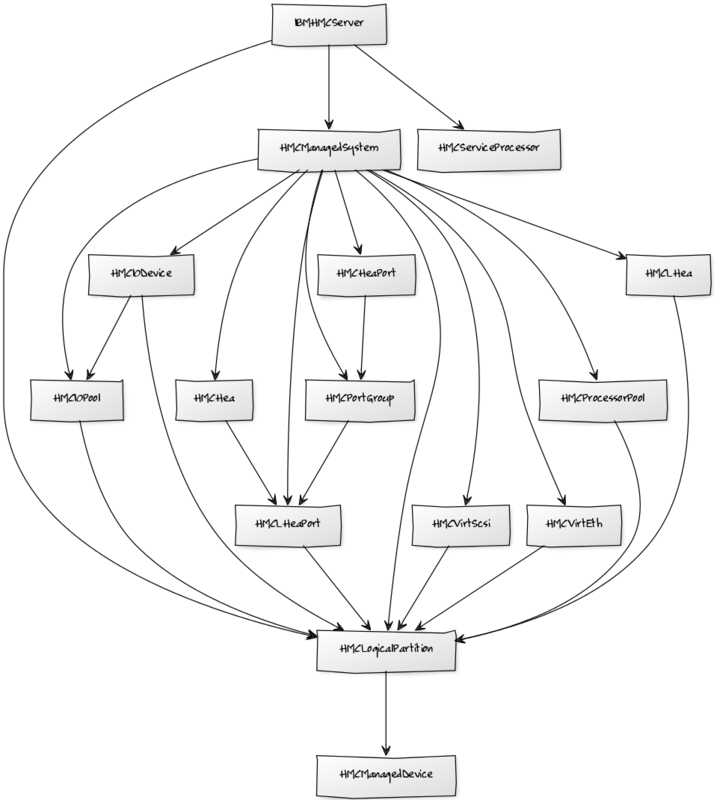
IBM and Power Server Impact Relationship Diagram
Internal Impact Relationships
Managed Systems, Logical Partitions, HMC Service Processor and Processor Pools impacts the related HMC Server.
HEAs, HEA Ports, Logical HEAs, Logical HEA Ports, I/O Devices, I/O Pools, Port Groups, Processor Pools, Logical Partitions, Virtual Ethernet Adapters, Virtual SCSI Adapters failures impact the related Managed Systems which impacts the HMC Server.
Logical Partitions failures impact the related Logical HEAs, Logical HEA Ports, I/O Devices, I/O Pools, Processor Pools, Virtual Ethernet Adapters, Virtual SCSI Adapters.
Managed Systems failures impact the related Logical Partitions.
Port Groups failures impact HEA Port.
Logical HEA Ports failures impact Port Groups, HEAs.
I/O Pools failures impact I/O Devices which impacts the Logical Partitions.
Most of the impacts described above follow the default policy of a node being in the worst state of the nodes that impact it. For example, an HMC Server failure will imply that all related hosts are also failed.
Virtana Analytics
The following steps are applicable only for Virtana Analytics 5.x.x. In Analytics 6.0.0, any third-party reporting tool can be used to generate reports.
This ZenPack provides additional support for Virtana Analytics. Perform the following steps to install extra reporting resources into Virtana Analytics after installing the ZenPack.
Copy analytics-bundle.zip from $ZENHOME/ZenPacks/ZenPacks.zenoss.IBM.Power/analytics/ on your Virtana server.
Navigate to Virtana Analytics in your browser.
Login as superuser.
Remove any existing IBM Power ZenPack folder.
Choose Repository from the View menu at the top of the page.
Expand Public in the list of folders.
Right-click on IBM Power ZenPack folder and choose Delete.
Confirm deletion by clicking OK.
Add the new IBM Power ZenPack folder.
Choose Server Settings from the Manage' menu at the top of the page.
Choose Import in the left page.
Remove checks from all check boxes.
Click Choose File to import a data file.
Choose the analytics-bundle.zip file copied from your Virtana server.
Click Import.You can now navigate back to the IBM Power ZenPack folder in the repository to see the following resources added by the bundle.
Usage
Adding HMC Server
Use the following steps to start monitoring HMC Server using the web interface.
Navigate to the Infrastructure page.
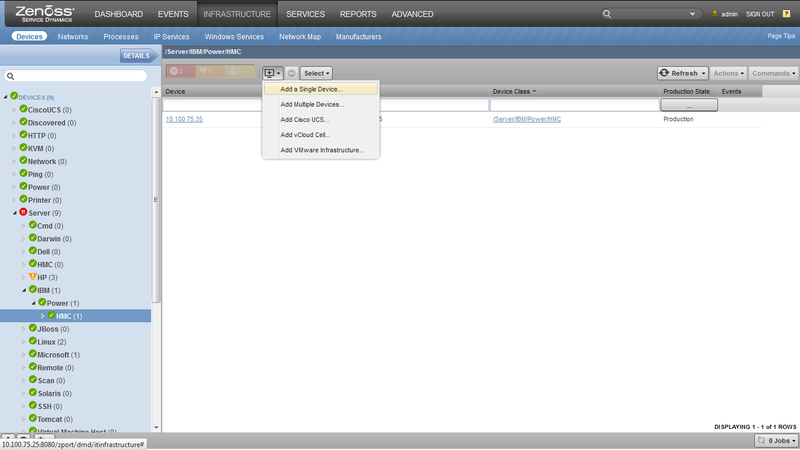
Add Device
Navigate to organizer Devices/Server/IBM/Power/HMC.
Choose Add a Single Device from the add button.
Fill out the form.
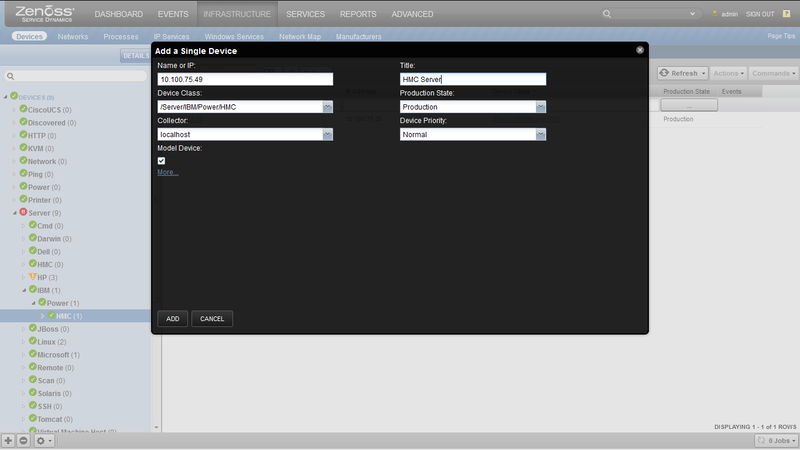
Add Dialog
Name can be anything you want.
Hostname or IP must be resolvable and accessible from the collector server chosen in the Collector field.
Click ADD.
IBM HMC Server will be added in the /Devices/Server/IBM/Power/HMC device class.
Use the following steps for successful modeling.
Select the device added.
Navigate to Configuration Properties.
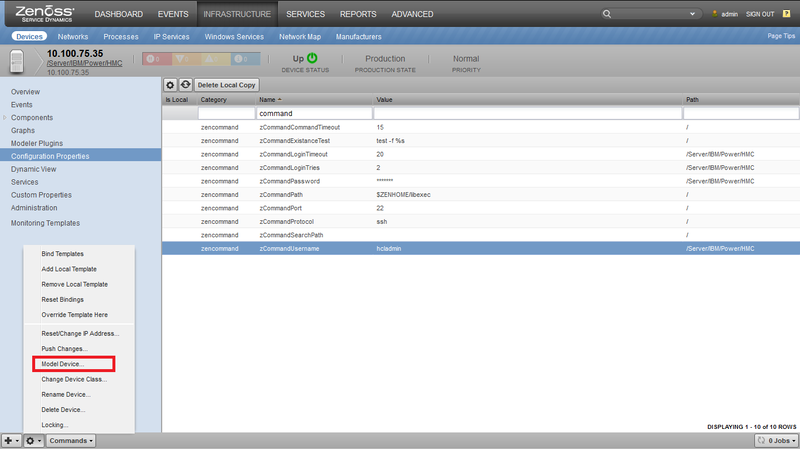
Model device
Provide the values for zCommandUsername and zCommandPassword.
Model the device.
Use
zIBMLPARsDisableModelingproperty to disable modeling of LPARs andzIBMLPARProfilesDisableModelingproperty to disable modeling of LPAR Profiles. By default both properties are set toFalse, so LPARs and LPAR Profiles will be modeled. If you want to disable the modeling of LPARs, LPAR Profiles or both, set the value of these properties toTrue.
zenbatchload
Alternatively you can use zenbatchload to add devices from the command line.
To do this, you must create a file with contents similar to the following.
Replace all values in angle brackets with your values minus the brackets.
Multiple devices can be added under the same sections.
'/Devices/Server/IBM/Power/HMC' <device name> setManageIp="<IP Address>", zCommandUsername='<username>', zCommandPassword='<password>'
Example:
/Devices/Server/IBM/Power/HMC HMC_1 setManageIp='10.100.75.35', zCommandUsername='hcladmin', zCommandPassword='root123'
You can then load the Devices using zenbatchload with the following command.
zenbatchload <filename>
Limitation
Storage Mapping has not been implemented in this release.
Changes
1.2.1
Added ability to not model LPAR components (ZPS-8479)
Added compatability with Analytics 6.0.0
Tested with Virtana Service Observability, Zenoss 6.7 and Service Impace 5.6.0, Analytic 6.0.0
1.2.0
Migrate to ZenPackLib 2.x
Honor zCommandCommandTimeout (ZPS-468)
Respect user-defined monitored components (ZPS-840)
Refactor/streamline datasources and modeler plugin
Allow shared serial numbers (ZPS-1311)
Support HMC v8, remove HEA based components and error messages (ZPS-5589)
Two new components: Virtual Ethernet Adapters and Virtual SCSI Adapters (ZPS-5589)
New event polling Datasource (ZPS-5589)
Fix modeler plugin to return correct values for relationship setter (ZPS-1498)
Fixed error while opening links in a new window (ZPS-4111)
Added support for POWER8, POWER9 (ZPS-4112)
Added more descriptive failure event messages (ZPS-6669)
Updated icons
Tested with Virtana Service Observability, Virtana Service Dynamics 6.4.1 and Service Impact 5.5.1
1.1.3
Fix inconsistencies in Impact relationships
Do not attempt to set invalid LPAR relations (ZPS-5873)
1.1.2
Guard against empty fields used for component IDs
Less ambiguous event summary for incremental model update failures
ZEN-25867: Updated to txsshclient 1.0.0 for Twisted 15 compatibility
1.1.1
Updated zenpacklib.py to address modeler timeouts from attribute-indexed components
1.1.0
Audited, revised, and standardized component classes and relations model throughout
Added Dynamic View functionality
Updated Analytics Bundle
Complete conversion to ZPL
ZEN-21613: Update all documentation
ZEN-21555: No metric values collected for various components
ZEN-21537: Changes in configuration applied" occurs after remodeling
ZEN-21536: Connection Information shows wrong information
ZEN-21541: Update Impact documentation
ZEN-18852: Incorrect value format for the 'Installed Count' field
ZEN-18853: Duplicated fields for components
ZEN-18851: Incorrect value in the 'Manufacture Config' field
ZEN-18850: No friendly names for fields
ZEN-18819: Analytics details for HMC Server component should be changed
ZEN-15818: Small code coverage by unit tests for ZenPack
ZEN-15746: Default icons for all components
ZEN-16216: Provide friendlier event message if there is connection failure due to user timeout
ZEN-18848: Incorrect impact relations
ZEN-18847: No node exist error when add component to Service
ZEN-18787: Dynamic View error for Service Processors component
ZEN-18863: Traceback during running 'zenpython run' command
ZEN-15808: Include status icon to all components affected by managed system
ZEN-16222: The 'Y' scale for the Processor Units Used of LPARs is not adjusting correctly
ZEN-15299: Long component load times
ZEN-16544: percent_pool_cycles missing from managed systems component
ZEN-15715: Traceback when attempting to open IBM Power device
1.0.2
ZEN-16881: Fix Links in the right hand Services pane
ZEN-16544: Fix missing percent_pool_cycles
1.0.1
Add pool cycles to managed systems that support them
ZEN-16510 Traceback on some datasources.
1.0.0
Initial release.