Microsoft Lync
ZenPacks.zenoss.Microsoft.Lync
This ZenPack provides support for monitoring Microsoft Lync (Skype for Business in latest version) messaging platform. Monitoring is performed using the Windows Remote Shell (WinRS) to collect Windows Cmdlet and Perfmon data.
The features added by this ZenPack can be summarized as follows. They are each detailed further below.
Initial discovery and periodic remodeling of relevant components.
Server performance monitoring and QoE metrics monitoring.
Event management.
Optional service impact with an addition of Virtana Service Dynamics product.
Auto-discovery of Lync Computers' guest devices.
Applications Monitored Microsoft Lync (2010, 2013, 2015)
Support
This ZenPack is developed and supported by Virtana. Enterprise support is available to Virtana customers with an active subscription or support agreement. ZenPacks are available at delivery.zenoss.com. To request more information about this or any other ZenPack, contact Virtana.
Releases
Version 1.1.2
Released on 2017/09/29
Requires PythonCollector ZenPack, Microsoft Windows ZenPack
Compatible with Virtana Service Dynamics 4.2.x, Virtana Service Dynamics 5.0.x, Virtana Service Dynamics 5.1.x, Virtana Service Dynamics 5.2.x, Virtana Service Dynamics 5.3.x
Gallery
Discovery
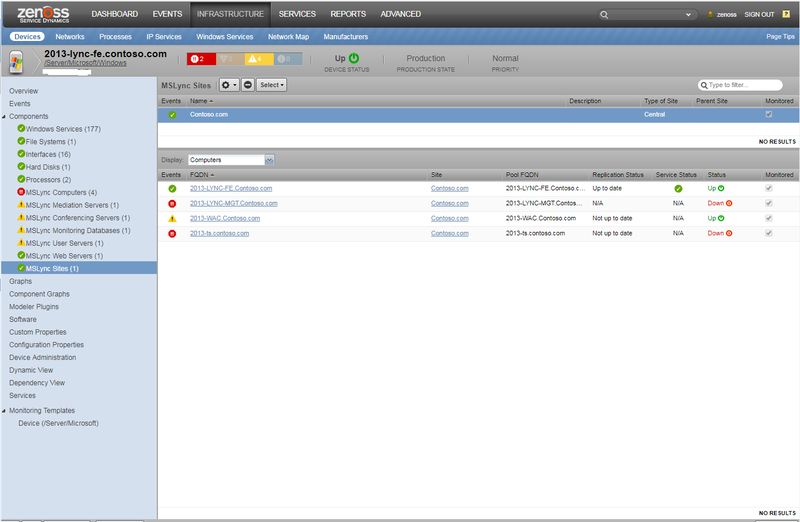
The following components will be automatically discovered through the Windows server address, username, and password you provide. Note that domain credentials are required to model/monitor Lync CMS, and it's replicas. The properties and relationships will be periodically updated by modeling.
MSLync Site
Attributes: Name, Description, Type of Site, Parent Site
MSLync Computer
Attributes: Name, Site, Pool FQDN, Replication Status, Product Version
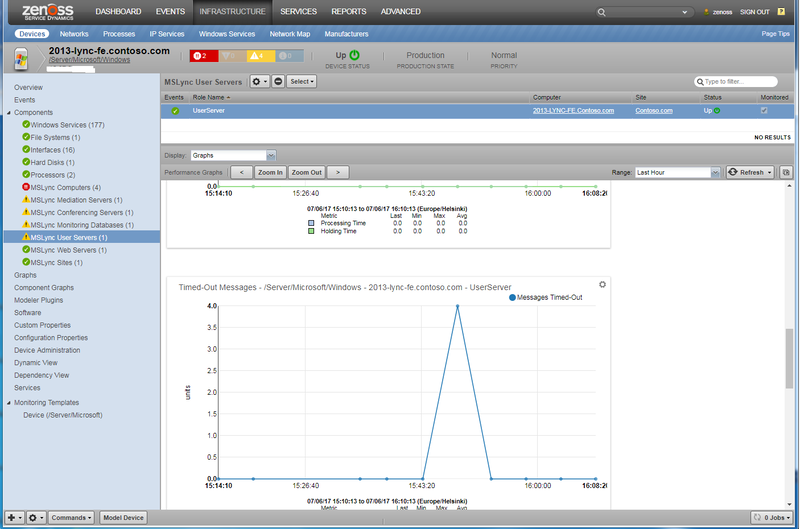
MSLync User Server
Attributes: Name, Site, Computer, Status
MSLync Web Server
Attributes: Name, Site, Computer, External FQDN, Internal FQDN, Status
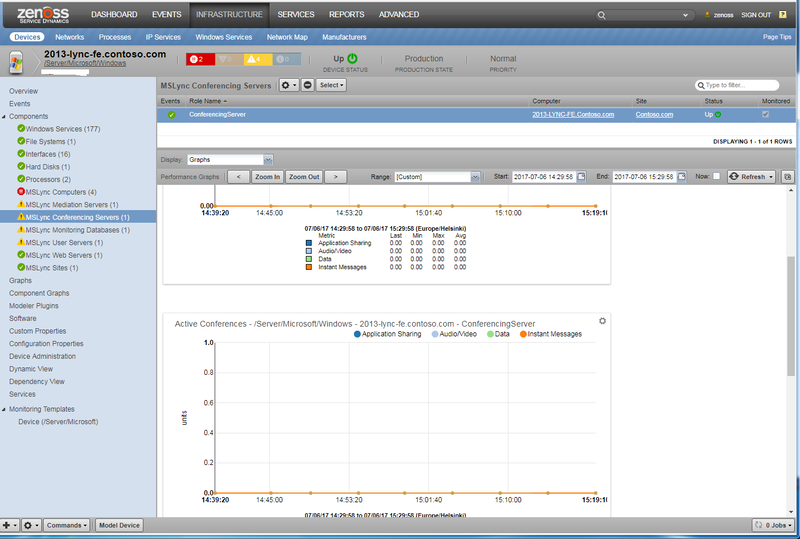
MSLync Conferencing Server
Attributes: Name, Site, Computer, Status
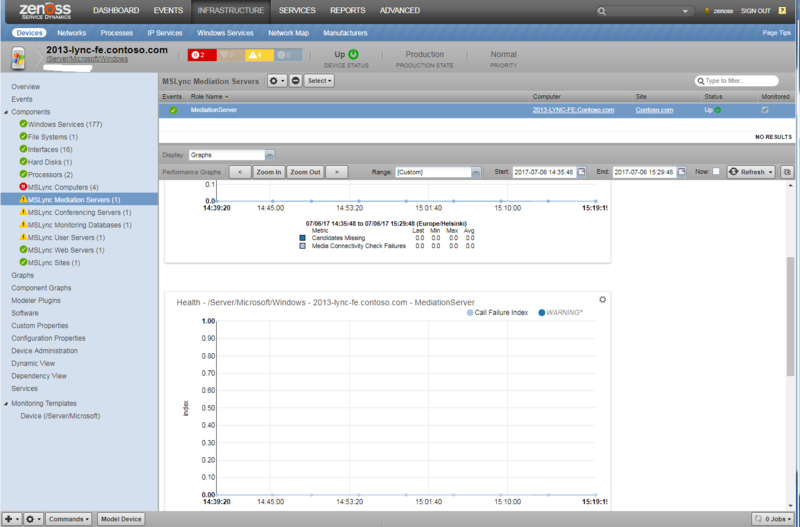
MSLync Mediation Server
Attributes: Name, Site, Computer, Status
MSLync Edge Server
Attributes: Name, Site, Computer, AV Edge External FQDN, Access Edge External FQDN, Data Edge External FQDN, Status
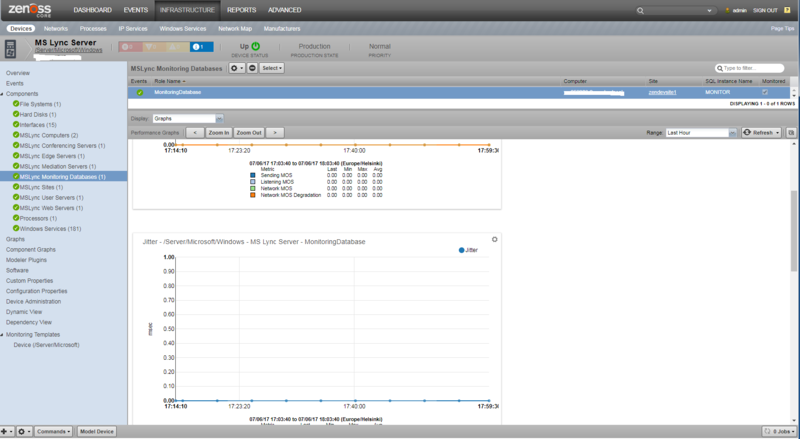
MSLync Monitoring Database
Attributes: Name, Site, Computer, SQL Instance Name
Performance Monitoring
Perfmon counters are collected using the PowerShell Get-Counter Cmdlet within a remote shell (WinRS). The following metrics will be collected every 5 minutes by default. Any other Windows Perfmon counters can also be collected by adding them to the appropriate monitoring template.
MSLync User Server
DBStore: Queue Latency, Sproc Latency
Incoming Messages Processing Time: Avg. Processing Time, Avg. Holding Time
Peers: Outgoing Queue Delay, Sends Timed-Out
Requests and Responses Dropped: Requests Dropped, Responses Dropped
Timed-Out Messages: Incoming Messages Timed-Out
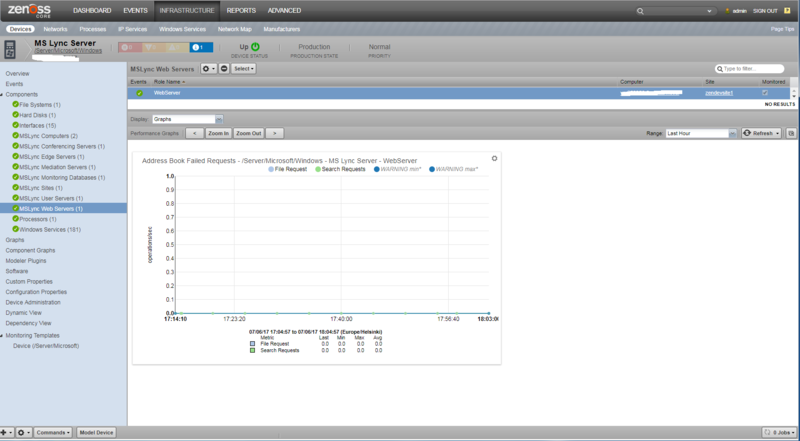
MSLync Web Server
Address Book Failed Requests: Failed File Requests, Failed Search Requests
MSLync Conferencing Server
MCU Health state: Instant Messages, Application Sharing, Data, Audio/Video
Active Conferences: Instant Messages, Application Sharing, Data, Audio/Video
Throttled Sip Connections: Throttled Sip Connections
MSLync Mediation Server
Media Relay: Candidates Missing, Media Connectivity Check Failure
Health: Local Call Failure Index
Total Failed Calls: Calls Failed from Gateway, Calls Failed from Proxy
MSLync Monitoring Database
QoE Metrics: Listening MOS, Sending MOS, Network MOS, Network MOS Degradation, Jitter, Packet Loss Rate, Round Trip Time
MSLync Edge Server
Metrics: Authentication Failures (TCP/UDP), Packets Dropped (TCP/UDP), Allocate Requests Exceeding Port Limit (TCP/UDP)
Note
As the Edge server machine is not accessible by the domain credentials supplied for the CMS, the above metrics are to be monitored directly on the Edge device with the help of MSLyncEdgeServer2010, MSLyncEdgeServer2013 or MSLyncEdgeServer2015 monitoring templates.
Event Monitoring
According to the following MSLync states, this ZenPack will trigger events with an appropriate summary message.
MSLync Computer
Warning events:
The replication state is not up to date,
One or more Lync Windows services are stopped.
Critical event:
The server is Down.
MSLync User Server
Warning events:
The server is stopped,
DBStore Queue Latency or Sproc Latency is above 100ms,
Incoming Messages Processing Time or Holding Time is above 6 seconds,
More than 1 Requests or Responses Dropped,
Peers - Outgoing Queue Delay is above 2 seconds.
Critical event:
DBStore Queue Latency or Sproc Latency is above 6000ms.
MSLync Web Server
Warning event:
More than 5 Address Book Failed File or Search Request.
MSLync Conferencing Server
Warning events:
The server is stopped,
More than 1 Throttled Sip Connections,
The health state of any MCU is above 1. (MCU states: 1 - Loaded, 2 - Full, 3 - Unavailable)
MSLync Mediation Server
Warning events:
The server is stopped,
Load Call Failure Index due to heavy load is above 10.
MSLync Edge Server
Warning events:
The per-second rate of packets over TCP or UDP dropped by the relay is above 300,
The per-second rate of allocate requests over TCP or UDP that exceeded the port limit is above 20,
The per-second rate of failed attempts to authenticate with the relay over TCP or UDP is above 20.
MSLync Monitoring Database
Warning event:
The monitoring database is not configured properly or the hosting machine is Down.
Service Impact
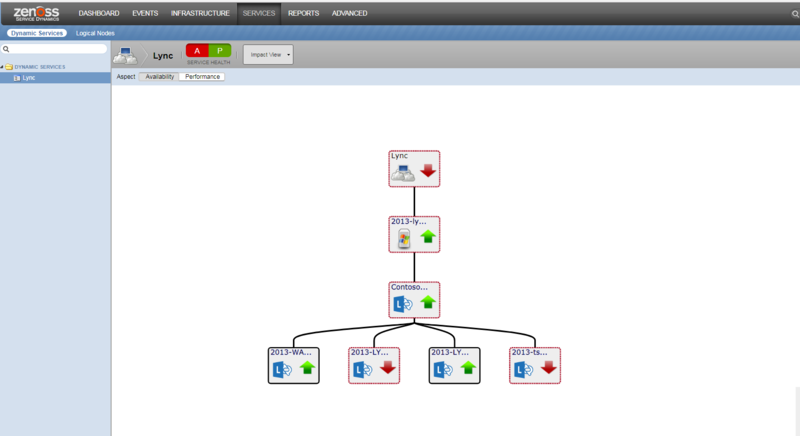
When combined with the Virtana Service Dynamics product, this ZenPack adds built-in service impact capability for MS Lync. The following service impact relationships are automatically added. These will be included in any services that contain one or more of the explicitly mentioned entities.
Service Impact Relationships
Site failure affects a related device.
Computer failure affects a related site.
Auto-discovery of Lync Computers' Guest Devices
You can optionally configure each monitored windows server to attempt to discover and monitor the guest systems for each Lync Computer component. This requires that your Virtana system has the network and server access it needs to monitor the guest system.
Lync Edge Discovery
Lync Computer component hosting the Edge role is modeled with it's internal FQDN, therefore the guest device for this computer will be created using it's AV Edge External FQDN. The Edge host is not accessible by the domain credentials supplied for the CMS, therefore Lync Edge metrics should be monitored directly from the guest device, using the following steps: 1. Go to the Edge Server device. 2. Bind MSLyncEdgeServer2010, MSLyncEdgeServer2013, or MSLyncEdgeServer2015 monitoring template (according to the Lync server version).
Requirements
This ZenPack has the following requirements.
PythonCollector ZenPack
This ZenPack depends on PythonCollector ZenPack being installed, and having the associated ''zenpython'' collector process running.
Microsoft Windows ZenPack
This ZenPack depends on Microsoft Windows ZenPack being installed, and uses its zProperties and tools. Due to this, servers running Lync services need to be in the /Server/Microsoft/Windows device class for proper modeling and monitoring.
Usage
To start monitoring your Microsoft Lync server, you will need to setup connection to it as well as bind modeler plugin to the device or device class containing your hosting Microsoft Windows device.
Use the following steps to start monitoring Microsoft Lync using the web interface.
Navigate to the ''Configuration Properties'' page of the device containing your MS Lync server.
Set zWinRMUser, zWinRMPassword and zWinKDC properties.
Navigate to the Modeler plugins page of the device, add the zenoss.winrm.MSLync modeler plugin and remodel the device. This will automatically find the MS Lync components and start monitoring them immediately for the previously mentioned metrics.
Prerequisites
Note on secure access
Microsoft Lync for connection to Lync Remote PowerShell doesn't use zWinScheme from Microsoft Windows ZenPack. Lync remote PowerShell endpoint is secured with SSL (https) by default.
Domain User Account
Since MS Lync is a domain level service, a local account will not work to collect information. Therefore the WinRM user for data collection must be a domain level account, assigned to an Administrative Role. For more information refer to Role-Based Access Control. It is recommended to follow the official procedure New-CsAdminRole to properly set-up an access.
Collecting Quality of Experience (QoE) Metrics
Microsoft Lync zenpack collects performance counters Quality of Experience (QoE) metrics by executing SQL queries on the Lync back-end databases server over the remote PowerShell connection. Please refer one of the following to get QoE metrics available:
Collecting Performance Counters
Microsoft Lync zenpack collects performance counters using Get-Counter command over the remote PowerShell connection. To install required counters, please visit Key Health Indicators for Lync Server 2013 and Skype for Business Server 2015.
Please check Lync KHI Performance Data collection and analysis for more information about installing KHI.
Troubleshooting
Please refer the Virtana Service Dynamics documentation if you run into any of the following problems:
ZenPack will not install
Adding a device fails
Don't understand how to add a device
Don't understand how to model a device
If you cannot find the answer in the documentation, then Virtana Service Dynamics users should contact Virtana Support.
General troubleshooting steps for Microsoft Lync zenpack are:
Verify that Virtana can resolve all internal, external, and pool FQDNs.
Verify that Virtana can establish WinRM connection to server.
Verify that monitoring user has rights to execute remote command.
Please refer one of the following sections for your particular case.
Lync Server Modeling or Monitoring Failed
If the device modeling failed, run the modeler in debug mode (zenmodeler run -d -v10).
If you see the following debug statement:
DEBUG zen.PythonClient: Process is terminated due to StackOverflowException.
This means that there is not enough memory allocated per shell in the winrm config. Run the following statement on the target Windows machine to fix it:
winrm s winrm/config/winrs '@{MaxMemoryPerShellMB="300"}'Please look at Microsoft Windows ZenPack to get more details on setting up the WinRM connection.
This zenpack uses following PowerShell cmdlets during the modeling process:
Get-CsSite
Get-CsPool
Get-CsComputer
Get-CsManagementStoreReplicationStatus
Get-CsService
Please refer to Prerequisites section of this guide to ensure that monitoring user has appropriate rights to execute them over remote PowerShell connection.
Edge Server Monitoring Failed
Verify that Virtana can establish WinRM connection to Edge server. Check Microsoft Windows ZenPack
Verify KHI metrics availability with command
Get-Counter -Counter <counter_name>, please take from MSLyncEdgeServer2010, MSLyncEdgeServer2013, or MSLyncEdgeServer2015 monitoring template (according to the Lync server version).
Quality of Experience Metrics Collection Failed
Verify that Virtana can establish WinRM connection to MSSQL back-end server. Check Microsoft Windows ZenPack
Verify that Monitoring service is configured using the command:
Get-CsService -MonitoringDatabaseVerify that Virtana has permission to execute SELECT queries from QoEMetrics database on MSSQL back-end server.
Lync Computers Status Monitoring Failed
To check Lync Computer status, Virtana runs PowerShell command
Test-Connectionon Lync server.To check Lync services status, Virtana runs following command on each reachable Lync computer:
Get-Service -DisplayName Lync*,Skype* | Where {$_.Status -eq ‚Stopped‘}| Group Status | Select -ExpandProperty Group | % {$_.Name}Troubleshooting steps:
Verify that ICMP traffic from Lync server is acceptable on Lync computers.
Verify that Virtana can establish WinRM connection to all Lync computers.
Installed Items
Installing this ZenPack will add the following items to your Virtana system.
Modeler Plugins
zenoss.winrm.MSLync
Monitoring Templates
MSLyncComputer (in /Server/Microsoft)
MSLyncConferencingServer (in /Server/Microsoft)
MSLyncMediationServer (in /Server/Microsoft)
MSLyncMonitoringDatabase (in /Server/Microsoft)
MSLyncUserServer (in /Server/Microsoft)
MSLyncWebServer (in /Server/Microsoft)
MSLyncEdgeServer2010 (in /Server/Microsoft)
MSLyncEdgeServer2013 (in /Server/Microsoft)
MSLyncEdgeServer2015 (in /Server/Microsoft)
Component Types
MSLyncSite (on related device)
MSLyncComputer (on MSLyncSite)
MSLyncConferencingServer (on MSLyncComputer)
MSLyncMediationServer (on MSLyncComputer)
MSLyncMonitoringDatabase (on MSLyncComputer)
MSLyncUserServer (on MSLyncComputer)
MSLyncWebServer (on MSLyncComputer)
MSLyncEdgeServer (on MSLyncComputer)
Changes
1.1.2
Fix QoE data collection and graphs (ZPS-1763)
Fix compatibility with Microsoft Windows zenpack v2.8.0 (ZPS-2203)
Tested with Virtana Service Dynamics 5.3.1 and Virtana Service Dynamics 4.2.5 RPS 743
1.1.1
Collect QoE metrics from DB host (ZPS-1623)
Create lync_sites relation on Windows devices (ZPS-1624)
1.1.0
Add support of Microsoft Skype for Business (Microsoft Lync 2015)
1.0.2
Fix zenpacks.zenoss.microsoft.windows 2.6.0 missing hardware relations (ZEN-23968)
1.0.1
Added subpanels for server components (ZEN-13608)
Documentation update: Update to note proper device class for Lync servers
Fixed modeling (ZEN-14656)
Use pool ID when adding server components (ZEN-15278)
Documentation update: Troubleshooting section updated (ZEN-15296)
Added lync relations and setter only to MS Windows device (ZEN-16635)
Fixed unit tests (ZEN-16635)
1.0.0
Initial Release