HTTP Monitor
ZenPacks.zenoss.HttpMonitor
The ZenPacks.zenoss.HttpMonitor ZenPack monitors the response times of HTTP server connection requests, and determines whether specific content exists on a Web page.
HttpMonitor features include:
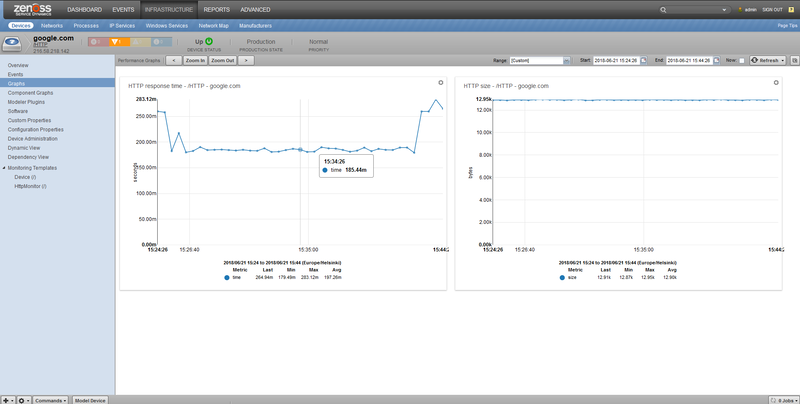
Monitors HTTP response time
Monitors HTTP page size
Monitors HTTP response code
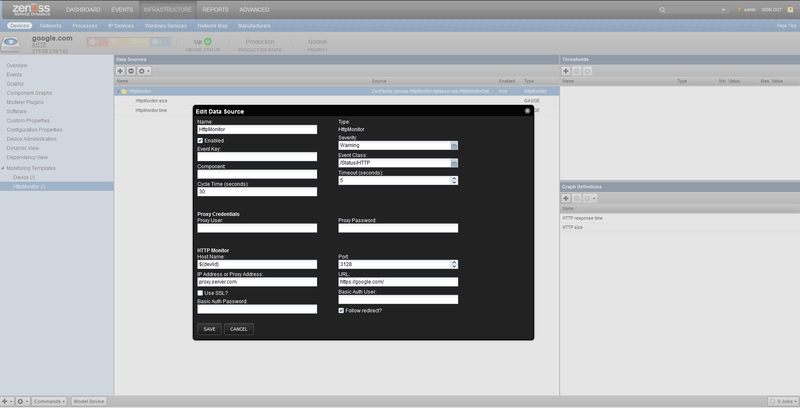
Monitors HTTP through Proxy server
Monitors HTTP with Basic access authentication
Monitors HTTP specific content on the Web page
Releases
Version 3.1.3
Released on 2026/07/28
Requires PythonCollector ZenPack
Compatible with Virtana Service Observability (formerly Zenoss Cloud), Virtana Service Dynamics 6.9.0
Version 3.1.2
Released on 2022/06/20
Requires PythonCollector ZenPack
Compatible with Zenoss 6.x and Virtana Service Observability
Version 3.1.1
Released on 2022/05/05
Requires PythonCollector ZenPack
Compatible with Zenoss 6.x and Virtana Service Observability
Gallery
Enable monitoring
To collect web server metrics from a device, bind the HttpMonitor template to that device:
In the navigation bar, click Infrastructure.
In the device list, click the device name.
The device overview page appears.
In the left panel, expand Monitoring Templates, and then select Device.
From the Action menu, select Bind Templates.
The Bind Templates dialog appears.
Add the HttpMonitor template to the list of selected templates, and then click Submit.
The HttpMonitor template appears in the list of monitoring templates for the device, and collection of web server metrics begins.
Note
You can bind more than one HttpMonitor data source to a single device. Place the data sources under one template or under separate templates. To distinguish the events that each data source generates, enter a unique value in the Component field of each data source.
Check for a specific URL or specify security settings
By default, the HttpMonitor template checks the root URL (/) of the web server. To check a different URL, or to specify SSL and authentication settings for a single device, override the template locally and then edit its data source:
In the navigation bar, click Infrastructure.
In the device list, click the device name.
The device overview page appears.
At the bottom of the panel, click the gear icon, and then select Override Template Here.
Select the HttpMonitor (/) template, and then click Submit.
A local copy of the default HttpMonitor template is created for this device only. Other devices continue to use the default template.
Select the new HttpMonitor (Locally Defined) template.
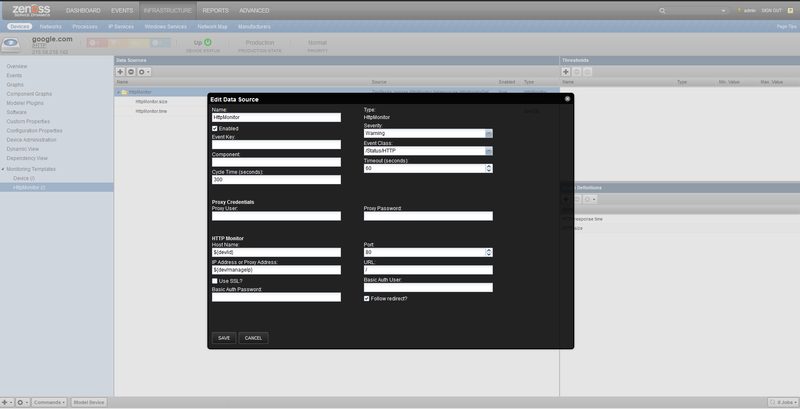
Select the HttpMonitor data source, and then from the Action menu, select View and Edit Details.
The Edit Data Source dialog appears.
Change the data source options as needed, and then click Save.
HttpMonitor Content Checking Data Source Options
Option | Description |
|---|---|
Port | The port to connect to HTTP server (default |
Use SSL | Use SSL for the connection (default |
URL | Address of the web page (default |
Basic Auth User | If the website requires credentials, specify the username here (default |
Basic Auth Password | Password for the user (default |
Redirect Behavior | If the web site returns an HTTP redirect, should the probe follow the redirect or create an event? (default ok - Do not follow the redirect and return a positive response fail - Do not follow the redirect and return a negative response follow - Follow redirection stickyhost - Use original hostname (or IP address) on redirect stickyhostport - Use original hostname and port on redirect |
Event class | (default /Status/HTTP) |
Tuning for Site Responsiveness
Select Infrastructure from the navigation bar.
Click the device name in the device list. The device overview page appears.
Select the 'Gear' icon on the bottom panel and select the "Override Template Here" option.
Choose "HttpMonitor (/)" template and select "Submit". This will create a local copy of the default HttpMonitor template for only this device.
Select the newly created "HttpMonitor (Locally Defined)" template.
Select the HttpMonitor data source, and then select View and Edit Details from the Action menu. The Edit Data Source dialog appears.
Change data source options as needed, and then click Save.
Option | Description |
|---|---|
Timeout (seconds) | Seconds before connection times out (default: 60) |
Cycle Time (seconds) | Number of seconds between collection cycles (default: 300 or five minutes) |
Check for Specific Content on the Web Page
This procedure allows Virtana platform to create an event if content at the web page does not match the expected output.
Select Infrastructure from the navigation bar.
Click the device name in the device list. The device overview page appears.
Select the 'Gear' icon on the bottom panel and select the "Override Template Here" option.
Choose "HttpMonitor (/)" template and select "Submit". This will create a local copy of the default HttpMonitor template for only this device.
Select the newly created "HttpMonitor (Locally Defined)" template.
Select the HttpMonitor data source, and then select View and Edit Details from the Action menu. The Edit Data Source dialog appears.
Change data source options as needed, and then click Save.
HttpMonitor Content Checking Data Source Options
Option | Description |
|---|---|
Regular Expression | A Python regular expression to match text in the web page. |
Case Sensitive | Is the regular expression case-sensitive or not? |
Invert Expression | If you would like to test to see if the web page does not contain content matched by a regular expression, check this box. |
Configuration to Monitor HTTP Through a Proxy Server
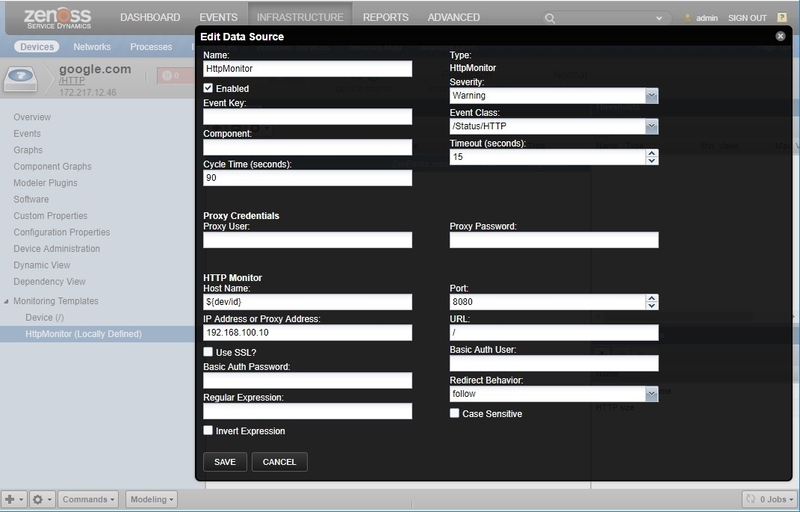
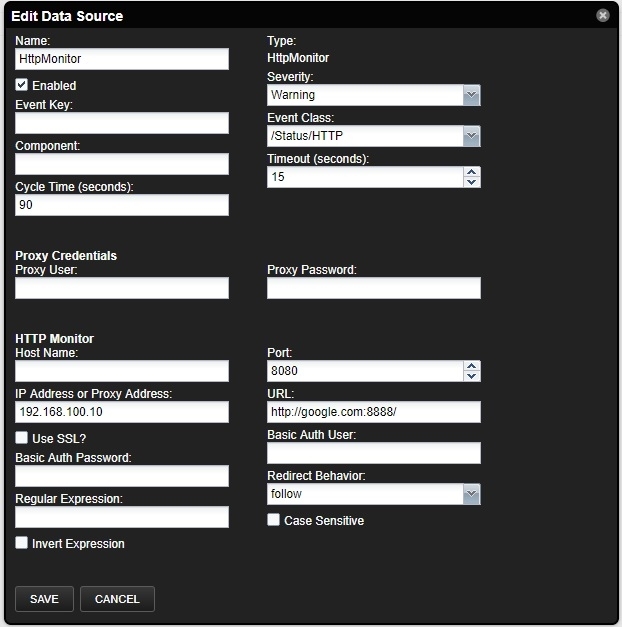
Example configuration of HttpMonitor to check a website through a Proxy Server when you have a proxy server with an IP address: 192.168.100.10 on port: 8080 and you have a device on /Devices/HTTP with a name google.com
Option | Example value |
|---|---|
HostName | ${dev/id} |
IP Address or Proxy Address | 192.168.100.10 |
Port | 8080 |
URL | / |
Proxy User | (empty for if proxy anonymous) |
Proxy Password | (empty for if proxy anonymous) |
Example configuration of HttpMonitor to check a website through a Proxy Server when you have a proxy server with an IP address: 192.168.100.10 on port: 8080 and you have a device on /Devices/HTTP with a name google.com and HTTP port 8888
Option | Example value |
|---|---|
HostName | (empty) |
IP Address or Proxy Address | 192.168.100.10 |
Port | 8080 |
URL |
|
Proxy User | (empty if proxy anonymous) |
Proxy Password | (empty if proxy anonymous) |
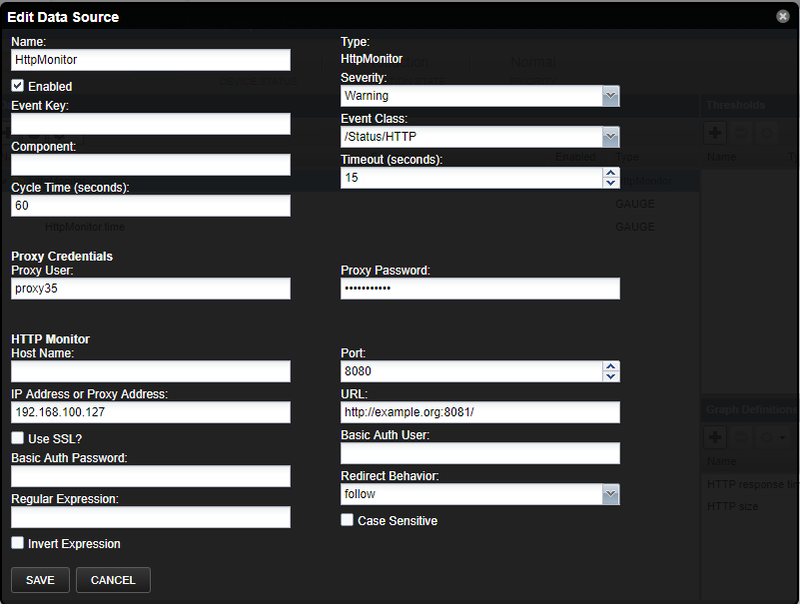
Example configuration of HttpMonitor to check a website through a Proxy Server when you have a proxy server with an IP address: 192.168.100.127 on port: 8080 and Username: proxy, Password: myproxypassword, and you have a device on /Devices/HTTP with a name example.org and HTTP port 8888
Option | Example value |
|---|---|
HostName | (empty) |
IP Address or Proxy Address | 192.168.100.127 |
Port | 8080 |
URL |
|
Proxy User | proxy35 |
Proxy Password | mypproxpassword |
Proxy usage logic
HttpMonitor uses the address in the IP Address or Proxy Address field as a proxy server if the IP address for resolve in the field URL and Host Name and IP Address or Proxy Address do not match
Releases
Version 3.1.3
Released on 2026/07/28
Requires PythonCollector ZenPack
Compatible with Virtana Service Observability (formerly Zenoss Cloud), Virtana Service Dynamics 6.9.0
Version 3.1.2
Released on 2022/06/20
Requires PythonCollector ZenPack
Compatible with Zenoss 6.x and Virtana Service Observability
Version 3.1.1
Released on 2022/05/05
Requires PythonCollector ZenPack
Compatible with Zenoss 6.x and Virtana Service Observability