Multi-Realm IP Networks
ZenPacks.zenoss.MultiRealmIP
The ZenPacks.zenoss.MultiRealmIP ZenPack extends the modeling, monitoring, and event management features of Virtana platform to accommodate overlapping IP namespaces.
Note: This ZenPack is not installed when Virtana platform is installed. To download it, visit the Virtana Support site.
With this ZenPack, Virtana platform can prefix a realm identifier to the IP addresses of a network, enabling unified monitoring.
There are two primary use cases for using multi-realm IP management.
A large company that manages multiple locations that have the same network spaces defined across these multiple locations and as a result have created multiple overlapping IP spaces and Virtana platform needs a way to identify each separate IP space in the system.
Service Providers responsible for monitoring multiple customers where the customers have created independent networks and IP spaces that are unique to their location, but not unique to the Service Provider.
The essential workflow for creating and using IP Realms is that first you need to create the IP realms and then associate these realms with a collector. The associations between IP Realms and actual devices is made automatically by the device's association with the collector. All devices on a collector are associated with the realm for that collector.
Prerequisites
Before setting up multi-realms, you must delete all Virtana platform networks. (These are automatically recreated.)
Prerequisite | Restriction |
|---|---|
Product | Zenoss platform 4.x, 5.x |
Required ZenPacks | ZenPacks.zenoss.DistributedCollector |
Example System
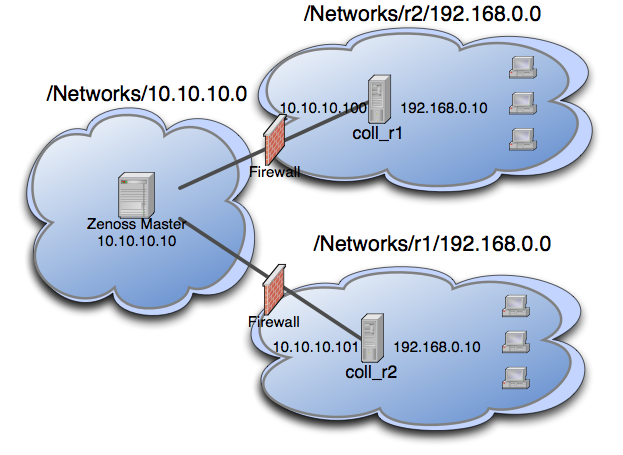
The following diagram lays out an example setup. It has a central Virtana platform server in the 10.10.10.0/24 network. The network local to the server is considered the default network within the system. The default network is treated exactly the same as a Virtana platform system without this ZenPack installed.
There are two other networks shown (r1 and r2) which are behind a firewall and have the same IP space 192.168.0.0/24. Each realm has a distributed collector located within it. The collector can be accessed from the Virtana platform server using a IP translation from the firewall to map the address accessible from in front of the firewall to an address behind the firewall. Remote collectors in a multi-realm setup must be accessible from the central server using SSH.
Example IP Realm
System Setup
Set up Virtana platform following the example system described previously.
Tip: If you do not have overlapping IP space this example can be created using collectors within the same network. To create the example, add a machine multiple times once per collector, making sure to change the name of the device as it is added. The result is similar to a real realm setup.
Under multi-realm IP networks, device names must be unique even though the IP addresses will overlap.
On certain server configurations, if a distributed collector is configured, a "zenpack command failed" error occurs when installing this ZenPack. If you encounter this error, then run the following grant (as MySQL root):
grant super on *.* to 'zenoss'@'{FQDN_of_Zenoss_host}' identified by 'zenoss';where the first zenoss is the user account that Virtana platform uses to access MySQL, and the second zenoss is that account's password.
Adding Realms
Go to Infrastructure > Networks.
From the Add menu, select Add IP Realm. Add the realms
r1andr2.
Adding Collectors to Realms
Add the two collectors that are installed in each realm. Distributed collectors now have an IP Realm field on their configuration screen set each collector to the appropriate realm configured above.
Change each collector so that it is in the correct realm.
Adding Devices to Realms
Now we are ready to add devices to the system. As mentioned above, adding the same device to the system twice can simulate a multi-realm setup. Add a device called
A.testmaking sure that when it is added the collector is set to one of the remote collectors, and notlocalhost.Now rename the device.
Add the device a second time using your other collector, again not
localhost.After the device is loaded, select Software and follow the network link on one of the interfaces. Notice that the network has been created underneath the realm created earlier. This configuration is at the heart of multi-realm, as networks are discovered they are created within each realm. Monitoring is now happening on each representation of the device from the different collectors in different overlapping realms.
As another test try searching by IP from the top-level search. Two devices will be returned -- one within each realm.
Notes
If an event contains the unique name of a device then it is straight-forward to assign it to the proper device. If only the IP address is sent the event will be assigned by looking up the IP within the context of the realm.
If a device is moved between realms it must be remodeled so that its IPs are placed in the proper location.
The Network Map only supports the display the default realm.